How to remove
Uninstall Pcobserver Registry Cleaner
from Windows
Easily uninstall Pcobserver Registry Cleaner from Windows 10 or 11 with our expert-tested guide. Enjoy a cleaner PC in minutes, zero traces left!

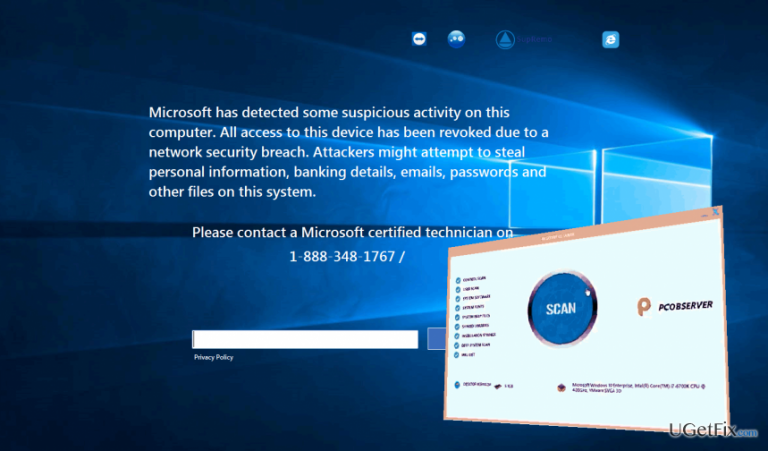
How does How to Uninstall Pcobserver Registry Cleaner end up on your PC?
- Installed bundled with freewares
- User did not manage installation wizard carefully
- Detected as a rogue registry cleaner
- Generates fake alerts pretending to be from Microsoft
- Injects a Tech-Support-Scam extension into web browsers
Repairs Windows system files, removes malware, and restores a clean OS state — without reinstalling.
Hello, all. I‘ve accidentally noticed an unusual icon shaped like a letter ‚p‘ in the task bar. I‘ve launched the tool to check it and found out that it‘s a Pcobserver Registry Cleaner. As far as I remember, I didn‘t install it, but the program‘s Properties showed me that it was installed several days ago. Is it a virus?
Pcobserver Registry Cleaner is dubbed as a rogue registry cleaner or a potentially unwanted program (PUP). Although developers of this tool may boast having acquired hundreds of thousands of new users, none of the PC users install the Pcobserver Registry Cleaner purposely. It is distributed bundled with freewares on various third-party download sources and, therefore, can easily slither onto a target PC if its user does not manage the installation wizard carefully. When installed, Pcobserver Registry Cleaner launches its scanner on a regular basis, usually detects hundreds of old, damaged or missing system files, and fixes them all for free. However, such scan results should not be trusted because most of the ‚problematic‘ files are random data taken from Widows Registry and removing or modifying them may cause serious problems.
However, random Pcobserver Registry Cleaner scanners and bogus scan results, there is something more warning about this program. Security experts found out that this rogue cleaner executes a wmplayer.exe and WMPNewtworksSvcx.exe files, which run several processes on Task Manager, connects to the Internet, and downloads a Tech-Support-Scam extension. It is then injected into web browser‘s extensions‘ list and starts generating fake alert pretending to be an official Microsoft warning that reports about malicious activities detected. The PC owner supposedly risks losing personal information, including credit card details, emails, passwords, and so on. To prevent this from happening, the PC user is offered to call for a Microsoft certified technician whose number is provided on the tech-support-scam pop-up. Keep in mind that Microsoft is NOT spreading browser-based alerts and NEVER include a telephone number in any of its notifications. That‘s a trick used by scammers, so if you have noticed the Pcobserver Registry Cleaner installed and received rogue tech-support warnings from Microsoft, you will have to uninstall the cleaner and then reset your web browser‘s settings to default.
How to Uninstall Pcobserver Registry Cleaner from Windows?
Method 1. Automatic Pcobserver Registry Cleaner removal
Pcobserver Registry Cleaner is not a virus, but it‘s not an essential Windows tool either. Windows experts noticed that it displays false scan results and may damage the system instead optimizing it. Therefore, we would strongly recommend you to uninstall Pcobserver Registry Cleaner completely using a professional anti-malware. Our recommendation would be [d1]. It will not only remove this potentially unwanted program but will also ensure a proper system‘s optimization.
Method 2. Manual Pcobserver Registry Cleaner PUP elimination
- Terminate Pcobserver Registry Cleaner process on Task Manager. Press Ctrl + Shift + ESC, locate your web browser's process, click it, and select End Task.
- Close Task Manager, right-click Windows key and select Control Panel.
- Open Programs and Features and find the Pcobserver Registry Cleaner. Click it and select Uninstall.
- Then check the list of programs for unknown or suspicious programs and uninstall them as well.
- Click OK to save the changes.
How to Remove Pcobserver Registry Cleaner extension from web browsers?
Pcobserver Registry Cleaner installs wmplayer.exe and WMPNewtworksSvcx.exe files, which download a potentially dangerous tech-support-scam extension. Therefore, to put fake Microsoft notifications from your web browser, you should reset web browser's settings to default. If you don't know how to do that, please follow these instructions:
Bottom line
To uninstall Pcobserver Registry Cleaner, you should remove it from the Control Panel and check your browser extensions for any unwanted additions. Additionally, running a reputable antivirus or anti-malware tool can help eliminate any residual threats. If these steps do not resolve the issue, consider seeking professional technical support.
Frequently asked questions
To uninstall Pcobserver Registry Cleaner from Windows 10, go to Settings, select 'Apps', find the program in the list, and click 'Uninstall'. Follow the prompts to complete the removal process.
Yes, you can remove Pcobserver Registry Cleaner by opening Control Panel, selecting 'Programs', then 'Programs and Features', finding the application, and clicking 'Uninstall'.
If Pcobserver Registry Cleaner won't uninstall, try using a third-party uninstaller or boot your Windows 10/11 in Safe Mode and attempt the uninstallation again.




Report an issue
What's wrong with this guide? We review every report and update or remove content.
Report received — thank you. We'll review and fix it.
You need a free account to submit a report.
Be the first to comment