How to remove
Uninstall PCPrivacyProtect & PC Security Help
from Windows
Easily remove PCPrivacyProtect and PC Security Help from Windows 10 or 11 with our expert-tested guide. Fix issues in minutes, zero traces left!

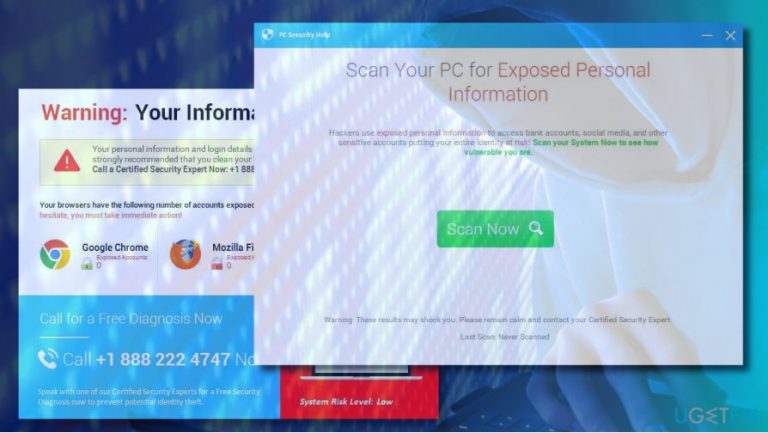
How does How to Uninstall PCPrivacyProtect & PC Security Help end up on your PC?
- Rogue software installation
- Potentially unwanted program (PUP)
- Tech support scam
- Malware masquerading as security tool
- Unauthorized background processes
Repairs Windows system files, removes malware, and restores a clean OS state — without reinstalling.
I got a notification that says “Warning: Your Information is Exposed!” The message is displayed by PCPrivacyProtect & PC Security Help software, which is now protecting my computer. Seriously? I did not download such a program, but the alert about endangered personal information concerns me a lot. Could you please help?
PC Security Help (aka PCPrivacyProtect) is a rogue software that falls into PUP (potentially unwanted programs) and Tech Support Scam categories. According to reputable security vendors, the tool can also be referred to as Trojan horse.
PCPrivacyProtect performance model
Supposedly PCPrivacyProtect & PC Security Help is a security tool, which should scan the system, recognize malware, and delete it. Besides, it should inform PC users about a risk posed to personal information. When installed, the PCPrivacyProtect PUP starts running a pcprivacyprotect.exe process. Then it starts running in the background of the system and reports people about supposed threats on proper occasions.
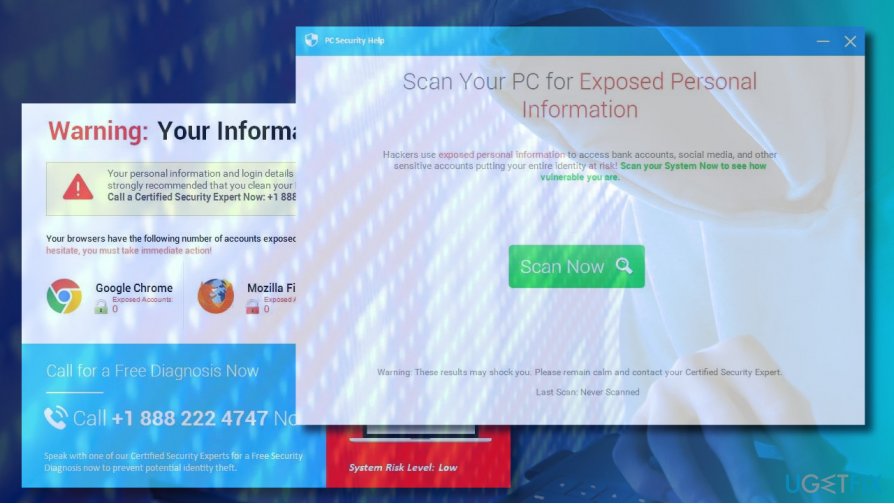
This rogue tool usually displays a warning notification when the PC’s owner browses the Internet. However, the alert may pop up when performing regular tasks, such writing an essay or playing a game. The full message looks like:
Warning: Your Information is Exposed!
Your personal information and login defaults are Exposed and Vulnerable. It is strongly recommended that you clean your PC before further use.
Call a Certified Security Expert Now: +1 888 222 4747
Your browsers have the following numbers of accounts exposed. These accounts are at risk of theft. Do not hesitate, you must take immediate action.
Do not call a Certified Security Expert
The answer is definitely NO. The PCPrivacyProtect & PC Security Help Tech Support Scam aims at spreading the contacts of scammers. If you would dial the +1 888 222 4747 or another telephone number given on the scam alert, cyber criminals on the other side of the handset will put all effort to foist dubious services, software or may even try to get information for connecting your PC remotely. Therefore, once you get the fake alert, run a scan with [d1] (or your preferable anti-malware) and remove PCPrivacyProtect virus immediately.
PCPrivacyProtect & PC Security Help Trojan infiltration methods
PCPrivacyProtect & PC Security Help is capable of infecting PCs via freewares. It may also be disguised under malicious pop-up ads or links that contain the PCPRIVACYPROTECT.EXE file. Once this file is executed, the malware starts running and returning fictitious alerts. Usually, security tools with real-time protection block the invasion of the PC Security Help scam, but outdated antivirus may fail to detect it.
Uninstalling PCPrivacyProtect & PC Security Help
The only reliable way to remove PCPrivacyProtect & PC Security Help Tech-Support-Scam is to install a professional anti-malware tool and run a scan with it. If you already have a reliable tool installed, make sure to update it before scanning. If you want to try manual PCPrivacyProtect & PC Security Help removal, perform the following steps:
- Boot your system into Safe Mode.
- Disable processes related to PCPrivacyProtect & PC Security Help. For that, open Task Manager (Ctrl + Alt + Del), click each suspicious process, and select Disable.
- After that, right-click on Windows key and select Control Panel.
- Open Programs & Features and scroll down to find PCPrivacyProtect & PC Security Help.
- Click it and select Uninstall.
- Follow the on-screen instructions and the click Remove on the confirmation pop-up.
- Close the window that you are currently seeing. Then press Windows key + R.
- Type regedit and press Enter.
- Use the left pane to navigate to the HKCU\\Software\\Microsoft\\Windows\\CurrentVersion\\RUN.
- Check for the value related to PCPrivacyProtect & PC Security Help and remove it.
- Then click Edit at the top of the Registry Editor window and select Find.
- Type PCPrivacyProtect & PC Security Help and wait while the search results are being prepared.
- Remove all leftovers and reboot your PC.
NOTE: after all, it's advisable to reset web browser's settings. Neither manual nor automatic PCPrivacyProtect & PC Security Help will delete plug-ins and malicious files from the web browser.
Bottom line
To address the issue, it is recommended to run a scan with a reputable anti-malware program to remove PCPrivacyProtect. Additionally, avoid calling any numbers provided in scam alerts. If these steps do not resolve the problem, consider seeking professional technical support.
Frequently asked questions
To completely uninstall PCPrivacyProtect from Windows 10, go to Settings > Apps, find PCPrivacyProtect in the list, and select 'Uninstall.' Make sure to also check for any leftover files in the Program Files directory.
In Windows 11, open Settings > Apps > Installed apps, locate PC Security Help, and click on 'Uninstall.' Additionally, run a full system scan with Windows Defender to ensure all related files are removed.
You can use Windows' built-in uninstaller for both PCPrivacyProtect and PC Security Help, but using a third-party uninstaller may help remove any residual files. Ensure you restart your PC after the uninstall process to complete the removal.




Report an issue
What's wrong with this guide? We review every report and update or remove content.
Report received — thank you. We'll review and fix it.
You need a free account to submit a report.
Be the first to comment