How to remove
Uninstall PCRegFixer Registry Cleaner
from Windows
Easily uninstall PCRegFixer from Windows 10 or Windows 11 with our expert-tested guide. Get it done in minutes, leaving zero traces behind!

How does How to Uninstall PCRegFixer Registry Cleaner end up on your PC?
- Allegedly designed to fix problems with the Windows registry
- Installed without user consent
- Displays false-positives to intimidate users
- Marks legitimate files as problematic
- Claims unnecessary cleaning is required for normal operation
Repairs Windows system files, removes malware, and restores a clean OS state — without reinstalling.
Hello, I have found PCRegFixer Registry Cleaner on my computer after it started spamming me with prompts to buy its license. Where did it come from, and how can I uninstall this PCRegFixer?
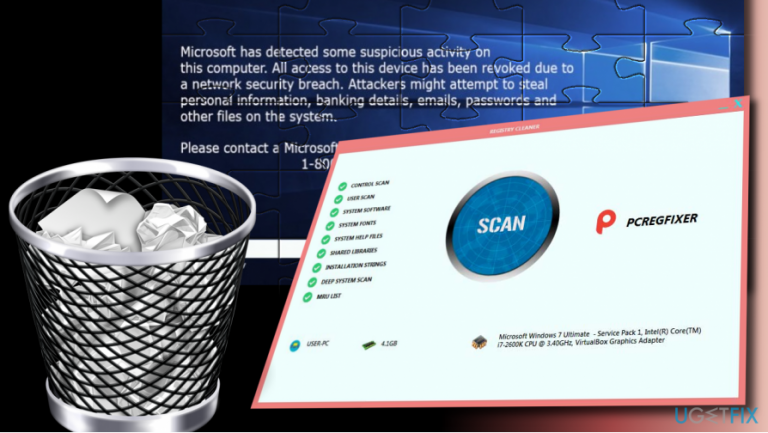
PCRegFixer is a tool that is allegedly designed to fix problems with the Windows registry[ref en-2] and fully optimize a Windows machine and increase its stability and security. However, the app is actually a potentially unwanted program that usually gets into computers behind users' backs and shows false-positives in order to make them buy its licensed version. The best way to deal with it is to uninstall PCRegFixer, as it does not bring any benefits for users.
Besides being a PUP, PCRegFixer is a type of software that belongs to the scareware[ref en-1] category. These programs often perform scans without user initiation and report many issues, often flagging them in red colors and blowing everything out of proportions. In other cases, PUPs mark legitimate files or processes as problematic or even malicious and claim that they need to be removed. In other words, PCRegFixer is there to show fake scan results to intimidate users.
In reality, the picked-up items are such harmless components like Google Chrome cookies[ref en-3] or leftover registry entries that do not harm the computer. In fact, PCRegFixer is a system optimizer that focuses on the Windows registry and claims that its cleaning is necessary for normal device operation.
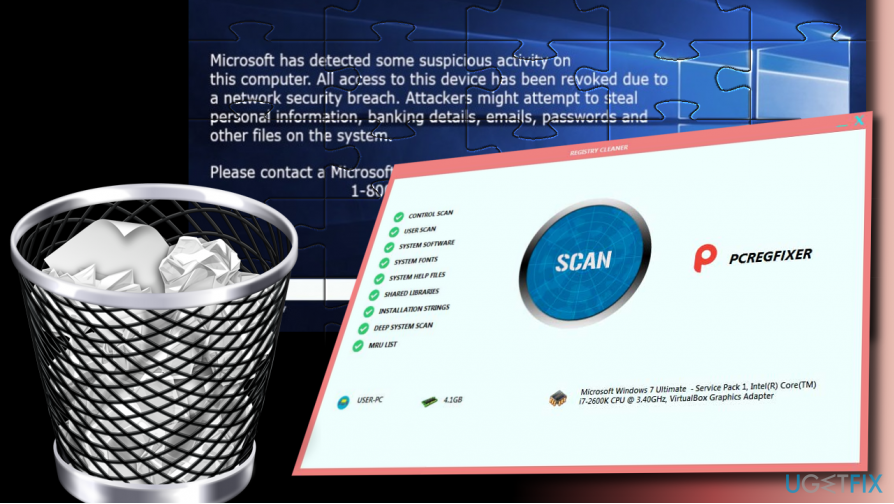
In reality, these claims are very untrue, as the registry is simply a database that used to hold various configuration settings of the system, software, hardware, etc. Microsoft itself discourages users from applying "fixes" to the registry with suchlike tools, as they might straight out corrupt the operation of a healthy OS:[ref en-4]
Some products such as registry cleaning utilities suggest that the registry needs regular maintenance or cleaning. However, serious issues can occur when you modify the registry incorrectly using these types of utilities. These issues might require users to reinstall the operating system due to instability.
Therefore, never use potentially unwanted programs like the PCRegFixer registry cleaner to optimize your machine, as it might damage it beyond repair. If you found yourself in a situation where scareware or another app corrupted some of your Windows system files, you could perform a scan with a PC repair tool [d1] - it could easily save you from Windows reinstallation process.
PCRegFixer Registry Cleaner also acts like malware
Another reason to uninstall PCRegFixer is due to its suspicious activities post-infection as well persistence techniques it uses. Those who get infected with the PUP often start seeing a much more dubious activity than a those who are affected by a regular browser hijacker or adware.
Once installed, PCRegFixer runs a process in the background under the name wmplayer.exe, purpose of which is to show users a fraudulent scam message which claims about non-existing threats on the Windows 10 background. The attributes of Windows and Microsoft are often used in tech support scam schemes, and this one is no exception. Users can see the following message:
Microsoft has detected some suspicious activity on this computer. All access to this device has been revoked due to a network security breach. Attackers might attempt to steal personal information, banking details, email, passwords, and other files on this system.
Please contact a Microsoft certified technician on +18776941835
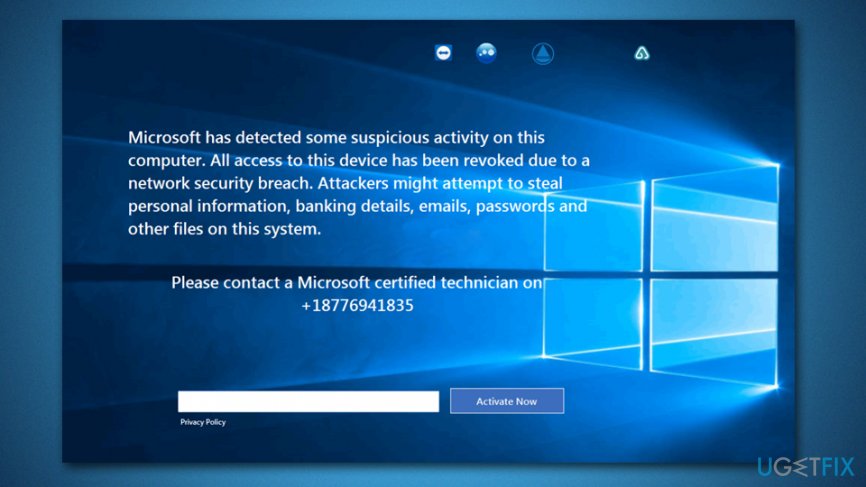
Keep in mind that all information provided on the “Microsoft has detected some suspicious activity on this computer” scam message is fake. Its purpose is to make people call the given number so that scammers could benefit from inexperienced users.
To stop the Tech-Support-Scam alerts and fake registry cleaning, you have to uninstall PCRegFixer Registry Cleaner immediately. Below you will find precise steps oh how to remove PCRegFixer from your machine completely, so follow them carefully.
Step 1. Disable all the related background processes
PCRegFixer might use persistence techniques in order to prevent users from uninstalling it. To avoid that, it is important to shut down all the background processes related to it, including the wmplayer.exe:
- Press Ctrl + Shift + Esc to open the Task Manager
- Click on More details
- Sort applications and processes by name
- Find PCRegFixer under Apps (as well as Background Processes)
- Click on the entry and press End task at the bottom-right of the Task Manager window
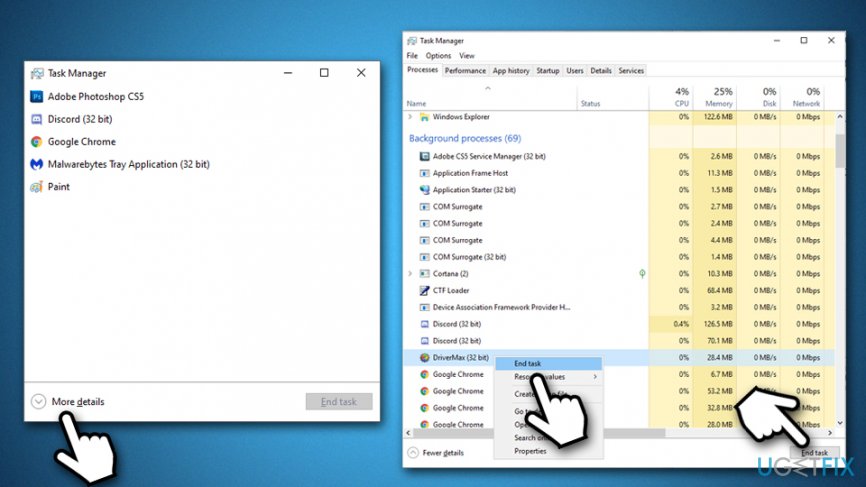
Uninstall pcregfixer registry cleaner stop all the processes - Now locate wmplayer.exe and shut it down as well
Note: if for some reason you are unable to shut down PCRegFixer-related processes, you can use a third-party app like Rkill or access Safe Mode - here's how to do it:
- Right-click on Start and pick Settings
- Go to Update & Security and click Recovery
- Find Advanced startup section and click Restart now
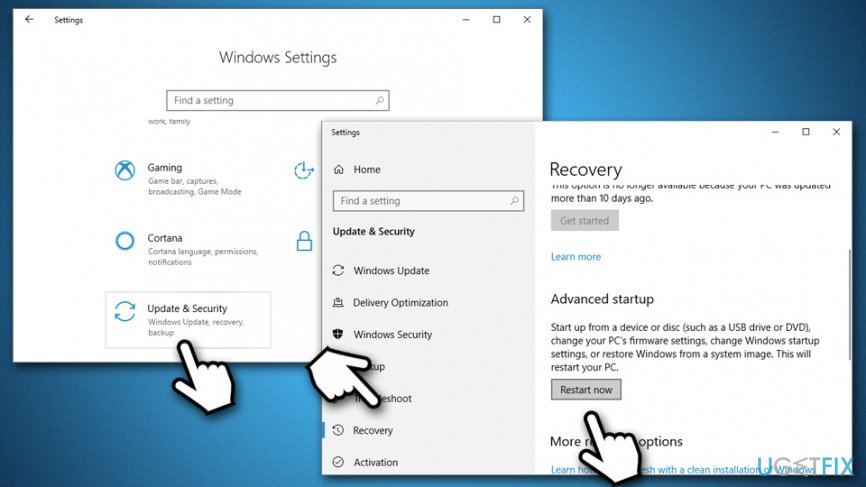
Uninstall pcregfixer registry cleaner access safe mode - After a restart, you will be presented with Choose an option screen
- Go to Troubleshoot > Advanced options > Startup Settings and pick Restart
- Once the PC restarts, press F5 or 5 to to enter Safe Mode with Networking
Step 2. Uninstall PCRegFixer Registry Cleaner via the Control Panel
- Type Control Panel into Windows search bar and press Enter
- Go to Programs > Uninstall a program
- Right click on PCRegFixer and select Uninstall
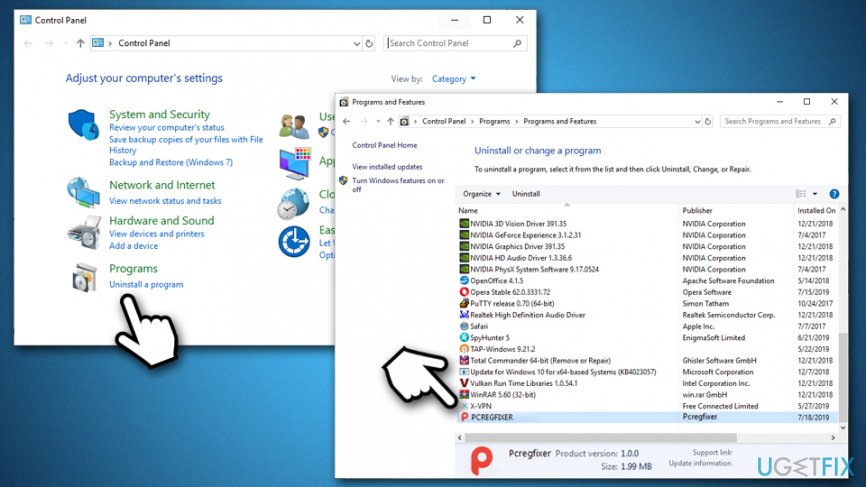
Uninstall pcregfixer registry cleaner uninstall via control panel - Follow the on-screen instructions
Step 3. Reset Google Chrome
In order to stop PCRegFixer from showing fake messages, you should also reset all the installed browsers. Let's start from Google Chrome:
- Open Chrome and go to Menu > Settings
- Scroll down and select Advanced
- Find Reset and clean up section, and pick Restore settings to their original defaults
- Confirm with Reset settings
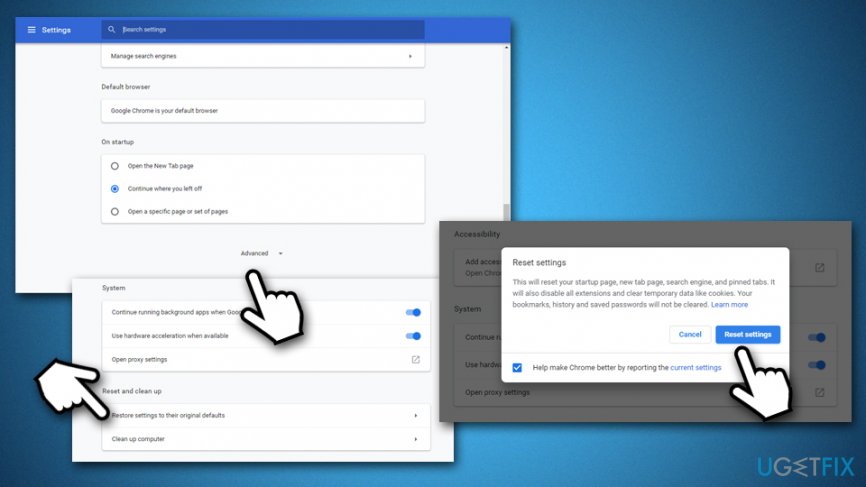
Uninstall pcregfixer registry cleaner reset google chrome
Step 4. Reset Mozilla Firefox
- In Firefox, go to Menu > Help
- Select Troubleshooting Information
- Click Refresh Firefox…
- To confirm, press Refresh Firefox
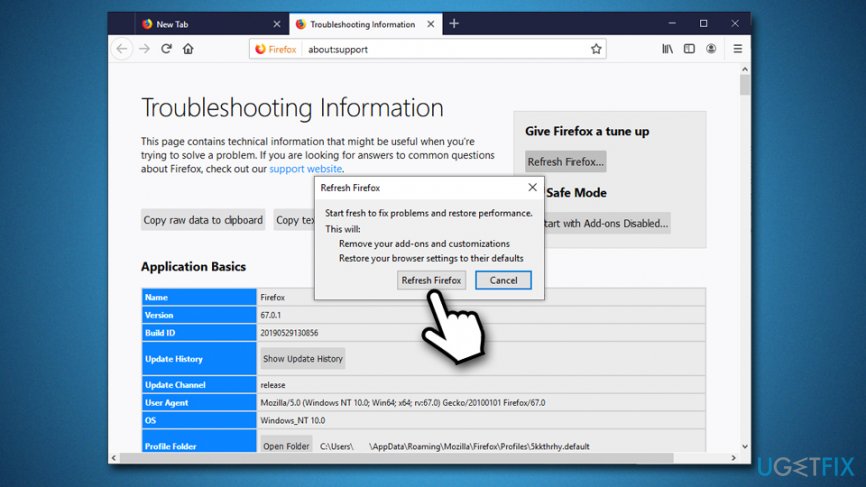
Uninstall pcregfixer registry cleaner reset firefox
Step 5. Reset Internet Explorer
- Click Gear icon on Internet Explorer
- Go to Internet Options and select Advanced tab
- Under Reset Internet Explorer settings, click Reset
- Tick the Delete personal settings box and select Reset
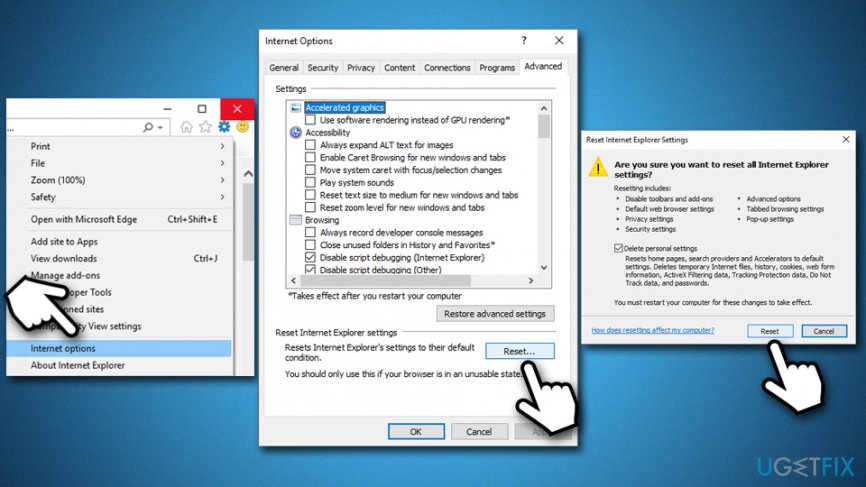
Uninstall pcregfixer registry cleaner reset internet explorer
Step 6. Reset MS Edge
- In MS Edge browser, click Menu and then Privacy & security
- Under Clear browsing data, pick Choose what to clear
- Select all the boxes (you can leave passwords if you want) and select Clear
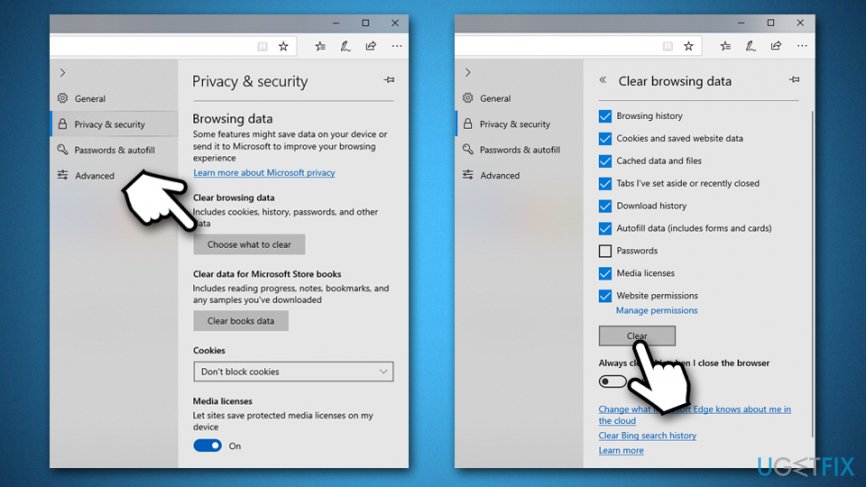
Uninstall pcregfixer registry cleaner reset ms edge
Bottom line
To uninstall PCRegFixer, you should go to the Control Panel, find the program in the list of installed applications, and select uninstall. If you encounter issues during the uninstallation process or if the program persists, consider using a trusted antivirus or anti-malware tool to remove it completely.
Frequently asked questions
To uninstall PCRegFixer from Windows 10, go to Settings > Apps, find PCRegFixer in the list, click on it, and select Uninstall.
If PCRegFixer is not listed in the Apps section on Windows 11, try using the Control Panel by navigating to Programs > Uninstall a program.
Yes, after uninstalling PCRegFixer, you may want to use a third-party uninstaller or a registry cleaner to remove any leftover files or registry entries.




Report an issue
What's wrong with this guide? We review every report and update or remove content.
Report received — thank you. We'll review and fix it.
You need a free account to submit a report.
Be the first to comment