How to remove
Uninstall Prime Updater
from Windows
Easily uninstall Prime Updater from Windows 10 or 11 with our expert-tested guide. Get rid of unwanted software in minutes, ensuring zero traces left.

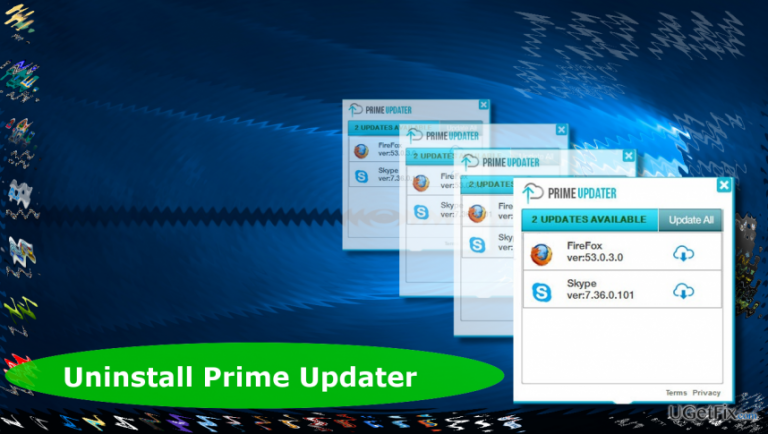
How does How to Uninstall Prime Updater end up on your PC?
- False claims by developers
- Illegal distribution
- Installation through other free programs
- Difficulty terminating prime_updater.exe process
- Reactivation of the process after termination
Repairs Windows system files, removes malware, and restores a clean OS state — without reinstalling.
I‘m not a frequent forum visitor and this is the firts tie I‘m posting the question. The problem is that this time I can‘t get rid of a quite irritating program named Prime Updater. I‘m not sure if its malware or not, but it keeps prompting me to upgrade Adobe Flash and often Skype. Both programs are up-to-date and that‘s why I‘ve started to suspect this program for being unreliable. Could you please help me to uninstall it?
Although Prime Updater looks like a decent free software, it‘s important to warn PC users that it‘s dubbed as a potentially unwanted program (PUP). Such classification has more than one reason, sadly. First if all, Prime Updater developers use false claims to represent it. It is described as a 100% legitimate and reliable application, which purpose is to keep apps up-to-date. However, recently conducted analysis revealed that all update prompts delivered by this PUP are fake. In most of the cases, Prime Updater deliver updates for Adobe Flash, Skype, and the most popular web browsers regardless their real condition. Even if theses apps were updates a couple of days or minutes ago, Prime Updater will display an update anyway. That’s a catch used to obtain users’ permission to install other potentially unwanted programs.
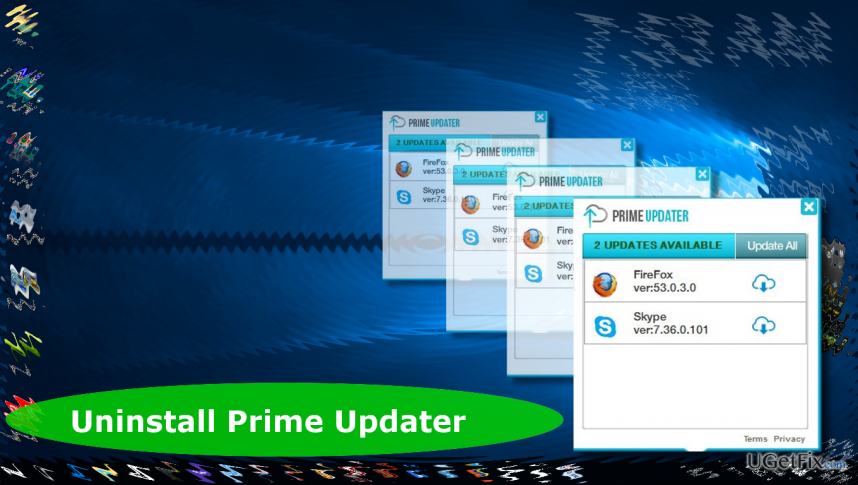
Second of all, Prime Updater is distributed illegally. The attempt to find and download this program from its official website or another download source will end up with a failure because its only download source is other free programs. Consequently, not tracking the installation wizard of a freeware may lead to Prime Updater infection. Third of all, Prime Updater removal for many causes problems. People reported that they cannot terminate prime_updater.exe process in Task Manager and, therefore, the successful removal of this rogue tool can’t be executed. If you are encountering problems with Prime Updater removal as well, please refer to the instructions provided below.
Uninstalling Prime Updater:
The main reason why people cannot successfully delete Prime Updater is the prime_updater.exe process, which cannot be disabled. Even if Task Manager allows terminating this process, it’s automatically reactivated several seconds later. In this case you should reboot the system into Windows Safe Mode. This mode required minimal Windows resources, what means that Prime Updater should not be running its process. While in Safe Mode, launch Task Manager by pressing Ctrl + Shift + Del or launching Start, typing taskmgr and pressing Enter. Find the prime_updater.exe file, right-click it and select End Task.
If you can’t disable it anyway, we would recommend downloading free software for process killing. Make sure to select a reliable download source and launch the tool. Once the process is terminated, perform the following steps:
1. Open Control Panel.
1.1. Right-click on Windows key -> Control Panel -> Programs & Features (Windows 10, 8, 8.1).
1.2. Open Start -> Control Panel -> Programs -> Uninstall a program OR Add/Remove Programs (Windows 7, XP).
2. Find and select Prime Updater app.
3. Select Uninstall and click Yes on the confirmation window.
4. Filter the apps according to the installation date and uninstall those installed on the same day as the Prime Updater.
5. Once done, check the Downloads folder for the programs that you’ve just removed.
6. Then press Windows key (or Start), type regedit, and press Enter.
7. Click Edit at the top of the page and select Find.
8. Type Prime Updater and press Next.
9. If Registry Editor search finds some Prime Updater leftovers, click them one-by-one and select Remove.
10. Finally, reset your web browser to ensure the removal of Prime Updater extensions.
11. Reboot your PC.
Bottom line
To uninstall Prime Updater, you need to disable the prime_updater.exe process, which can be challenging as it often reactivates. If you are unable to remove it through Task Manager, follow the provided instructions for further assistance. If none of the solutions work, consider seeking help from a professional.
Frequently asked questions
To uninstall Prime Updater on Windows 10, go to Settings > Apps > Apps & features, find Prime Updater in the list, click on it, and select Uninstall.
Yes, you can remove Prime Updater by opening the Control Panel, selecting 'Programs and Features,' finding Prime Updater, and clicking 'Uninstall'.
If Prime Updater does not appear, you can use a third-party uninstaller or check for any related files and folders manually to delete them.




Report an issue
What's wrong with this guide? We review every report and update or remove content.
Report received — thank you. We'll review and fix it.
You need a free account to submit a report.
Be the first to comment