How to remove
Uninstall Privacy Switch
from Windows
Easily remove Privacy Switch from Windows 10 or 11 in just a few clicks. Keep your PC clean and secure with expert-tested tips. Fixed in minutes!

How does How to Uninstall Privacy Switch end up on your PC?
- Adware programs infiltrating web browsers
- Privacy Switch being promoted as a reliable tool
- Advertising-based nature of Privacy Switch
- Potential exposure to cyber infections from clicking ads
- Presence of unfamiliar search services
Repairs Windows system files, removes malware, and restores a clean OS state — without reinstalling.
I can’t find Privacy Switch’s uninstall option. Besides, I don’t recall installing this search engine on my PC either. Is this something I should be concerned about? Do you have any suggestions I could use to escape this unfavorable situation?
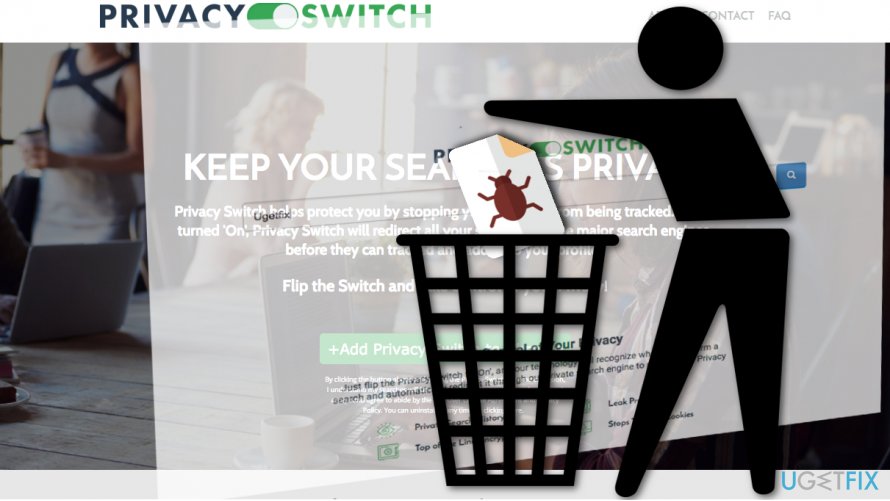
Privacy Switch is a web browsing software which developers present as a handy tool which will not track your browsing and provide an anonymous web search. The software is promoted by various adware programs which infiltrate web browsers and drop pop-ups urging users to quit the “unreliable” Google services and install Privacy Switch on their browsers instead.
Unfortunately, Privacy Switch does not fully meet the expectations. The search engine is purely advertising-based, so it tries to make the most of every browsing session. This means that your browser will fill with ads, sponsored links and other sponsored content you may not necessarily want to see.
Some ads may annoyingly pop-up in front of the visited site’s content or make the website load slower. But that is the least thing you should worry about. Your biggest concern should be what hides behind the ads. In other words, you should stay away from any suspicious links that Privacy Switch adware may offer.
Upon clicking the ads, users can be exposed to serious cyber infections and contaminate their computer with some even more treacherous parasites than adware. Thus, experts recommend to unsubscribe to any unfamiliar search services and remove them from your PC.
For your convenience, we have included Privacy Switch removal instructions below.
Step 1: Locate the adware
Before you reset your browser to the default settings, make sure that your device is clean from any potentially unwanted programs. Typically, you will find that adware is responsible for making all the mess on your computer. To detect the perpetrator quicker, you can scan your PC with [d1] or similar antivirus software.
You can also eliminate the adware manually. To do that:
- Go to the Start menu, then enter Control Panel and find Programs and Features. On earlier Windows versions you will find the same feature as Add/Remove Programs.
- Filter the software list to display recently installed software first
- Then, uninstall suspicious software you don’t remember installing on your computer yourself.
- Also, look for the software such as toolbars, browser extensions or similar browser helper object.
Step 2: Remove Privacy Switch from your browser
The finalizing step of Privacy Switch removal is the browser reset. You will reset your browser following instructions provided here:
Bottom line
To uninstall Privacy Switch, first locate the adware responsible for its installation. You can scan your PC with antivirus software or manually remove it through the Control Panel. If these steps do not resolve the issue, consider seeking additional technical support.
Frequently asked questions
To uninstall Privacy Switch from Windows 10, go to Settings > Apps > Apps & features, find Privacy Switch in the list, click on it, and select 'Uninstall.' Follow the prompts to complete the removal process.
Yes, on Windows 11, you can uninstall Privacy Switch by right-clicking the Start button, selecting 'Apps and Features,' finding Privacy Switch, clicking the three dots next to it, and choosing 'Uninstall.'
If Privacy Switch won't uninstall, try using the built-in Windows troubleshooter or a third-party uninstaller tool to remove it, as this may resolve any issues preventing the uninstallation.




Report an issue
What's wrong with this guide? We review every report and update or remove content.
Report received — thank you. We'll review and fix it.
You need a free account to submit a report.
Be the first to comment