How to remove
Uninstall Pro PC Cleaner
from Windows
Easily remove Pro PC Cleaner from Windows 10 or Windows 11 with our expert-tested guide. Enjoy a smoother system, zero traces left!

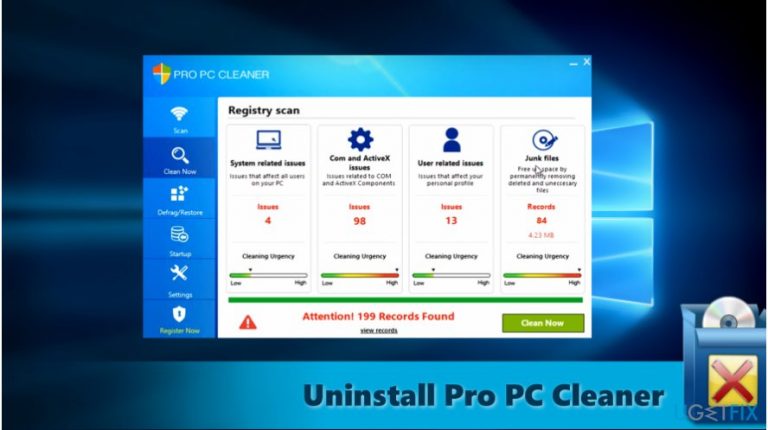
How does How to Uninstall Pro PC Cleaner from Windows end up on your PC?
- Annoying pop-ups from the app
- High number of displayed fake alerts
- Potential damage to real registry keys
- Flagging legitimate browser registry files as dangerous
- Users may end up with a useless app
Repairs Windows system files, removes malware, and restores a clean OS state — without reinstalling.
I uninstalled this Pro PC Cleaner because it kept bothering me with annoying pop-ups. Then, I read it that it is a strange app. How can I be sure that it is fully removed?
Pro PC Cleaner operates as a PC optimization tool. In fact, you may notice that it has its counterpart – PC Cleaner Pro. The latter has its official domain. However, neither of the tools are professional utilities. On the contrary, due to the high number of displayed fake alerts, users are recommended to uninstall either of them.
A while ago, Microsoft has published an article on its official site about the risks installing such registry cleaners and PC optimizations tools.[ref en-1] It noted that some tools may inflict irrevocable damage to real registry keys which results in a system failure or crash. Furthermore, the increasing number of such tools revealed the expanding business.
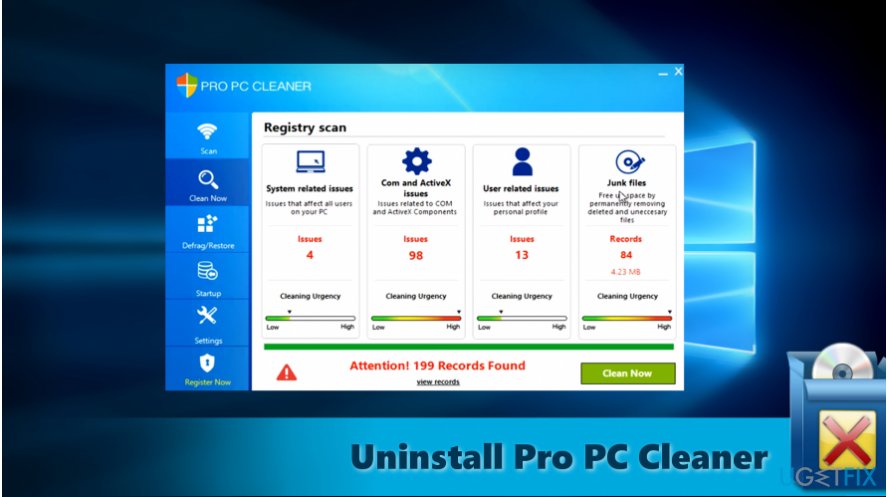
Such tools often contain similar design and alarm users with dozens or hundreds of fake system alerts. In order to solve them, users have to purchase the full version.[ref en-2]
Naturally, the developers gain profit in contrast to users, who end up with a useless app[ref en-3]. Pro PC Cleaner also falls into this category. In addition, the tool has another troublesome feature. It flags legitimate Mozilla Firefox, Chrome and other browsers’ registry files as potentially dangerous.
As a result, you may not only waste money on a futile app but damage system files which, later on, leads to system issues. If you are looking for an effective Pro PC Cleaner removal guide, check these guidelines.
Option 1. Uninstall the app via the Control panel
Step 1. Before that, you will need to end its command in the Task Manager.
1. Click on CTRL+SHIFT+ESC.
2. Find Pro PC Cleaner, right-click on it and choose Open file location.
3. Press Print Screen key beside F12 to memorize the location of the tool.
4. In the Task Manager, right-click on the task again and choose End Task. Close the Manager.
Step 2.
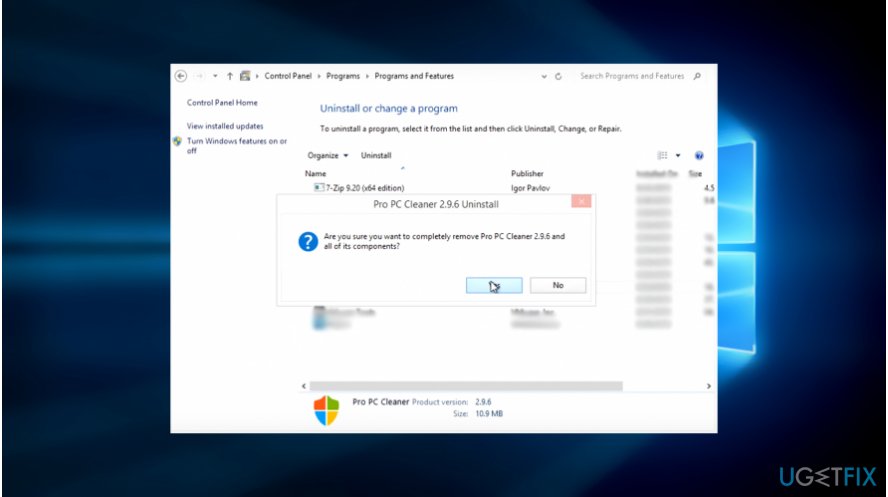
1. Click on the Start button (or Windows key), type Apps and Features or Programs and Features (in older Windows versions).
2. Find Pro PC Cleaner and choose Uninstall function.
Option 2. Remove the software with malware elimination tools
In case you encounter any difficulties uninstalling the program, you may let a third-party tool do it for you. You can use [d1], Malwarebytes Anti-malware or another utility. However, choose wisely in order not to download another questionable program.
Check for remaining files
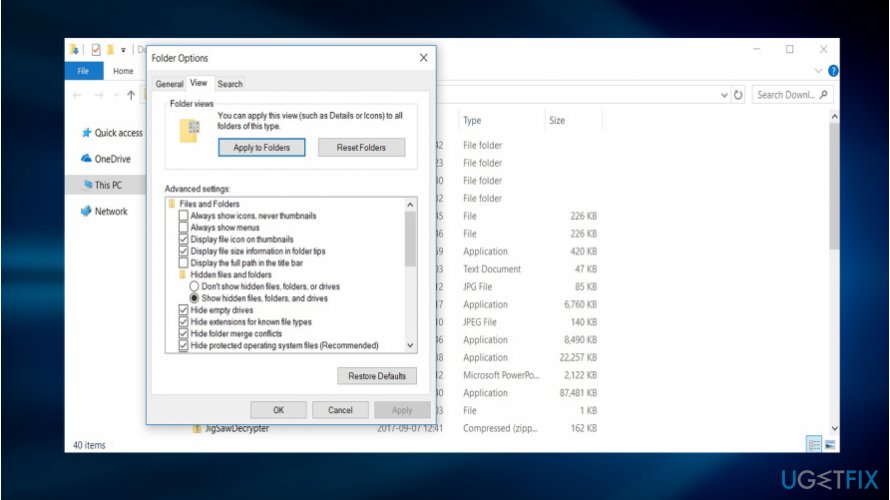
After you uninstall the program, check whether no associated files remain.
- Open File Explorer.
- Go to View tab and opt for Options.
- In the new window, navigate to View tab and place the checkmark on Show hidden files, folders, and drives.
After that, open the saved earlier screenshot and go to the indicated location and eliminate any remained files. You may also look for them in Registry Editor.
- Press Windows+R buttons.
- Type regedit and press Enter.
- Go to Edit section and go to Find next. Type Pro PC Cleaner.
- If it finds any files, before deleting them, check the name of the location folder.
Bottom line
To uninstall Pro PC Cleaner, you can first end its task in the Task Manager and then proceed to uninstall it via the Control Panel. If these steps do not resolve the issue, consider seeking additional removal guides or professional assistance.
Frequently asked questions
To uninstall Pro PC Cleaner from Windows 10, go to Settings > Apps, find Pro PC Cleaner in the list, click on it, and select Uninstall.
Yes, you can remove Pro PC Cleaner by opening the Control Panel, selecting 'Programs and Features', finding Pro PC Cleaner, and clicking 'Uninstall'.
If Pro PC Cleaner does not appear in the Apps list on Windows, you may need to use a dedicated uninstaller tool or check for its removal option in the program's folder.




Report an issue
What's wrong with this guide? We review every report and update or remove content.
Report received — thank you. We'll review and fix it.
You need a free account to submit a report.
Be the first to comment