How to remove
Uninstall Riot Games client
from Windows
Discover the easiest way to uninstall the Riot Games client on Windows 10 or 11. Enjoy a clean system with zero traces left, expert-tested solutions.

How does How to uninstall Riot Games client in Windows end up on your PC?
- Riot client not appearing in the regular Windows uninstaller
- Missing files in Program Files
- Users unable to find the app in search results
- Users no longer play games on the client
- Frustration with multiple gaming apps installed
Repairs Windows system files, removes malware, and restores a clean OS state — without reinstalling.
Hi, I have recently decided to uninstall Riot client because I'm quitting League of Legends but I've noticed that it's not completely gone from my system. Any tips on how to get rid of it properly? Help is appreciated.
Riot Games is an American video game developer and esports tournament organizer based in West Los Angeles, California. Founded in 2006 by Marc Merrill and Brandon Beck, the company develops popular online games such as League of Legends, Valorant, and Teamfight Tactics. Most recently, it delved into animation with Arcane - a League of Legends-based animated series that won the award for Best Adaptation in 2022.
To play Riot games, users need to install the Riot client. These apps are dedicated platforms that big gaming companies employ for users to use, despite the fact that not everyone like them. Players say they need to create numerous accounts and have, in some cases, dozens of apps installed on their system to be able to play all the games they want, which can be quite exhausting. However, this is just one of the downfalls of gaming apps.
That being said, there are plenty of reasons why users would want to uninstall Riot client from their devices, although the most common one is that they don't play games on it anymore, so they would like to get rid of software they no longer use.
Some users reported that they can't uninstall Riot client from their systems, as the regular Windows uninstaller is missing. As a result, it does not show up in Program Files or elsewhere - they are simply stuck with the app, which can be frustrating. Whenever people type in the name of the app in the search, it does not come up at all.
Even if you can't uninstall Riot client in a normal way, you can do that by deleting related files manually or using elevated Command Prompt and Registry Editor. Note that, before proceeding, we recommend you check your system with [d1] to ensure that your system is running smoothly.
Solution 1. Delete related files
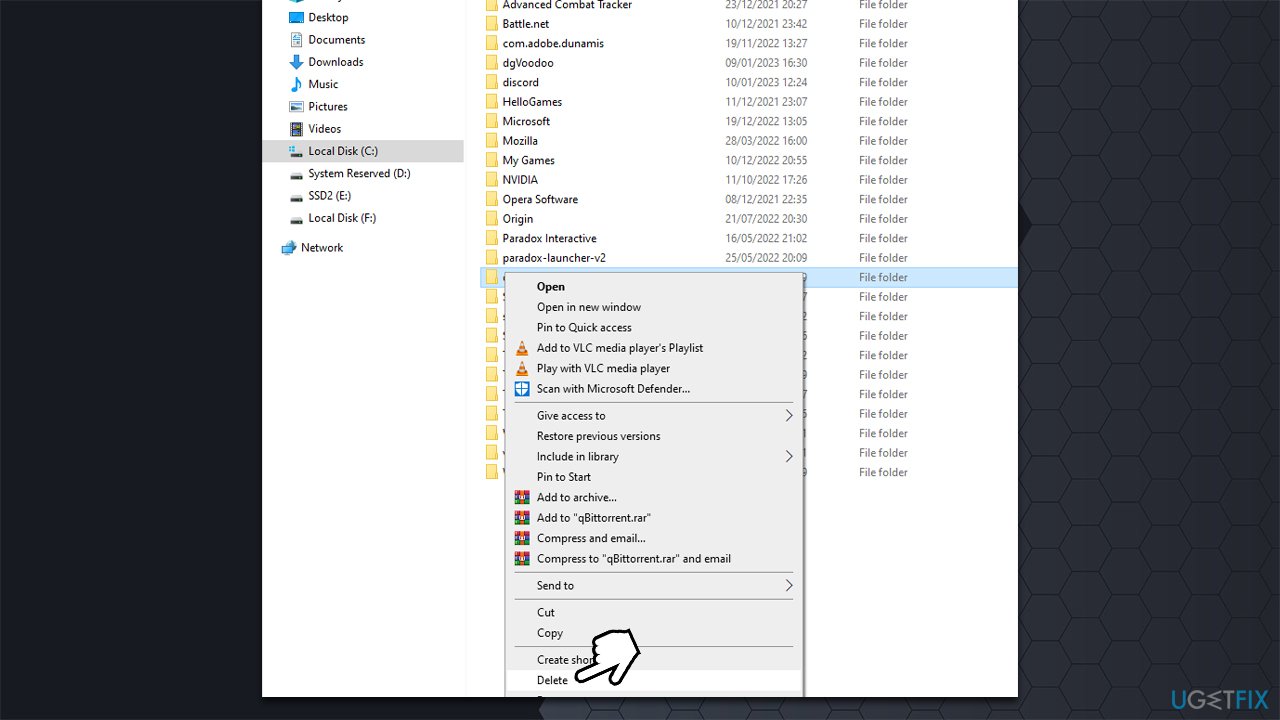
Riot Client can't be uninstalled in a normal way because it is a self-executable application, and it works differently - it gets installed automatically with any of the Riot games. To remove it, you should access its files and delete them manually:
- Press Win + E to open File Explorer
- Navigate to the following location:
C:\Users\USERNAME\AppData\Local - Find Riot Games folder
- Press Shift + Delete on your keyboard or right-click and select Delete and then empty your Recycle bin.
Solution 2. Use elevated Command Prompt and Registry Editor
While using Command Prompt or/and Registry Editor might seem intimidating, it is not that difficult, as long as you follow the instructions correctly.
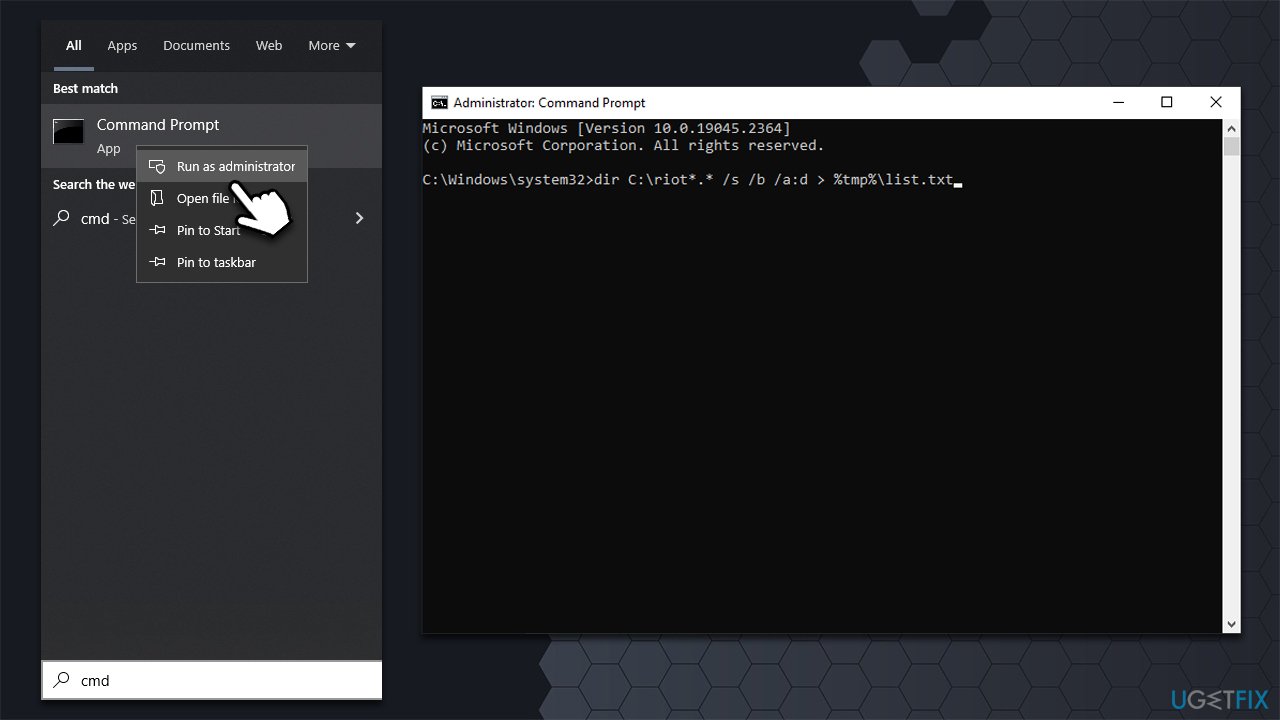
- Type cmd in Windows search
- Right-click on Command Prompt and select Run as administrator
- When User Account Control shows up, click Yes
- In the new window, copy and paste the following commands, pressing Enter after each line:
dir C:\riot*.* /s /b /a:d > %tmp%\list.txt
for /F "tokens=* delims=" %x in (%tmp%\list.txt) do rd %x /s /q
dir C:\riot*.* /s /b > %tmp%\list.txt
for /F "tokens=* delims=" %x in (list.txt) do del "%x" /s /q - Once executed, close down Command Prompt.
Before proceeding with editing your registry, we recommend you make a backup of it, as incorrect removal of vital keys may result in system instability or malfunctions. Also, if you can't find some keys, do not worry and move onto the next ones instead.
- Type regedit in Windows search and hit Enter
- Here, navigate to the following locations and remove them:
Computer\HKEY_CLASSES_ROOT\riotclient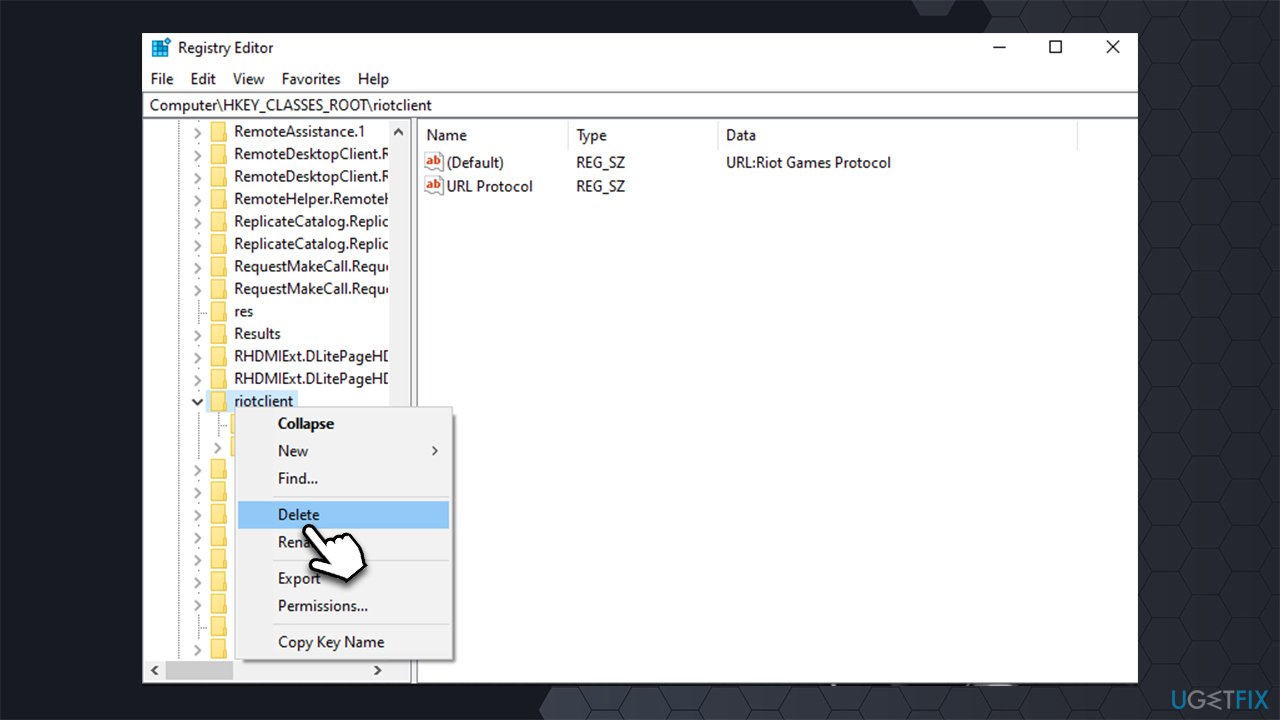
How to uninstall riot games client in windows delete registry
Computer\HKEY_CURRENT_USER\Software\Microsoft\Windows\CurrentVersion\ApplicationAssociationToasts\riotclient_riotclient - With the next path, delete only Riot-related keys:
Computer\HKEY_CURRENT_USER\Software\Microsoft\Windows\CurrentVersion\Explorer\FeatureUsage\AppSwitched\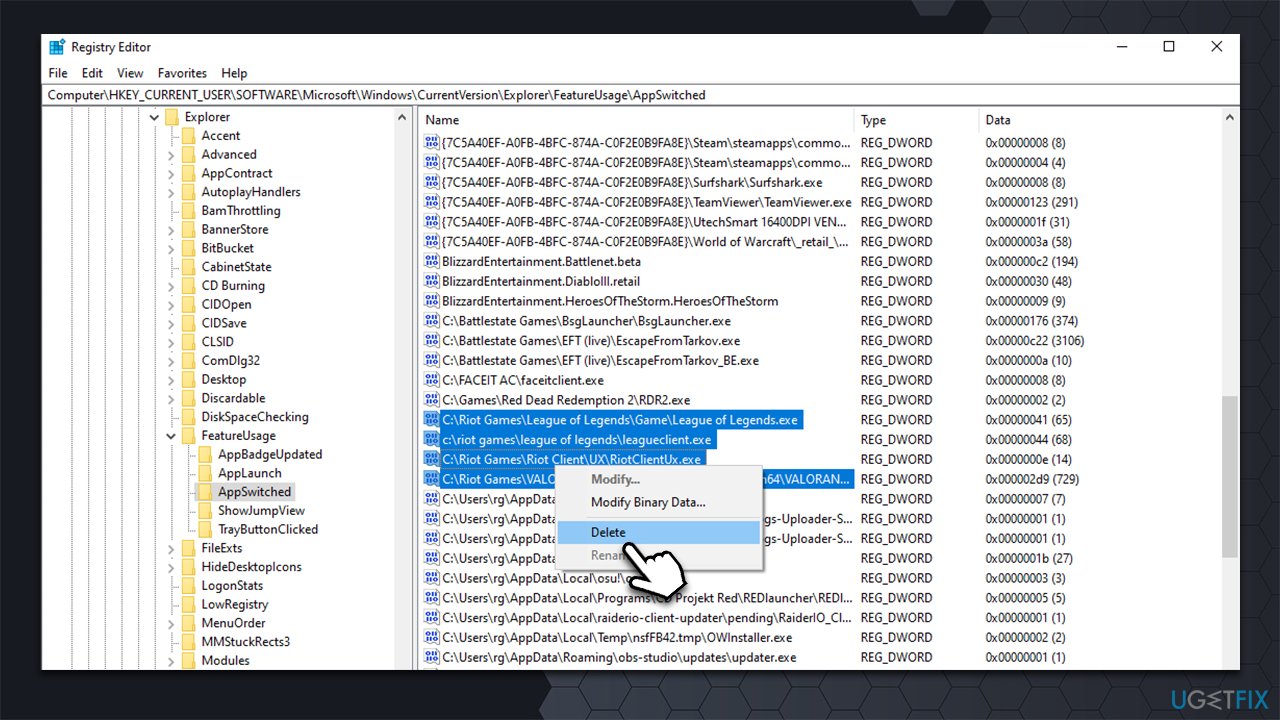
How to uninstall riot games client in windows delete registry2 - Close down Registry Editor.
Bottom line
To uninstall the Riot client, you can delete related files manually or use elevated Command Prompt and Registry Editor. If these methods do not work, consider checking your system for issues that may be preventing the uninstallation.
Frequently asked questions
To uninstall the Riot Games client on Windows 10, go to Settings > Apps > Apps & features, find Riot Games in the list, click on it, and select Uninstall.
Yes, in Windows 11, you can uninstall the Riot Games client by navigating to Control Panel > Programs > Programs and Features, locating Riot Games, right-clicking it, and choosing Uninstall.
If you face issues during the uninstallation process on Windows, try using a third-party uninstaller tool or check for any running processes related to Riot Games in Task Manager before attempting to uninstall again.




Report an issue
What's wrong with this guide? We review every report and update or remove content.
Report received — thank you. We'll review and fix it.
You need a free account to submit a report.
Be the first to comment