How to remove
Uninstall Roblox
from Windows
Discover quick methods to uninstall programs on Windows 10 and Windows 11 effortlessly. Get your system running smoothly again with expert-tested soluti…

How does How to Uninstall Roblox On Mac OS X end up on your PC?
- Extra files left after uninstalling
- Insufficient removal methods
- Potential slow down of the computer
- Risk of leaving behind program remnants
Repairs Windows system files, removes malware, and restores a clean OS state — without reinstalling.
Hello. Sometime ago I installed Roblox game on my macOS. I have been playing the game, but now I am not interested anymore, and I am also busy with in-real life issues. I wanted to get rid of it, as it takes extra space on my computer. Can you please help me?
Roblox is a popular online game that users tend to love because of its simple but engaging gameplay and exciting interaction with many different players all over the world. Also, users can build their own world and can actively participate in it. The game was released in 2006 and since then grew the player base of 30 million unique monthly users.[ref en-1]
However, if you have been busy recently and haven’t had time for gaming, you may have started wondering how to uninstall Roblox on macOS. Fortunately, we decided to prepare this guide and help you to avoid issues when trying to do that.
First of all, we would like to offer you to read this article to the end. That’s how you can avoid issues when trying to get rid of Roblox from macOS. Otherwise, you may leave some part of its files on your Mac that may lead your computer to slow down or cause some other issues.
If you are interested in Mac OS X and methods that can be used for uninstalling programs from this operating system, you will know that you can delete them by finding their icons and moving them to Trash. However, this might be just not enough to rid of programs like Roblox.
When you try to remove Roblox that is on your macOS by finding its icon and putting it to the Trash, you may leave its additional files. Therefore, some extra steps are needed in order to uninstall Roblox completely. We explain how to perform those steps below.
Roblox, just like many other popular games, is sometimes abused by cybercriminals. For example, a recent spike in Fortnite viruses managed to infect machines of thousands of online players.[ref en-2] Most of them were trying to download and install unfair applications which would allow users to gain illegal in-game currency online.
Additionally, crooks are known to intrude the popular communication platform Discord and deceptively lure users into downloading infected files. Therefore, we suggest you scan your macOS using [d1] or any other security software compatible with macOS to make sure you do not have Roblox virus installed.
Despite the popular belief, Mac malware is real,[ref en-3] and users should take special precaution measures to prevent malicious payloads from entering computers. In the case of the infection, users might not even notice the presence of malware. Therefore, anti-virus engines should be used for this job.
Without any further delays, let's explain how to uninstall Roblox from your macOS.
How to Uninstall Roblox on macOS
As we already mentioned, the very first step of manual Roblox removal from macOS is to eliminate the program from the Applications folder and moving it to Trash by dragging it. However, you need to make sure that the application is not running, as it might interfere with Roblox uninstallation process. Please follow these steps to shut it down:
- Simultaneously press and hold Command + Option + Esc;
- Check if Roblox or Roblox Studio is running;
- If any of the apps are running, click on them and select Force Quit.
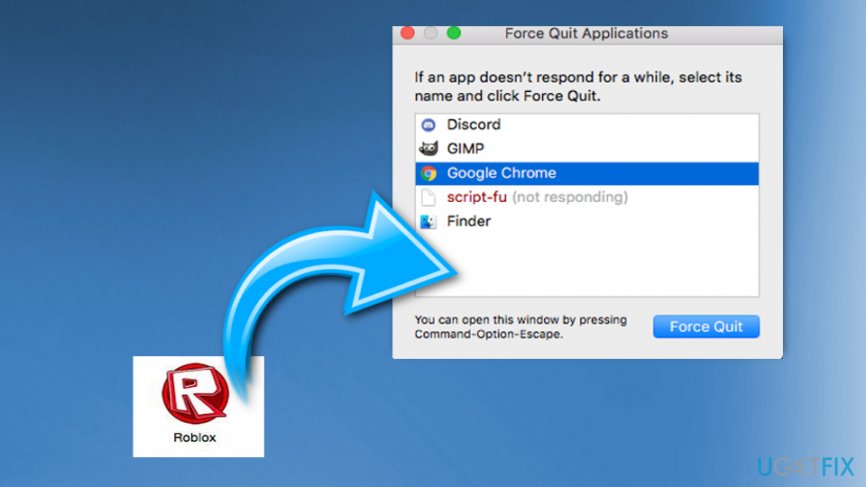
Roblox removal force quit
Now, you need to move the unwanted application into the Trash folder and empty it:
- Open Applications folder;
- Find the Roblox icon and click on it;
- Hold it a little and drag the icon to Trash;
- Hold Ctrl and click on Empty Trash in order to clean this folder.
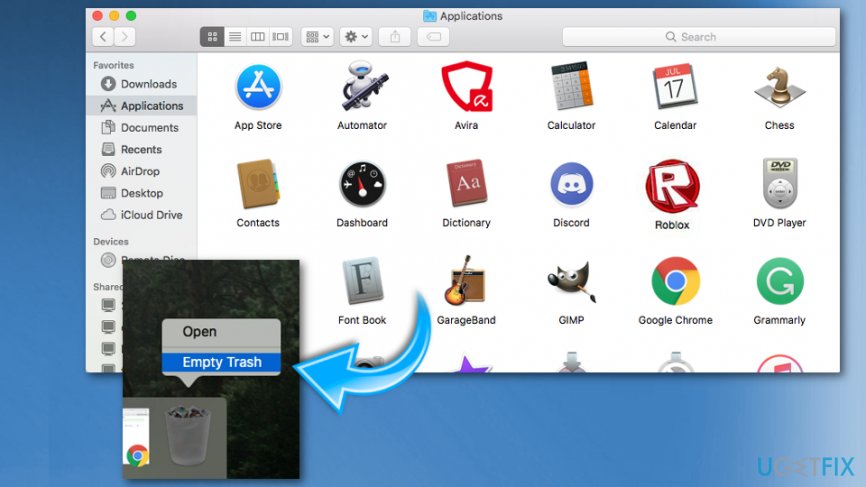
Roblox removal applications trash
Extra steps to uninstall Roblox from macOS
When trying to uninstall Roblox on Mac manually, you should start with the steps that have already been mentioned above. However, here you should note that there is no guarantee that all of Roblox components were eliminated from your Mac. Yes, you can look for them yourself by checking these the most common locations but you should be very careful if you want to avoid eliminating wrong files:
- /Library/Application Support/;
- /Library/ Preferences/.
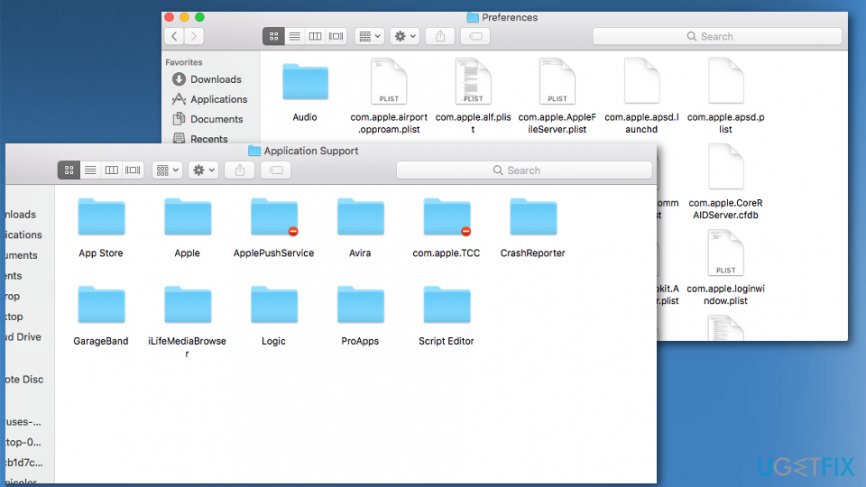
Roblox removal folders
Bottom line
To completely uninstall Roblox on macOS, ensure you not only move the application to Trash but also remove any additional files associated with it. Follow the steps outlined in the guide to avoid leaving remnants that could affect your system's performance. If these methods do not work, consider seeking further assistance or using a dedicated uninstaller tool.
Frequently asked questions
Yes, you can uninstall Roblox on Windows 10 or Windows 11 by going to Settings > Apps, finding Roblox in the list, and selecting 'Uninstall.'
To completely remove Roblox from your Windows 10 or Windows 11 PC, uninstall it via Settings > Apps, then delete any remaining Roblox folders in your user directory, typically found in C:\Users\YourUsername\AppData.
If you encounter errors while uninstalling Roblox on Windows 10 or Windows 11, try using a third-party uninstaller tool or run the built-in Windows troubleshooter for apps to resolve any issues.




Report an issue
What's wrong with this guide? We review every report and update or remove content.
Report received — thank you. We'll review and fix it.
You need a free account to submit a report.
Be the first to comment