How to remove
Uninstall Sandra Lite 2017
from Windows
Effortlessly uninstall Sandra Lite 2017 from Windows 10 or 11 with our simple guide. Enjoy a clutter-free PC, expert-tested tips included!

How does How to Uninstall Sandra Lite 2017 from Windows end up on your PC?
- Unknown reason for removal process abortion
- Background controller service running automatically
- Windows Firewall exception preventing removal
- Prompt to install full version instead of removal
- Failure during the removal process
Repairs Windows system files, removes malware, and restores a clean OS state — without reinstalling.
Sandra Lite 2017 can’t be uninstalled. The removal process is aborted due to unknown reason and the only thing I get is a notification saying “Sandra Lite 2017 removal cannot be completed.” Could you please help?
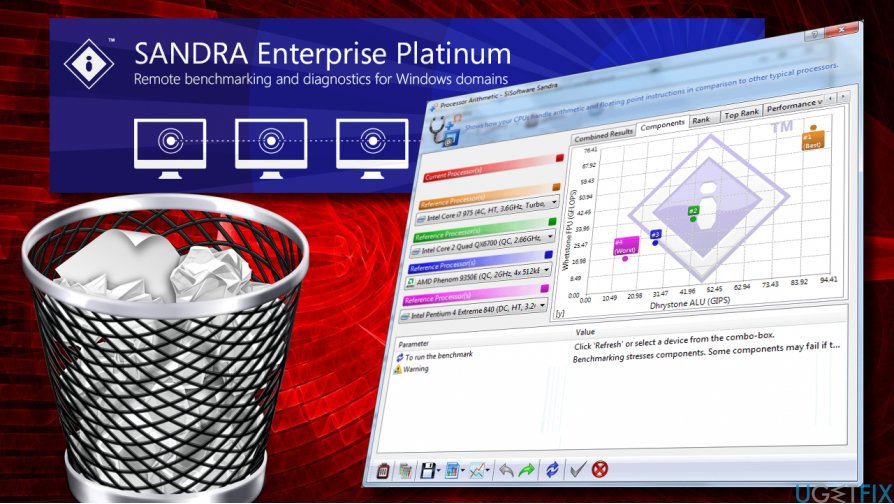
Sandra Lite 2017 is a tool developed by SiSoftware company. Translating from Greek language, the name Sandra means “defender” or “helper” and it seems that the software match its name. Sandra Lite’s purpose is to analyze Windows OS, diagnose its specificities, and provide a documented and undocumented report about its software, hardware, and other devices to the PC’s owner.
The supported of the utility note that it’s especially helpful when analyzing the condition and compatibility of the system’s devices as it provides detailed information about CPU, chipset, video adapter, ports, printers, sound card, memory, network, Windows internals, AGP, PCI, PCI-X, PCIe (PCI Express), database, USB, and so on. If, however, you have installed Sandra Lite 2017 by accident or it has been installed on your PC by another person and you opt for removing it, you may encounter some problems.
We’ve found several threads on diverse IT forums where people ask how to uninstall Sandra Lite 2017 completely. According to them, instead of the removal, they get a prompt to install a full version of a program or, more worse, the removal ends up with a failure.
Once installed, SiSoftware Sandra Lite starts running a background controller service that is set to run automatically. Besides, it adds a Windows Firewall exception to prevent intervention. The controller service and the Firewall exception might be the reason why you cannot remove Sandra Lite 2017 completely. Thus, we will explain what steps can be taken to ensure full and smooth SiSoftware Sandra Lite removal.
Uninstalling SiSoftware Sandra Lite 2017 from Windows
If you encounter any SiSoftware Sandra Lite removal issues, we would recommend you to sign into Windows as an administrator. After that perform these steps:
Disable Sandra Lite 2017 related processes
- Press Ctrl + Alt + Del and open Task Manager.
- Open Services tab and disable Sandra.exe process.
- The press Windows key + R, type services.msc, and press Enter.
- Scroll down until you find Sandra Lite related services and click Stop next to them.
Uninstall the main executable
- Open Control Panel and select Programs and Features.
- Find and double-click on Sandra Lite 2017 and select Uninstall.
- Now you should receive a notification where you have to select one of the following answers:
I have bought the full version
I want to buy the full version now
Other reason - Select Other reason and click Continue uninstall.
- At the bottom of the screen, click No, uninstall button.
Remove Sandra Lite 2017 remnants
- Click File -> Export and enter the name for the registry backup copy (In case something would go wrong).
- Then remove the following folders:
HKEY_CURRENT_USER\\Software\\SiSoftware\\
HKEY_LOCAL_MACHINE\\SOFTWARE\\SiSoftware\\ - Finally, to ensure that all file leftovers have been removed, click Edit -> Find and enter Sandra Lite.
- If the search delivers any results, remove them as well.
To save you time, you can assign the Sandra Lite removal to the professional software removal utility, for example, [rev id="Perfect Uninstaller"]. It will remove the application and all cached files automatically.
Bottom line
To uninstall Sandra Lite 2017, sign into Windows as an administrator and disable the Sandra.exe process in Task Manager. If issues persist, consider checking the background services and Firewall settings. If none of these steps work, further troubleshooting may be necessary.
Frequently asked questions
To uninstall Sandra Lite 2017 from Windows 10, go to Settings > Apps, find Sandra Lite 2017 in the list, click on it, and select 'Uninstall'.
Yes, in Windows 11, you can uninstall Sandra Lite 2017 by opening Control Panel, selecting 'Programs and Features', finding Sandra Lite 2017, and clicking 'Uninstall'.
If Sandra Lite 2017 does not show up, you can use a third-party uninstaller or manually delete its folder from 'C:\Program Files' and clean the registry.




Report an issue
What's wrong with this guide? We review every report and update or remove content.
Report received — thank you. We'll review and fix it.
You need a free account to submit a report.
Be the first to comment