How to remove
Uninstall SlimDrivers
from Windows
Easily uninstall SlimDrivers from Windows 10 or 11 with our expert-tested guide. Enjoy a clean system and zero traces left behind!

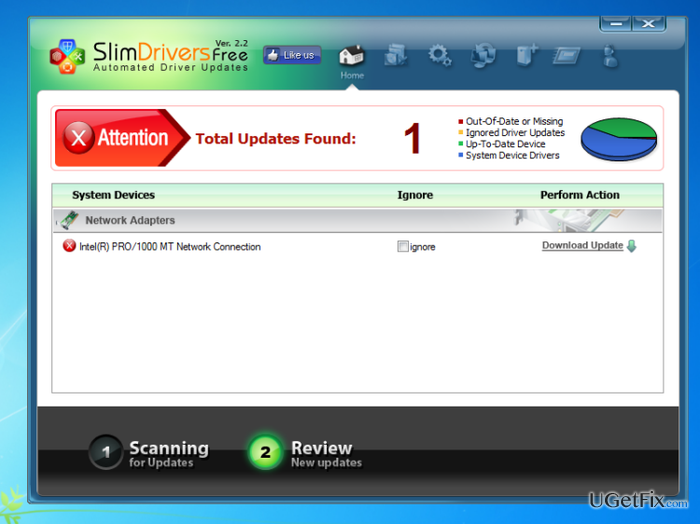
How does How to Uninstall SlimDrivers on Windows OS end up on your PC?
- SlimDrivers app is installed unintentionally with third-party software
- Continuous scanning process uses a lot of CPU resources
- SlimDrivers requires user intervention to download/install updates
- Each scan and update requires a system restart
- SlimDrivers remains active even after removal from desktop
Repairs Windows system files, removes malware, and restores a clean OS state — without reinstalling.
I’m using Windows 8.1 for a long time. Usually, I download programs very accurately, but it seems that it’s difficult to control all the downloads as there are so many software bundles online… I have noticed SlimDrivers app on my Windows, but I don’t need it. I assume that it slows down the system as it continuously scans the system and supposedly updates drivers. I think that such continuous updating process uses lots of CPU, am I right? Nevertheless, I need you to help me with SlimDrivers removal. It is a desktop app, so I removed it on there. However, when I open Task Manager, SlimDrivers is still working. How?
SlimDrivers is legitimate software that is supported by Windows OS. It is free for download and can be found on various download websites, including Cnet, Download, Softonic, and so on. In fact, SlimDrivers is a handy driver manager that takes care of the system and never allows drivers to get out-of-date. It’s very easy to download, install, and launch. The inside features user-friendly interface, scheduled scanning, back up drivers function, automatic driver download, and so on. Thus, once you get this tool installed, it scans Windows automatically from time to time and detects all the issues related to drivers and Windows updates in general.
However, several downsides of SlimDrivers have been pointed out. First of all, as you have mentioned, the scanning process uses lots of CPU and slows down the system at that moment. However, the scanning does not last forever, so if you want the system to be optimized, you should endure this process. In addition, even though it detects driver issues and missing updated automatically, it does not download/install updates without your intervention. To do so, you will be asked to register, which is a little bit tiresome process. Finally, each scan and update requires a restart.
If you are not satisfied with SlimDrivers, then it goes without saying that it has to be removed. Even more, if you don’t remember installing it, it might be that this tool got installed along with the third party software, which is yet another reason why SlimDrivers removal is necessary.
Unfortunately, but applications that scan the system for updates, viruses, and similar issues sometimes are difficult to remove. They install lots of additional files and as long as every last file is not removed, the software keeps running in the background. Thus, it’s very important to uninstall SlimDrivers and similar programs in a proper way. If you need a guide explaining how to do this, read the next paragraph and perform all the steps in a right order.
How to Uninstall SlimDrivers on Windows?
SlimDrivers removal is not a difficult task. However, it’s not enough to click on the program’s icon and Delete. Therefore, we will provide detailed instructions on how to uninstall SlimDrivers on Windows OS.
Automatic removal option:
If you opt for an easy way to uninstall SlimDrivers on Windows completely, you should perform this task automatically with the help of a professional software removal tool.
We recommend [rev id="Perfect Uninstaller"]. The trial of this program is free for download, so don’t waste your time and remove Slim Drivers with it. It’s a really effective tool that is capable of uninstalling unwanted/corrupted software, clean registries/drivers, backup system files, and so on. Thus, our strongest recommendation would be uninstall SlimDrivers on Windows using Perfect Uninstaller or an alternative software.
Manual SlimDrivers removal:
- Click Start (bottom left corner) - Select Settings – Click System – Apps & Features;
- Find SlimDrivers, click on it and select Uninstall. (Windows 8)
- Click Windows logo (bottom left corner) – click the down arrow;
- Find SlimDrivers, right click on it and select Uninstall;
- Double click SlimDrivers to start the removal (Windows 10)
After that, it’s a must to find all SlimDriver’s leftovers on the Registries. For this purpose, you have to:
- Click on Start Menu, type “regedit” in the search box and hit Enter to open Registry Editor.
- Here you should find and remove all registry entries that belong to SlimDrivers. Search for the files located in folders:
HKEY_CURRENT_USER\Software\SlimDrivers,
HKEY_LOCAL_MACHINE\Software\SlimDrivers,
HKEY_LOCAL_MACHINE\Software\Microsoft\Windows\CurrentVersion\Run\eg ui.
- Next step: locate and delete all files in these system folders:
C:\Program Files\ SlimDrivers,
C:\Document and Settings\All Users\Application Data\ SlimDrivers,
C:\Documents and Settings\%USER%\Application Data\ SlimDrivers.
The most important task is to find and remove each and every one SlimDrivers’s files. Therefore, don’t rush and go through each folder step-by-step. In order not to burden the system with useless files, our recommendation would be to use [rev id="Perfect Uninstaller"].
Bottom line
To uninstall SlimDrivers, you can remove it from the desktop and check Task Manager for any remaining processes. If it continues to run, further steps may be needed to fully remove it from your system. If none of these solutions work, consider seeking additional technical support.
Frequently asked questions
To uninstall SlimDrivers from Windows 10, go to 'Settings', select 'Apps', find SlimDrivers in the list, and click 'Uninstall'.
Yes, to completely remove SlimDrivers from Windows 11, open 'Settings', navigate to 'Apps', locate SlimDrivers, and select 'Uninstall'.
If SlimDrivers won't uninstall on Windows, try using the built-in troubleshooter or a third-party uninstaller tool to force the removal.




Report an issue
What's wrong with this guide? We review every report and update or remove content.
Report received — thank you. We'll review and fix it.
You need a free account to submit a report.
Be the first to comment