How to remove
Uninstall Smart Registry Care
from Windows
Easily uninstall Smart Registry Care from your Windows 10 or Windows 11 system. Follow our expert-tested guide for a clean removal that leaves no traces!

How does How to Uninstall Smart Registry Care end up on your PC?
- Slow PC performance
- Random restarts
- BSOD occurrences
- Software crashes or becomes unresponsive
- Obsolete or invalid registry entries
Repairs Windows system files, removes malware, and restores a clean OS state — without reinstalling.
Could you please introduce Smart Registry Care tool? Is it reliable? I found it running on my Windows 10 PC, but can’t remember installing it…
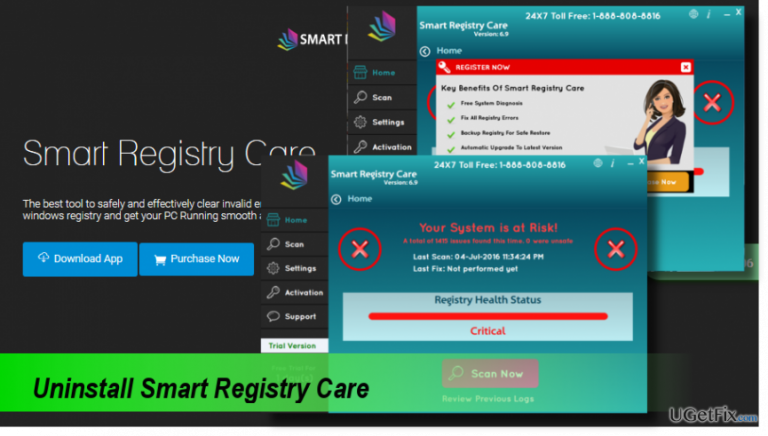
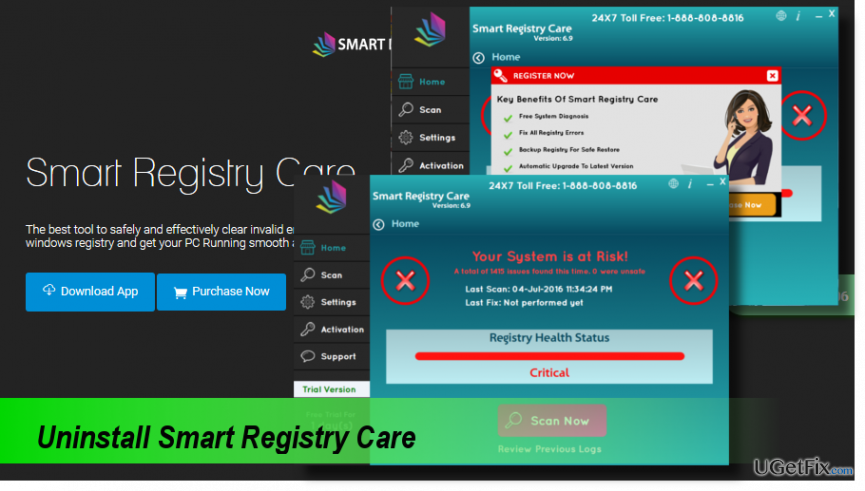
Smart Registry Care is legitimate software developed by GNR Management Services Inc. It is represented as a powerful system optimization tool, which is supposed to improve PC’s performance if it’s slow, restarts randomly, encounters BSOD, software does not respond or crash. The tool should remove obsolete/invalid entries from Windows registry, get rid of junk files, web browser's cache, and perform other functionalities to boost PC's performance. Unfortunately, but instead of system’s improvements, Smart Registry Care may cause problems and trick people into spending a big sum of money for useless service.
Although there are no indicators denoting a high Smart Registry Care danger level, this tool is deemed as a potentially unwanted program (PUP) and rogue optimizer. Typically, it spreads bundled with freeware. This way, the software manages to infiltrate the system without requiring user's permission directly. When installed, it scans the system automatically and informs the PC owner about the problems that should be addressed. However, it has been found that SmartRegistryCare tends to deliver the same results each time – the user is warned about a critical system’s health. The app “detects” or rather falsely indicates thousands of issues each time and offers to purchase a full version of the program to fix them all. However, that’s a method used by hackers to create the feeling that the application is really powerful and convince people to purchase its full version, which, by the way, costs $99.00 per year.
In addition to doubtful distribution method and rogue optimization service, Smart Registry Care PUP may be used by third party advertisers to inject commercial advertisements into a default web browser of the target system. Therefore, the number of pop-ups, banners, in-text links and other advertisements may significantly increase. People may be surprised by the coincidence of the Smart Registry Care ads and their web browsing activities. It has been found that this doubtful optimization tool installs cookies and may track people’s web browsing-related information, including IP address, PC’s location, email address, and similar. In a nutshell, Smart Registry Care does not appear to be a reliable tool. Therefore, you should refrain yourself from buying its full version and perform Smart Registry Care removal without a delay.
Uninstalling Smart Registry Care Manually
Step 1. Terminate Smart Registry Care process
- Press Ctrl + Alt + Delete to open Task Manager.
- Open "Processes" tab and find the SmartRegistryCare.exe process.
- Click it, and select "End Task."
Step 2. Uninstall the app from Programs & Features
- Open Control Panel.
- Right-click on "Windows key" -> "Control Panel" -> "Programs & Features" (Windows 10, 8, 8.1).
- Open "Start" -> "Control Panel" -> "Programs" -> "Uninstall a program" OR "Add/Remove Programs" (Windows 7, XP).
- Find and select the Smart Registry Care app.
- Select "Uninstall" and click "Yes" on the confirmation window.
- The filter the apps according to the installation date and uninstall those installed on the same day as the Smart Registry Care.
- Once done, check the Downloads folder for the programs that you’ve just removed.
Step 3. Remove Smart Registry Care leftovers from Windows Registry
- Press "Windows key" (or Start), type "regedit", and press "Enter."
- Select "Edit" option on the toolbar at the top of the page and select "Find."
- Type in Smart Registry Care and press "Next."
- Click on each element that was found and select "Remove."
Step 4. Optimize the system
To make sure that all obsolete or invalid files were removed from the system, we would strongly recommend running a scan with [rev id=”CCleaner”] utility. If you want to optimize the system and protect it from malware at the same time, [rev id=”Reimage”] would be a great solution.
Bottom line
To uninstall Smart Registry Care, you can use the Control Panel or a dedicated uninstaller tool. Additionally, consider running a malware scan to ensure no remnants of the program remain. If these methods do not work, seek professional assistance.
Frequently asked questions
To uninstall Smart Registry Care from Windows 10, go to Settings > Apps, find Smart Registry Care in the list, and click 'Uninstall.' Follow the prompts to complete the removal.
Yes, you can remove Smart Registry Care using Control Panel in Windows 11 by navigating to Control Panel > Programs > Programs and Features, selecting Smart Registry Care, and clicking 'Uninstall'.
If Smart Registry Care won't uninstall, try using the built-in Windows troubleshooter by going to Settings > Update & Security > Troubleshoot, or consider using a third-party uninstaller.




Report an issue
What's wrong with this guide? We review every report and update or remove content.
Report received — thank you. We'll review and fix it.
You need a free account to submit a report.
Be the first to comment