How to remove
Uninstall Spybot – Search & Destroy
from Windows
Easily uninstall Spybot – Search & Destroy from Windows 10 or Windows 11. Follow our expert-tested guide for a smooth removal process, fixed in minutes.


How does How to Uninstall Spybot – Search & Destroy end up on your PC?
- Spybot features are not approved by the user
- Spybot resists removal due to its nature as a security tool
- Spybot may have active processes that prevent uninstallation
- Users may not know the correct steps to uninstall Spybot
- Spybot can interfere with system performance and settings
Repairs Windows system files, removes malware, and restores a clean OS state — without reinstalling.
I’ve been using Spybot for quite a while, but I did not approve some of its features. I want to replace it by another security tool, but Spybot resists to be removed. Please tell me the specificities of the Spybot removal. Thanks!
Spybot – Search & Destroy is a legitimate anti-spyware tool developed and maintained by Safer-Networking Ltd. It is compatible with Microsoft Windows OS and supports all its versions. It protects a web browser by scanning files and the system for spyware and other malicious software. Spybot is extremely useful as a secondary security tool – an addition to a professional anti-virus because the latter often fails to detect spyware. Spyware is a type of malware, which is used by scammers for collecting people’s personal information, browsing activities, keystrokes, passwords, and other valuable data. Besides, it negatively influences the performance of the target system by downloading other malware, modifying PC’s settings, reducing Internet connection speed, corrupting web browser’s settings, and performing other disapproved activities.
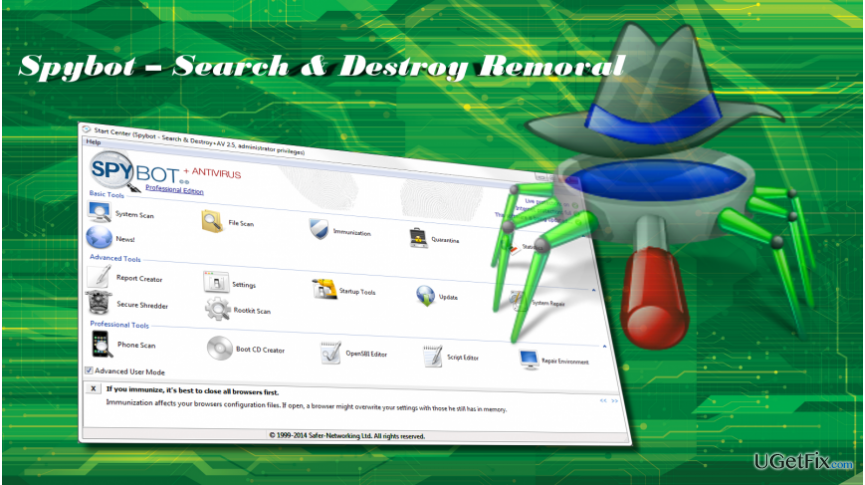
Despite the fact that the tool is legitimate and useful for protecting the system, many people opt for Spybot – Search & Destroy removal. People are free to choose, but security tools often resist to be removed. Few people informed us about the difficulties when removing Spybot.
Uninstalling Spybot – Search & Destroy
If you encounter problems regarding the removal of apps on Windows, we would recommend using a professional software removal utility. We would recommend using [rev id="Perfect Uninstaller"]. Download the tool and follow the on-screen instructions to install it. After that, configure it to find and uninstall Spybot – Search & Destroy utility. However, the application can also be removed manually by following these steps:
Terminate Spybot process
- Press Windows key + I and open Personalization.
- Click Start and turn off Use Start full screen option.
- Then press Ctrl + Alt + Delete and open Task Manager.
- Locate the process of Spybot, click it, and select End Task.
- Now right-click on the Spybot icon located on the taskbar and select Close.
Uninstall Spybot – Search & Destroy via Control Panel
- Right-click on Windows key and select Control Panel.
- Open Programs and features applet.
- Scroll down to find Spybot – Search & Destroy.
- Double-click on it and select Uninstall. Follow the on-screen instructions to finish its removal.
Remove Spybot – Search & Destroy leftovers
Open the root drive of your PC (usually C: drive) and remove the following folders from it:
C:\\Program Files (x86)\\Spybot – Search & Destroy
C:\\ProgramData\\Spybot – Search & Destroy
NOTE: usually, the Program Data folder is hidden. Therefore, to uninstall it, you’ll have to unhide it first.
If you are using Windows 10, open Windows Search and type folder. Select Show hidden files and folders option. The open Advanced settings, select Show hidden files, folders, and drives, and click OK.
Remove Spybot - Search & Destroy leftovers from Windows Registry
- Press Windows key + R, type regedit, and press Enter.
- Find and delete the HKEY_CURRENT_USER\\Software\\Safer Networking Limited\\ and HKEY_LOCAL_MACHINE\\SOFTWARE\\Safer Networking Limited\\ folders.
- After that, click Edit and select Find.
- Enter Spybot and check if any results are delivered.
- Delete all the remnants and close the Registry Editor.
- Finally, reboot the system.
Bottom line
To uninstall Spybot – Search & Destroy, you can use a professional software removal utility like Perfect Uninstaller or manually terminate the Spybot process and uninstall it via Control Panel. If these methods do not work, consider seeking additional technical support.
Frequently asked questions
To uninstall Spybot on Windows 10, go to Settings > Apps, find Spybot in the list, click on it, and select Uninstall.
Yes, on Windows 11, you can open Control Panel, go to Programs > Programs and Features, locate Spybot, and click on Uninstall.
If Spybot won't uninstall, try running the uninstaller as an administrator or use a third-party uninstaller tool to force the removal.




Report an issue
What's wrong with this guide? We review every report and update or remove content.
Report received — thank you. We'll review and fix it.
You need a free account to submit a report.
Be the first to comment