How to remove
Uninstall SUPERAntiSpyware Professional
from Windows
Easily uninstall SUPERAntiSpyware Professional from your Windows 10 or Windows 11 device with our expert-tested guide. Fixed in minutes!

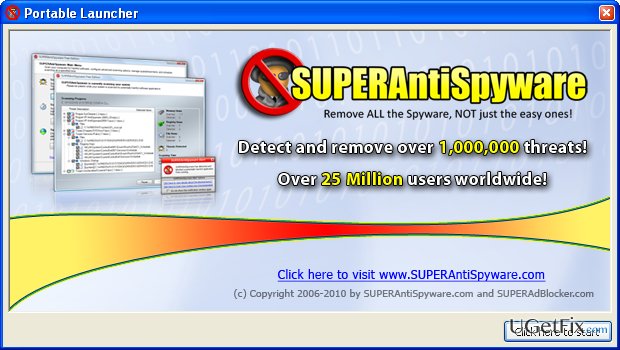
How does How to Uninstall SUPERAntiSpyware Professional on Windows OS end up on your PC?
- Trial period expired
- User dissatisfaction with the software
- Need to install another anti-malware
- Requirement to remove existing anti-spyware before installing a new one
- Potential conflicts between multiple anti-spyware programs
Repairs Windows system files, removes malware, and restores a clean OS state — without reinstalling.
I need your help. A month ago I have installed SUPERAntiSpyware trial. The trial already expired and now I want to uninstall this program. I didn’t like a lot of things about it, so consider installing another anti-malware. I don’t know how to remove trials, please help. Thanks!
It’s very important to take care of your computer and having a reliable anti-malware is probably a number one concern. Therefore, installation of SUPERAntiSpyware Professional is praiseworthy selection. This software is capable of detecting and removing thousands of cyber threats, including spyware, Trojans, malware, keyloggers, adware, browser hijackers, worms, and so on. According to its developers, this antispyware offers “many unique and powerful technologies removes spyware threats that other applications fail to remove.” However, for some reason this software haven't been excluded as the one of the best, so it's not irreplaceable.
People who like SUPERAntiSpyware Professional anti-malware can have it and can be calm about their PC’s protection. If, nevertheless, the application did not meet the expectations, it’s advisable to try another antispyware, especially having in mind how many of them are available on the Internet for free. However, it’s important to remember that two anti-spywares can’t work alongside. Thus, it’s a must to remove SUPERAntiSpyware Professional completely before downloading and installing another PC guard. If you want to do that by your own hands, you can find manual SUPERAntiSpyware removal guide down below. Nevertheless, you can use an automatic removal option, which will save your time and ensure a full software removal from the first time. For that, you just have to install [rev id="Perfect Uninstaller"].
How to Uninstall SUPERAntiSpyware Professional on Windows OS?
In order to perform SUPERAntiSpyware Professional removal successfully, it is advisable to log in the system as an Administrator. NOTE that you will need a password for that.
After that, no matter which Windows version you are using, disable SUPERAntiSpyware Professional by doing the following:
- Right-click on the icon and select Exit.
- After that, press Ctrl + Alt + Delete to open Task Manager. Find SUPERAntiSpyware Professional there, click on it and select End Task.
After that, you will be able to uninstall SUPERAntiSpyware Professional.
Uninstall SUPERAntiSpyware Professional on Windows 7:
- Click on the Windows logo (bottom left) to open Start menu. Select Control Panel.
- Select Uninstall a program under Programs.
- Find SUPERAntiSpyware Professional, click on it and select Uninstall. The process will automatically finish.
- After that, close the Control Panel. Open start menu and type regedit in the search box. Now you should see Windows Registry Editor.
- Unfold KEY_CURRENT_USER\Software, HKEY_LOCAL_MACHINE\SOFTWARE and HKEY_LOCAL_MACHINE\Software\Microsoft\Windows\CurrentVersion\Run\eg ui folder and remove SUPERAntiSpyware folder.
- Find and delete all files that belong to SUPERAntiSpyware Professional and are located in the following folders:
C:\Program Files\
C:\Document Settings\All Users\Application Data\
C:\Documents and Settings\%USER%\Application Data\ - Restart the PC.
Uninstall SUPERAntiSpyware Professional on Windows 8:
- Click on This PC on the desktop. Here locate and click Control Panel.
- Choose Uninstall program under Programs.
- Find SUPERAntiSpyware Professional on the list and remove it.
- Go to the bottom right corner of the desktop and open charms bar. Type regedit in the search box and press Enter.
- Unfold KEY_CURRENT_USER\Software, HKEY_LOCAL_MACHINE\SOFTWARE and HKEY_LOCAL_MACHINE\Software\Microsoft\Windows\CurrentVersion\Run\eg ui folder and remove SUPERAntiSpyware folder.
- Find and delete all files that belong to SUPERAntiSpyware Professional and are located in the following folders:
C:\Program Files\
C:\Document Settings\All Users\Application Data\
C:\Documents and Settings\%USER%\Application Data\ - Restart the PC.
Uninstall SUPERAntiSpyware Professional on Windows 10:
- Click on Start button (bottom left corner) and select Settings.
- Click System, and then select Apps & features.
- As soon as the list of programs opens, find SUPERAntiSpyware Professional, and select Uninstall.
- After that, click on the Start button and type regedit in the search box.
- Once the Windows Registry Editor is open, go through all the programs on the list and find SUPERAntiSpyware Professional. Right click on it and select Delete.
- Click Yes on the confirmation window.
- Reboot the system.
Manual SUPERAntiSpyware Professional removal is not difficult, indeed. However, this process has to be done very accurately because it's difficult to locate all the small files that belong to this program. If you accidentally fail to remove any parts of this software, they may further disrupt the performance of the further anti-malware tool. Thus, to ensure a smooth SUPERAntiSpyware Professional uninstalling, we recommend using [rev id="Perfect Uninstaller"].
Bottom line
To uninstall SUPERAntiSpyware Professional, log in as an Administrator, exit the program, and end its task in Task Manager. You can also use an automatic removal tool like Perfect Uninstaller for a more efficient process. If these methods do not work, consider seeking further technical assistance.
Frequently asked questions
To uninstall SUPERAntiSpyware Professional from Windows 10, go to Settings > Apps, find SUPERAntiSpyware in the list, click on it, and select Uninstall.
If SUPERAntiSpyware Professional won't uninstall on Windows 11, try using the Control Panel by navigating to Programs and Features, selecting SUPERAntiSpyware, and clicking Uninstall.
Yes, to completely remove all traces of SUPERAntiSpyware from Windows OS, after uninstalling, use a dedicated uninstaller tool or manually delete remaining files from the installation directory and clean up the registry.




Report an issue
What's wrong with this guide? We review every report and update or remove content.
Report received — thank you. We'll review and fix it.
You need a free account to submit a report.
Be the first to comment