How to remove
Uninstall Tencent PC Manager
from Windows
Easily uninstall Tencent PC Manager from Windows 10 or 11 with our expert-tested guide. Enjoy a clutter-free system in minutes, with screenshots!


How does How to Uninstall Tencent PC Manager end up on your PC?
- Accidental installation alongside another program
- Installation from third-party websites
- Chinese interface complicating removal
- Alterations in Windows Startup
- Hidden files making removal difficult
Repairs Windows system files, removes malware, and restores a clean OS state — without reinstalling.
Dear guys, can you explain what is Tencent PC Manager? I have a huge headache while trying to remove the program from my laptop. I accidentally installed it alongside some other program (can’t remember which one it was), and now Tencent PC Manager pop-ups bother me on a daily basis. The software seems to be made for Chinese-speaking users, and I can’t understand what these pop-ups say! I cannot uninstall it. Please help!
People continuously complain[ref en-2] about Tencent PC Manager because uninstalling the program from their computer creates some frustration and even security concerns. It is necessary to learn more about the particular app and its purposes to know how to approach the issue.
Tencent QQ PC Manager is a security software created by a Chinese company known as Tencent Holdings Limited. Although the software is presented as an irreplaceable tool that guarantees real-time protection, anti-virus, vulnerability remediation, computer speed acceleration, software management, and system clean-up features, users tend to complain about it a lot.
Some people reported that the program was installed on their systems when they downloaded some torrent files from the Internet. This gives an impression that the official website of Tencent might not be the only place to download this program, and that maybe some third-party websites offer it in software bundles alongside other programs.[ref en-3] This way, the software can reach users who do not speak Chinese, and therefore trying to remove this program can become a challenge of one’s life.
The main issues with the application include the installation that includes the Chinese interface and alterations in the Windows Startup.[ref en-1] In most cases, files that need to be eliminated cannot be easily found by users themselves, so the removal process becomes more difficult.
Tencent related programs:
QQPCMgr
QQPhoneManager
QQDownload
QQBlueScreenFix
QQGameZone
QMAndroidServer
Tencent related files:
QQ.exe
QQUninst.exe
txupd.exe
Uninst.exe
QMDL.exe
Tencent Related folders
C:\\Program Files\\Tencent\\QQIntl\\
C:\\Program Files\\Tencent\\QQ2009\\
C:\\Program Files (x86)\\Tencent\\QQPCMgr
Until all of these get deleted, Tencent PC Manager can run freely and affect the performance of the device. If you are having a hard time trying to remove Tencent PC Manager, please use the instructions given below, and you should free your PC from this program quickly. Do not hesitate to post a comment on how you removed this software or just share your thoughts about it!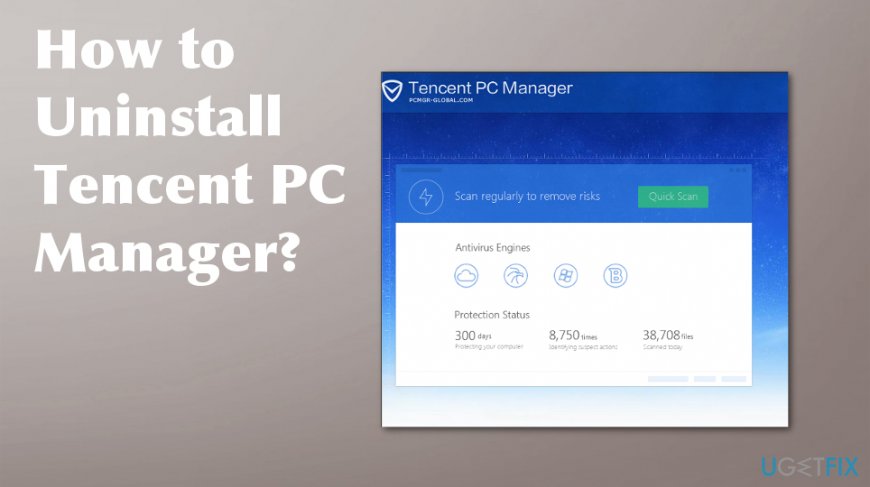
How to Uninstall Tencent PC Manager
Tencent PC Manager is sometimes called a virus due to questionable distribution techniques and intrusive behavior, but this is a program that claims to help computer users with their devices and fix problems or even protect from viruses and other threats. This is not malware, but when you get this tool as an unwanted, additional feature you should uninstall Tencent QQ PC Manager and clean the machine fully.
The application can easily trigger various problems and especially during the process of removal when some files are configurations of security functions. Getting rid of these issues is an easy process, so be patient and go through the methods listed below. Take time and eliminate anything suspicious from the computer.
Remove using anti-spyware tool
- If you cannot remove the infection using instructions provided below, you can save yourself some time and use software that can remove Tencent PC Mgr for you.
- Reboot your PC into a Safe Mode with Networking first. To do that, press Windows Key + R and type in msconfig. Click OK to continue. You will open the System Configuration panel, and here, go to the Boot tab. Under Boot Options, select Safe Boot and choose Network from the list. Click Apply and then OK. Then click Restart to confirm.
- Once the computer boots into Safe Mode with Networking, download [d1] and scan your PC with it. It should detect all files associated with Tencent QQ PC Manager software and remove them for you.
Remove Tencent PC Manager manually
- Go to:
Add/remove programs (Windows XP)
Uninstall a program (Windows 7)
Programs and Features (Windows 8/8.1/10)
- Locate the Tencent manager and click on Uninstall/Change.
- Choose OK to activate and then Select the checkbox with delete configuration files. Choose Done and restart.
- Type regedit in the start search and got to Registry Editor.
- Expand and look through keys inside.
- You need to locate Tencent QQ PC Manager key and delete it.
Uninstall Tencent PC Manager with the attached removing process
- Tencent QQ PC Manager contains an uninstall process that allows the user to delete it, so you can find the remover on the program folder.
- Go to the desktop and right-click on the shortcut of Tencent QQ PC Manager.
- Choose Open file location and look through the list of installed files until you find a needed uninstall process.
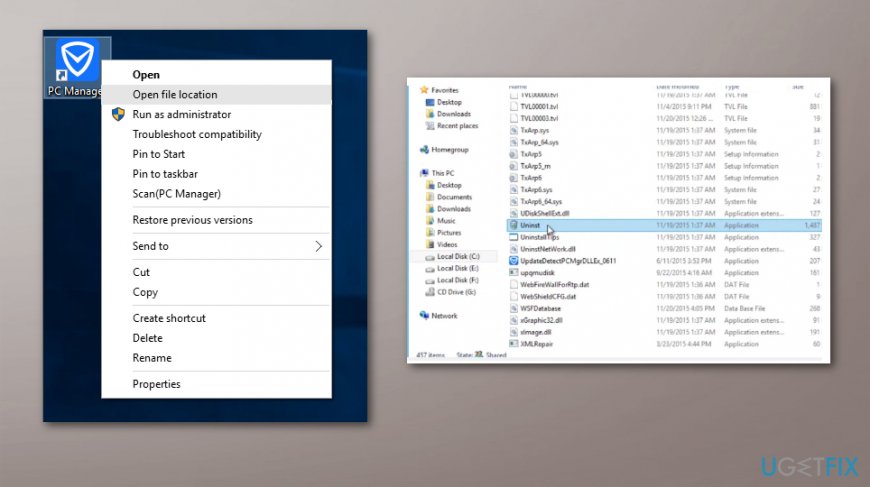
How to uninstall tencent pc manager uninst - Double-click on the executable and click OK to confirm the start of the elimination.
- Choose to delete the configuration files and then select Done button.
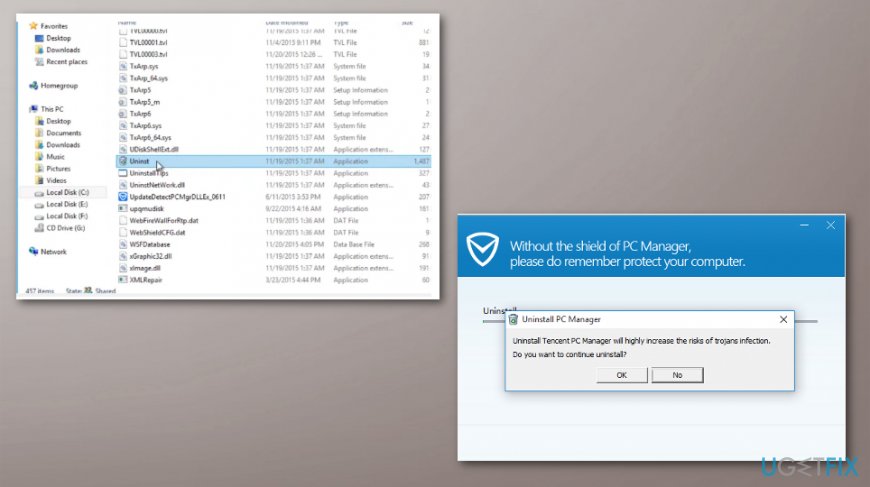
How to uninstall tencent pc manager uninstallation - When finished, restart the system.
These are the buttons you need to click when the process comes up in Chinese:
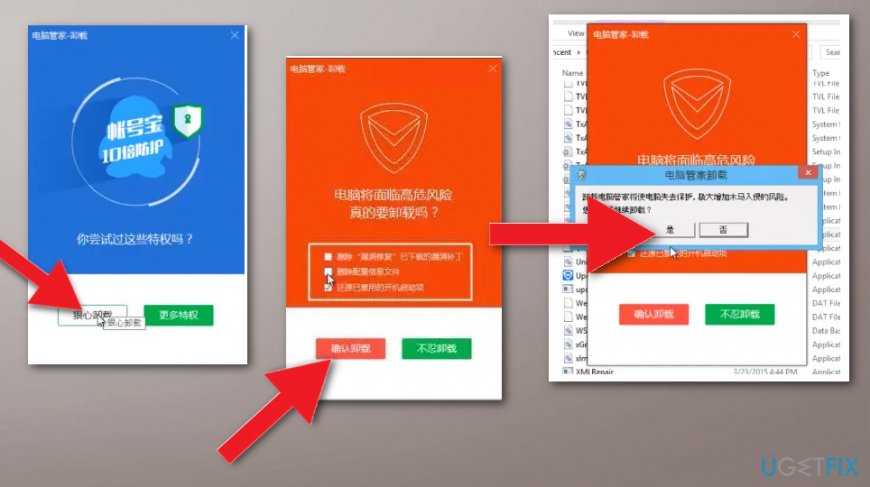
IMPORTANT!
- If you cannot find the right folder in Program files, go to Program Files(x86) instead.
- Users have reported that different versions of this software provide different uninstallers. If you have a Chinese-speaking friend, please ask him/her to help you out. Otherwise, try to uninstall the program again, but in Step 3 choose the right button instead of the left one.
Delete leftovers of Tencent PC Manager
- Go to Program files and delete the Tencent folder.
- Open Run and type appdata.
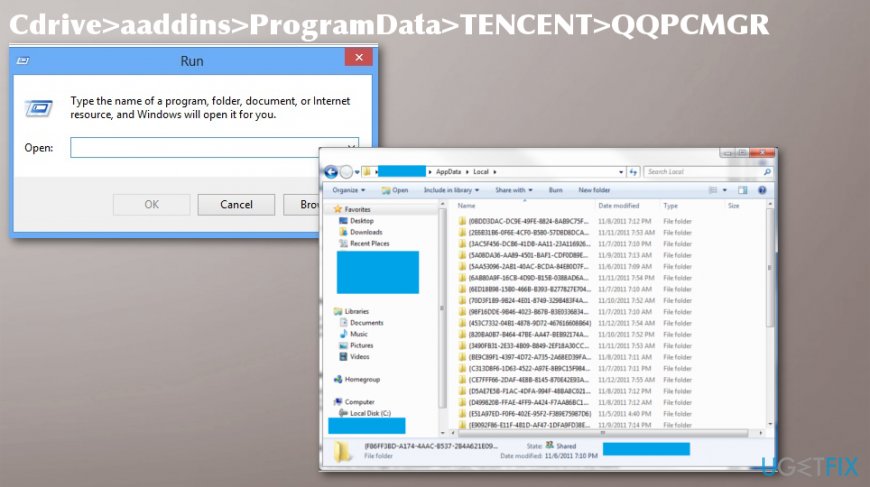
How to uninstall tencent pc manager appdata - Fins Local folder and choose the Tencent folder to delete it.
- Go to : C drive>aaddins>ProgramData>TENCENT>QQPCMGR
- Then delete qmconfig.hiv and check Local low folder. Delete anything Tencent-related there.
Bottom line
To uninstall Tencent PC Manager, users should locate and delete related files and folders, such as QQ.exe and the Tencent directory. If these steps do not resolve the issue, consider seeking additional technical support or using specialized uninstallation software.
Frequently asked questions
To uninstall Tencent PC Manager from Windows 10, go to Settings > Apps, find Tencent PC Manager in the list, and click 'Uninstall'. Follow the on-screen prompts to complete the removal process.
Yes, you can remove Tencent PC Manager by opening Control Panel, selecting 'Programs and Features', finding Tencent PC Manager, and clicking 'Uninstall'.
If Tencent PC Manager fails to uninstall, try using a third-party uninstaller or the built-in Windows 10/11 troubleshooter for apps to resolve any issues.




Report an issue
What's wrong with this guide? We review every report and update or remove content.
Report received — thank you. We'll review and fix it.
You need a free account to submit a report.
Be the first to comment