How to remove
Uninstall μTorrent
from Windows
Easily uninstall μTorrent from Windows 10 or 11 with our expert-tested guide. Complete the process quickly and leave zero traces behind!


How does How to uninstall μTorrent from Windows OS end up on your PC?
- PC performance suffering due to app usage
- App freezes during operation
- Not listed in add/remove programs
- Potential adware behavior
- Installation of unwanted additional software
- Previous versions causing errors
Repairs Windows system files, removes malware, and restores a clean OS state — without reinstalling.
I've recently installed utorrent program. However, I noticed that my PC performance is suffering and the app freezes. I'm running Windows 10 and cannot find how to remove it since it's not in add/remove programs list. Could you please help with that? Thanks!
µTorrent or uTorrent is one of the most used BitTorrent clients in the world with over 150 million users worldwide.[ref en-1] The software is also compatible with multiple platforms: Windows, Android, macOS, and Linux. The peer-to-peer[ref en-2] application allows users to download various data and stream directly. In comparison to previously-released clients, µTorrent is lightweight and uses minimal computer resources for its functionality.
Despite all the perks of this software, it is initially an adware application that displays advertisements in order to benefit its creators commercially. Also, peer-to-peer networks are not considered to be that safe, as downloading malware[ref en-3] from many dodgy, poorly regulated sites is quite likely.
Additionally, there are lots of testimonials on the Internet where users report about µTorrent's freezes or error messages, such as:
The system cannot find the path specified.
The µTorrent updater failed.
If you have already experienced these or similar errors, you have two options – you can either update µTorrent to its latest version or completely uninstall it.
Attention! Be careful when installing µTorrent. According to its developers, free µTorrent client has been misused by hackers who may try to spread viruses and potentially unwanted programs with the help of this tool. That's why it's recommended to install it only from the official website.
Nevertheless, despite its download source, you should read notifications provided on the installation checkboxes since they may contain "optional downloads." uTorrent distributes such apps like the infamous Wajam, Value Apps, and similar. Furthermore, the developers came under fire in 2015, when the installer was injected with Epic Scale[ref en-4] crypto mining software.
Besides, µTorrent Browser Bar and µTorrent Web Search may get installed by default and replace your start page and search provider unless you refuse to install them. Thus, make sure that you always carefully check installation settings of µTorrent and other free software.
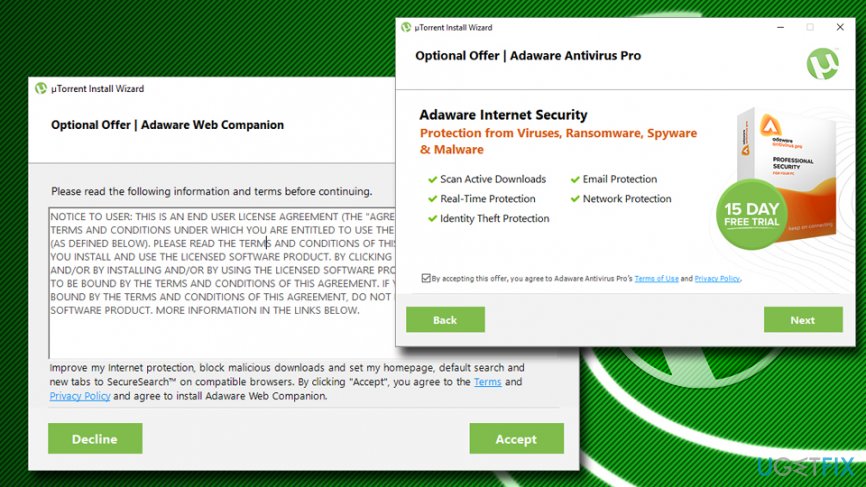
If you decided to uninstall uTorrent completely, please follow the guidelines presented below.
How to uninstall µTorrent on Windows OS
If your µTorrent does not work properly, then probably the best solution is to uninstall it. Unfortunately, it's not that easy task as it might seem at first. The most important thing that you have to keep in mind is that it's not enough to delete its main installer. To uninstall µTorrent completely, it's a MUST to remove all its components. The first thing that you have to do is to switch to the "Administrator Account."
Step 1. Save Torrent data
We are pretty sure that you want to save torrent data, which requires performing such steps:
- Stop all download processes that µTorrent is executing.
- In the main window you should find an icon “file +”. Click it.
- Move all needed files to the folder, for example, Documents.
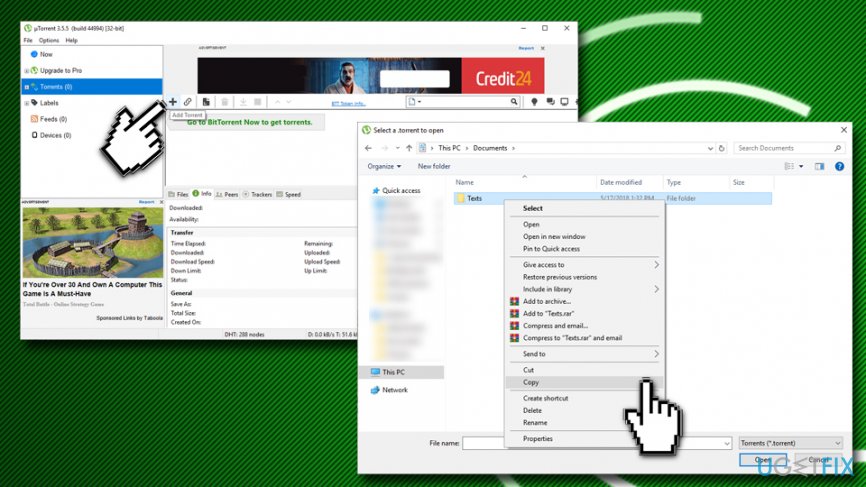
Utorrent removal guide copy your data
Step 2. Uninstall uTorrent client from your PC
After that, you can start uninstalling µTorrent on Windows OS. For that, you have to perform the following steps:
- Click Ctrl + Alt + Delete buttons at one and select Task Manager.
- Find all processes related to the µTorrent (utorrent.exe) and terminate them.
- Type in Control Panel (in the bottom left corner of the screen) and hit Enter.
- In the Control Panel window, go to Uninstall a program
- Find µTorrent , double-click on it or press the right button of your mouse and press Uninstall
- After that, a pop-up window should show up asking for your confirmation. If you are sure that you want to uninstall a selected program, click Uninstall.
- The process will automatically be finished. Do not click 'Restart' button after that because uninstalling is not finished yet.
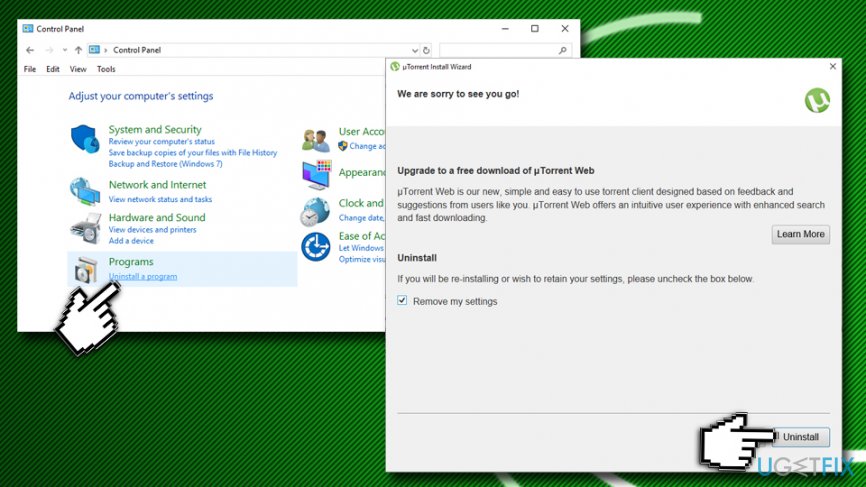
Utorrent removal guide uninstall utorrent client
Step 3. Delete Windows Registry entries related to uTorrent client
Complete µTorrent uninstallation will be finished as soon as you terminate the main file and related components. For that, you should:
- Type in regedit in the search box
- Right-click on the search results and pick Run as administrator
- It will be opened in another window and will gradually unfold “HKEY_CURRENT_USER > Software” where you should find µTorrent folder.
- Remove the entire folder because all its content is related to the µTorrent.
- Then, click on Edit > Find Next and type in uTorrent
- Delete everything that is related to the client
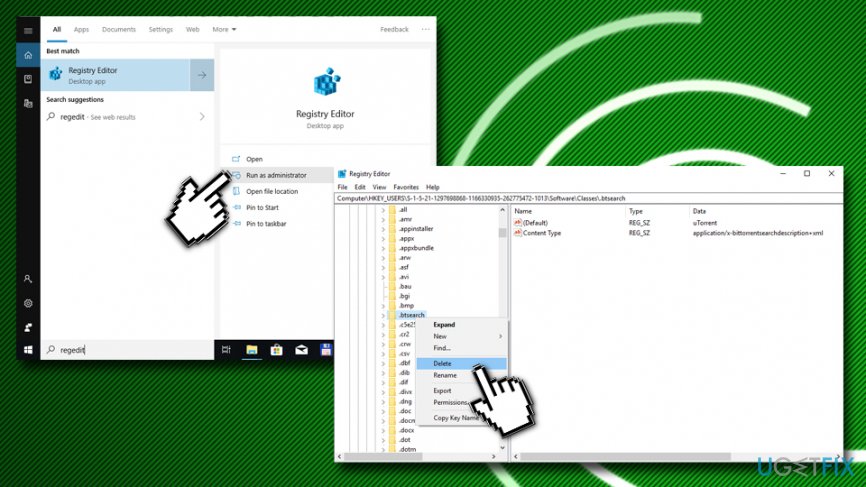
Utorrent removal guide delete windows registry
Step 4. Eliminate additional components connected to the uTorrent client
Finally, don't forget to remove µTorrent Browser Bar and µTorrent Web Search or similar programs that were installed additionally, because the uninstalling of the app will be treated as failed until all components are gone. In order to reset the default browser's settings, you have to take your time and follow these instructions:
- Run the web browser (IE, Google Chrome or Firefox).
- Click the manager icon, which can be found on the right top corner.
- Click Settings > Manage search engines
- Replace uTorrentControl_v2 Customized Web Search with the search that you've been using before.
- Click Manage Add-ons, remove µTorrent Browser Bar and µTorrent Web Search and click Apply and OK.
- After that, reopen your web browser to check whether settings have been restored.
- Finally, restart your computer.
Congratulations! You've managed to uninstall µTorrent on Windows OS successfully. In case you do not want to tamper with Windows Registry (it is quite risky as it can result in malfunction of programs or even the operating system itself), you can use [d1] to do that automatically.
Bottom line
To resolve the issues with µTorrent, you can either update it to the latest version or completely uninstall it. If you are unable to uninstall it through the standard methods, consider using third-party uninstaller software. If none of these solutions work, seek further assistance from tech support.
Frequently asked questions
To completely remove μTorrent from Windows 10, go to Settings > Apps, find μTorrent in the list, and click 'Uninstall'. Additionally, check for leftover files in the Program Files folder and delete them if necessary.
No, uninstalling μTorrent from Windows 11 will not delete your downloaded files; however, it will remove the application itself and its settings.
If μTorrent doesn't appear in the installed apps list on Windows, try using the Control Panel's 'Programs and Features' option to uninstall it or use a third-party uninstaller tool.




Report an issue
What's wrong with this guide? We review every report and update or remove content.
Report received — thank you. We'll review and fix it.
You need a free account to submit a report.
Be the first to comment