How to remove
Uninstall TuneUp Maestro
from Windows
Easily uninstall TuneUp Maestro on Windows 10 or 11 with our expert-tested guide. Get rid of unwanted programs quickly and efficiently! Fixed in minutes.

How does How to Uninstall TuneUp Maestro on Windows end up on your PC?
- Installed alongside other programs
- Distributed using bundling technique
- Launches scanners without user consent
- Delivers pop-up alerts prompting purchase
- Variety of files installed complicates removal
Repairs Windows system files, removes malware, and restores a clean OS state — without reinstalling.
I got pop-ups from TuneUp Maestro so often that I can‘t stand them anymore. I don‘t remember installing this program, so I have a suspect that it has been installed alongside some other program that I have recently installed. To tell the truth, I don‘t even know what this program is, but it‘s a second hand anti-malware, isn‘t it? Anyway, could you please tell me how to disable its pop-up alerts? Many thanks!
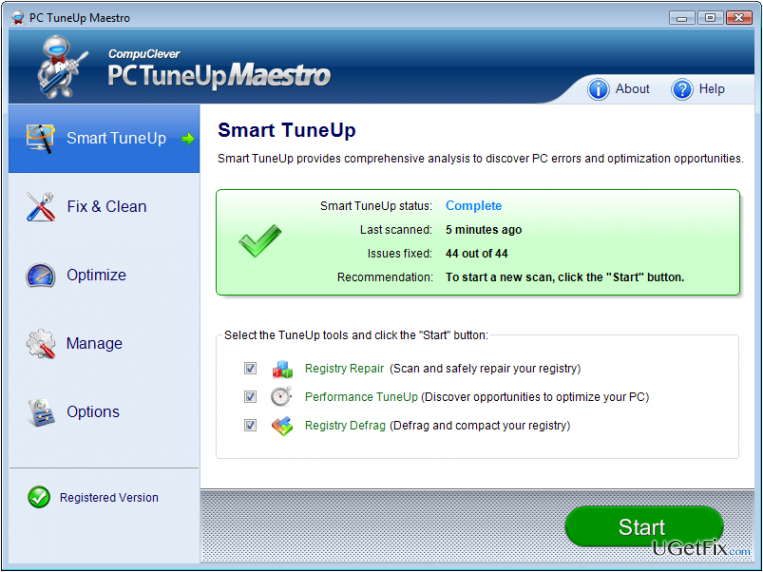
TuneUp Maestro is a software utility developed by CompuClever Systems. The company represents this program as a useful PC optimization tool, which aims at speeding up a slow computer by fixing system errors, crashes, registry entries, memory resources, and so on. While it may appear to be a really handy tool, specialists warn that TuneUp Maestro is a questionable application that should better be removed. Recently it has been assigned to the category of potentially unwanted programs (PUP) due to several negative traits. First of all, it is distributed using an unfair technique, which is known as bundling. It means that despite having an official website and an active download on it, TuneUp Maestro PUP is attached to other free programs like various media players and installed along with them by default. Second of all, once installed it starts launching its scanners whether the user wants that or not and then deliver pop-up alerts prompting the user to buy its full version. Third of all, it has been noticed that TuneUp Maestro removal may be intricate task due to the variety of files that it installs on the system and web browsers. Unfortunately, but the only way to get rid of TuneUp Maestro pop-ups and scanners, which, by the way, slow down the system, is to uninstall this application completely. Thus, if you got caught by this suspicious application, we will explain how to remove TuneUp Maestro virus completely.
How to Uninstall TuneUp Maestro on Windows?
If you opt for a quick, easy, and secure TuneUp Maestro removal, then our recommendation would be to use a software removal tool. This way, you won't have to think about file leftovers because they will be safely eliminated as well. Thus, try to install [rev id="Perfect Uninstaller"] and remove any unwanted program from your PC.
In case you prefer manual software removal, be very careful because manual TuneUp Maestro removal requires accessing Registry Editor, so make sure that you delete the right files.
TuneUp Maestro removal guide:
Turn your computer on, or, if it is already on, restart it. Press F8 key repeatedly when the Windows boot screen shows up. When the Advanced Boot Options menu appears, select Safe Mode, Safe Mode with Networking or Safe Mode with Command Prompt.
As soon as he system is booted in Safe Mode, disableTuneUp Maestro malware on Task Manager. For this purpose, click Ctrl + Alt + Delete, find TuneUp Maestro process on the list, right-click it, and select End Task.
Once done, you have to uninstall TuneUp Maestro via Control Panel and delete its files leftovers using Registry Editor.
Windows 7:
- Open Start menu by clicking the Windows logo in the bottom-left corner of the screen. Then go to Control Panel -> Uninstall a Program.
- Locate TuneUp Maestro, click it, and select Uninstall. If a confirmation window appears, click on Later/No.
- Open Start menu again, type regedit and press Enter.
- When Windows Registry Editor opens, locate HKEY_CURRENT_USER/Software/ folder and find a folder that belongs to TuneUp Maestro. Right-click on it and select Delete.
- Reboot your computer.
Windows 8/8.1:
- Open charms bar (bottom right corner). Click Search, type msconfig, and press Enter.
- Click on Boot tab, select Safe boot option (in the Boot options section), and click OK.
- Again, move your cursor to the bottom left corner of the screen to open charms bar. Click Search, type control panel and press Enter.
- Then select Uninstall a Program in the Programs column.
- In the list of all programs, find TuneUp Maestro, select it and click Uninstall.
- On the confirmation window select Later/No option to postpone system restart.
- Open charms bar again. Select Search, type regedit, and press Enter Key.
- Find HKEY_CURRENT_USER/Software folder and delete TuneUp Maestro folder from it. To do that, right-click on it and select Delete.
- Reboot your computer.
Windows 10:
- Open Cortana, type All Apps and press Enter.
- In the list of programs, find TuneUp Maestro, right-click it, and select Uninstall.
- After that, find TuneUp Maestro on the Control Panel, click on it, and select Uninstall.
- If a confirmation window shows up asking if you really want to uninstall TuneUp Maestro, click Yes.
- After that, click on the Windows logo again and type regedit in the search bar to open Windows Registry Editor.
- Locate where HKEY_CURRENT_USER/Software folder is, and delete TuneUp Maestro folder. To do that, right-click on it and select Delete.
- Reboot your computer.
Finally, go to the C:/ drive and delete all the files that belong to TuneUp Maestro. The following are the examples:
%windows%\system32\drivers\ TuneUp Maestro.sys
%program files x86%\common files\speechengines\microsoft\ TuneUp Maestro.dll
%program files% \TuneUp Maestro.exe
%users%\your user account\appdata\roaming\installplugin\TuneUp Maestro.
Hopefully you have successfully uninstalled TuneUp Maestro optimization tool.
Bottom line
To uninstall TuneUp Maestro on Windows, it is recommended to use a software removal tool for a quick and secure removal process. If this method does not work, consider manually removing the application and its associated files.
Frequently asked questions
To uninstall TuneUp Maestro from Windows 10, go to Settings > Apps, find TuneUp Maestro in the list, select it, and click 'Uninstall.' Follow the prompts to complete the removal process.
Yes, on Windows 11, you can uninstall TuneUp Maestro by right-clicking the Start button, selecting 'Apps and Features,' locating TuneUp Maestro, and clicking 'Uninstall'.
If you face issues uninstalling TuneUp Maestro, you can use the built-in Windows troubleshooter or a third-party uninstaller tool to help remove any stubborn files.




Report an issue
What's wrong with this guide? We review every report and update or remove content.
Report received — thank you. We'll review and fix it.
You need a free account to submit a report.
Be the first to comment