How to remove
Uninstall unTabs Extension from Chrome
from Windows
Easily remove the unTabs extension from Chrome on Windows 10 or 11 with our expert-tested guide. Get it fixed in minutes!

How does How to Uninstall unTabs Extension from Chrome end up on your PC?
- Installed without user consent
- Propagated via software bundling
- Hijacked homepage and new tab URL
- Redirects to malicious websites
- Displays unwanted advertisements
Repairs Windows system files, removes malware, and restores a clean OS state — without reinstalling.
I’ve started receiving quite irritating online advertisements and noticed that they are marked as “Ads by UnTabs.” I’ve found such an extension installed on Chrome, but I’m hundred percent sure that I didn’t install it by myself. Its malware, isn’t it? Please tell me how to delete it permanently so that I would not waste my time with lame attempts.
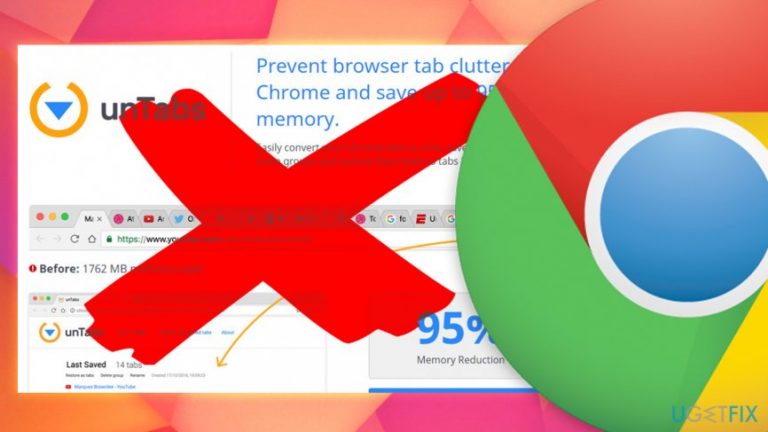
UnTabs is a browser extension designed for Google Chrome and used to be available on Google web store. Additionally, users could also download the app from its official website. These sources are now gone, and the only way the app in question is propagated via the software bundling.[ref en-1]
As it is typical for browser hijackers,[ref en-2] it pretends to be useful due to its "superior" functionality. In this case, it is supposed to “prevent browser tab clutter <…> and save up to 95% memory.” To put it simply, the purpose of this extension is to manage Chrome’s tabs by ordering, grouping, and converting them into lists. However, there is a catch
UnTabs was removed from Google store and other sources because of its dangerous behavior, which typically includes:
- A hijacked homepage, new tab URL and search engine
- Slow operation of the browser
- Long page loading times
- Overall slow performance of the PC
- High persistence of the app
- Redirects to malicious websites
- "Ads by UnTabs" appear on most visited websites
Due to this behavior, UnTabs is not the desired application on anybody's systems and those who notice its presence should immediately uninstall UnTabs. Unfortunately, this task might be more difficult than it might seem at first, as the potentially unwanted program is very hard to remove.
UgetFix team has researched this tool and compiled a list of unTabs disadvantages to illustrate how untrustworthy seemingly useful apps sometimes may be. Hundreds of people shared their experience on how they were struggling with unTabs removal and how did they manage to uninstall it completely. Thus, to make it easier for the other unTabs victims to get rid of it, we’ll provide a short removal tutorial down below.
Step 1. Boot the system into Safe Mode
Initially, most potentially unwanted programs are not that difficult to eliminate. However, more malicious threats like UnTabs can use many dirty tricks to prevent users from removing it. For example, users might not be able to visit certain websites, some of Windows processes might be terminated, anti-virus software might not function correctly. To prevent such activity, users are highly recommended to enter Safe Mode with Networking, which allows the system to start using only basic drivers and processes:
- Press Windows button and navigate to the Power button using your mouse’s cursor.
- Press-Hold the Shift button and select Restart from the Power options.
- When the system boots into Windows Startup screen, select Troubleshoot.
- Click Advanced Options and select Startup Settings.
- Select Restart and then press F5 to enable Safe Mode with Networking.
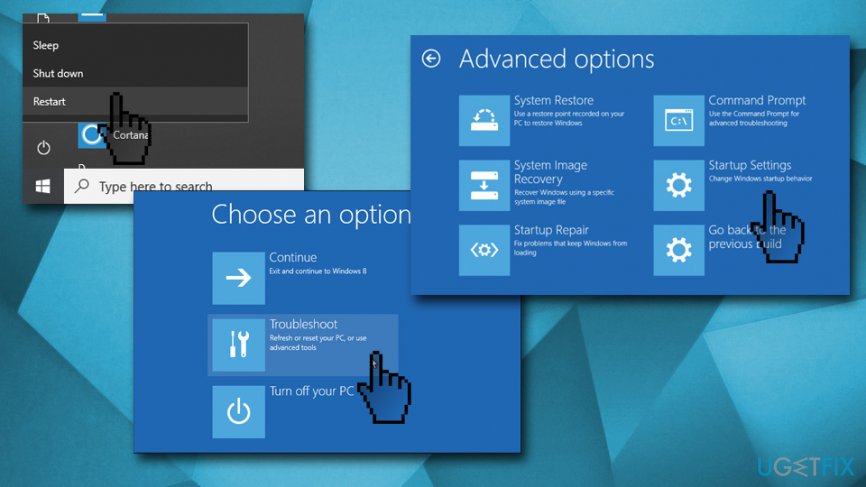
Uninstall untabs from google chrome boot into safe mode
Step 2. Modify Windows Group Policy Settings
- Right-click on Windows button and select Command Prompt (Admin).
- Copy-Paste rd /S /Q "%WinDir%\\System32\\GroupPolicyUsers" command and press Enter.
- Copy-Paste rd /S /Q "%WinDir%\\System32\\GroupPolicy" and press Enter.
- Then type gpupdate /force and hit Enter again.
These steps will reset Group Policy settings to default. Therefore, you will be able to uninstall unTabs virus without obstructions.
Step 3. Uninstall unTabs extension
This step can also be performed using anti-malware software. However, be aware that not all security applications recognize a potentially unwanted program. According to Virus Total, only 11 AV engines[ref en-3] identify the program as unwanted. Thus, you might have to open Control panel to uninstall UnTabs manually:
- Click on Windows button and type in Control Panel, pick from results.
- Open Programs and Features and locate unTabs.
- Click it and select Uninstall. Before doing that, check when it has been installed.
- Go through the list of apps and look for the suspicious ones. If it turns out that other doubtful programs were installed along with unTabs, remove them as well.
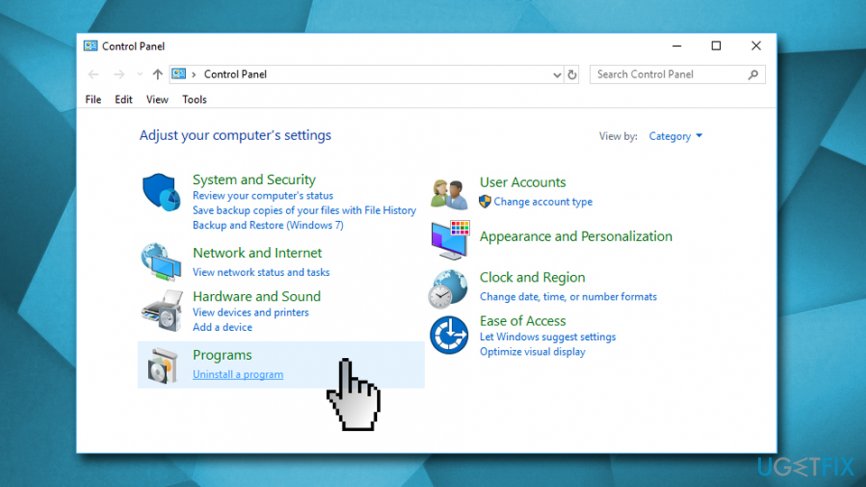
Uninstall untabs from google chrome uninstall untab cia control panel
Step 4. Reset Google Chrome
To disable unTabs extension on Chrome, reset Chrome‘s settings to default.
- Launch Google Chrome and click More button (three dots at the right-top corner or the page).
- Navigate to the Settings and click Advanced.
- Click on Reset and clean up.
- Then click on Restore settings to their original defaults and confirm your selection
- Reboot your PC.
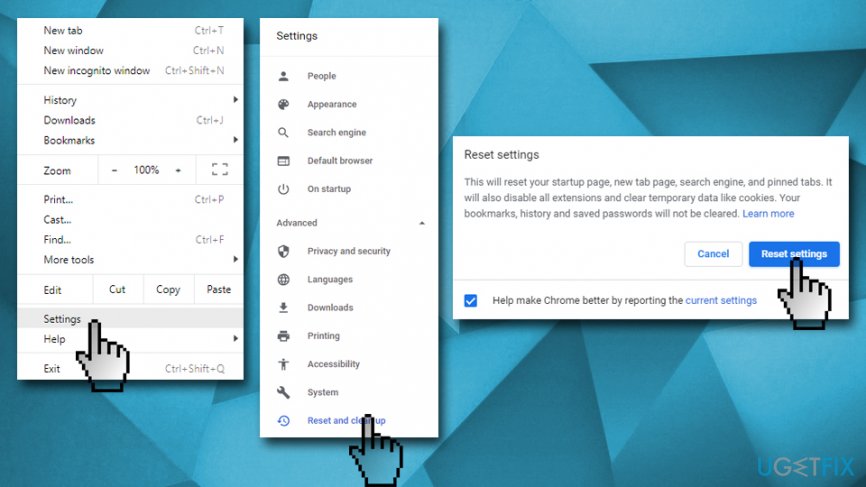
Uninstall untabs from google chrome uninstall reset google chrome
If you are less computer-savvy, we suggest you uninstall UnTabs and use system repair software [d1]. This application can completely rejuvenate your PC and fix the damage done by malware or other threats, including fixing Windows Registry.
Bottom line
To uninstall the UnTabs extension, users should boot their system into Safe Mode and follow a removal tutorial. If these steps do not resolve the issue, further assistance may be needed to completely eliminate the unwanted application.
Frequently asked questions
To uninstall the unTabs extension from Chrome on Windows 10, open Chrome, click on the three-dot menu, go to 'More tools' > 'Extensions', find unTabs, and click 'Remove'.
No, the process to remove the unTabs extension is the same on Windows 11; just access the Extensions menu through the Chrome settings.
If you can't find the unTabs extension, try resetting Chrome settings or checking if it's hidden under 'Manage extensions' in the Chrome menu.




Report an issue
What's wrong with this guide? We review every report and update or remove content.
Report received — thank you. We'll review and fix it.
You need a free account to submit a report.
Be the first to comment