How to remove
Uninstall .Wallet Ransomware
from Windows
Remove .Wallet Ransomware from Windows 10 or 11 quickly and safely. Follow our expert-tested guide for a clean uninstall with zero traces left.

How does How to Uninstall .Wallet Ransomware end up on your PC?
- Malicious email attachments
- Malvertising
- Obfuscated Trojan in misleading emails
- Malware-laden ads on websites
- Ransomware making entries in Windows Registry
Repairs Windows system files, removes malware, and restores a clean OS state — without reinstalling.
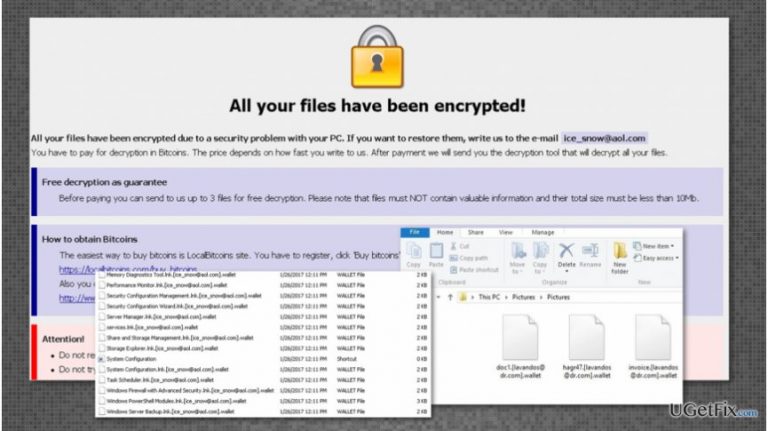
My all files have .wallet file extension, and a strange background picture asks to transfer 3 Bitcoins in order to decrypt my files. I have no idea why and when my computer was infected with ransomware. What do I need to do now?
Wallet ransomware has two main distribution channels - malicious email attachments and malvertising. The first distribution method allows sending obfuscated Trojan in a misleading email which informs about a necessity to open an attached document. The second method allows placing malware-laden ads on any website. When a person clicks on the infected attachment or advertisement, the .wallet ransomware payload is installed on the system and activated.
Ransomware operation techniques
Previously discusses methods allows creators of the .wallet virus install and run a malicious payload on the system. Then, ransomware immediately starts scanning the system and encrypting targeted files. Using a sophisticated combination of RSA and AES algorithms, ransomware makes data inaccessible. Originally, encrypted files have .wallet file extension; however, other versions of malware might append different file extensions. However, all the details and name of the virus is presented in the ransom note which appears as a changed desktop wallpaper. The ransomware might also make entries in the Windows Registry in order to activate itself every time a person reboots an infected computer. These malicious processes require lots of CPU/RAM; as a result, the computer becomes slow and sluggish. Ransomware is also capable of opening the backdoor for potentially unwanted programs (PUPs) and malware.
How to uninstall .wallet ransomware?
Before starting .wallet removal procedure, we highly recommend reading the instructions carefully first. Also, you should print them because elimination requires restarting the computer and closing the browser.
1. Reboot your computer to the Safe Mode with Networking.
2. When in Safe Mode, open Windows Task Manager by clicking Ctrl + Shift + Esc at the same time.
3. Go to the Processes Tab. Find malicious processes in the list. Right-click on them and choose Open File Location.
4. Once the folder is opened, end malicious processes and delete their folders.
5. Hold the Start Key and R, paste the following command and click OK:
notepad %windir%/system32/Drivers/etc/hosts
This will open a new file where you will find a list of IP addresses that are connected to the computer.
6. In the search field type msconfig and press enter. This will initiate System Configuration window.
7. In the System Configuration Window go to Startup Tab. Deselect all Startup Items that have Manufacturer titled as “Unknown.” However, sometimes malware include fake names of the Manufacturer. Thus, you need to make sure which processes are dangerous and which ones are real.
8. Open Windows Registry by typing Regedit in the search bar and pressing Enter.
NOTE. Making modifications in Registry may lead to irreparable damage. Thus, in order to avoid possible damage, we recommend employing malware removal tools such as [rev id=“Reimage”], and eliminating .wallet ransomware automatically.
9. When Windows Registry opens up, press CTRL + F and type the virus name. Look for the ransomware in the registry entries and delete them. Make sure you delete malicious files, not the legitimate ones.
10. In the Windows Search Field type these entries:
- %AppData%
- %LocalAppData%
- %ProgramData%
- %WinDir%
- %Temp%
Check if something was added to these directories recently, and delete all entries from Temp.
Data Recovery options
Authors of the file-encrypting virus offers to purchase Wallet decryptor for particular amount of Bitcoins (different versions of the virus might ask for the different size of the ransom). However, cyber security experts does not recommend making this purchase, and focusing on virus removal. The main problem with the ransomware viruses is that deletion of the virus does not recover encrypted files. In order to recover files encrypted by .wallet ransomware, you can try to use Dharma decryptor. This crypto-malware belongs to the same ransomware family. Thus, this decryption tool should help to get back access to the files.
Bottom line
To uninstall .wallet ransomware, reboot your computer to Safe Mode with Networking, open Windows Task Manager, and identify malicious processes. End these processes and delete their folders. If these steps do not resolve the issue, consider seeking professional help.
Frequently asked questions
To uninstall .Wallet Ransomware from Windows 10, boot into Safe Mode, then access the Control Panel, navigate to 'Programs and Features', and remove any suspicious applications related to the ransomware.
Yes, you can run a full system scan with Windows Defender on Windows 11 to detect and remove .Wallet Ransomware, but it is recommended to also use a dedicated anti-malware tool for better results.
Uninstalling .Wallet Ransomware does not guarantee file recovery; you may need to use specialized decryption tools or restore from backups if available.




Report an issue
What's wrong with this guide? We review every report and update or remove content.
Report received — thank you. We'll review and fix it.
You need a free account to submit a report.
Be the first to comment