How to remove
Uninstall WikiBuy
from Windows
Easily uninstall WikiBuy from Windows 10 or 11 with our expert-tested guide. Remove unwanted programs quickly and efficiently, with zero traces left.

How does How to Uninstall WikiBuy end up on your PC?
- Extension added to the browser without user consent
- Application tracks online activities and browsing history
- Frequent commercial offers may become bothersome
- IT professionals label it as a potentially unwanted application (PUP)
- High ratings do not guarantee safety or reliability
Repairs Windows system files, removes malware, and restores a clean OS state — without reinstalling.
I found this extension added to the browser. It says to be affiliated with Amazon. Is it really so? Or is it one of those unwanted adware programs? Thanks for the advice in advance.
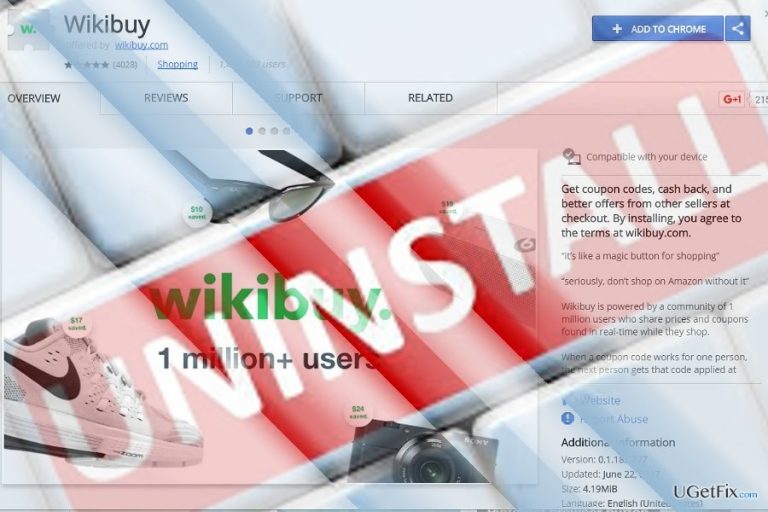
WikiBuy functions as a browser extension available on Chrome web store. It is promoted as a necessary tool for enhancing your Amazon shopping. It is commendable that the tool leads to its official website. According to the ratings, it seems to be a reliable utility which has earned a positive rating from over that 4 000 users.
Once you enter its official website, you are asked to sign up to experience the benefits of the domain. Its main purpose is to deliver you relevant deals and commercial offers. Naturally, in order to do that, the application will track your online activities and process your browsing history as well as frequent search entries.
Consequently, you are likely to be constantly disturbed with commercial offers. Before adding the extension, it seems that the tool only reads and changes all your data on the websites you visit. Thus, within a while, such frequency of commercial offers might start bothering.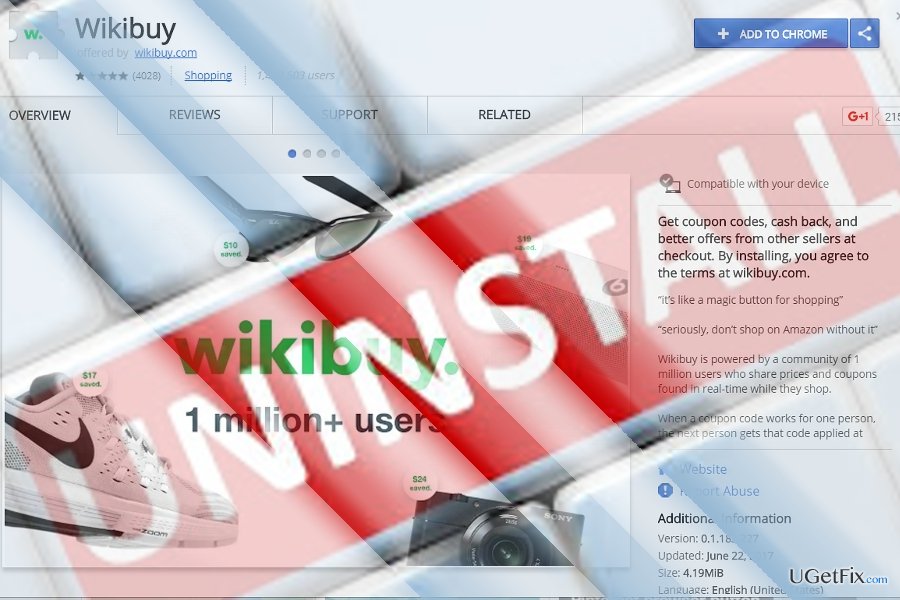
On the final note, even if such application has supposedly high ratings, it is not positively evaluated by IT professionals. They label it as a potentially unwanted application (PUP). Thus, you might want to uninstall Wikibuy. You can do it manually as well as with the assistance of [rev id=”Reimage”].
Option 1. Uninstall WikiBuy via Control Panel
- Depending on Windows version you use, click Start and enter Programs and Features or Apps and Features (Windows 10).
- Locate WikiBuy and click Uninstall.
- Wait for the uninstallation guide to finish.
Option 2. Remove WikiBuy extension from Chrome
- Open the browser. Click on the menu icon on the top right corner and choose Tools → Extensions.
- Click on WikiBuy and then remove it by clicking on trash bin icon.
In order to eliminate all web scripts related to this browser extension, you can reset the browser.
- Click on menu icon on the top right and enter Settings.
- Scroll down until you Reset browser settings option. This action will delete all your saved bookmarks.
Option 3. Eliminate WikiBuy from Mozilla Firefox
- Launch Mozilla Firefox and click on the menu icon.
- Choose Add-ons → Extensions.
- Mark WikiBuy and choose Remove option.
Reset Mozilla Firefox
- When you enter Firefox menu settings, click on the question mark. Enter Troubleshooting Information.
- Click on Reset Firefox to its default state and finish the action by clicking Reset Firefox button.
Bottom line
To uninstall WikiBuy, you can either use the Control Panel or remove the extension directly from Chrome. If you still experience issues after following these steps, consider resetting your browser or seeking further assistance.
Frequently asked questions
To uninstall WikiBuy from Windows 10, go to Settings > Apps > Apps & features, find WikiBuy in the list, and click 'Uninstall.' Follow the prompts to complete the removal.
Yes, on Windows 11, you can right-click the Start button, select 'Apps & features,' locate WikiBuy, and click 'Uninstall' to remove it.
If WikiBuy is not listed in your installed programs, try removing it from your browser extensions or resetting your browser settings, as it may be installed as an extension.




Report an issue
What's wrong with this guide? We review every report and update or remove content.
Report received — thank you. We'll review and fix it.
You need a free account to submit a report.
Be the first to comment