How to remove
Uninstall WinRAR (64-bit) on PC
from Windows
Easily uninstall WinRAR (64-bit) from your Windows 10 or Windows 11 PC with our quick guide. Expert-tested solutions ensure a hassle-free removal.

How does How to Uninstall WinRAR (64-bit) on PC end up on your PC?
- User wants to clean up the computer from unused programs
- WinRAR (64-bit) is considered unnecessary by the user
- User is unsure how to uninstall the program
- Leftover files may remain after uninstallation
- Registry entries related to WinRAR (64-bit) may not be removed automatically
Repairs Windows system files, removes malware, and restores a clean OS state — without reinstalling.
Hello! Can you tell me how to uninstall WinRAR (64-bit) from my system? I do not know how to do it, but I want to remove this program as I am trying to clean up my computer from programs that I do not use. Can you provide a removal tutorial?
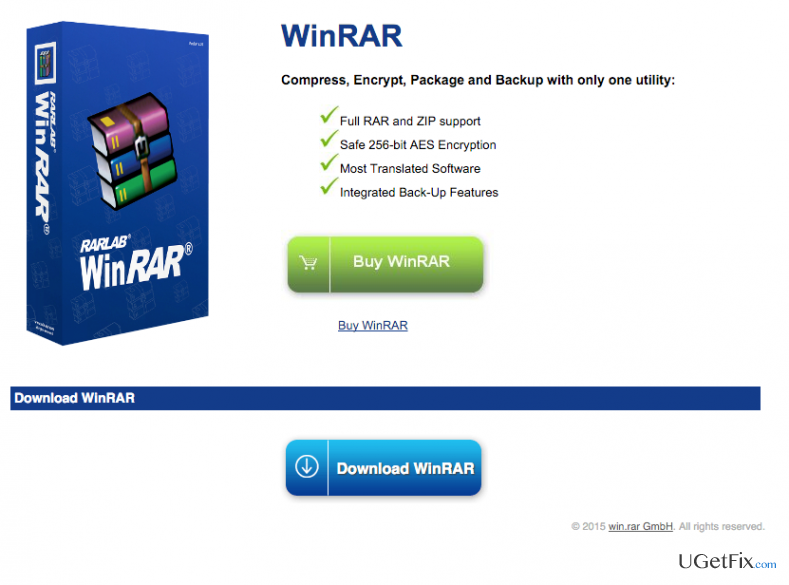
WinRAR, which is published by RARLAB, is a useful program to encrypt, compress, pack and backup files. This software supports both .RAR and .ZIP files. Also, it can open ARJ, CAB, LZH, GZ, TAR, UUE, BZ2, ACE, ISO, JAR, and 7-Zip files. It is supported by Windows XP, 2003, Vista, Server 2008, 7 and 8 operating systems. WinRAR can protect archived files from damage, it can scan the archives for viruses, verificate the authenticity of the archive, and it has many other useful features. This program can help to save disk space or make the files smaller when transmitting them via OneDrive, DropBox or other file sharing platforms. However, if you believe that WinRAR (64-bit) is a not necessary program, you should remove it. We have prepared this removal guide for you - follow the steps closely and uninstall WinRAR in a right way. There are two ways to uninstall it.
How to Uninstall WinRAR (64-bit) on PC?
Method 1: Uninstall the program via WinRAR (64-bit) uninstaller.
- Open 'Start Menu' → 'All Programs'.
- Find WinRAR (64-bit) folder, open it and find 'Uninstaller.'
- Double-click it and follow the process.
Method 2: Uninstall WinRAR (64-bit) via the Add/Remove Programs list:
- Launch 'Start Menu' → 'Control Panel' → 'Uninstall a Program' (Windows 7).
- Launch 'Start' → 'Programs and Feature' (Windows 8.1)
- Open 'Start Menu' → 'Control Panel' → 'Add/Remove Programs' (Windows XP)
- Detect WinRAR (64-bit) and select 'Change/Remove'.
- Click 'Yes' to perform the removal and then wait until the process is over.
After performing these steps, you need to erase WinRAR (64-bit) leftovers from the Windows Registry. To do that, please follow these steps:
- Check the folder that belongs to WinRAR (64-bit) and remove all files that are still sitting there.
- After that, open 'Start Menu', type “regedit” in the search bar and click 'Enter' to open Registry Editor.
- Here you should find and remove all registry entries that belong to WinRAR (64-bit). Look for the files located in folders: HKEY_CURRENT_USER\Software\WinRAR (64-bit), HKEY_LOCAL_MACHINE\Software\WinRAR (64-bit), and (HKEY_LOCAL_MACHINE\Software\Microsoft\Windows\CurrentVersion\Run\eg ui).
- Find and delete all program files in system folders: C:\Program Files\WinRAR (64-bit), C:\Document and Settings\All Users\Application Data\WinRAR (64-bit), C:\Documents and Settings\%USER%\Application Data\WinRAR (64-bit).
If these removal instructions seem to be not clear enough for you, we suggest to install a good software uninstaller program and remove WinRAR (64-bit) with it. We recommend using [rev id="Perfect Uninstaller"] for that.
Bottom line
To uninstall WinRAR (64-bit), you can use the uninstaller from the WinRAR folder or access the Add/Remove Programs list in the Control Panel. After uninstallation, it is important to remove any leftover files and registry entries to ensure complete removal. If these methods do not work, consider seeking additional technical support.
Frequently asked questions
To uninstall WinRAR from Windows 10, go to Settings > Apps, find WinRAR in the list, click on it, and select 'Uninstall.' Follow the prompts to complete the removal process.
Yes, in Windows 11, you can uninstall WinRAR by opening the Control Panel, navigating to 'Programs and Features,' selecting WinRAR, and clicking 'Uninstall.'
If WinRAR is not listed in the installed programs on Windows, try using a third-party uninstaller tool or check if it was installed in a different directory that might require manual removal.




Report an issue
What's wrong with this guide? We review every report and update or remove content.
Report received — thank you. We'll review and fix it.
You need a free account to submit a report.
Be the first to comment