How to remove
Uninstall WinThruster
from Windows
Easily uninstall WinThruster from Windows 10 or 11 without hassle. Get clear steps and expert tips for a complete removal. Fixed in minutes!

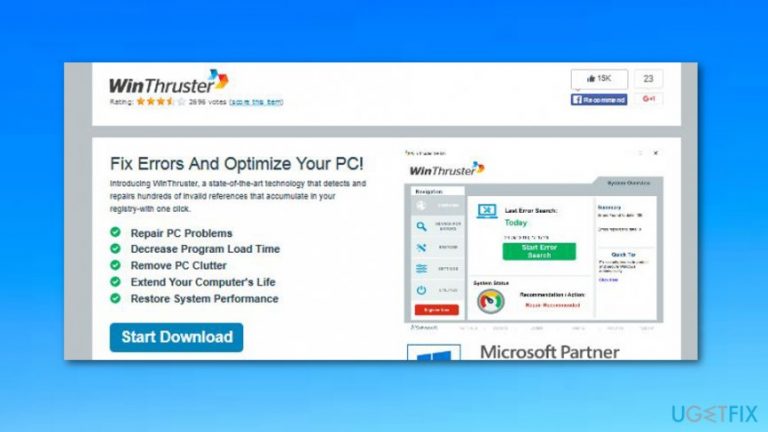
How does How to Uninstall WinThruster on Windows OS end up on your PC?
- WinThruster may come bundled with other free software
- It is sometimes referred to as a potentially unwanted program
- It might negatively influence system performance
- The free version only scans and reports errors without fixing them
- Users are required to pay to fix reported errors
Repairs Windows system files, removes malware, and restores a clean OS state — without reinstalling.
Could you please tell me if WinThruster is a trustworthy application? I consider uninstalling it.
There are many discussions related to the reliability of WinThruster.[ref en-1] This application is represented as a system optimization tool, which helps to deal with system slowdowns, unresponsiveness, freezes, errors, and similar Windows OS[ref en-2] inconsistencies. Undoubtedly, Windows bugs are very common, so having this type of helper seems to be a great solution.
However, there is a wide range of PC optimization tools on the Internet, so it’s worth getting some deeper understanding of the functionality, pros, and cons of each of them. From the perspective of security, WinThruster is a hundred percent legitimate and safe to use. However, many people complain about it due to several reasons.
First of all, it has been noticed that WinThruster may come to the computer in a bundle with free another free software, which is why it is sometimes referred to as a potentially unwanted program. Second of all, it might negatively influence the system’s performance (increased system slowdowns and unresponsiveness have been noted).
Third of all, when people install a free version of the WinThruster tool, it does not perform any useful operations, except scans the system and reports about existing errors. To fix them, the owner of the PC is asked to pay a certain amount of money. As a consequence, there are lots of people who are not satisfied with this tool and ask for the guide on how to uninstall WinThruster on Windows OS permanently.
How to Uninstall WinThruster on Windows OS?
If you are not satisfied with the WinThruster performance, you can always uninstall it, but first, you have to decide which method you prefer, i.e. manual or automatic. All applications that are related to the security and maintenance of the system have to be removed with extreme carefulness. That’s because they often conflict with other applications, so any leftovers may cause future problems.
If you don’t have time to look for separate files on the Registries in the Windows Registry section[ref en-3], you can install [d1] and uninstall WinThruster automatically. If, however, you are not fond of using additional software or prefer manual removal, here’s what you have to do:
Step 1. Kill WinThruster process
- Right click on the WinThruster icon on the bottom-right corner and select Exit.
- After that, press Ctrl + Alt + Delete open Task Manager. Find the program, right-click on it and select End Task.
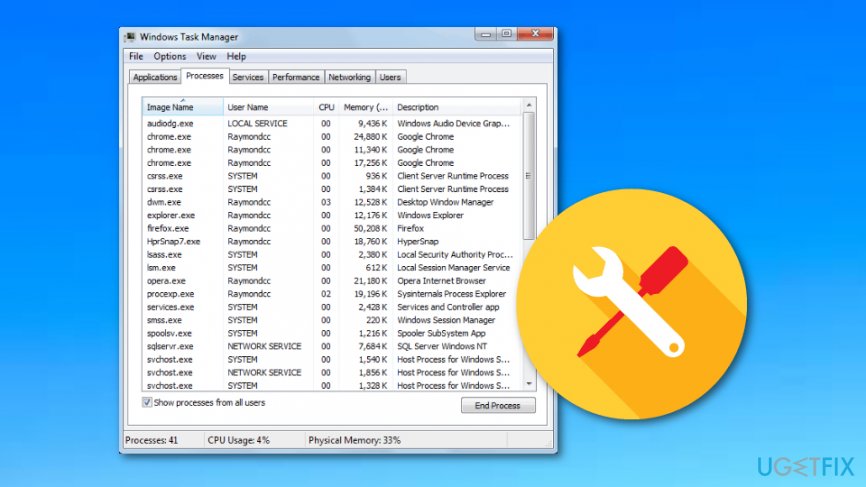
Fix in task manager
Step 2. Find WinThruster uninstaller
- Press Windows Key + S and then select Search.
- Type WinThruster in the search bar, right-click on it and select uninstall.
- Click OK to confirm the changes.
Step 3. Delete WinThruster from the Control Panel
- Open Start Menu → Control Panel → Programs → Programs and Features (Windows 7).
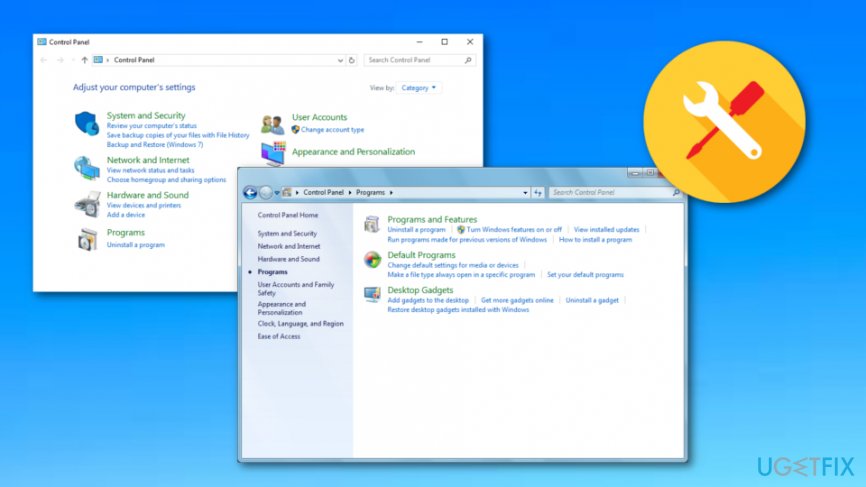
Fix in programs
Right click on Start → Programs and Features (Windows Vista/Windows 8.1)
Click Start → Settings → System → Apps & features (Windows 10)
Launch Start Menu → Control Panel → Add/Remove Programs (Windows XP) - Find WinThruster and click Change/Remove or Uninstall.
- Click Yes to perform the removal and then wait as far as the process is over.
Step 4. Clean WinThruster leftovers from the Registries
- Click Win key + R, type regedit, and hit Enter to open Registry Editor.
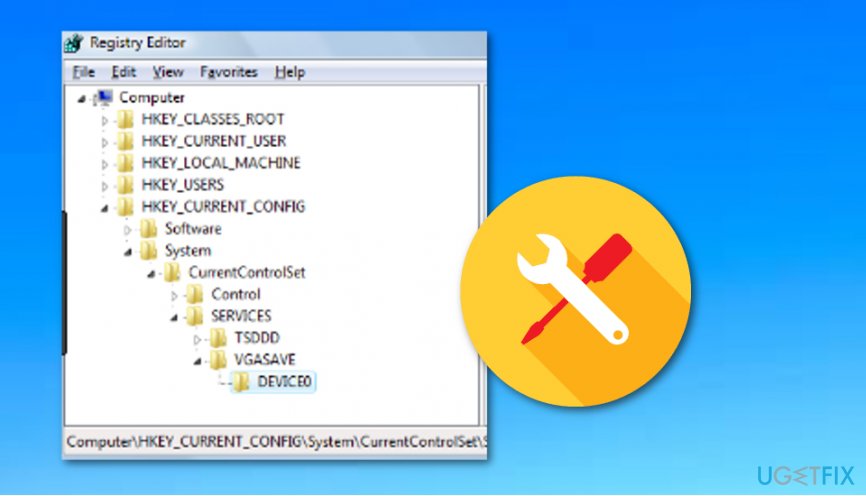
Fix in registry editor - Click File – Export to create backups of you registries. This is necessary in case you would delete the wrong files.
- Look for the files related to WinThruster and delete each of them.
- Finally, reboot your PC.
Bottom line
To uninstall WinThruster, you can choose between manual or automatic methods. Be cautious as improper removal may lead to future issues with your system. If these methods do not work, consider seeking professional assistance.
Frequently asked questions
To uninstall WinThruster, open the Control Panel, navigate to 'Programs and Features', find WinThruster in the list, and click 'Uninstall'. Follow the on-screen instructions to complete the removal process.
If WinThruster is not listed, you can try using the Windows Settings app by going to 'Apps', searching for WinThruster, and selecting 'Uninstall'. Alternatively, use an uninstaller tool to remove residual files.
If you face errors, restart your computer and try the uninstallation process again; if issues persist, consider using a third-party uninstaller or running Windows Troubleshooter for program compatibility.




Report an issue
What's wrong with this guide? We review every report and update or remove content.
Report received — thank you. We'll review and fix it.
You need a free account to submit a report.
Be the first to comment