Effortlessly remove stubborn programs from Windows 10 or 11 with Perfect Uninstaller. Get your PC running smoothly again—expert-tested and fixed in minu…
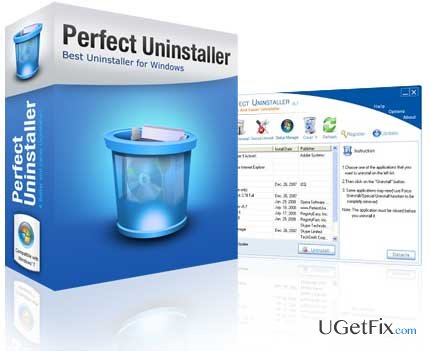
Perfect Uninstaller is a software utility that has been created to help users uninstall programs on computers completely. The majority of programs consist of dozens of diverse files. Unfortunately, those files are seldom removed collectively as installed. Moreover, there are instances when a certain program fails to install on a computer completely but manages to drop several registries and files that later clog System Registry and eventually slow down the computer and takes up space on the hard drive. Thus, if the user mistreats the system in this way continuously, Windows registry, which is a complicated database of configuration settings and options of Microsoft Windows OS, is gradually overfilled with useless/outdated/corrupted files thus diminishing PC's performance, preventing new programs from installation, slowing it down, and causing other issues.
Perfect Uninstaller is a software that helps to remove any programs that cannot be eliminated fully via Add/Remove Programs. According to its developers, it runs 3 times faster that the standard Windows Add/Remove program. It offers three application view options - by icons, by list, and by details. Moreover, it can find empty/corrupted registry entries, which are left by a certain program that is long gone and remove them. The protection of registry from empty/corrupted entries is also included in the list of Perfect Uninstaller tasks. Another user-friendly feature of this utility is that it shows detailed information about each program installed on your computer. Finally, it will ensure that all your PC's system files have backups since it makes them during shut downs or when the PC crashes. Perfect Uninstaller can be downloaded from various download source on the Internet for free. However, a secure download is recommended via the official website. Soon after its installation, you will soon notice the difference between your PC's startup speed, performance, boot time, etc. with and without Perfect Uninstaller installed.
So, why should I select Perfect Uninstaller?
Perfect Uninstaller is appreciated for its minimal user interface, speedy and powerful performance. If you want your computer to run smoothly and speedy, you will definitely have to use this tool. The functions that it offers, including cleaning registries, protecting registry, informing users about program details, making backups of PC's system files, and removing of programs that can hardly be removed completely via Add/Remove Programs will help you maintain your computer and keep the best performance that it can offer. According to the experts, it can easily remove such programs as Adobe, Aol Toolbar, Avast, AVG, ESET NOD32, Internet Explorer 8, McAfee, Microsoft Office, Nero 7, Norton, ESET NOD32, among many others that are difficult to remove completely. Thus, start using this tool without any delay and ensure appropriate PC's maintenance.
Bottom line
Perfect Uninstaller helps to completely remove programs that cannot be eliminated via Add/Remove Programs, finds and removes empty or corrupted registry entries, and backs up system files. If these solutions do not resolve the issues, consider seeking further technical assistance.
Frequently asked questions
To remove stubborn programs in Windows 10, launch Perfect Uninstaller, select the program you want to uninstall, and click the 'Uninstall' button. Follow the prompts to complete the removal process.
Yes, Perfect Uninstaller is compatible with Windows 11 and can effectively uninstall applications that are difficult to remove through standard methods.
If Perfect Uninstaller fails to remove a program in Windows, try restarting your computer and then attempt the uninstallation again, or use the 'Force Uninstall' option for a more thorough removal.
Windows error repairBSOD troubleshootingSystem file corruptionRegistry repairWindows Update failures
Olivia Morelli is a Windows systems expert specialising in diagnosing and repairing OS-level errors. She has spent nearly a decade writing guides that help everyday users recover from BSODs, corrupt system files, broken Windows installations, and failed update rollouts. Her methodical troubleshooting approach — starting with built-in tools before escalating to manual repairs — reflects years of practical experience supporting users across Windows 7, 8, 10 and 11. Olivia's guides are known for their clarity, completeness, and the care she takes to explain not just the fix but why the problem occurred.






Report an issue
What's wrong with this guide? We review every report and update or remove content.
Report received — thank you. We'll review and fix it.
You need a free account to submit a report.
Be the first to comment