How to remove
What is the About:Blank and how to remove it
from Windows
Discover how to effectively remove the About:Blank issue from your Windows 10 or Windows 11 browser. Quick solutions, expert-tested tips included!

How does What is the About:Blank and how to remove it end up on your PC?
- Adware infection
- Corrupted user profile data
- Unintended download of potentially unwanted software
- Incorrectly removed malware
- Default homepage setting
Repairs Windows system files, removes malware, and restores a clean OS state — without reinstalling.
Hello, something recently changed about my Google Chrome browser. Quite often, when I open a new tab, it always the "about:blank" page and nothing is shown there. What is this, and how do I get rid of it (if i have to)?
Simply speaking, About:blank is a page displayed by your browser whenever there is nothing else to show - it is a built-in element in Google Chrome, Mozilla Firefox, Internet Explorer, MS Edge, or any other browser. Initially, this should not be a concern, as About:blank itself does not pose any danger - there is nothing that could affect your browsing, as no content is shown.
However, if you noticed that you are being redirected to the About:blank page regularly seemingly for no reason, or your browser exhibits suspicious behavior (for example, URL redirects,[ref en-1] excessive pop-up ads, sponsored search results, changed browser settings, etc.), it is highly likely that your computer is affected by adware.[ref en-2] Just to be clear, About:blank is NOT adware or malware, however, it may appear on the web browser due to to a computer infection. Alternatively, the page may indicate that user profile data was corrupted.
Adware is ad-supported software that is usually downloaded with third-party software unintentionally. Nevertheless, users may also infuse their computers with potentially unwanted software without knowing its true purpose (which is showing pop-ups, banners, deals, in-text links, offers, and other sponsored content). Thus, if About:blank appeared on your browser unexpectedly and your browser is suffering from ads, you need to make sure that malware is deleted to stop the unwanted activities.

Note that incorrectly removed malware may also cause About:blank to show up persistently. However, even after terminating the potentially unwanted application, the page would not go away sometimes. Thus, to fully remove About:blank from Google Chrome or another browser, you need to reset it.
Below you will find full instructions on how to deal with the issue and remove About:blank if it is related to adware or malware. Nevertheless, if your computer was never infected, the page can also be used as a default homepage address if you would wish so.
Step 1. Remove a potentially unwanted program(s) from your computer
The first step you need to take when dealing with About:blank is making sure that no potentially unwanted applications are causing it. Proceed with the following steps on Windows:
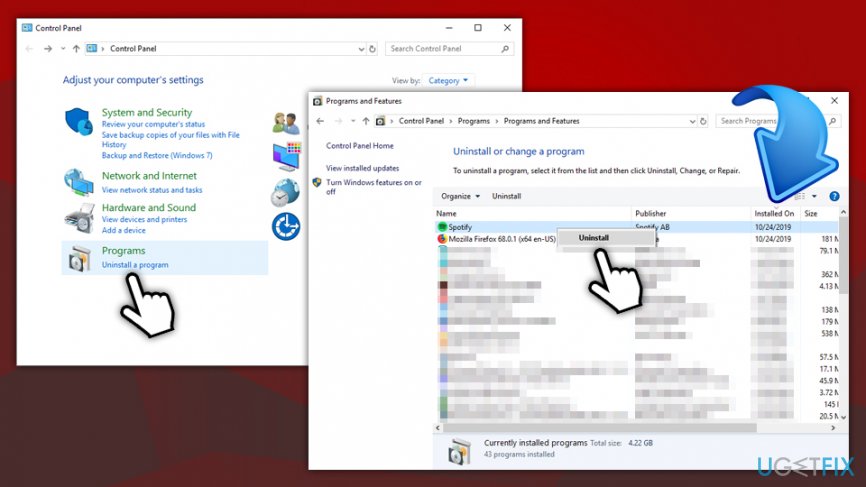
- Type Control Panel into Cortana's search bar and hit Enter
- Go to Programs > Uninstall a program
- Sort the programs by Date - click on Installed On
- Check through the list and uninstall everything you do not recognize (right-click > Uninstall)
How to remove about blan uninstall potentially unwanted programs from windows
Uninstall PUPs from Mac
- Open Finder and go to Applications
- Locate apps that you don't remember installing
- Right-click and select Move to Trash
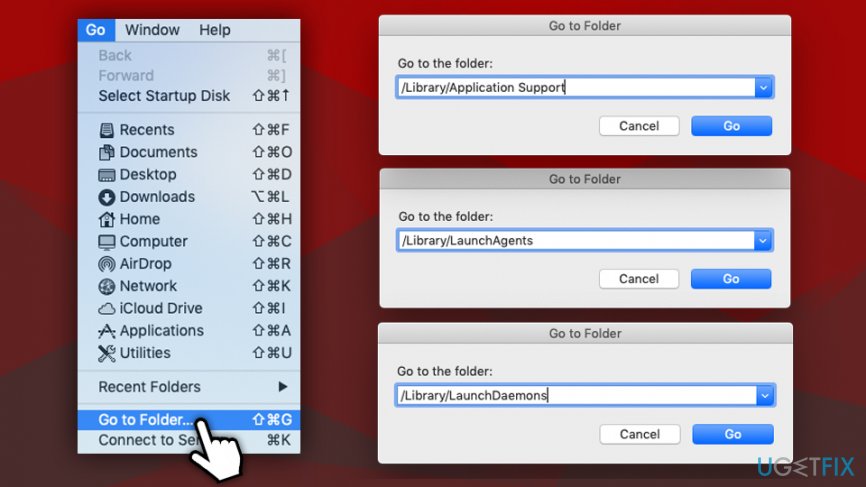
- Additionally, you might want to check the following locations for components left behind:
~/Library/Application Support/
~/Library/LaunchAgents/
~/Library/LaunchDaemons
Step 2. Scan your machine with anti-malware and other recovery solutions
While manual adware removal methods should bring positive results, in some cases, PUPs may be difficult to remove as they leave various entries on the system. To make sure that About:blank is not the only problem on your computer, you should scan it with anti-malware software that can recognize not only malware but also potentially unwanted programs. You can use the built-in Windows Defender or download a free security tool that has a good reputation.
Additionally, we also recommend using [d1] after, especially if malware was detected and removed. The application will fix the Windows registry[ref en-3] and repair virus-affected system files.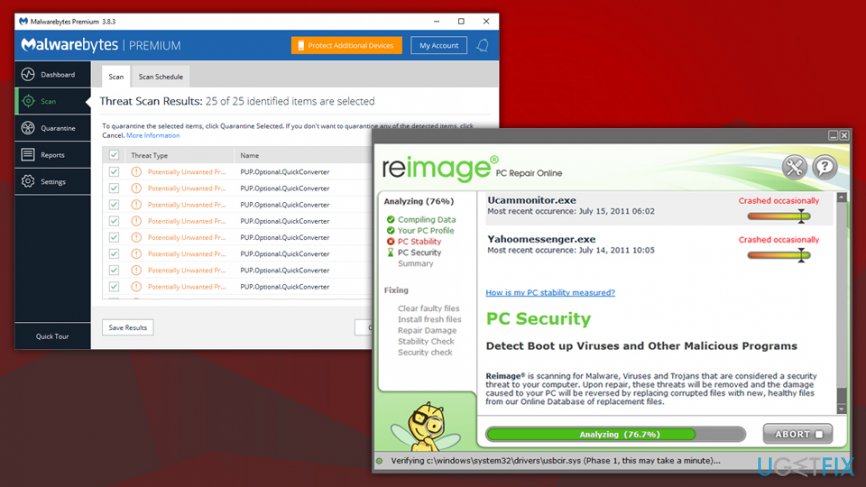
Step 3. Reset Google Chrome
Potentially unwanted applications often change settings of the installed browsers in order to display the advertising content. In most of the cases, this is the main reason why users see About:blank page, even after they remove adware from their machines. Thus, reset Google Chrome as follows:
- Open Chrome and go to Menu > Settings
- Scroll down until you reach Advanced - click on it
- Find Reset and clean up section, and click on Restore settings to their original defaults
- Confirm with Reset settings
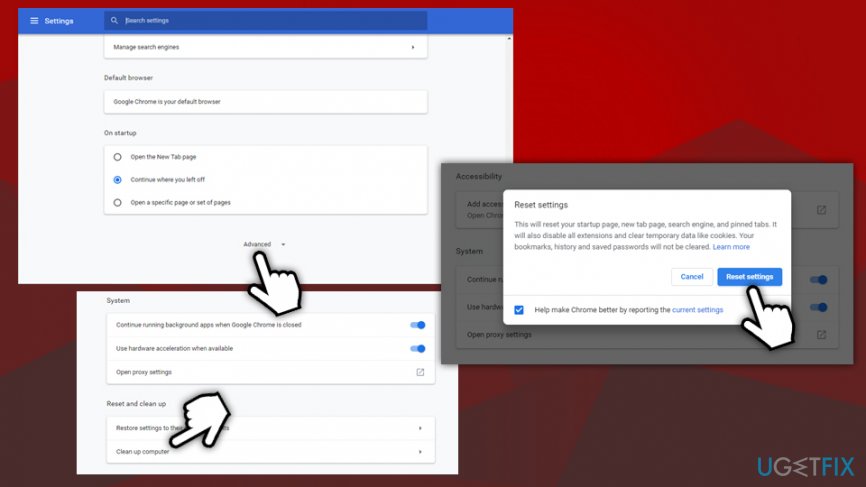
How to remove about blank reset google chrome
Step 4. Reset Mozilla Firefox
- Open Firefox and go to Menu > Help
- Click Troubleshooting Information
- Select Refresh Firefox…
- To confirm, press Refresh Firefox
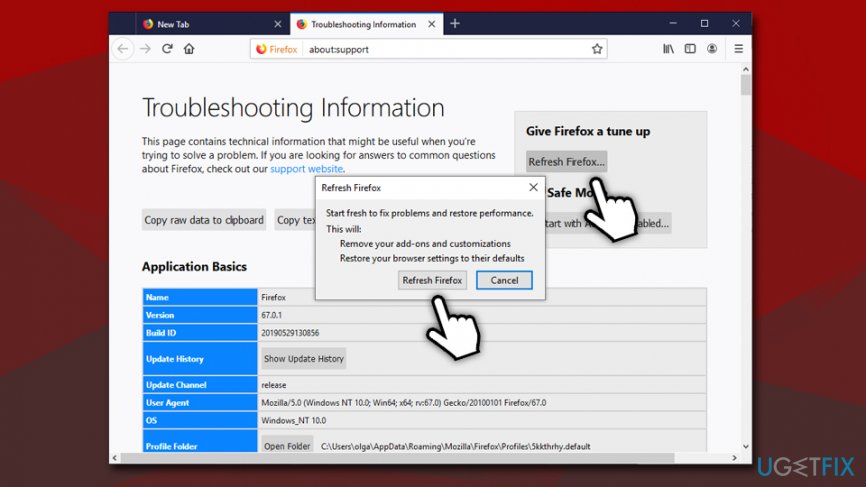
How to remove about blank reset firefox
Step 5. Reset Internet Explorer
- In Internet Explorer click Gear icon
- Pick Internet Options and select Advanced tab
- Under Reset Internet Explorer settings, pick Reset
- Tick the Delete personal settings box and click Reset
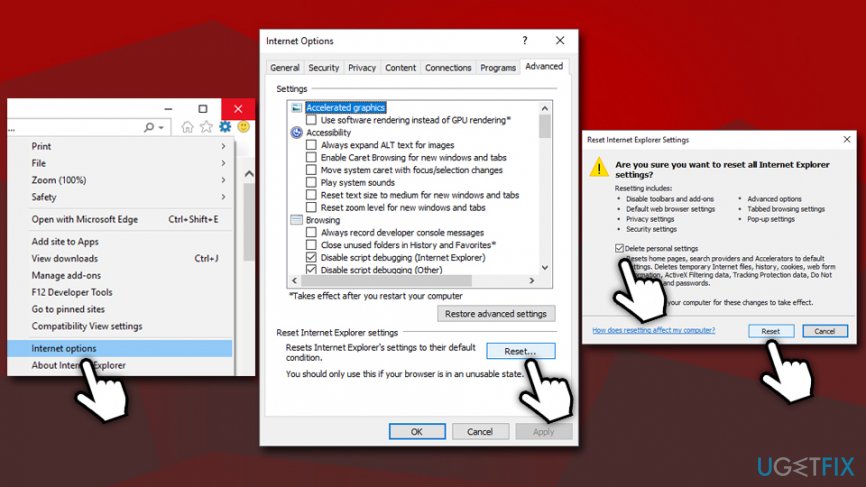
How to remove about blank reset internet explorer
Step 6. Reset MS Edge
- Open MS Edge browser, select Menu and then Privacy & security
- Under Clear browsing data, choose Choose what to clear
- Select all the boxes (you can leave passwords if you want) and click Clear
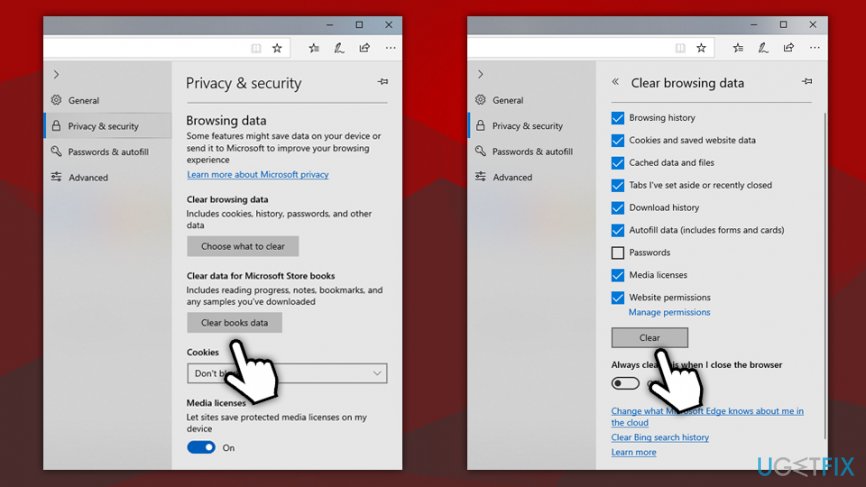
How to remove about blank reset ms edge
Step 7. Reset Safari
- Click Safari and choose Preferences…
- Go to Advanced tab
- Tick the Show Develop menu in menu bar
- From the menu bar, click Develop, and then select Empty Caches
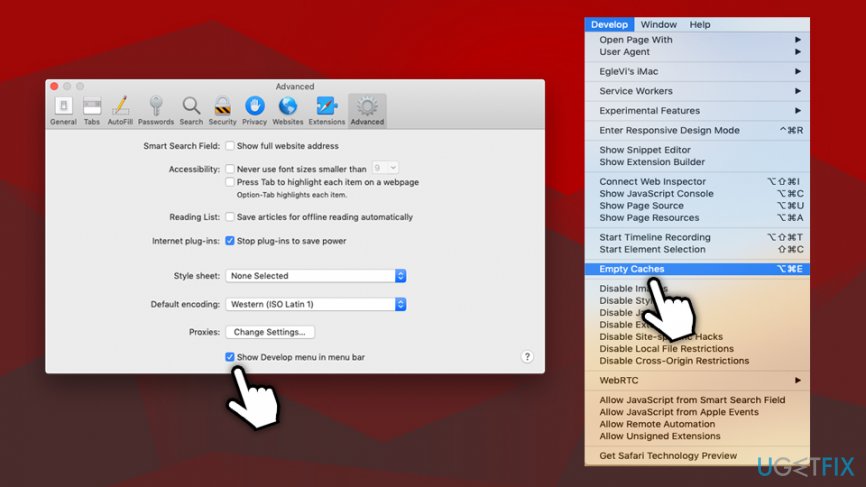
How to remove about blank reset safari
Bottom line
To remove About:blank, you should reset your browser and ensure that any adware or malware is fully deleted. If the issue persists even after these steps, consider checking for any remaining unwanted applications or settings.
Frequently asked questions
The About:Blank page is a blank webpage that appears when your browser fails to load a designated homepage, often due to malware or browser settings. It can be a sign of unwanted software on your system.
To remove About:Blank, start by resetting your browser settings to default and uninstall any suspicious programs from your system. Additionally, running a full system scan with a reputable antivirus can help eliminate any related malware.
While About:Blank itself does not directly affect system performance, it can indicate underlying issues such as adware or browser hijackers, which may slow down your computer. Addressing these issues promptly can help improve overall performance.




Report an issue
What's wrong with this guide? We review every report and update or remove content.
Report received — thank you. We'll review and fix it.
You need a free account to submit a report.
Be the first to comment