How to fix
ERR_SSL_VERSION_INTERFERENCE on Chrome
on Windows
Resolve the ERR_SSL_VERSION_INTERFERENCE error in Chrome on Windows 10 or 11 effortlessly. Expert-tested solutions ensure a smooth browsing experience.

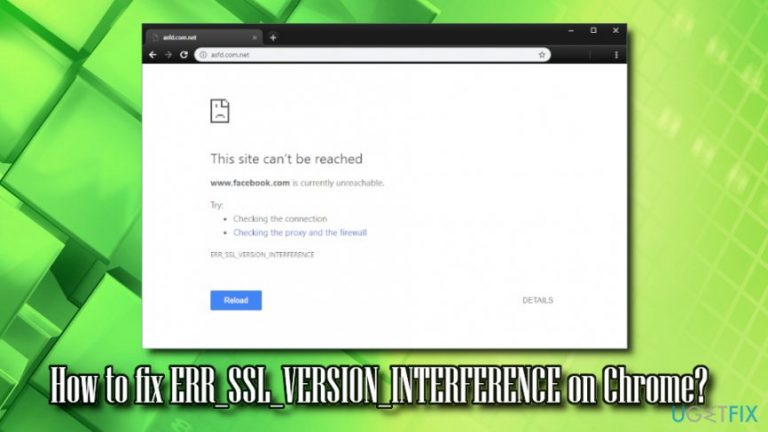
What causes How to fix ERR_SSL_VERSION_INTERFERENCE on Chrome?
- Problems with third-party anti-virus software
- Incorrect time and date settings on your computer
- Hardware acceleration being on
- Outdated Google Chrome or antivirus versions
- Cookies and browsing data
Repairs Windows system files, removes malware, and restores a clean OS state — without reinstalling.
Hello. I have been having problems with connecting to some websites on Google Chrome. At first, there were only few that showed me ERR_SSL_VERSION_INTERFERENCE error, but recently, the problem is getting worse. More and more sites are affected by it, and it is frustrating not to be able to browse properly. The issue occurred after I updated Windows. I am using Windows 10 and Kaspersky Internet Security 19.0.0.1088. Any solutions for this issue, please?
ERR_SSL_VERSION_INTERFERENCE is quite an old error that users get on Google Chrome browser. However, some also reported the same issue happening on Mozilla Firefox.[ref en-1] The error is closely related to The ERR_SSL_VERSION_OR_CIPHER_MISMATCH and ERR_SSL_PROTOCOL_ERROR, as all of these issues occur due to the misconfiguration of SSL certificate.
The ERR_SSL_VERSION_INTERFERENCE error might be occurring due to these issues:
- Problems with third-party anti-virus software;
- Incorrect Time and Date settings on your computer;
- Hardware acceleration[ref en-2] being on;
- Incorrect time and date settings on the computer;
- Outdated Google Chrome or antivirus versions;
- Cookies and browsing data.
While these problems among those which users said fixed ERR_SSL_VERSION_INTERFERENCE error, the solution that worked for most was disabling of the Google's TLS (Transportation Layer Security) 1.3 protocol[ref en-3] which provides privacy and performance improvements in comparison to previous versions.
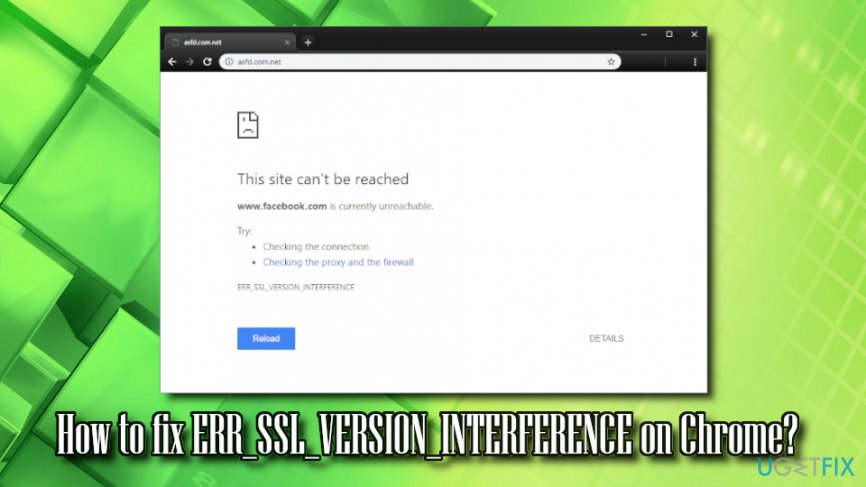
Therefore, multiple users argued if it is a solution at all, as disabling the feature does reduce online security. However, this might be a workaround to fix ERR_SSL_VERSION_INTERFERENCE error, if no other options help. We will provide the instructions on how to disable TLS 1.3 as the last solution but beware that it might decrease your online safety.
Other solution would be to disable for scanning of HTTPS in anti-virus software, as some of AVs use a man in the middle scanners that may not support the same TLS 1.3 version.
You will find useful information in this video:
[youtube Prwpjo6zbJQ]
Solution 1. Remove or reinstall anti-malware software
There were numerous reports that certain AV engines (like Kaspersky and Avast) were causing users to encounter ERR_SSL_VERSION_INTERFERENCE error. First of all, we highly recommend updating security software to the newest version, and see if the problem persists. If it does, reinstalling the anti-virus might help you fix ERR_SSL_VERSION_INTERFERENCE error. To uninstall AV software, follow these steps:
- In the taskbar, locate hidden trays and click on it
- Find the icon of the security software, right-click on it and select Exit
- Pres CTRL + SHIFT _ ESC to open Task manager
- Find any tasks related to your AV engine and shut them down
- Press Start and type Control Panel
- Go to Programs > Uninstall a program
- Select your anti-virus, right click on it and pick Uninstall/Change
- Follow the on-screen instructions
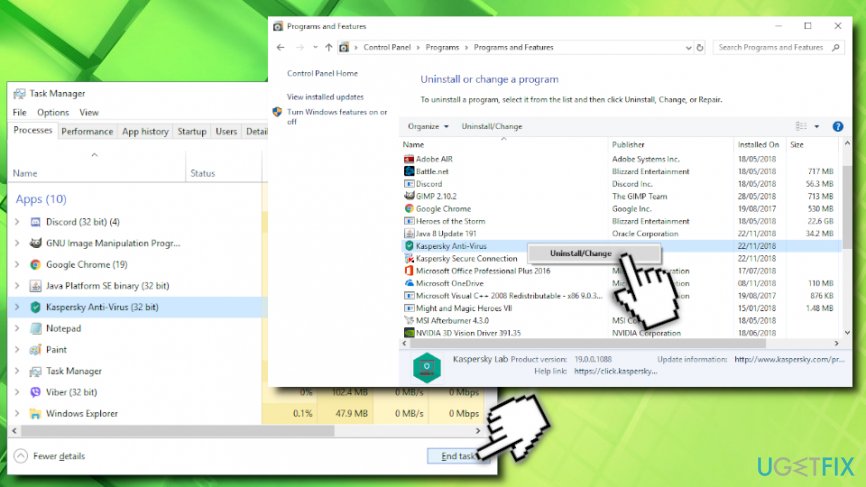
Err ssl version interference error uninstall anti virus
Note: for detailed removal of the particular AV you are using, refer to the developer's website.
If the reinstallation of the AV program did not help, we suggest you swap to another vendor. There are many to choose from, but we recommend [d1].
Solution 2. Delete browser data and cookies
Eliminate cookies and cache from your browser:
- Open Google Chrome and click on Menu > Settings
- Scroll down and select Advanced
- Find Clear browsing data and click on it
- Select Cookies and other site data and Cached images and files, and press Clear data
Solution 3. Disable hardware acceleration
Hardware Acceleration feature is used to allow the browser to use hardware like CPU to process the tasks. However, disabling this feature might help you fix ERR_SSL_VERSION_INTERFERENCE error:
- Open Google Chrome and click on Menu > Settings > Advanced
- Scroll down to find System
- Untick Use hardware acceleration when available
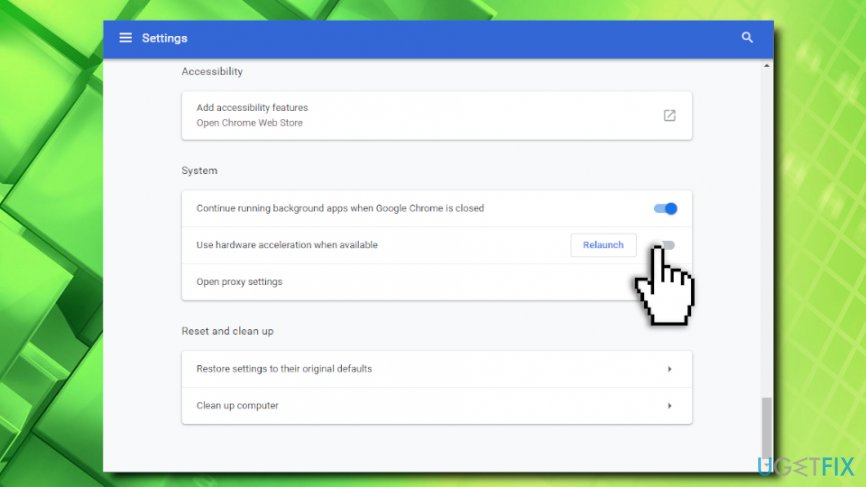
Err ssl version interference error disable hardware acceleration
Solution 4. Reset Google Chrome
- Go to Menu > Settings > Advanced on Google Chrome once again
- Scroll down to find Reset and clean up
- Click on Restore settings to their original defaults
- Then, press Reset Settings
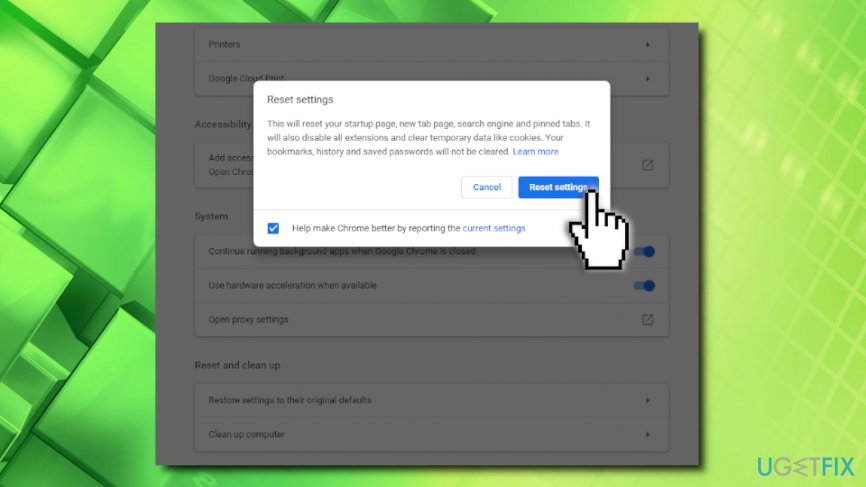
Err ssl version interference error reset chrome
Solution 5. Disable HTTPs scanner on your anti-virus
This solution is a bit risky because it decreases the security of your online browsing. However, you should not do this if you are planning to disable TLS 1.3. If you do want to disable TLS scanning, make sure you skip this step (note we provide instructions for Kaspersky Anti-virus, which may differ if you use another browser):
- Open your anti-virus app and click on Settings > Additional
- Click on Network and locate Encrypted connections scanning
- Select Do not scan encrypted connections and confirm your choice
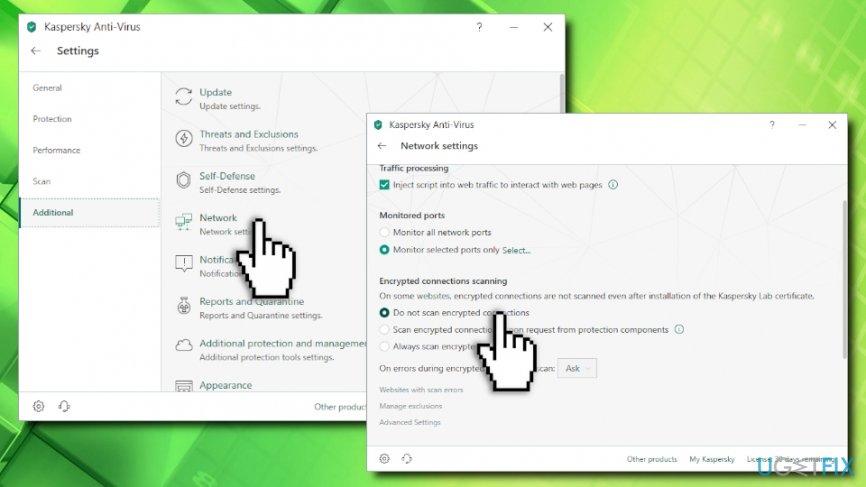
Err ssl version interference error disable https scanning
Solution 6. Disable TLS 1.3 on Google Chrome
Do not disable TLS 1.3 if you applied solution 5. Your security might be at risk! Otherwise, follow these steps:
- Open Google Chrome, paste the following chrome://flags/ and hit Enter
- Type TLS into the search box that opened
- From the drop-down menu, select Disabled and relaunch the browser
Solution 7. Make sure your software is up to date
Finally, you should make sure that all your programs are up to date, including Windows OS, anti-virus software, Google Chrome, etc. Several bugs and security issues are fixed with every patch that is released, so it could be a solution for ERR_SSL_VERSION_INTERFERENCE error.
Bottom line
To fix the ERR_SSL_VERSION_INTERFERENCE error, you can try updating or reinstalling your anti-virus software, disabling hardware acceleration, and ensuring your time and date settings are correct. If the issue persists, consider disabling TLS 1.3 as a last resort, but be aware that this may reduce your online security.
Frequently asked questions
This error typically occurs due to outdated browser settings, incorrect system date and time, or issues with SSL/TLS protocols. Ensuring that Chrome is updated and your system settings are correct can help resolve this issue.
You can check and adjust your date and time by right-clicking the clock on the taskbar, selecting 'Adjust date/time', and ensuring that both are set correctly and synchronized with the internet.
You can try clearing the browser cache and cookies, disabling any proxy settings, and ensuring that SSL 3.0 is disabled in Chrome's advanced settings to fix the error.




Report an issue
What's wrong with this guide? We review every report and update or remove content.
Report received — thank you. We'll review and fix it.
You need a free account to submit a report.
Be the first to comment