How to fix
“Flash Player Auto Update Daemon” Mac pop-up
on Windows
Struggling with the "Flash Player Auto Update Daemon" pop-up on Windows 10 or 11? Get expert solutions and troubleshoot this error in minutes! Fixed in …

What causes How to fix “Flash Player Auto Update Daemon” Mac pop-up?
- Incompatibility between outdated Adobe software and new macOS version
- Presence of a .plist file related to Adobe products
- Traces of Flash Player remaining after uninstallation
- LaunchDaemon process triggering the pop-up
- Potential connection to adware or unwanted programs
Repairs Windows system files, removes malware, and restores a clean OS state — without reinstalling.
Hello. Since I updated to my Mac to Mojave, I started to receive a strange pop-up message that reads "Flash Player Auto Update Daemon" is not optimized for your Mac and needs to be updated." The problem is I do not have the plugin installed, so what is this all about? Can you please help me, as these messages are really starting to annoy me. Many thanks.
"Flash Player Auto Update Daemon" is a pop-up message that Mac users might encounter after applying recent system updates. While some LaunchDaemons might be connected to suspicious activity related to adware[ref en-1] and other potentially unwanted programs that redirect Safari browser to fake update, tech support scam,[ref en-2] and similar sites, "Flash Player Auto Update Daemon" is not one of them. The issue is more connected to an incompatibility between an outdated Adobe software and the new macOS version.
The "Flash Player Auto Update Daemon" message states the following:
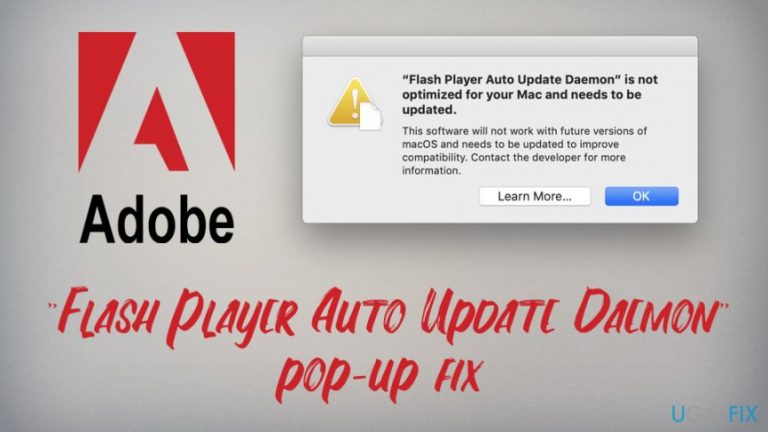
"Flash Player Auto Update Daemon" is not optimized for your Mac and needs to be updated.
This software will not work with future versions of macOS and needs to be updated to improve compatibility. Contact the developer for more information.
LaunchDaemon is a part of a scheme used by the Mac operating system, and it comes from "launchd" process[ref en-3] (it can be viewed via the Activity Monitor). It is a parent process that launches other operations or jobs when demanded by applications or the system. Third-party apps use /Library/LaunchDaemons locations while native processes are located in System/Library/LaunchDaemons.
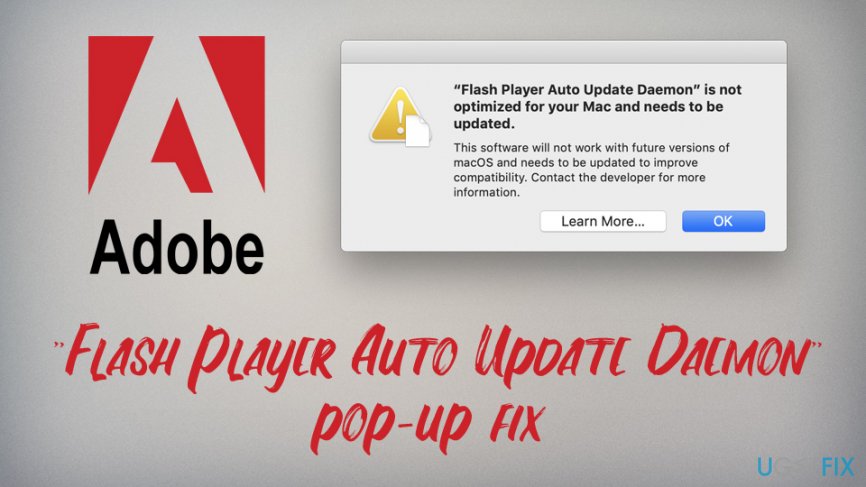
"Flash Player Auto Update Daemon" is triggered by a .plist file that is related to Adobe products, usually Flash Player. This happens even if you removed the Flash player a long time ago - the traces remain, hence the pop-up message. To fix "Flash Player Auto Update Daemon," you need to stop the com.adobe.fpsaud.plist Daemon from being loaded completely.
To do that, please follow our instructions below.
How to fix "Flash Player Auto Update Daemon" pop-up message on macOS?
Before you start, we would suggest you download and install [d1]. This application is capable of fixing various issues related to the Mac operating system and might prevent pop-ups like "Flash Player Auto Update Daemon" from launching entirely. Additionally, Reimage is also capable of deleting any type of virus damage and ensure that the computer is running smoothly.
Now, what can you do to stop the annoying "Flash Player Auto Update Daemon" pop-ups from showing up? Start from the following steps:
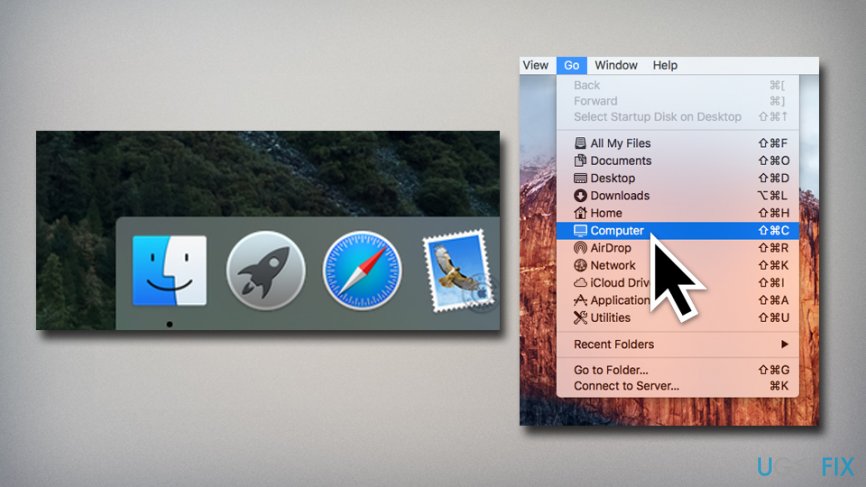
- Open Finder and, on the top of the screen, press Go
- Select Computer
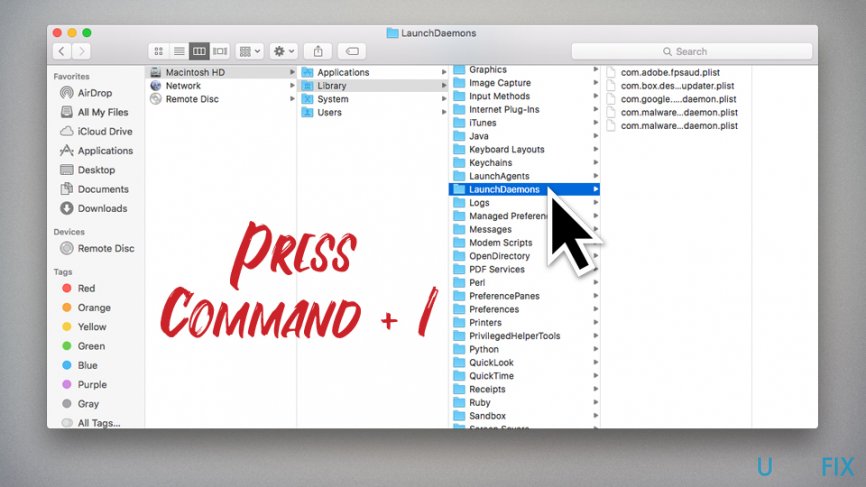
Flash player auto update daemon pop up fix on mac open finder - Click on Macintosh HD > Library > LaunchDaemons
- Click on LaunchDaemons once and press Command + I
Flash player auto update daemon pop up fix on mac set privileges - In the LaunchDaemons Info window, expand the Sharing & Permissions (located at the very bottom)
- You will see a lock icon at the bottom-right corner, click on it
- Enter your username and password
- Click on Everyone, pick Read & Write and close down the LaunchDaemons Info window
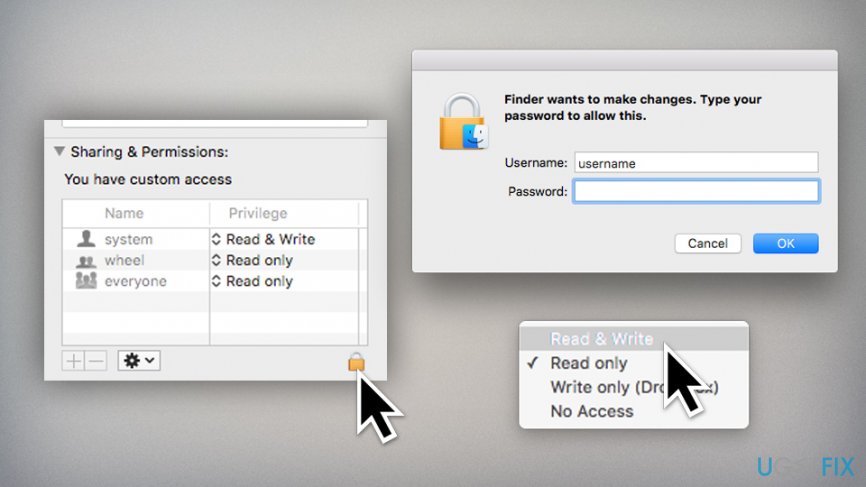
Flash player auto update daemon pop up fix on mac setprivileges to read and write - Select com.adoble.fpsaud.plist under LaunchDaemons and do the same thing - set its privileges to Read and Write
- Once done, open the com.adoble.fpsaud.plist file by double clicking on it
- Under <string> you will see a <key> parameter. You need to replace ProgramArguments with Disabled
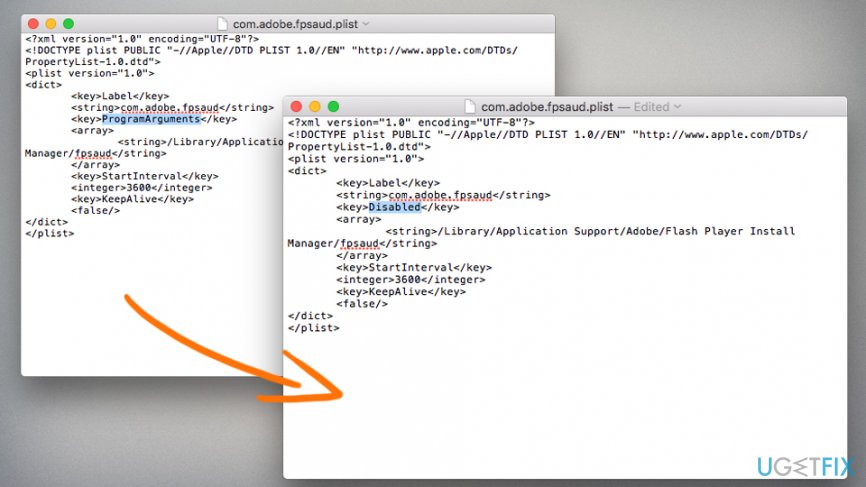
Flash player auto update daemon pop up fix on mac disable key parameter - Save changes and reset the permissions to normal on both LaunchDaemons folder and com.adoble.fpsaud.plist
WARNING: this action will disable automatic updates for all Adobe products.
Bottom line
To fix the 'Flash Player Auto Update Daemon' pop-up message, you need to stop the com.adobe.fpsaud.plist Daemon from being loaded. Follow the provided instructions to remove the associated files. If these steps do not resolve the issue, consider seeking further assistance.
Frequently asked questions
This pop-up typically appears when a program or a browser plugin is trying to check for updates for Adobe Flash Player, which has been deprecated. It's advisable to uninstall any remaining Flash Player components to eliminate these pop-ups.
You can stop the pop-up by removing Adobe Flash Player from your system through the Control Panel or Settings app. Additionally, ensure that any web browsers are updated and do not have Flash-related plugins installed.
Yes, you can completely remove Adobe Flash Player by using the Adobe Flash Player Uninstaller tool available on Adobe's website, followed by checking your system for any leftover files or registry entries.




Report an issue
What's wrong with this guide? We review every report and update or remove content.
Report received — thank you. We'll review and fix it.
You need a free account to submit a report.
Be the first to comment