How to fix
The Error Code 0x80070005-0x90002
on Windows
Resolve Error Code 0x80070005-0x90002 on Windows 10/11 effortlessly with our expert tips. Fix it quickly and leave zero traces behind.

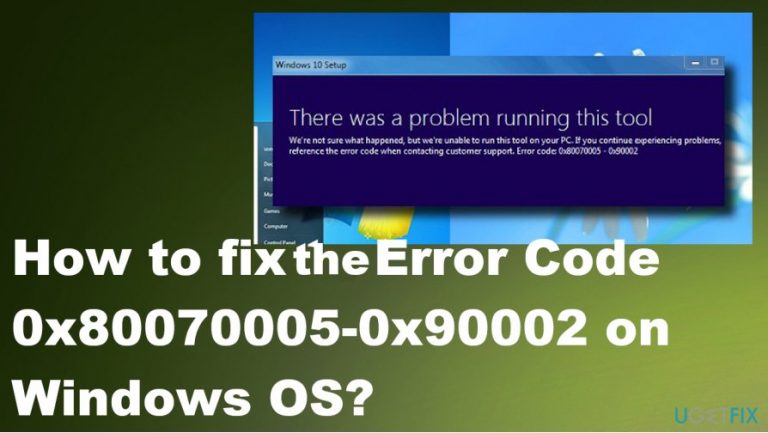
What causes How to fix the Error Code 0x80070005-0x90002 on Windows OS?
- Anti-malware software issues
- Faulty Windows updates and files related to update
- Windows updates not installed properly
- Firewall interruption
Repairs Windows system files, removes malware, and restores a clean OS state — without reinstalling.
Hello. I have a problem with Windows 10 fresh Install. At the moment, I am running Windows 7. I have third party antivirus (Norton). I tried various fixes already, but all my attempts to get Windows 10 end up with "something happened Error Code 0x80070005 - 0x90002" pop-up. Any suggestions would be helpful. Thanks!
Windows Install Error 0x80070005 - 0x90002 is the problem that occurs on Windows machines when people[ref en-1] try to upgrade from the older version of the operating system to Windows 10. The automatic update errors with Windows devices are common and not new, so people can encounter various problems whit the machine because of that.
Unfortunately, but Error Code 0x80070005 - 0x90002 is one of the many Windows 10 Installation errors, so you cannot be sure that it is a one-of-a-kind issue.[ref en-2] It emerged as soon as Windows 10 was released; therefore, many people have already asked how to fix it.
Windows 10 errors go on users' nerves easily as they do not describe the problem and no clues are given what should be done to fix and proceed with the installation/update. There are various speculations about the reasons this error shows up and how to fix it, but by far the most common reason 0x80070005 - 0x90002 error emerges is the installer that could not find/work needed files.
It is assumed that 0x80070005 error appears due to the damaged/absence of dll files that are necessary for the Windows 10 run. In addition, the error might be caused by an Antivirus, usually a third party one. Thus, to put it simply, the most common causes of Error Code 0x80070005 - 0x90002 are:
- Anti-malware software issues;
- Faulty Windows updates and files related to update;
- Windows updates not installed properly;
- Firewall interruption.
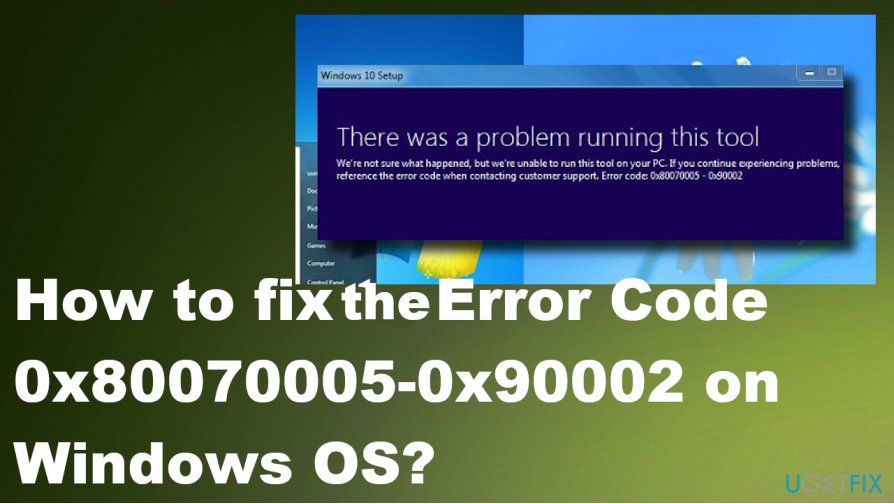
How to fix the Error Code 0x80070005 - 0x90002 on Windows OS
There are several methods that can help you to fix Error Code 0x80070005 - 0x90002 on Windows. The quickest and easiest way to do that is to install software that can repair compatibility issues like [d1]. These programs can find the problem and adjust fixes automatically. Such tools can indicate malware[ref en-3] issues too. If, however, you prefer manual removal or the aforementioned programs don't fix the error, scroll down and find manual Error Code 0x80070005 - 0x90002 fix instructions.
Also,you can disable your anti-malware and firewall. In order to do that, you should open Task Manager (click Ctrl + Alt + Delete), find these programs, click on each of them and select End Task.
Upgrade using Windows Update
- Open Start Menu and search for regedit.
- Open the Registry Editor.
- Find Computer\\HKEY_LOCAL_MACHINE\\SOFTWARE\\Microsoft\\Windows\\CurrentVersion\\WindowsUpdate\\OSUpgrade.
- Click on OSUpgrade to display contents and right-click on the empty space to locate to New and then DWORD (32-bit) value.
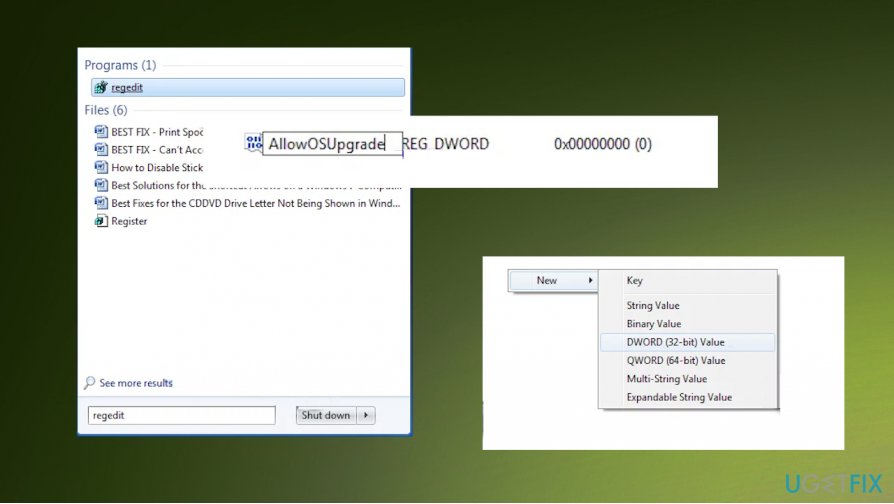
How to fix to error code 0x80070005 0x90002 on windows os regedit - Double-click the AllowOSUpgrade value and change to 1.
- OK.
- Restart the PC.
Run SFC scan and DISM to fix the Error Code 0x80070005-0x90002
- Right-click on the Start Menu button and open Command Prompt with Admin rights.
- Enter the sfc/scannow command and press Enter.
- Wait for the procedure.
- An automatic solution will get applied if any gets found.
- Close the window. Restart the PC
Then - Open the Command Prompt again and enter DISM.exe /Online /Cleanup-image /Restorehealth command.
- Wait for the DISM process.
- Then Restart.
Troubleshoot the issue to fix the error on Windows OS
- Go to Settings.
- Find Updates & Security and find Troubleshoot.
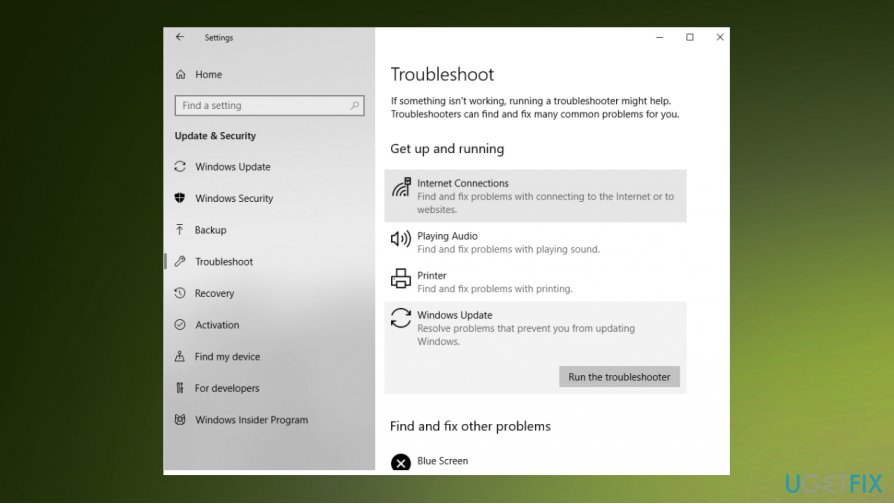
How to fix to error code 0x80070005 0x90002 on windows os troubleshooting - Choose the Windows Update and go for Run the Troubleshooter button.
- Follow instructions and Restart the machine.
Uninstall previous updates to fix Error Code 0x80070005-0x90002
- Go to Settings and find Updates & Security.
- Locate Windows Update.
- Click Update history and choose to Uninstall updates.
- Then click Uninstall.
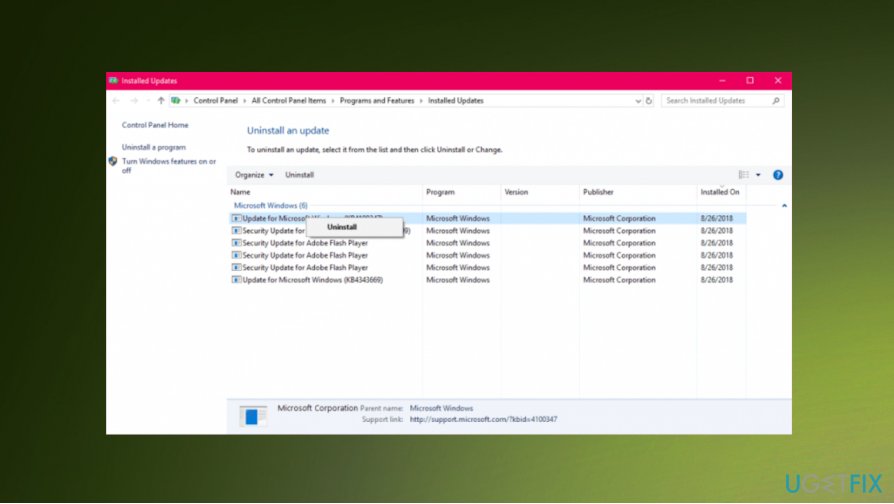
How to fix to error code 0x80070005 0x90002 on windows os update uninstall - Restart the computer.
Performing the steps listed above is not an easy task. Nevertheless, if you want to install Windows 10 smoothly without ending up with Error Code 0x80070005 - 0x90002, you have to take your time and carefully perform each step. If you still can’t install Windows 10, contact us with the detailed description of what is happening on your PC. We hope that this article was useful and you have successfully removed 0x80070005 Error.
Bottom line
To fix Error Code 0x80070005 - 0x90002, you can try installing software that repairs compatibility issues, ensuring all Windows updates are properly installed, and checking your firewall settings. If these methods do not resolve the issue, consider temporarily disabling third-party antivirus software and attempting the installation again.
Frequently asked questions
This error typically indicates permission issues, preventing access to certain files or system components needed for updates or installations.
You can try running the Windows Update Troubleshooter and ensuring that your user account has the necessary permissions to make changes to the system.
Yes, ensure that your account is an administrator and check the folder permissions for the Windows Update files to confirm that you have full control.




Report an issue
What's wrong with this guide? We review every report and update or remove content.
Report received — thank you. We'll review and fix it.
You need a free account to submit a report.
Be the first to comment