How to fix
CRITICAL_PROCESS_DIED
on Windows
Resolve the CRITICAL_PROCESS_DIED error on Windows 10 quickly and effortlessly. Follow expert-tested methods for a smooth system recovery.

What causes How to fix CRITICAL_PROCESS_DIED on Windows 10?
- Faulty device drivers
- Drivers not installed for chipsets and other hardware devices
- Windows bugs
- Incomplete updates
- Clash of important programs
Repairs Windows system files, removes malware, and restores a clean OS state — without reinstalling.
Please help! While I’m using Windows 10, I quite often run into CRITICAL_PROCESS_DIED error. That’s a Blue Screen of Death, which once showed prevents me from browsing. That’s a really annoying thing because I lose the pages found continuously and in some cases even important documents were lost. Why does it occur and how to fix CRITICAL_PROCESS_DIED error?
It’s sad that despite all great features and functions, Windows 10 so frequently delivers errors like CRITICAL_PROCESS_DIED.[ref en-3] In most of the cases, Windows 10 errors occur due to incomplete updates, clash of important programs, the absence of .dll or .exe files, and similar problems.
Speaking about Blue Screen of Death (BSOD) errors,[ref en-1] the cause is related to hardware[ref en-5] or drive usually. Very often people get into panic when they see BSOD as they start thinking that the reason might be virus/spyware[ref en-2] infection or some other serious causes. In case of CRITICAL_PROCESS_DIED error, it’s worth mentioning that it’s not related to malicious programs in any way. According to the specialists who have worked on this error, there are three reasons that might cause CRITICAL_PROCESS_DIED error. These are the following:
- Faulty device drivers
- Drivers fault: not installed for chipsets and other hardware devices
- Windows bugs
It goes without saying that a BSOD is an irritating experience because it disrupts web browsing and PC using in general. Therefore, it’s very important to fix CRITICAL_PROCESS_DIED ASAP. First of all, we encourage you to try the automatic fix with the help of [rev id=”RegCure Pro”] or [d1]. Both programs have been developed for optimizing Windows system and fixing errors like this. On top of that, they both are free for download. If you have already tried automatic CRITICAL_PROCESS_DIED fix and did not work, then you should try fixing the issue manually.
How to fix CRITICAL_PROCESS_DIED on Windows 10?
Unfortunately, but additional programs like the ones that we have mentioned above not always help to fix CRITICAL_PROCESS_DIED error. That’s why you may need to perform additional tasks to get rid of this BSOD error.
Fix 1. Install drivers
As we have already mentioned, BSOD errors like CRITICAL_PROCESS_DIED are frequently caused by faulty drivers, so the first thing that you should try is to install the device driver. For this purpose, use Device Manager.[ref en-4] For that, perform the following steps:
- Click on Windows Key (bottom left corner) + X
- Type Device Manager and double click on it once found.
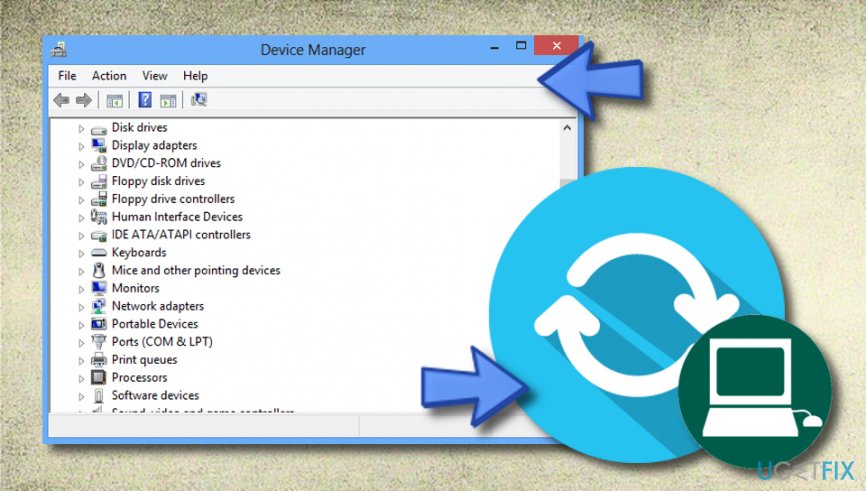
Fixing solution - In the opened window, find Help and click on a screen with a magnifier symbol, which is named as Scan for Hardware changes.
- If any of the drivers are missing, they will show up on the list marked in yellow. Click on each of them and select Update Driver Software.
- Then select Search automatically for updated driver software in order to let the Windows system find and download drivers and their updates automatically.
- Finally, click Close and Restart the system.
Fix 2. Check errors using SFC
- Click Windows Key (bottom left corner) + X.
- Select Command Prompt (Admin) to open CMD. Accept the UAC if it emerges.
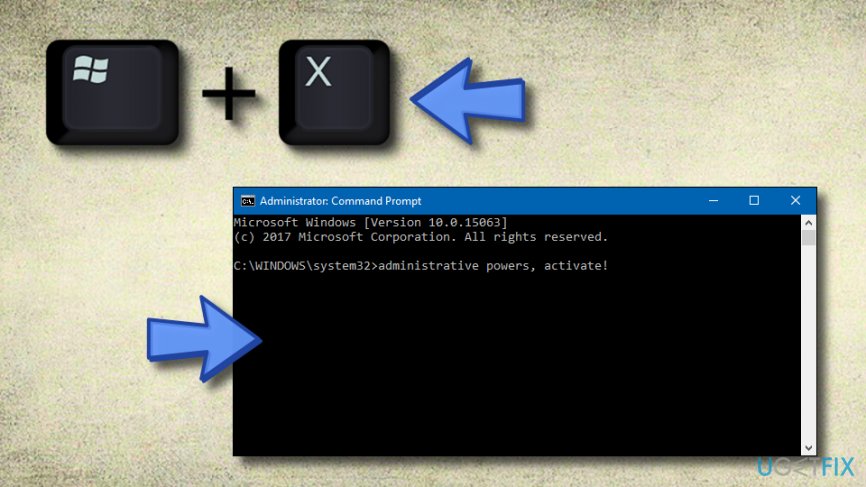
Fixing solution 2 - When the CMD window, type sfc/scannow and press Enter.
- Wait for the scan to complete. If any problems will be found, Windows system will automatically fix them using SFC tool.
- As soon as this process will be finished, close all tools and Restart the system.
Fix 3. Activate the Safe Mode function
If the previous methods did not help you fix the error code, try the following steps:
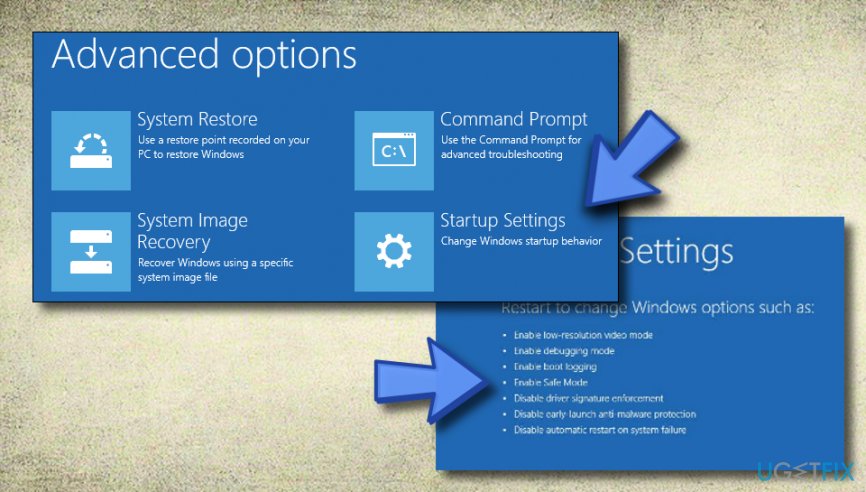
- Boot the computer system until you overcome three booting options.
- Select Troubleshoot to view all suggestions.
- Choose Advanced options.
- After that, select Startup Settings.
- Select the Restart key.
- Choose Enable Safe Mode function.
Fixing solution 3
Fix 4. Perform Clean Boot on your Windows computer
- Select the Windows Start menu and type in msconfig, after that, hit enter.
- Go to Services and choose Hide all Microsoft services.
- After that, find the Task Manager and open it by hitting enter.
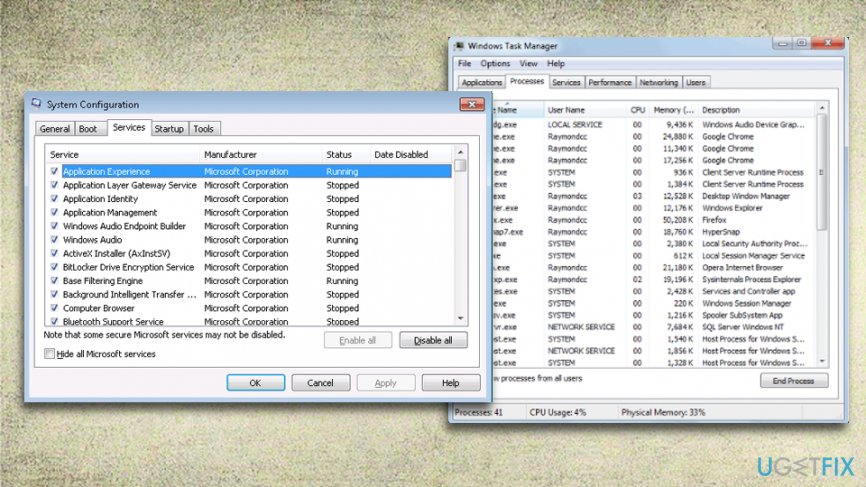
Fixing solution 4 - Disable all services that you can find.
- Reboot your computer system.
Fix 5. Restore the system to its previous state
- Go to the Windows Start menu.
- Type in system restore.
- Select on the option which says "Create a restore point".
- Click System Restore.
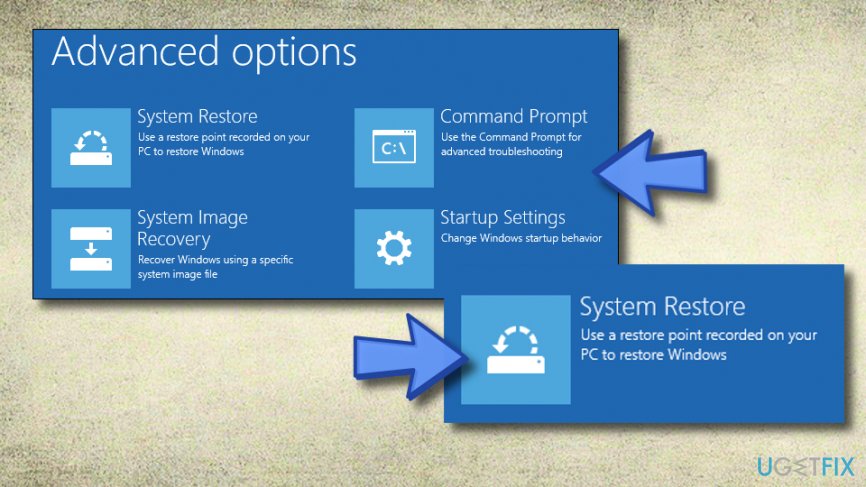
Fixing solution 5 - Now you will be able to see all restore points possible.
- Choose any restore point you are likely to.
Fix 6. Uninstall latest Windows updates
- Find Settings.
- Then go to Windows Update.
- Choose the Update history button.
- Then proceed to Uninstall updates.
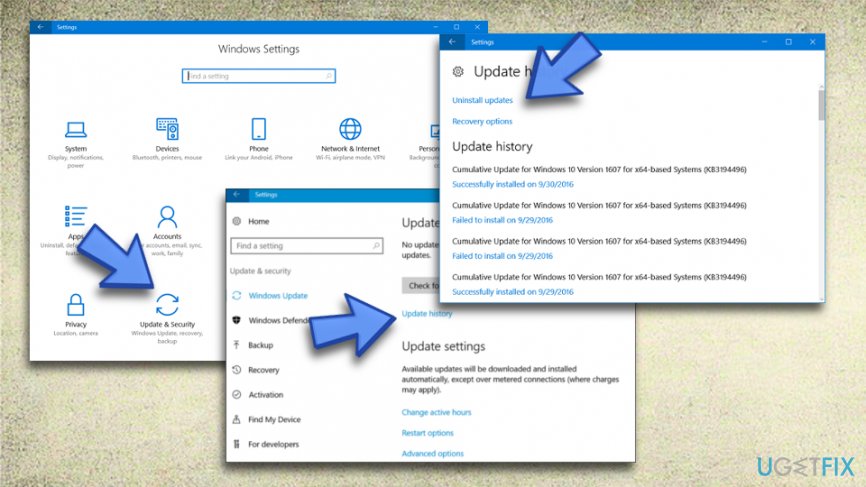
Fixing solution 6 - Pick the updates you want to delete and select the Uninstall option.
Bottom line
To fix the CRITICAL_PROCESS_DIED error on Windows 10, you can try installing the necessary drivers, using automatic fix programs like RegCure Pro, or performing manual fixes. If these solutions do not work, additional troubleshooting may be required to resolve the issue.
Frequently asked questions
The CRITICAL_PROCESS_DIED error is typically caused by corrupted system files, faulty drivers, or hardware issues that prevent Windows 10 from booting properly.
You can boot into Safe Mode by holding the Shift key while selecting Restart, then navigate to Troubleshoot > Advanced options > Startup Settings to enable Safe Mode, allowing you to troubleshoot or uninstall problematic software.
Yes, running the System File Checker (sfc /scannow) can help repair corrupted system files that may be causing the CRITICAL_PROCESS_DIED error in Windows 10.




Report an issue
What's wrong with this guide? We review every report and update or remove content.
Report received — thank you. We'll review and fix it.
You need a free account to submit a report.
Be the first to comment