How to fix
WSAPPX high cpu usage
on Windows
Resolve WSAPPX high CPU usage on Windows 10 and 11 quickly with expert tips. Enjoy a smoother experience, fixed in minutes!


What causes How to fix WSAPPX high cpu usage?
- Windows updating apps in the background
- High resource usage by AppX Deployment Service (AppXSVC)
- Malware disguising as legitimate Windows processes
- Uninstalling or updating Microsoft Store applications
Repairs Windows system files, removes malware, and restores a clean OS state — without reinstalling.
Hello. I recently updated my Windows 10 with the latest updates and noticed that it is working kind of slow. When I opened the task manager, I noticed that the process wsappx is taking nearly 90% of my CPU usage!
When I clicked on it, it showed the AppX Deployment Service (AppXSVC) service and WSAPPX. What is it, and can I shut it down? If not, how can I fix AppX Deployment Service (AppXSVC) service high CPU usage? Any help would be appreciated.
Wsappx is a process that you can find running in the background (Task Manager) at any time when your Windows 10 or Windows 8/8.1 machine is turned on. It is an important part of the operating system and is responsible for installing, uninstalling, and updating Microsoft Store applications. Nevertheless, it is not needed when all of the mentioned operations are not in use.
AppX Deployment Service (AppXSVC) is of the services[ref en-1] that you can find running under the wsappx process in the Task Manager. If you are running Windows 8, you might also see Windows Store Service (WSService), while on Windows 10 you will encounter Client License Service (ClipSVC).
Regardless of what operating system you are running, however, AppX Deployment Service (AppXSVC) is the service that causes high CPU usage on the computer. However, turning it off might not be the optional solution, as Windows might be updating a variety of apps in the background. Besides, by disabling Wsappx services, you might cause Microsoft Store to malfunction altogether.
You can fix AppX Deployment Service (AppXSVC) high CPU usage with the help of the tips we provide below. Nevertheless, no solutions are permanent, as Microsoft did not provide any explanations to why the wsappx is causing high resource usage.

Before you proceed with the following AppX Deployment Service (AppXSVC) fixes, you should make sure that the running process wsappx is not a virus (such as cryptojacker[ref en-2] that mines cryptocurrency for the attackers), as some malware can disguise itself as legitimate Windows processes.[ref en-3] To do that, scan your machine with anti-malware software.
Before you begin the manual solutions below, keep in mind that some of them might be difficult to execute for a novice user. Therefore, we highly recommend trying an automatic solution - [d1] repair tool.
Fix 1. Update Windows to the latest version
Outdated machines can cause a variety of problems, including AppX Deployment Service (AppXSVC) high CPU usage. Thus, make sure your operating system is up to date:
- Right-click on Start and select Settings
- Go to Updates & Security
- Click on Check for updates
- Wait till Windows automatically installs the updates
- Reboot your machine
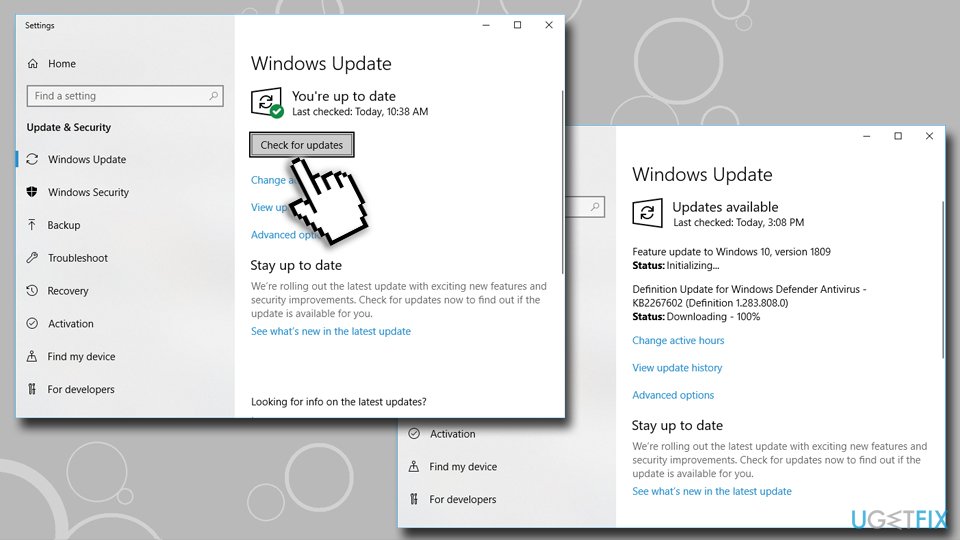
Fix appx deployment service appxsvc check for windows updates
Fix 2. Edit Local Group Policy
This option will disable automatic updates for Microsoft Store applications. This is not an optimal solution, but might help temporarily:
- Press Windows key + R
- Type in gpedit.msc and ht Enter
- In the Local Group Policy Editor, navigate to Computer Configuration > Administrative Templates > Windows Components > Store
- On the right pane, double-click on Turn off the Store application
- In the newly opened window, pick Enabled option and click OK

Fix appx deployment service appxsvc turn off store in group policy
Note: If you want to re-enable automatic updates for your Microsoft Store, go back to the Turn off the Store application policy, select Disabled option, and then click OK.
Fix 3. Stop apps from updating automatically via the Microsoft Store app
You can also disable automatic updates via the Store itself to fix AppX Deployment Service (AppXSVC) high CPU usage:
- Open Microsoft Store
- On the top-right corner, click on the See more (three horizontal dots)
- Select Settings
- Now toggle the switch Update apps automatically to the left to turn off automatic updates

Fix appx deployment service appxsvc turn off automatic updates via microsoft store
Fix 4. Disable Superfetch feature
Superfetch is not a mandatory service for Windows, although it does provide the necessary data for your apps fast. While useful, this feature can be disabled, and some users claimed that it helped them fix wsappx high CPU usage:
- Press Windows key + R
- Type in services.msc and hit Enter
- Scroll down and locate Superfetch
- Right-click on it and select Properties
- Under Startup type, pick Disabled
- Click Stop and OK
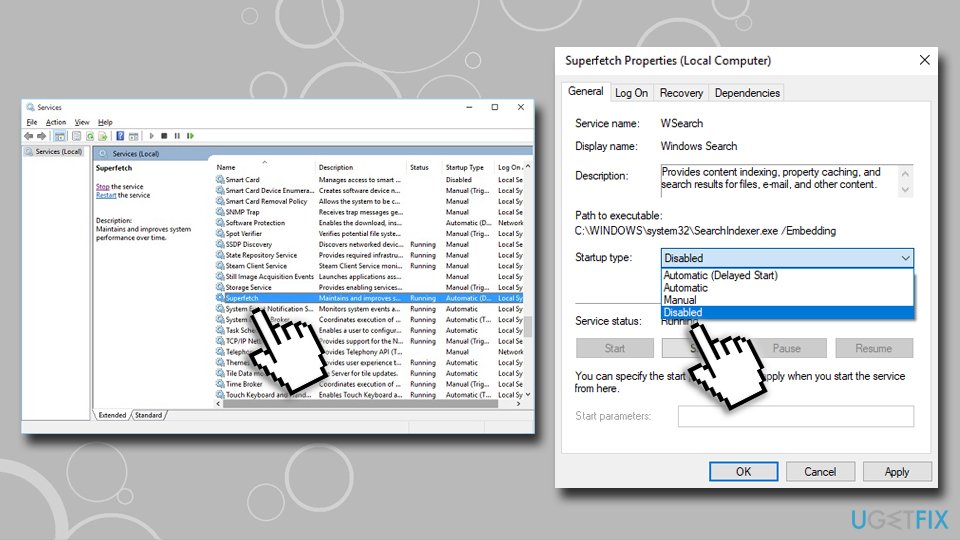
Fix appx deployment service appxsvc disable superfetch
Fix 5. Disable Windows Search
If disabling Superfetch did not work for you and you are still having issues with high CPU usage, disable Windows Search service:
- Go back to Service list and locate Windows Search
- Right-click on it and select Properties
- Under Startup type, pick Disabled
- Click Stop and OK
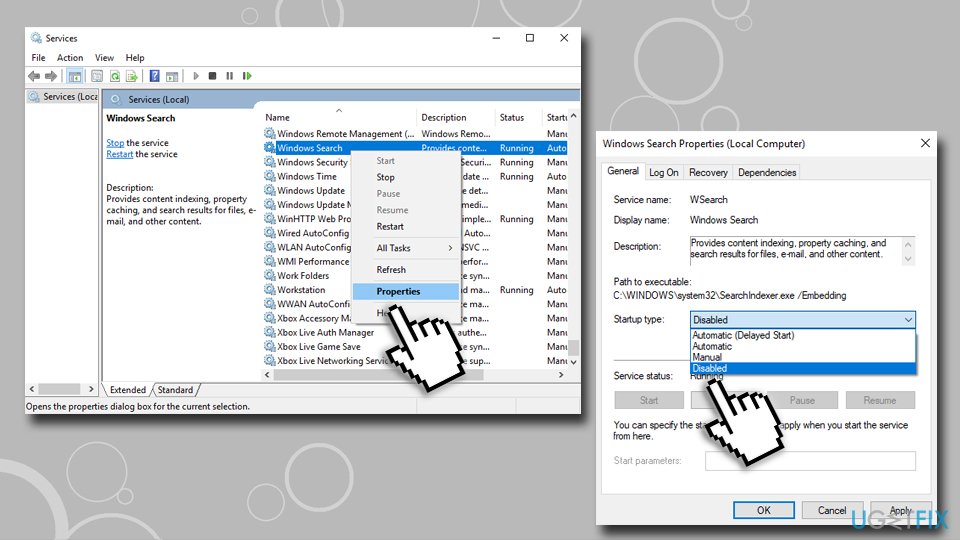
Fix appx deployment service appxsvc disable windows search
Fix 6. Run Windows Store Apps Troubleshooter
- Right-click on Start button and select Settings
- Select Update & Security
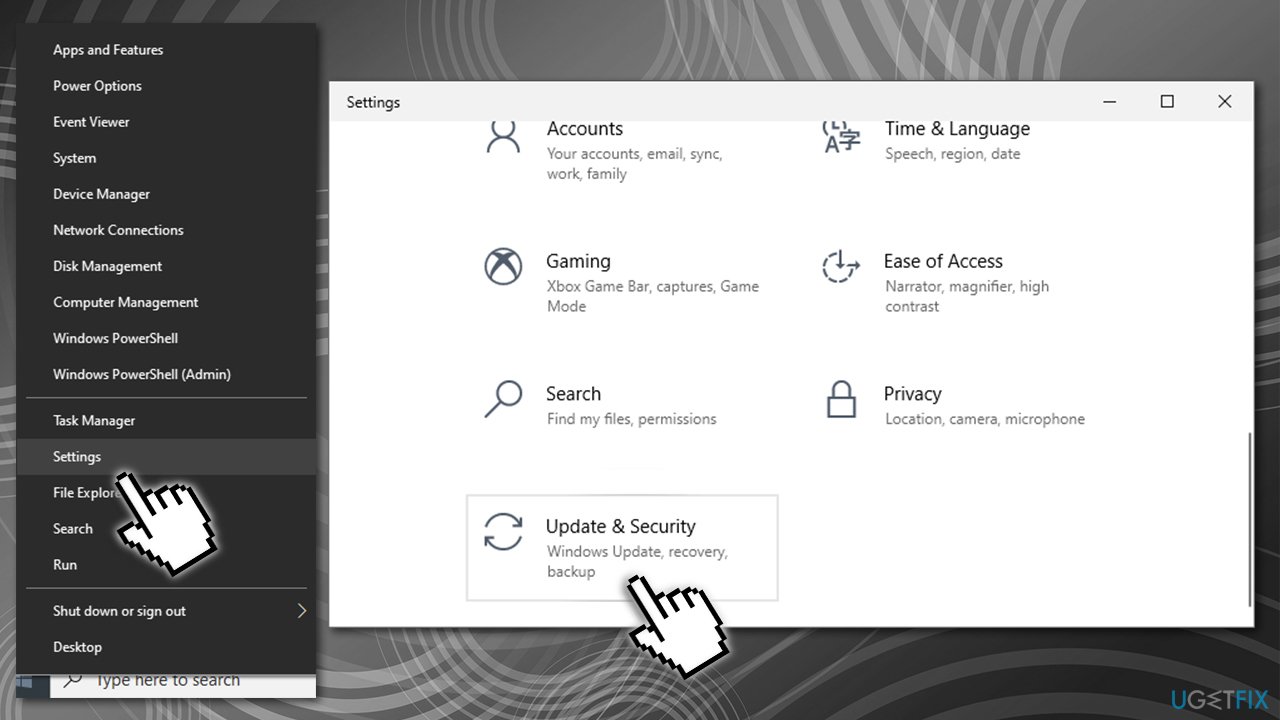
What is wsappx and how to fix high cpu usage access settings - On the left, pick Troubleshoot - you will see all the available troubleshooters listed on the right
- If you can't see them listed, click on Additional Troubleshooters
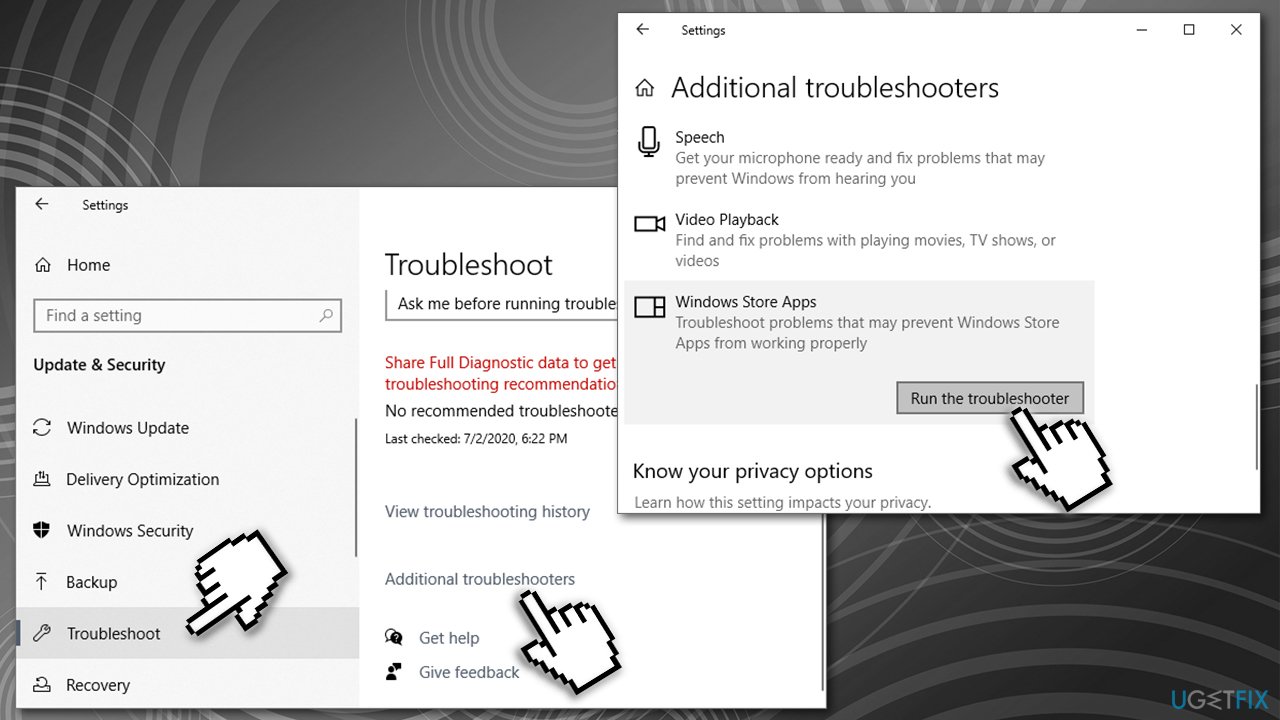
What is wsappx and how to fix high cpu usage run troubleshooter - Scroll down to locate Windows Store Apps
- Click on it once and pick Run the troubleshooter
- Wait till Windows runs the scan and repairs Windows Store.
Fix 7. Use Windows Registry Editor
Windows registry is an important database that stores the settings for all programs (both built-in and third-party). Therefore, before editing this database, you should back it up first. Here's how:
- Type in regedit in Windows search and press Enter
- If User Account Control shows up, press Yes
- Press File > Export...
- Under Export range, pick All
- Pick a location and save the file as a backup and press Save.
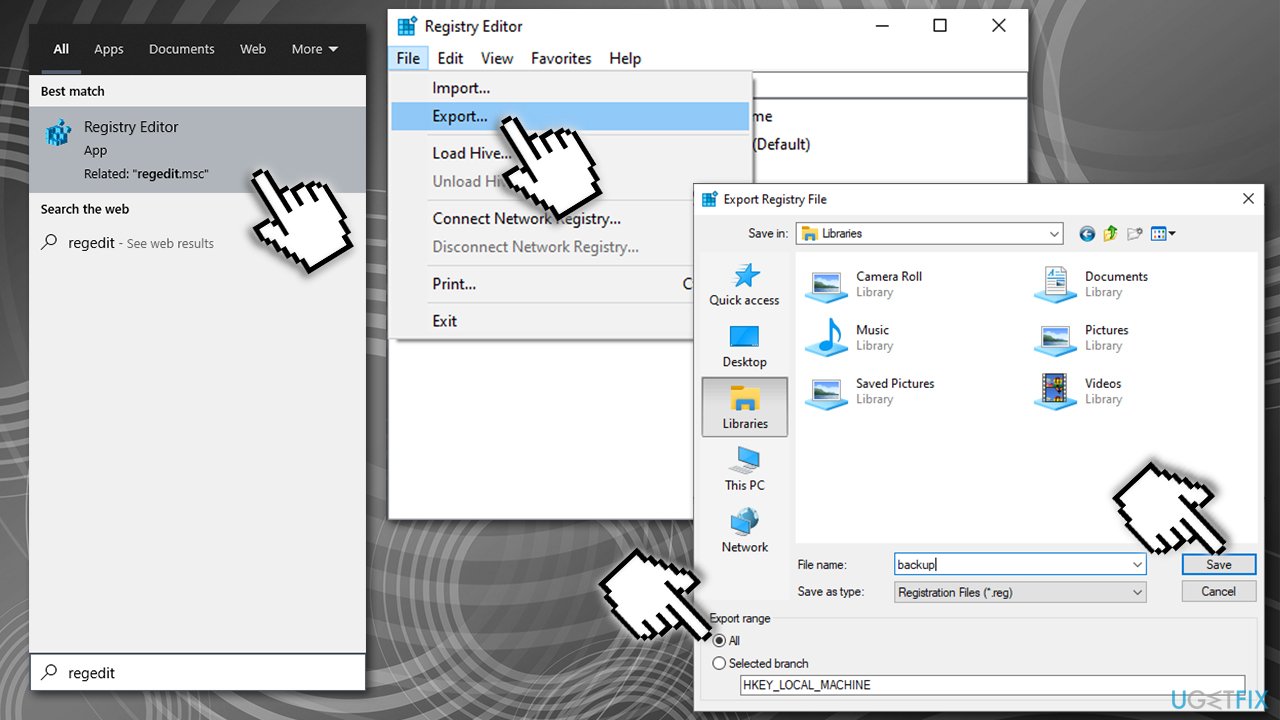
What is wsappx and how to fix high cpu usage backup registry
Now proceed with the following steps:
- Go to the following location:
HKEY_LOCAL_MACHINE\\SOFTWARE\\Policies\\Microsoft\\
- Right-click on Microsoft and select New > Key
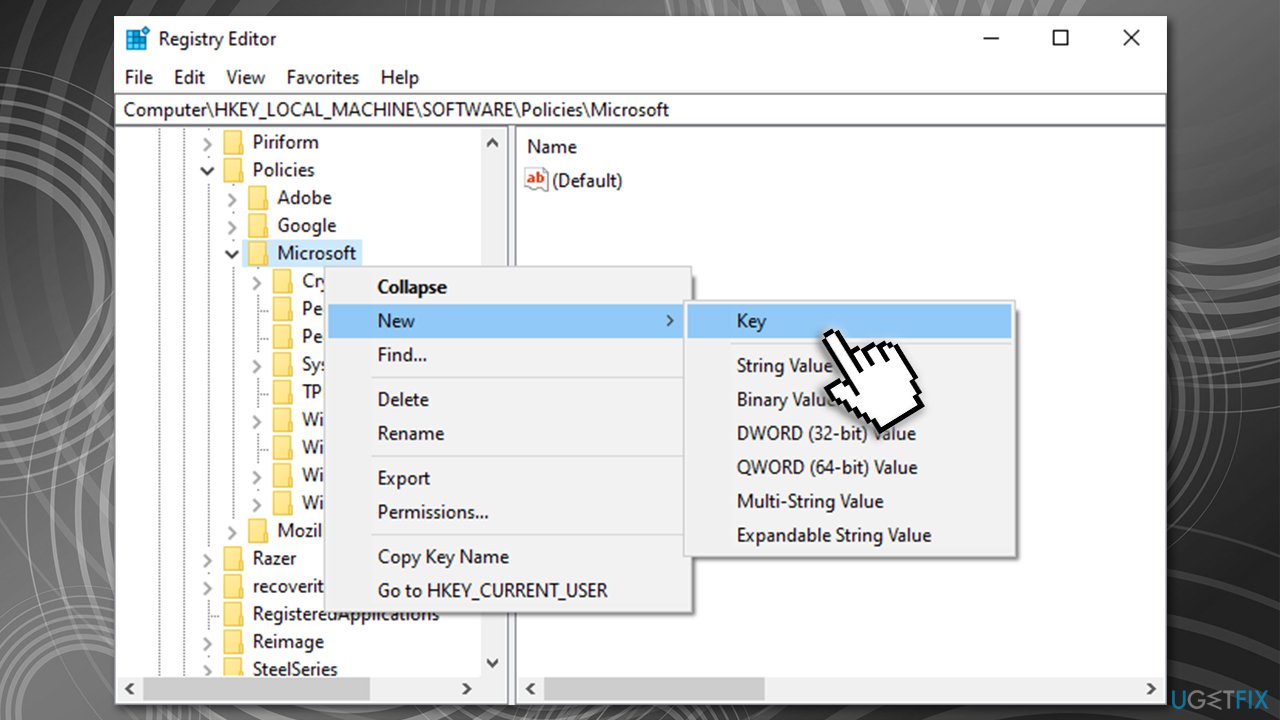
What is wsappx and how to fix high cpu usage create windowsstore key - Type in WindowsStore and press Enter
- Now select WindowsStore by clicking on it once
- Right-click on the right side of the window, and select New > DWORD (32-bit) Value - name it RemoveWindowsStore
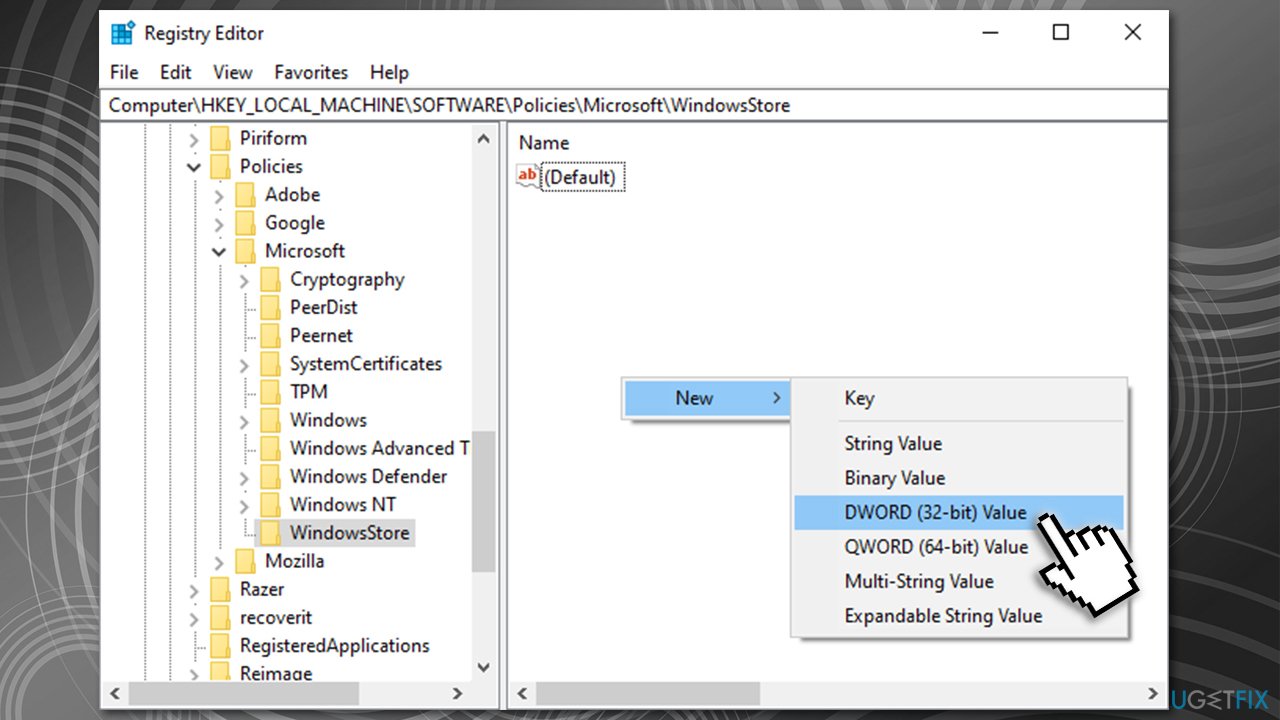
What is wsappx and how to fix high cpu usage create new dword removewindowsstore - Double-click on the new value
- Under Value data, type in 1 and press OK.
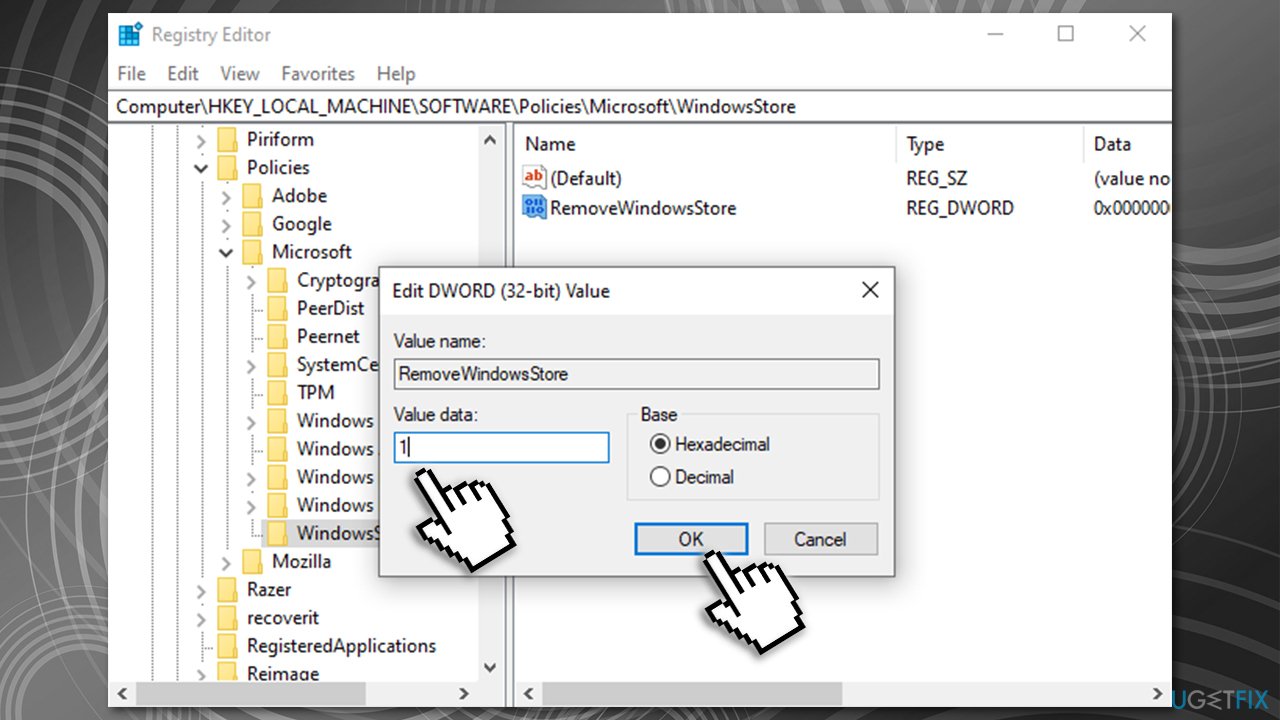
What is wsappx and how to fix high cpu usage change value data
Note: this will disable Windows Store. To re-enable it, revert the 1 value back to 0 and press OK.
Bottom line
To fix the high CPU usage caused by AppX Deployment Service (AppXSVC), you can scan for malware, check for background updates, or consider disabling certain services. If none of these solutions work, further investigation into system performance or professional assistance may be required.
Frequently asked questions
WSAPPX high CPU usage is often caused by background processes related to the Microsoft Store, such as app updates or installations. This can happen when apps are being downloaded or updated, leading to increased resource consumption.
To reduce WSAPPX CPU usage, you can disable automatic app updates in the Microsoft Store settings or uninstall unnecessary apps that may be causing the issue. Additionally, performing a system scan for corrupted files can help.
While you can disable WSAPPX services, it is not recommended as it may prevent apps from updating or functioning properly. Instead, consider adjusting settings or managing installed apps to alleviate the CPU usage.




Report an issue
What's wrong with this guide? We review every report and update or remove content.
Report received — thank you. We'll review and fix it.
You need a free account to submit a report.
Be the first to comment