How to fix
Microsoft Edge refreshing itself
on Windows
Struggling with Microsoft Edge auto-refreshing? Discover effective solutions to stabilize your browser on Windows 10 or Windows 11. Expert-tested fixes …

What causes How to fix Microsoft Edge refreshing itself?
- Hardware problems
- Malware infections
- Overloaded cache
- System problems
- Outdated app
Repairs Windows system files, removes malware, and restores a clean OS state — without reinstalling.
Hello, how to fix Microsoft edge from randomly refreshing which is causing me to lose the sites that I am working with?
Microsoft Edge might become one of the most commonly used browsers, especially now that Microsoft announced the new version that will be based on the Chromium project.[ref en-1] Initially, the browser was not doing too well on the market, based solely on the reputation on the predecessor Internet Explorer - a slow browser with many security flaws.[ref en-2] However, it does not mean that users never encounter problems with it.
One of such common problems is Microsoft Edge refreshing itself without user interaction whatsoever. This can be especially frustrating as all the tabs the user is working on might be lost, including all the important information put into them.
Microsoft Edge refreshing itself is a relatively common bug, and many users complained about it on official and other technical support forums. Nevertheless, because there are several reasons why that would happen, there is no one, universal solution for the problem. The reasons for Microsoft Edge refreshing itself may include hardware problems, malware infections, overloaded cache, system problems, outdated app, etc.
Before you proceed to fix Microsoft Edge refreshing itself, you should check for the following
- Make sure your F5 button is not stuck. Simple crumbs or dust might be the culprit of such a problem;
- Uninstall all the plugins or browser extensions that you might be using on MS Edge;
- Make sure Microsoft Edge is up to date.
If you encounter this and other problems on your device, we highly recommend you scanning your computer with [d1] - this repair software is capable of fixing system problems, remove virus damage and make sure your PC is performing at its best. If you do not wish to fix Microsoft Edge refreshing itself automatically, try manual options we provide below.
Fix 1. Clear browsing data from MS Edge
- Click on Settings and more at the top-right of the MS Edge corner
- Select History
- Click on Clear History
- Next, tick all the boxes and select Clear
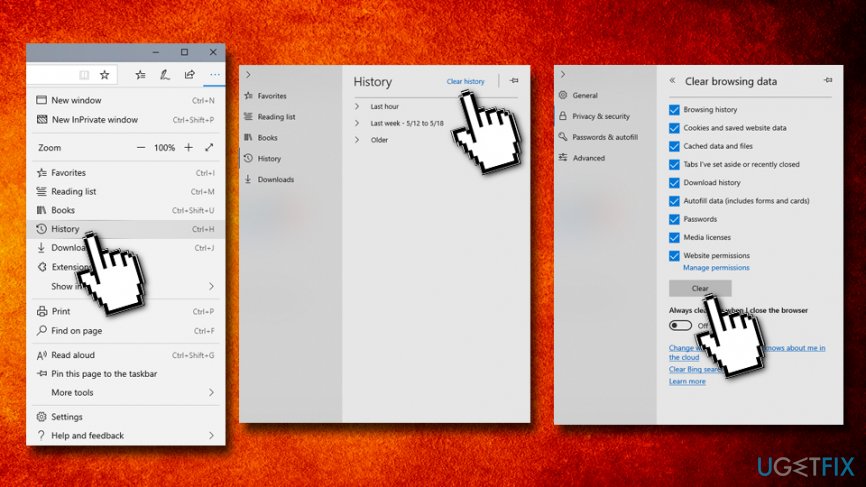
Ffix microsoft edge refreshing itself clear browser data
Fix 2. Run Apps Troubleshooter
This option might provide some information on why Microsoft Edge keeps refreshing itself:
- Right-click on the Start button and pick Settings.
- Click on Update & Security.
- On the left side of the window, choose Troubleshoot.
- On the right side of the window, scroll down to find Windows Store Apps.
- Select it and then click on Run the troubleshooter.
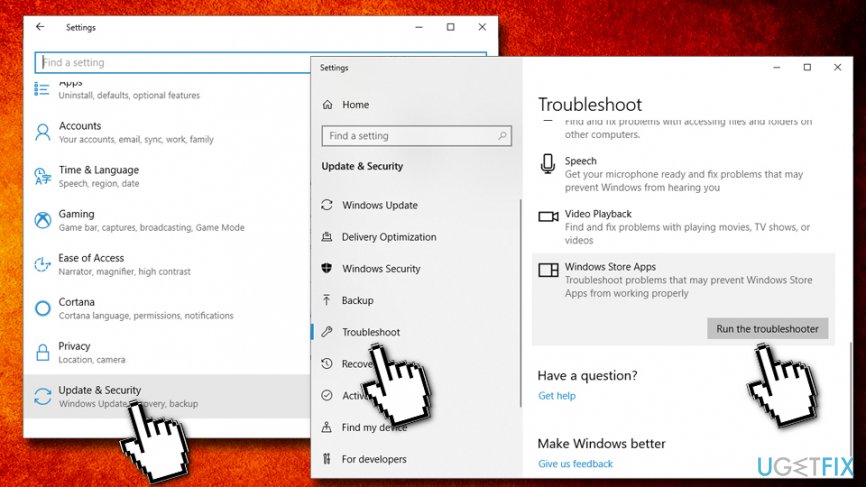
Ffix microsoft edge refreshing itself run apps troubleshooter
Fix 3. Scan your computer for malware
Malware, especially spyware,[ref en-3] can induce a variety of activities on your device, such as mouse clicking by itself, redirects to suspicious sites, unexpected appearance of new programs or background processes, error messages, as well as MS Edge refreshing issue. Therefore, make sure you install a reliable anti-virus application and perform a full system scan to make sure no computer virus is present on your system.
Fix 4. Repair or reset Microsoft Edge via Settings
There is an excellent built-in feature that can let you fix various issues that arise with all the installed apps. You should first try to run a Repair option. If that does not work, opt for Reset:
- Right-click on Start and pick Settings
- Go to Apps and scroll down to locate Microsoft Edge
- Click on Advanced Options
- Scroll down again until you reach Reset
- Now click on Repair, wait till Windows repairs the app and see if problem persists. If that is the case, go back and select Reset option
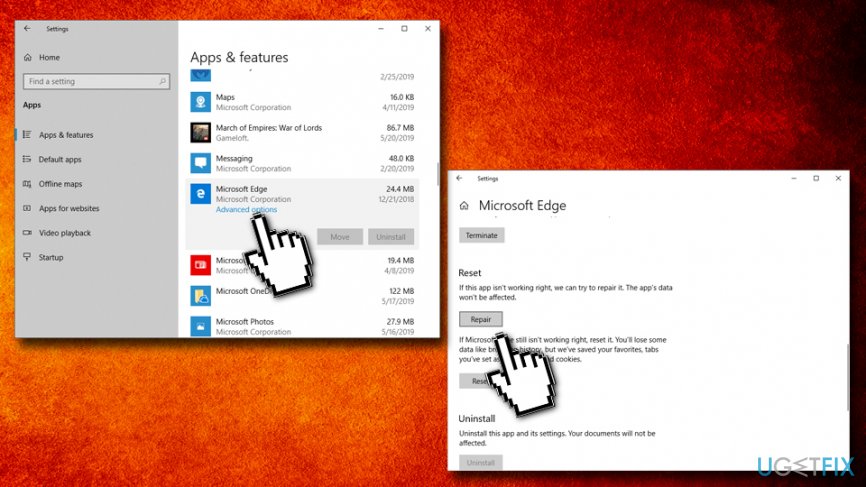
Ffix microsoft edge refreshing itself repair or reset microsoft edge
Fix 5. Run System File Checker
System File Checker is an excellent built-in tool that can check for various system issues so it might be useful when trying to fix Microsoft Edge refreshing itself problem:
- Type in cmd or Command Prompt in to Cortana's search box
- Right-click on Command Prompt search result and select Run as administrator
- Once the new window opens, type in sfc /scannow and press Enter
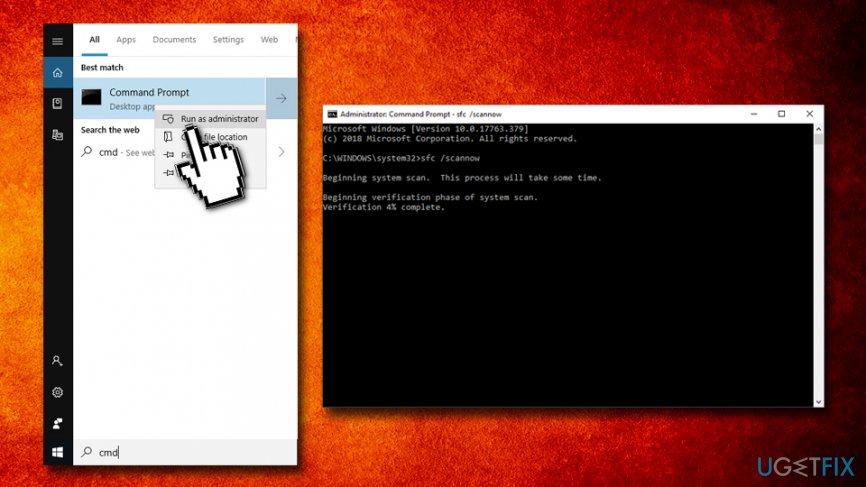
Ffix microsoft edge refreshing itself run system file checker - Wait till Windows fully finishes the scan - it will inform if any errors were found and will fix them automatically
Fix 6. Reinstall MS Edge manually
This is more advanced Microsoft Edge refreshing itself fix, so please make sure you follow each step carefully:
- Press Windows button + E to open File Explorer
- Go to the following location: C:\\Users\\%username%\\AppData\\Local\\Packages\\Microsoft.MicrosoftEdge_8wekyb3d8bbwe (be aware the drive letter might differ, depending where your Windows OS is installed to)
- Enter the folder and delete all the contents inside
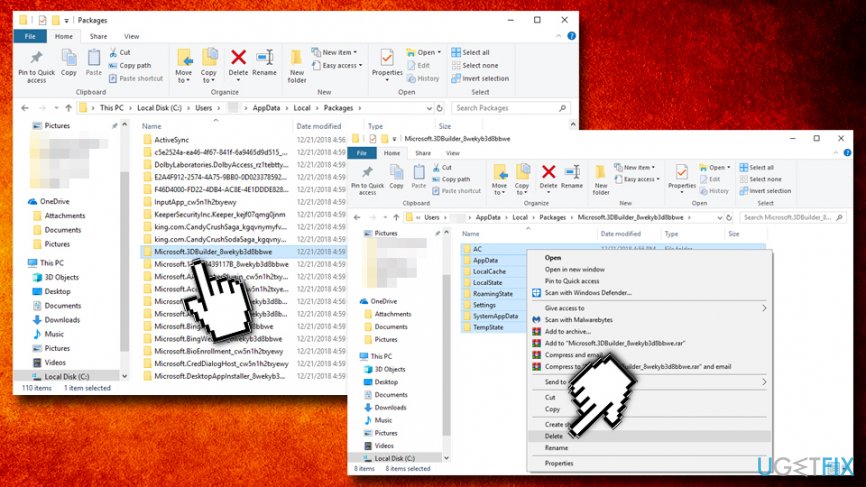
Ffix microsoft edge refreshing itself delete ms edge appdata folder - Close down File Explorer
- Right-click on Start button and select Windows PowerShell (Admin)
- If User Account Control pops up, click Yes
- In the newly opened Window, paste the following and hit Enter
Get-AppXPackage -AllUsers -Name Microsoft.MicrosoftEdge | Foreach {Add-AppxPackage -DisableDevelopmentMode -Register “$($_.InstallLocation)\\AppXManifest.xml” -Verbose}
- Close down PowerShell and restart your computer. See if Microsoft Edge keeps refreshing itself
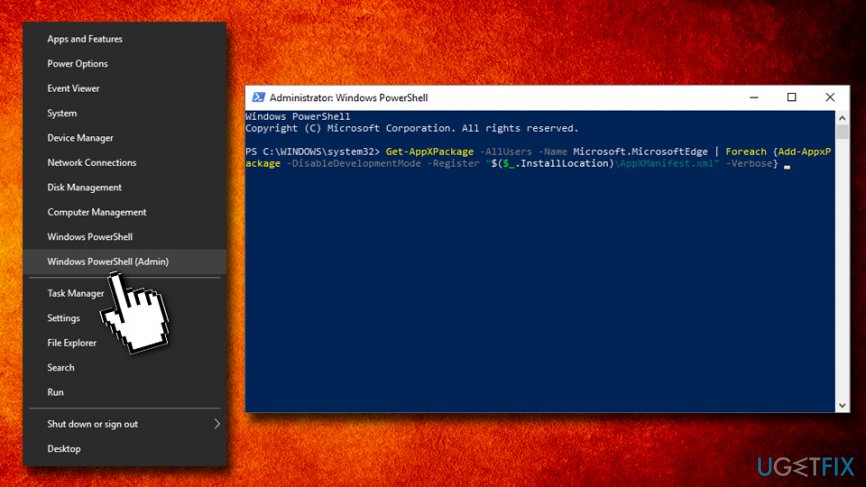
Ffix microsoft edge refreshing itself reinstall ms edge manually
Bottom line
To fix Microsoft Edge refreshing itself, you can try clearing browsing data and running the Apps Troubleshooter. If these solutions do not resolve the issue, consider checking for stuck keys or uninstalling browser extensions.
Frequently asked questions
This issue may occur due to corrupted cache files or conflicting extensions in Microsoft Edge. Clearing the browser cache and disabling unnecessary extensions can often resolve the problem.
You can stop the automatic refreshing by resetting Microsoft Edge settings to their default. Go to Settings > Reset settings in Edge and select 'Restore settings to their default values'.
If the issue persists after an update, consider reinstalling Microsoft Edge or using the built-in troubleshooter in Windows 10 to identify and fix problems.




Report an issue
What's wrong with this guide? We review every report and update or remove content.
Report received — thank you. We'll review and fix it.
You need a free account to submit a report.
Be the first to comment