How to fix
Windows spotlight not working
on Windows
Fix Windows Spotlight not working in Windows 10 or 11 with our expert-tested solutions. Get your background images back in minutes!

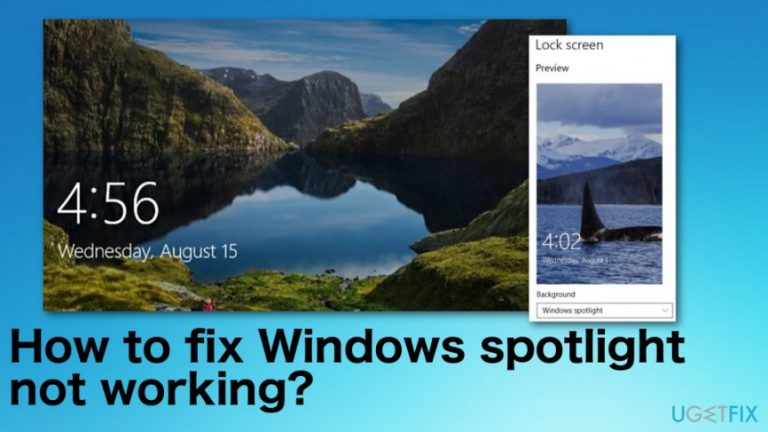
What causes How to fix Windows spotlight not working?
- Enabled proxy settings
- Corrupted spotlight folder
- Malware affecting applications
- Recent Windows 10 bugs
- Registry path changes
Repairs Windows system files, removes malware, and restores a clean OS state — without reinstalling.
Hello, I recently have updated my Windows to Win 10 version. Right now I have an issue with Windows Spotlight because it stops on one image and generally is not working. It seems that there is nothing that I can do to work permanently. I changed the path of the gallery with the registry but that worked for a day or two only. Can you suggest something?
Windows Spotlight is a feature that allows Windows 10 users to download pictures and advertisements from Bing and display them on the lock screen. Users can mark if they liked the picture and want to see more or fewer images of the same type. However, people report that the lock screen is not changing for a long time or even not work for a while.[ref en-1]
Although Windows Spotlight feature adds color to your lock screen, this is not perfect and issue-free function like Windows 10 in general.[ref en-2] However, the operating system is not the reason this issue is a common one. Windows spotlight not working error appears out of a sudden, but there might be a few different reasons why the lock screen application stops working.
The issue is not related to recent Windows 10 bugs[ref en-3] but updating the OS may work as, at least temporary, fix for Windows spotlight not working. Enabled proxy settings or corrupted spotlight folder may be the reason, but you need to make sure for yourself since there are different situations and different solutions.
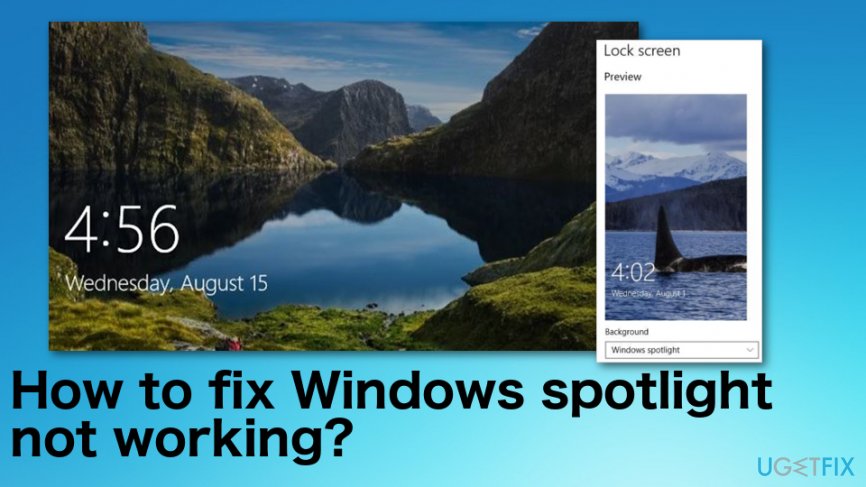
Fix Windows spotlight not working
There are plenty of different reasons why users complain about Windows Spotlight, so are the solutions. As per usual, the Windows operating system can be affected by various malware that corrupts applications and processes. For that reason, you can start with a system check using [d1] that can even recover needed Windows files. Then, follow the suggested steps and try at last few methods.
Reset Windows Spotlight preferences
- Open Settings.
- Click Personalization.
- Choose Lock screen.
- Use the drop-down menu and select Picture or Slideshow option.
Then, you should clear the assets and reset Settings:
- Search for Run and type the following in the window:
%USERPROFILE%/AppData\\Local\\Packages\\Microsoft.Windows.ContentDeliveryManager_cw5n1h2txyewy\\LocalState\\Assets - Select all and Delete. This way you can clear all the old images.
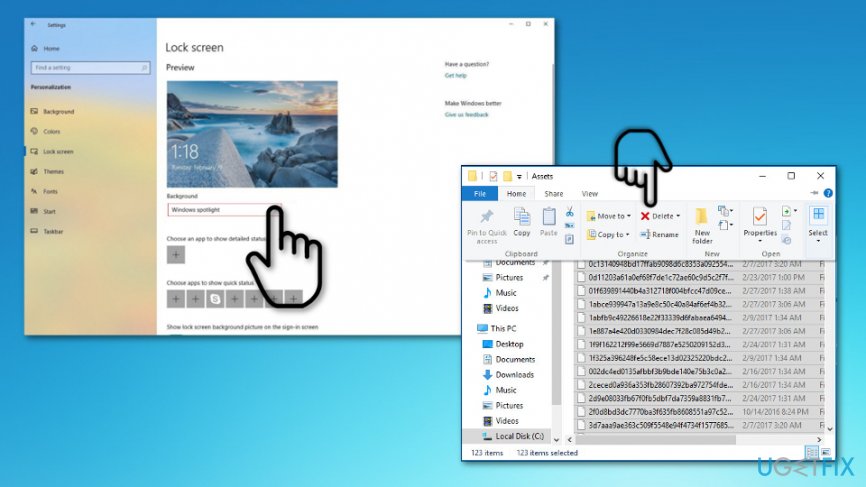
How to fix windows spotlight not working delete assets
Reset Stoplight by:
- Type the path to Run:
%USERPROFILE%/AppData\\Local\\Packages\\Microsoft.Windows.ContentDeliveryManager_cw5n1h2txyewy\\Settings - In the Settings folder, right-click the settings.dat and roaming.lock files separately.
- Change their names by adding .bak at the end.
- Restart your computer.
Then repeat the steps of the first section and choose Windows Spotlight option from the drop-down menu.
Re-register Windows Spotlight
- Run the Command Prompt as administrator.
- Type the following and press Enter after each:
dism /online /cleanup/-image /restorehealth
sfc /scannow
powershell
Get-AppXPackage-AllUsers | Where-Object {$_.InstallLocation-like "*SystemApps*"} | Foreach {Add-AppcPackage-DisableDevelopmentMode -Register"$($_.InstallLocation)\\AppXManifest.xml"}
Disable Mail and Calendar from the Lock screen
- Press Windows + S and type weather in the search box.
- Once the weather has opened, click the Settings icon at the bottom.
- Locate the General tab and scroll down to find Launch Location. Make sure it is set as Default Location.
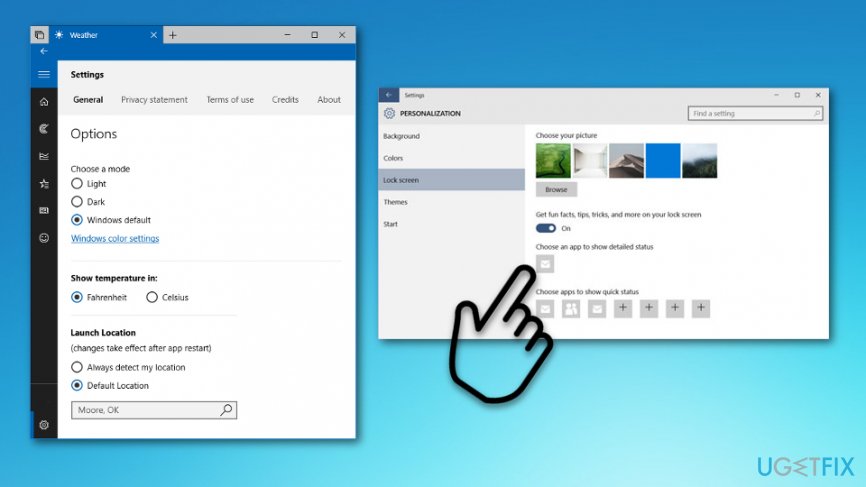
How to fix windows spotlight not working weather - Search again for the lock screen.
- Click Mail icon under the Choose apps to show quick status.
- Choose the None option and do the same with Calendar settings.
- Uncheck Show lock screen background on the sign-in screen.
- Restart the computer and check if Windows Spotlight works normally.
Delete Spotlight Folder Contents
- Locate to Settings.
- Select the heading Personalization at the top.
- Choose Lock Screen and select Picture from the drop-down menu.
- Exit the settings and go to the following file location. Replace user with your username.
C:\\Users\\<USER>\\AppData\\Local\\Packages\\Microsoft.Windows.ContentDeliveryManager_cw5n1h2txyewy\\Settings - Delete all the contents in the folder and exit File Explorer.
- Go back to lock screen settings and turn on Windows Spotlight again.
- Restart the PC.
Disable Proxy settings to fix Windows spotlight not working
- Search for proxy and press LAN settings when the window appears.
- Uncheck the box Use a proxy server for your LAN.
- Press OK to save changes.
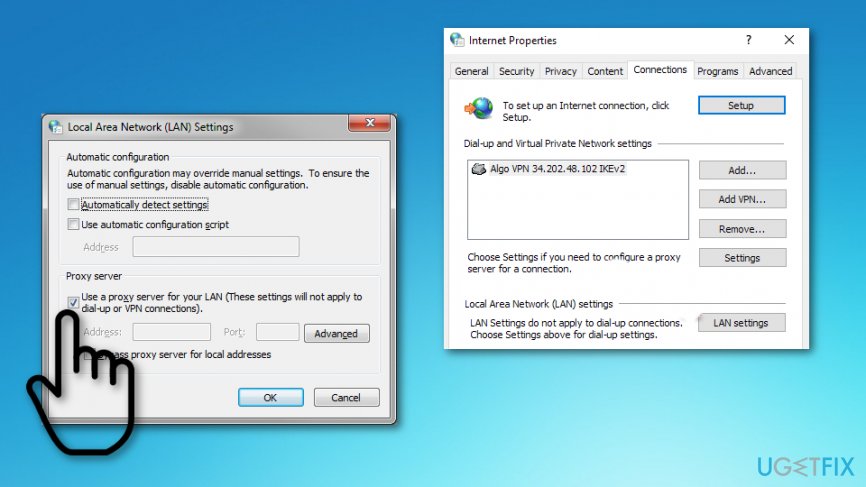
How to fix windows spotlight not working proxy lan
Bottom line
To fix Windows Spotlight not working, you can reset Windows Spotlight preferences, check for malware, and update the operating system. If these methods do not resolve the issue, consider further troubleshooting or seeking additional support.
Frequently asked questions
Try resetting the Spotlight feature by navigating to Settings > Personalization > Lock screen, then toggle the background to 'Picture' and back to 'Windows Spotlight'. This can refresh the feature and resolve the issue.
Ensure that your internet connection is stable, and then reset the Windows Spotlight settings by deleting the contents of the 'Windows Spotlight' folder located at C:\Users\YourUsername\AppData\Local\Packages\Microsoft.Windows.Spotlight_...\LocalState.
Check for any pending Windows updates in Settings > Update & Security, as these can fix bugs affecting Spotlight. If the problem persists, consider running the Windows Store Apps troubleshooter.




Report an issue
What's wrong with this guide? We review every report and update or remove content.
Report received — thank you. We'll review and fix it.
You need a free account to submit a report.
Be the first to comment