How to fix
Microsoft Wireless display adapter not working
on Windows
Resolve issues with your Microsoft Wireless Display Adapter on Windows 10 and Windows 11 effortlessly. Expert-tested solutions await you!


What causes How to fix Microsoft Wireless display adapter not working?
- Hardware Failure
- Outdated Drivers
- Windows Not Up to Date
- Incorrect Wireless Frequency
- Firewall Settings Issues
Repairs Windows system files, removes malware, and restores a clean OS state — without reinstalling.
I was trying to copy my photos off my smartphone, but it seems like Microsoft wireless display adapter is not working. I am not sure if it is broken, or can it be something else?
Microsoft Wireless Display Adapter is an extremely useful tool that can help you connect your phone, tablet, or another device to a bigger screen, such a TV, computer monitor, or a projector. The wireless display technology is very convenient as it allows sharing of photos, videos or other content for everybody to see, instead of crowding around a small screen. Additionally, it might also be used by university or school.
However, users complained about Microsoft Wireless display adapter not working, claiming various issues with the device:
- bad quality transmission
- video stutter
- blurry display
- video latency or lag[ref en-1]
- sound missing
- continual or periodic Microsoft Wireless display adapter disconnects
- failure to pair Microsoft Wireless display adapter, etc.
While the most apparent cause for Microsoft Wireless display adapter not working is a hardware failure, it is usually not the case. The very basic troubleshooting can be done on the spot and includes checking if the device is within 23 feet of the display, as well as fail-proofing the connection point (the USB or the HDMI).
However, the main ways to fix Microsoft Wireless display adapter not working issue includes restarting or resetting the device, updating drivers, making sure Windows is up to date, changing the wireless frequency, tweaking Firewall settings, etc.
Before you begin to go through our Microsoft Wireless display adapter not working fix, we would like to recommend scanning your device with [d1], as hardware or connection issues might be the result of malware[ref en-2] infections, such as trojans, backdoors, rootkits, and other threats. Besides, the tool can also repair various problems with the device, including system issues, fix the registry,[ref en-3] etc.
Fix 1. Update Windows OS
While Windows should be updated automatically, the feature might be sometimes turn off. Additionally, some updates do not install until the system is rebooted. Therefore, proceed with the following to make sure your operating system is up to date:
- Right-click on Start and pick Settings
- Go to Updates & Security
- Select Check for updates
- Windows will automatically look for and install new updates
- Reboot your computer
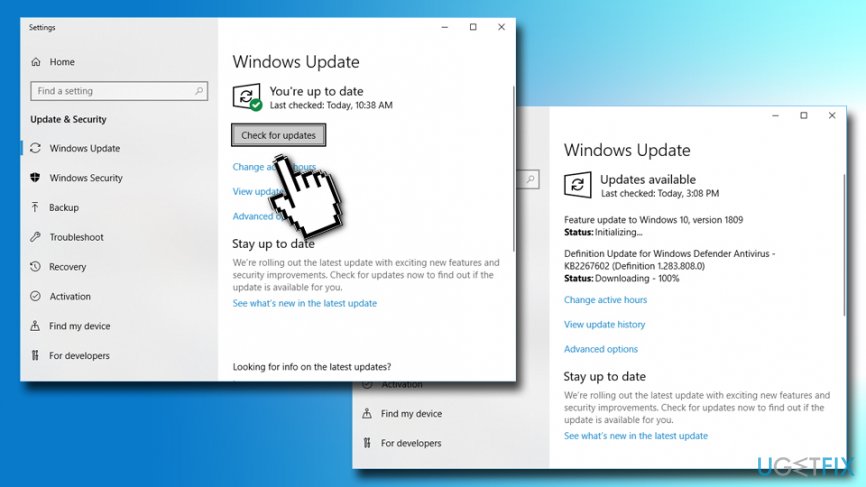
How to fix microsoft wireless display adapter not working update windows
Fix 2. Restart Microsoft Display Adapter
If something does not work - try to restart it, and it applies for Microsoft Wireless Display Adapter is not working error. Please follow these simple steps:
- Disconnect your Microsoft Wireless Display Adapter from your device
- Restart your device
- Insert the connection once more, and check if the display works
Fix 3. Reset Microsoft Wireless Display Adapter
Another solution is to reset Microsoft Wireless Display Adapter. Here's how to do it:
- Locate and press (hold it for at least 10 seconds) the Reset button at the back of the adapter
- Ready to connect message should pop-up
- Open Action Center and select Connect
- Pick Microsoft Wireless Display Adapter and connect it to the display
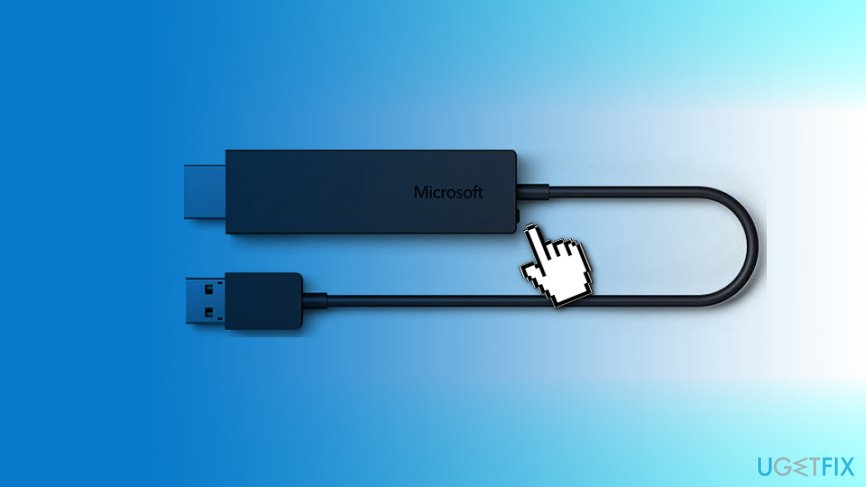
How to fix microsoft wireless display adapter reset the adapter
Fix 4. Remove and reconnect Microsoft Wireless Display Adapter
This is another method you could try to fix Microsoft Wireless Display Adapter not working issue:
- Right-click on Start and select Settings
- Go to Devices > Connected devices
- Locate Projectors section and select Microsoft Wireless Display Adapter
- Pick Remove device
- Next, click on Add a device and connect Microsoft Wireless Display Adapter once again
Fix 5. Reinstall graphics driver
- Right-click on Start button and select Device Manager
- Click on Display adapters
- Right-click on it and select Uninstall device
- In the new window, tick Delete driver software for this device
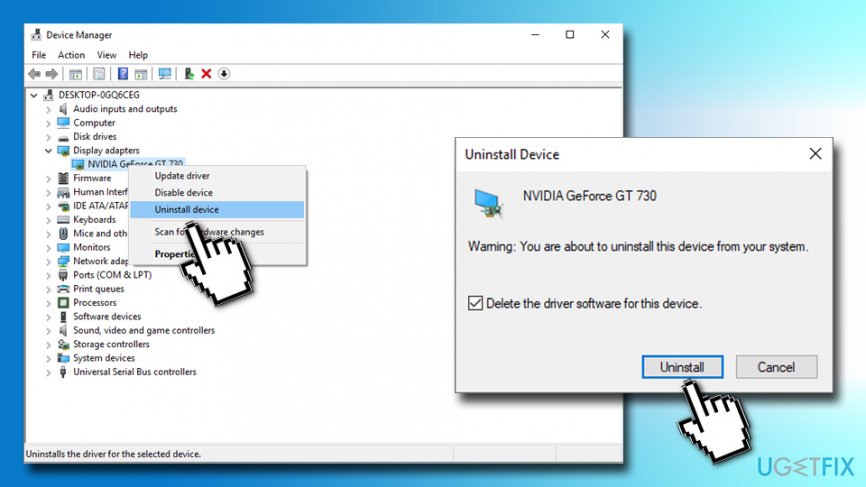
How to fix microsoft wireless display adapter reinstall graphic driver - Click on Uninstall and reboot your computer
- After a restart, right-click Start and then select Settings > Devices > Connected devices
- Pick Add a device and select Microsoft Wireless Display Adapter
Fix 6. Reinstall WiFi drivers
- Right-click on Start button and select Device Manager
- Pick Network adapters section select your network adapter
- Right-click on it and select Uninstall
- In the new window, tick Delete driver software for this device
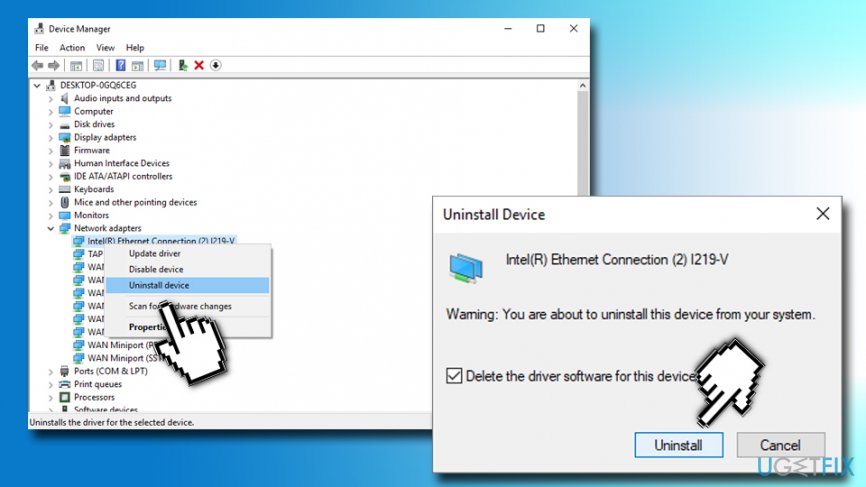
How to fix microsoft wireless display adapter reinstall network adapter - Click on Uninstall and reboot your computer
- After a restart, right-click Start and then select Settings > Devices > Connected devices
- Pick Add a device and select Microsoft Wireless Display Adapter
Fix 7. Enable 2.4GHz frequency band on your computer
While Microsoft Wireless Display Adapter can communicate the device on 2.4GHz and 5GHz, it is important that you have the former enabled. Here's how to do it:
- Go to Device Manager
- Expand Network Adapters
- Right-click on Marvell AVASTAR adapter and select Properties
- Then go to Advanced
- Under Property, pick Band
- Under Value click on the arrow button and select Auto and then click OK
Fix 8. Allow Microsoft Wireless Display Adapter to run communicate through Firewall
- Click on Cortana's search and type in Allow Firewall
- From the search results, pick Allow an app through Windows Firewall
- Scroll down and locate Wireless Display
- Make sure both Private and Public options are selected
- If not, click on Change Settings at the top and then select both options
- Click OK
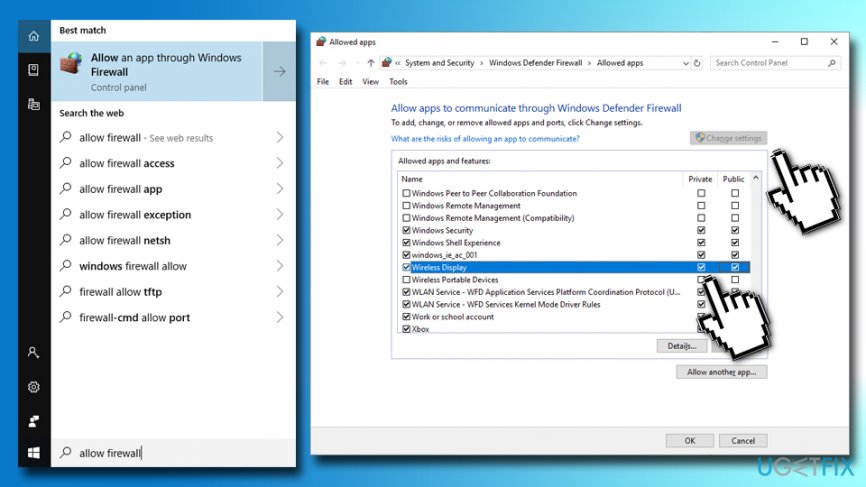
How to fix microsoft wireless display adapter allow wireless display firewall
Bottom line
To fix the Microsoft Wireless display adapter not working issue, you can try updating Windows, restarting or resetting the device, and changing the wireless frequency. If these steps do not resolve the problem, consider scanning your device for malware or checking the connection points.
Frequently asked questions
Ensure that your adapter is properly plugged into the HDMI port of your TV and powered on. Additionally, check that your Windows 10 device's Wi-Fi is turned on and that you're within range of the adapter.
Try resetting the adapter by holding the reset button for 10 seconds, then reconnect it to your Windows 11 device through the 'Connect' option in the Action Center. If the issue persists, ensure that your Windows 11 is updated to the latest version.
Make sure that both your Windows 10 device and the adapter are updated with the latest firmware and drivers. Additionally, check for any interference from other wireless devices and consider moving closer to the adapter.




Report an issue
What's wrong with this guide? We review every report and update or remove content.
Report received — thank you. We'll review and fix it.
You need a free account to submit a report.
Be the first to comment