How to recover
Restore your Mac from a Time Machine backup
from Windows
Easily recover lost files, settings, and system states on Windows 10 or 11 with our expert-tested solutions. Restoring is quick and hassle-free!

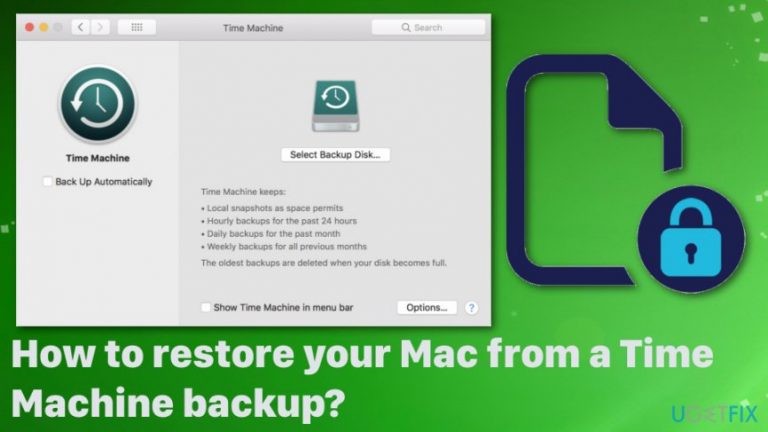
What leads to How to restore your Mac from a Time Machine backup?
- Mac crashed
- Lost data due to system failure
- Installed a new hard drive
- Freshly installed macOS
- Malware attack
- No reputable backups available
Repairs Windows system files, removes malware, and restores a clean OS state — without reinstalling.
Hello, my Mac crashed and I think I lost it all. I am in the middle of writing my masters thesis and I am in a time crunch. I can recover files from my iCloud backup. However, I need to restore my apps and settings that take a long time which I don't have. I think I have additional Time Machine backup. How to restore my Mac from this backup?
Mac devices can get completely messed up when users install a new hard drive or freshly install macOS. In such cases, a question about restoring your Mac from a backup rises. It may be difficult when you have no backups that are reputable. However, Time Machine backup helps with the recovery significantly because you can restore all applications, files, and even software.[ref en-1]
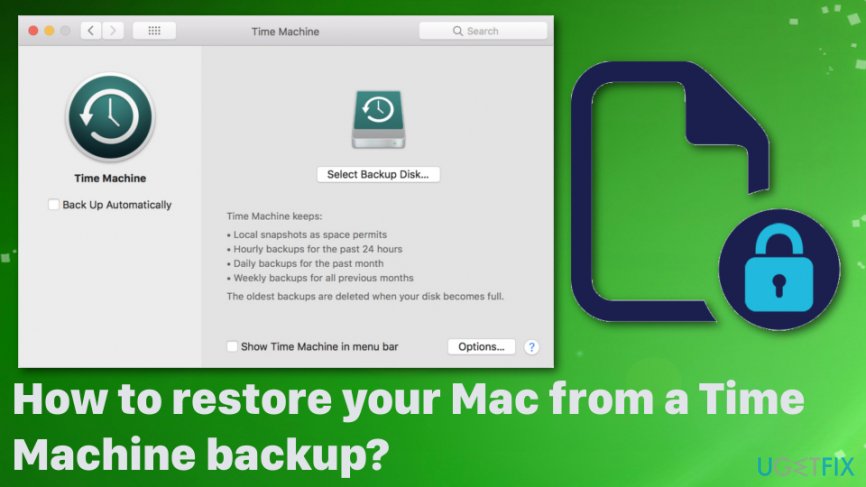
Time Machine backup function was introduced with Mac OS X Leopard and the feature means that software creates a backup of the whole Mac operating system including various files, system preferences, applications.[ref en-2] This is an easy way to protect the system from data loss when malware attacks and wipes the files off or when your system crashes unexpectedly.[ref en-3]
You need to enable this feature to protect the machine from such instances. Time Machine backup then helps to transfer data between separate Mac computers and restore the software when you need to replace the hard disk. Time Machine backup stores data on external storage and works with all possible connections like USB and FireWire. So you can easily restore your Mac from a Time Machine backup.
There are many reasons why you may need to restore your system, so relying on such feature can give a huge advantage since iCloud or any other backups cannot recover system preferences or applications, only files you store yourself. In such times when you have limited time to complete a project ar loose valuable data, restoring your Mac from a Time Machine backup option save time and gray hairs.
Tips on restoring your Mac
First of all, when talking about how to restore your Mac from a Time Machine backup, the reason why is important. When you are dealing with ransomware or other file-affecting malware your data may get damaged or deleted. For such instances, you need additional help from anti-malware or system tools like [d1]. You need to remove viruses from the machine to avoid any damage or direct hacker attacks. If the issue is other than malware, go straight to tips below and follow the guide to restore your Mac from a Time Machine backup.
Boot into Recovery mode
- Shut down your Mac and then hold down Command +R while turning it back on.
- You can also use Option+Command+R shortcut.
- When rebooted select Restore From Time Machine Backup.
- Once the page opens, hit the Continue button.
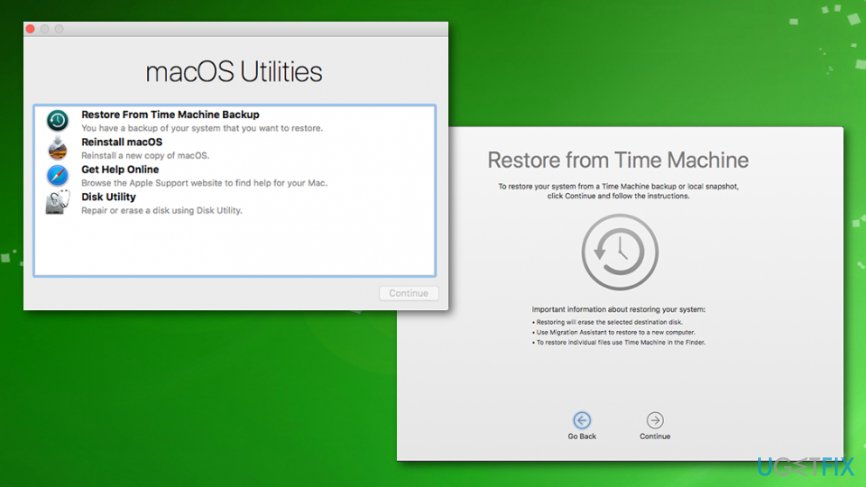
How to restore your mac from a time machine backup reboot
Choose the Hard Drive
- Time Machine feature should prompt you to choose which drive you want to recover from.
- Connect your USB drive if you are using one.
- You can use a network drive, make sure to connect to a wireless network before proceeding.
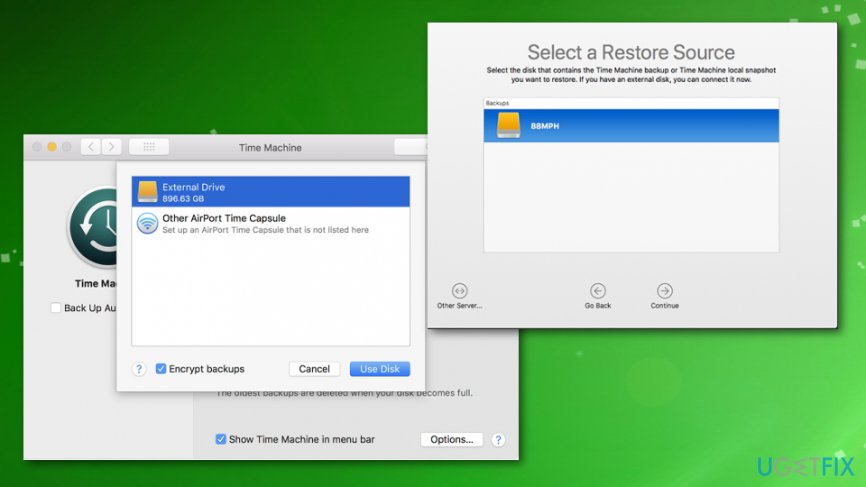
How to restore your mac from a time machine backup choosing disks
Choose a backup to restore your Mac from a Time Machine
- You need to pick the time you would like to restore from the drop-down menu.
- Choose the most recent one of you setting up the new hard drive.
- If the issue was a drive problem, select the point before any issues.
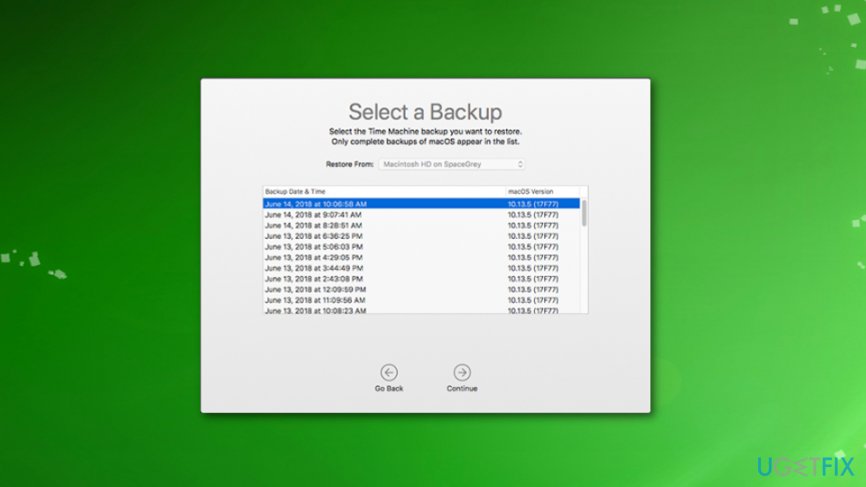
How to restore your mac from a time machine backup restore point
How to restore your Mac from a local backup
- Restart the device.
- When starting up hols Command+R and your Mac will reboot into macOS Utilities.
- Then, click on Disk Utility.
- Choose Continue.
- Select the Hard drive.
- Click the Restore tab at the top of the window.
- Select the external drive and mac's hard drive when asked to choose where to restore.
- Click Restore.
Bottom line
To restore your Mac from a Time Machine backup, ensure that the Time Machine feature is enabled and that you have an external storage device with the backup. This method allows you to recover applications, files, and system preferences that iCloud cannot restore. If these steps do not work, consider seeking professional help.
Frequently asked questions
No, Time Machine backups are specifically designed for macOS and cannot be directly accessed on Windows 10 or Windows 11. However, you can use third-party software to read HFS+ formatted drives if necessary.
To recover lost files on Windows 10 or Windows 11, you can use the built-in File History feature or restore from a previous version of the file if you have backups enabled.
Yes, you can restore system settings on Windows 10 or Windows 11 by using System Restore points, which allow you to revert your system to a previous state.




Report an issue
What's wrong with this guide? We review every report and update or remove content.
Report received — thank you. We'll review and fix it.
You need a free account to submit a report.
Be the first to comment