How to fix
Screen brightness control
on Windows
Fix your screen brightness control on Windows 10 or 11 effortlessly. Enjoy clearer displays with expert-tested solutions that get you back on track in m…

What causes How to fix screen brightness control?
- Upgrading from an older version of Windows
- Outdated software
- Outdated drivers
- Improper GPU driver installation
Repairs Windows system files, removes malware, and restores a clean OS state — without reinstalling.
I have been trying to manage might screen's brightness but it does not change. How can I fix it? I am using Windows 10.
Brightness not working on Windows 10 appears to be a common problem for Windows users.[ref en-2] Such type of problem can occur on PCs and laptops equally, however, for laptops, it is more annoying and troubling as when you are working with an increased rate of light, it starts using battery power faster than before if the device is not charging at the moment.
Windows 10 brightness not working error or the brightness changing itself with no possibility to manage it can be caused by many different reasons. In some cases, users encounter this type of problem after upgrading their computers to the Windows 10 version from their older variants of the operating system.[ref en-1]
Furthermore, Brightness not working on Windows 10 problem can also appear if there is any outdated software on the computer, especially, drivers that are responsible for the proper operating of the screen brightness feature. If your computer screen is too gloomy because of the screen light problem, you might find reading or writing hard to do.
Gladly, there are some possible fixes for Windows 10 brightness control not working error which we are looking forward to providing you with. Take a look at the following methods and see what you can do to fix the problem. These steps include updating, monitoring, changing different functions, and so on. Choose the most suitable one for you.
How to fix screen brightness control?
Technique No 1. Update the original GPU driver
Updating your GPU driver might help you to solve problems that are related to the Brightness not working on Windows 10 problem. Perform each step exactly as shown in the below-given informing guide to reach the best results possible:
- Go to the official website of your GPU manufacturer, find the last version of your driver and download it to your computer (of course, be sure that it fits the GPU model and your Windows OS variant).
- Now, open the driver installing window and follow all steps that are recommended for updating the component.
- After everything is finished, restart your machine.
Technique No 2. Activate the Generic PnP Monitor
- Select the Windows key and R button on your keyboard.
- Hold them until a small run box appears.
- Type in "devmgmt.msc" and press the Enter key.
- Once the Device Manager tool launches, locate the Generic PnP Monitor.
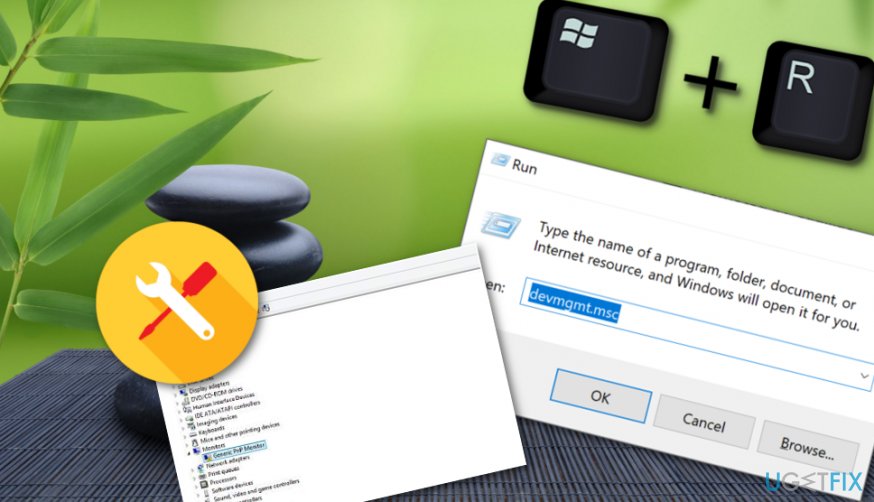
Fix error - Right-click on this component and select Enable device.
- Restart the system.
This is one of the methods that should help Windows users to take care of the Windows 10 brightness control not working problem on their computers and be able to adjust brightness settings normally again. However, if you have completed each step exactly as shown in the guide and the error still remains, continue with other possible techniques.
Technique No 3. Control screen brightness by using Power Options
- Launch the run box by holding the Windows Key and R together for a second.
- Type in "powercfg.cpl" and press Enter.
- Once the Power Options menu launches, select the Change plan settings option.
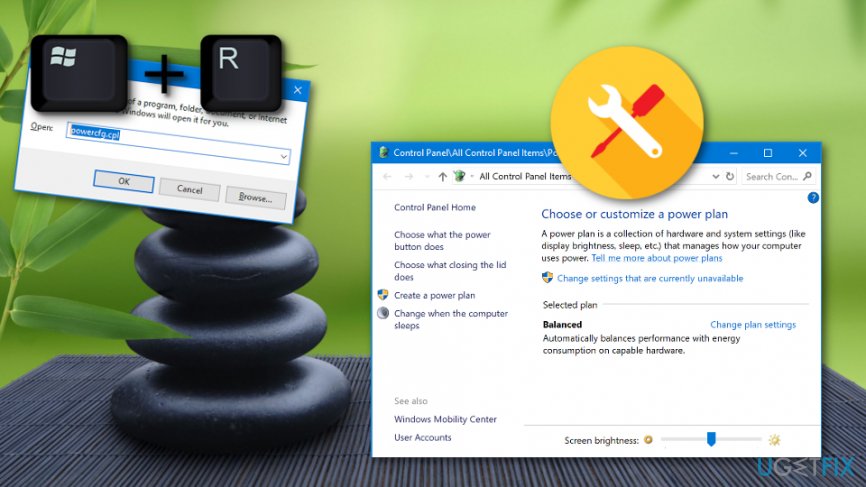
Error fix - After that, opt for Change advanced power settings.
- Locate to the other window, go to Display and press the plus mark to roll out the menu.
- Pick the settings that you are likely to.
- Afterward, do the same with Dimmed display brightness starting from step 5.
- Ensure that the "Enable adaptive brightness" option is turned Off.
- Click Apply and go see if the problem with screen brightness has disappeared.
Technique No 4. Manage the screen light level with the Graphics Properties menu
- Right-click with your mouse on any empty location on your desktop.
- Select Graphics Properties from the drop-down menu.
- Then, go for Advanced Mode and OK.
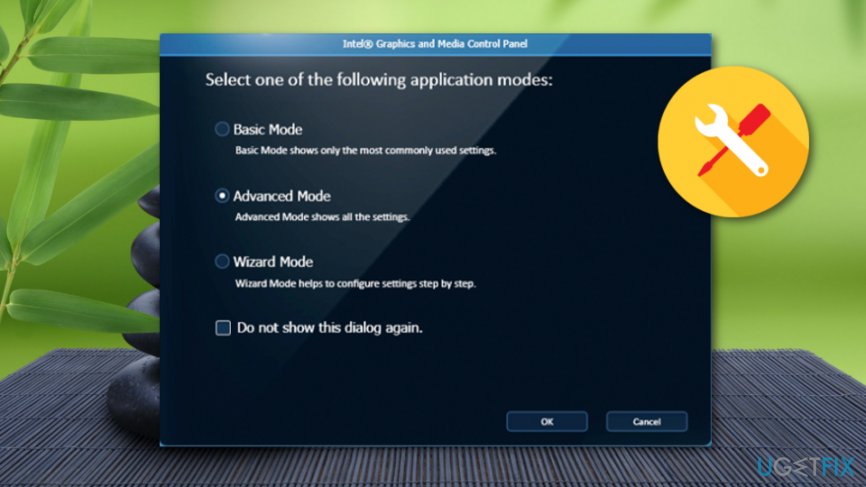
Problem fix - Furthermore, click Color Enhancement which can be found after expanding the Display menu.
- Change the brightness level of your screen to a one that satisfies your needs.
- Click Apply to save the changes.
After you complete this procedure, check your computer screen if the brightness leveling process has been successful. This method is a very simple one which requires manual intrusion but has been helpful for many Windows 10 users and has related to solving the Brightness not working on Windows 10 error.
Technique No 5. Update all of your GPU drivers
- Go to your Windows search section and locate Device Manager.
- Look for all Display adapters, right-click on them and select Update driver.
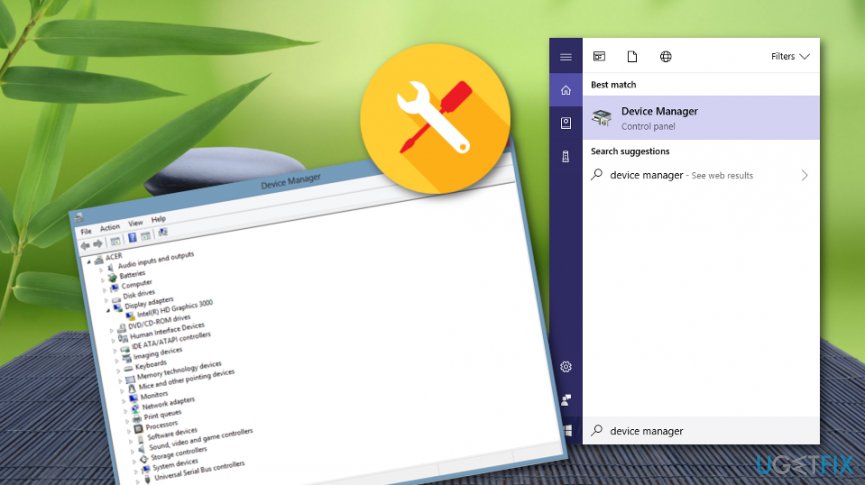
Fixing error on windows - Select Search automatically for updated driver software in the next window.
- Restart your Windows machine and see if the screen brightness feature is operating properly.
Technique No 6. Get rid of Catalyst flaw
We have done some researched and discovered that the Windows 10 brightness control not working error sometimes might occur due to a specific flaw that is known as the Catalyst bug. You can use your Windows Registry Editor[ref en-3] to fix this:
- Hold Windows key and R button.
- Type "regedit" in the white run box.
- Open the Registry Editor.
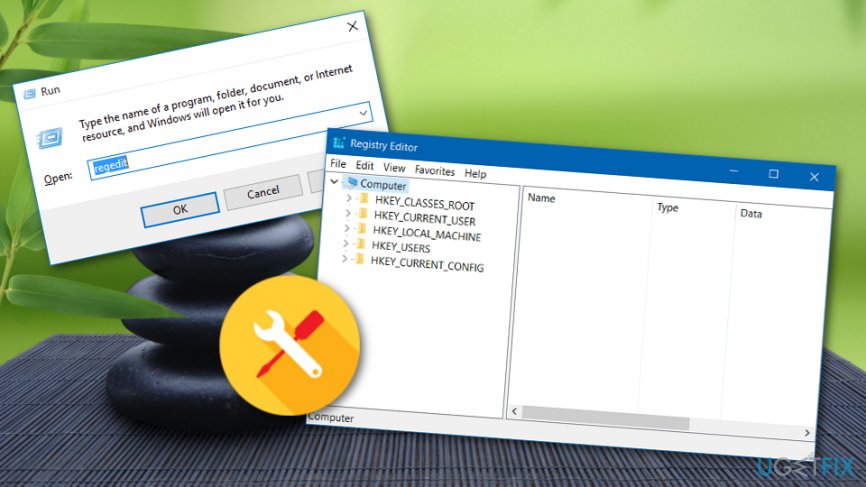
Brightness error fix - Find HKEY_LOCAL_MACHINE \\ SYSTEM \\ ControlSet001 \\ Control\\Class \\ {4d36e968-e325-11ce-bfc1-08002be10318} \\ 0000.
- Click to two times on MD_EnableBrightnesslf2 and change the Value section to a complete 0.
- After that, repeat it with KMD_EnableBrightnessInterface2.
- Afterward, locate HKEY_LOCAL_MACHINE \\ SYSTEM \\ CurrentControlSet \\ Control \\ Class \\{4d36e968-e325-11ce-bfc1-08002be10318} \\ 0001.
- Double-click on MD_EnableBrightnesslf2 and KMD_EnableBrightnessInterface2.
- Change the value for both of these objects to 0.
- Restart the computer.
After you have tried all of these methods, some of them should have worked and the Brightness not working on Windows 10 error should have disappeared by now. However, if you are still having some trouble with your computer's brightness, there might be some undiscovered problem that is causing this error to appear. Perform a full system scan with [d1] and this software might be able to detect the problem.
Bottom line
To fix the screen brightness control issue on Windows 10, you can update your GPU driver, monitor settings, and change various functions. If these methods do not resolve the problem, consider seeking further technical support.
Frequently asked questions
If the brightness slider is missing, try updating your display drivers through Device Manager or reinstalling them. You can also check the power settings to ensure the adaptive brightness feature is enabled.
To fix the brightness resetting issue, check for any recent Windows updates that may have caused the problem and roll back if necessary. Additionally, you can disable any third-party applications that might interfere with display settings.
If keyboard shortcuts aren't working, ensure that your graphics drivers are up to date and that the display settings are correctly configured in the Control Panel. You may also want to check for any pending Windows updates that could address this issue.




Report an issue
What's wrong with this guide? We review every report and update or remove content.
Report received — thank you. We'll review and fix it.
You need a free account to submit a report.
Be the first to comment