How to fix
“This copy of Windows is not genuine”
on Windows
Resolve the "This copy of Windows is not genuine" issue effortlessly on Windows 10 or 11. Expert-tested solutions with screenshots for quick fixes!

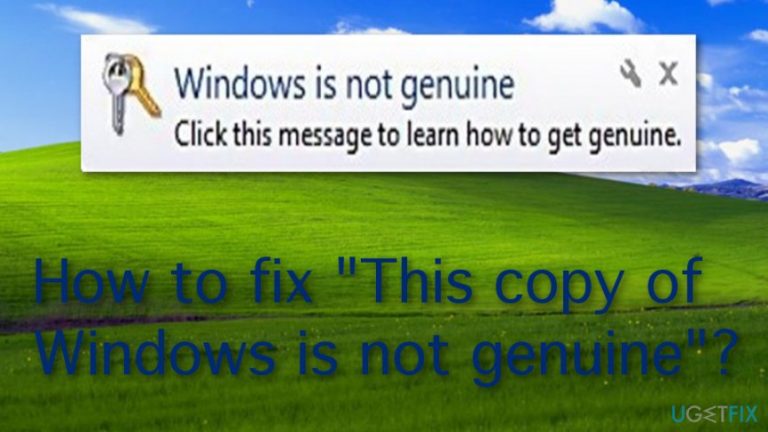
What causes How to fix “This copy of Windows is not genuine”?
- Using a fake or not original version of Windows
- Windows recognizing the non-genuine copy
- Malware infection damaging original activation files
- Installation of the KB971033 Windows update
Repairs Windows system files, removes malware, and restores a clean OS state — without reinstalling.
Hello, I have recently reinstalled my Windows operating system but keep receiving this message: "This copy of Windows is not genuine". What does it exactly mean?
"This copy of Windows is not genuine" error is an annoying problem for Windows users who have "cracked"[ref en-2] the OS version for free from some type of third-party source.[ref en-1] Such message means that you are using a fake or not original version of Windows and that the computer has somehow recognized that.
Even though such sneaky tactics usually bring good results and pass unnoticed, in some cases, Windows might be capable of discovering that "This copy of Windows is not genuine" and start bombarding your computer system with such messages whenever you boot your machine or try using Windows Update settings.
In very rare situations, "This copy of Windows is not genuine" problem might appear because of a dangerous malware infection that might be planted on your system somewhere. As a result, the virus might damage original files that are used for the Windows OS activation process and this way become unrecognizable.
How to fix "This copy of Windows is not genuine"?
As you might have already thought, the easiest fix for "This copy of Windows is not genuine" error if you are using a non-valid copy of Windows is to reinstall the original version. However, we have provided some other steps that might be helpful and not require installing valid Windows. So, scroll down and check them out.
Additionally, one more thing we want to warn you about. If you have been seeing the "This copy of Windows is not genuine" error on your computer screen lately but you know that a valid version of Windows OS has been installed on your machine, perform a malware scan with [d1] to check if any infection is related to such problem.
Method A. Try removing the KB971033 Windows update
- Go to your Windows search zone.
- Locate Windows Update.
- Select the option that says "View update history".
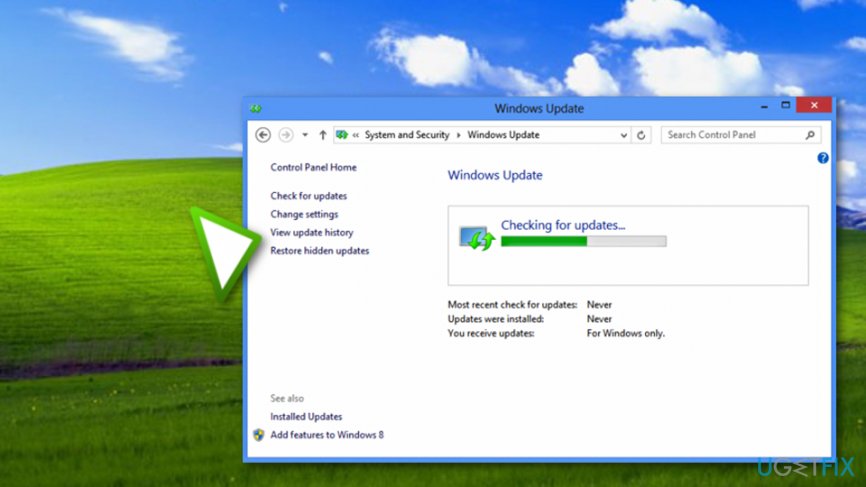
View update history - Scroll through the list of updates and find KB971033.
- Right-click on it and opt for the Uninstall function.
- Reboot the machine and continue with Method B1.
Method B1. Reset the status of Windows license
- Go to Windows search and locate Command Prompt.
- Run Command Prompt as Administrator.
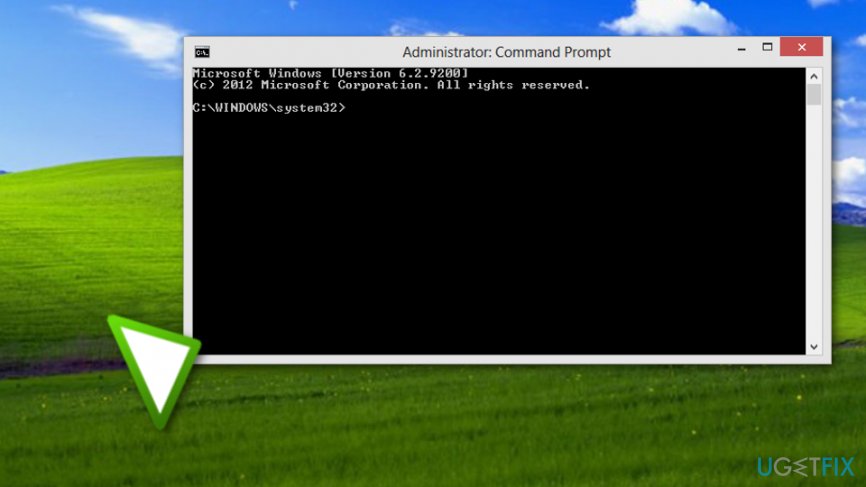
Use cmd as admin - When the black dialogue box appears, type in "slmgr -rearm".
- Restart Windows.
Once you complete all actions exactly as shown in these guidelines, you should be able to get rid of "This copy of Windows is not genuine" error from your machine. However, if you are running a rare version of 64-bits,[ref en-3] you might encounter trouble with the slmgr -rearm command. If this is the case, continue with Method B2:
Method B2. Use slmgr /rearm command
- Open Command Prompt as Admin again and type "slmgr /rearm".
- If “This maximum allowed number of rearms has been exceeded” text pops out while entering the command, launch the run box by holding Windows key and R button together.
- Type in "regedit.exe" and hit the Enter key.
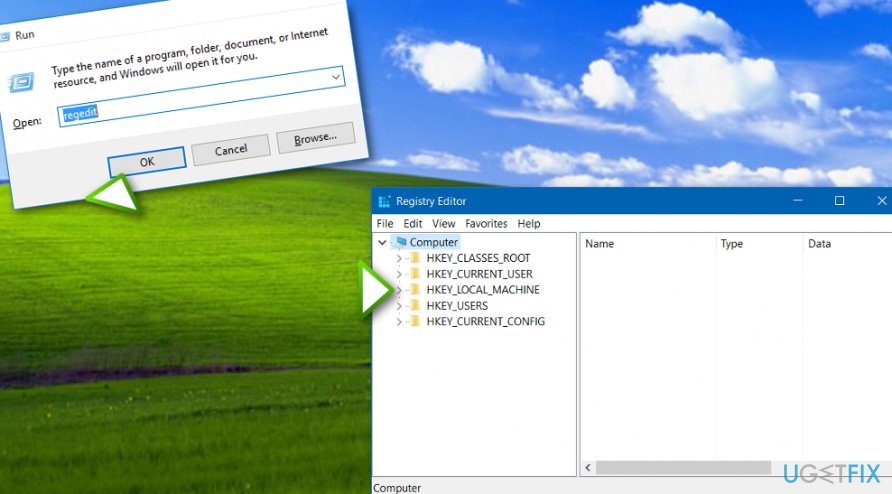
Open redegit through run - After that, go to HKEY_LOCAL_MACHINE > Software > Microsoft > WindowsNT> Current version directory.
- Locate and click on SoftwareProtectionPlatform.
- Then, find SkipRearm and select Modify.
- Change Value data to 0 and hit OK.
- Reboot your computer and try Method B1 again.
Method C. Manage Registry settings
- Launch the run box with Windows key + R button and type in "regedit".
- Once the Registry Editor shows up, find HKEY_USERS\\S-1-5-20.
- Right-click S-1-5-20 and opt for Permissions.
- Select NETWORK SERVICE.
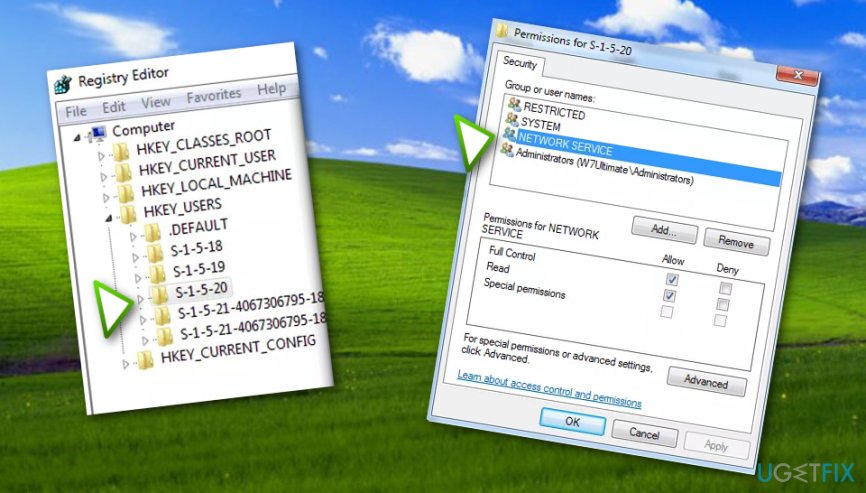
Locate network service - Put a check near Full Control and Read.
- Hit OK.
- Reboot the PC.
Method D. Deactivate Plug and Play
- Open run with Win key + R.
- Type in "rsop.msc" and hit Enter.
- Opt for Computer Configuration --> Windows Settings --> Security Settings --> System Services.
- Find Plug and Play and the Group Policy next to it.
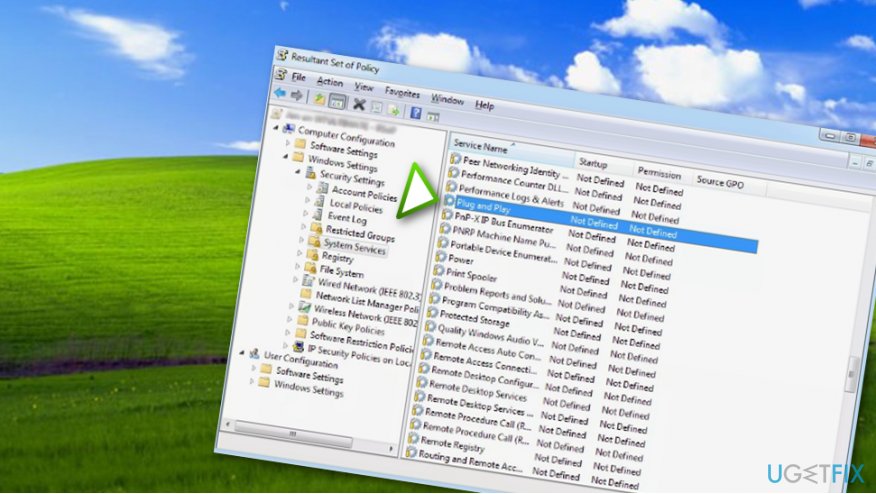
Deactivate plug and play - Modify settings to Not Defined.
- Launch run again and type in "gpupdate /force".
- Reboot the computer.
Once you have tried all of these methods, you should not see "This copy of Windows is not genuine" message anymore. However, if somehow nothing is helping you can try reinstalling Windows or getting a licensed version of your OS. Additionally, perform a full system scan to check for possible errors and malware traces.
Bottom line
To fix the 'This copy of Windows is not genuine' error, you can try reinstalling the original version of Windows or removing the KB971033 update. If you believe you have a valid version of Windows, perform a malware scan to check for infections. If none of these solutions work, consider seeking further technical support.
Frequently asked questions
First, try running the Windows Activation Troubleshooter by going to Settings > Update & Security > Activation. If that doesn't work, consider checking for updates or contacting Microsoft Support for assistance.
Yes, you can often resolve this issue by re-entering your product key or using the Activation Troubleshooter found in Settings > Update & Security > Activation.
This message typically appears due to issues with Windows activation, such as using an invalid product key, hardware changes, or a corrupted activation file.




Report an issue
What's wrong with this guide? We review every report and update or remove content.
Report received — thank you. We'll review and fix it.
You need a free account to submit a report.
Be the first to comment