How to fix
WMVcore.dll is Missing Error
on Windows
Resolve the WMVcore.dll missing error on Windows 10 efficiently. Follow our expert-tested guide to fix it in minutes and enjoy uninterrupted playback.

What causes How to Fix WMVcore.dll is Missing Error on Windows 10?
- Missing .dll file
- Corrupted system files
- Improper software installation
- Recent Windows 10 upgrade
- Incompatibility with certain programs
Repairs Windows system files, removes malware, and restores a clean OS state — without reinstalling.
I can't open Camtasia due to missing WMVcore.dll. The error message shows up each time. Should I install this dll and for get about this issue?
Do you know that free Windows 10 updates are no longer available? If, however, you have upgraded your Windows 10 less than a week ago and noticed that many programs are now commonly ending up throwing up WMVCORE.DLL is missing error, it’s obvious that your machine has ran into another Windows 10 error.
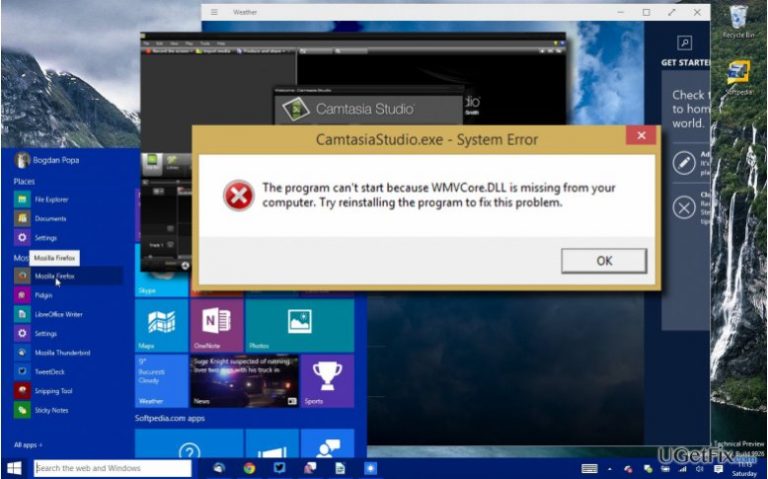
People have reported that in most of the cases, WMVCORE.DLL error message shows up when trying to open Camtasia or Adobe Premier Pro software. This error not only prevents Windows users from using certain programs, but also informs about missing or corrupted system files. It means that the system needs a proper maintenance or even another upgrade. Thus, do not ignore this message. In most of the cases, it says:
"The program can’t start because the Wmvcore.dll is missing from your computer. Try reinstalling the program to fix the problem."
"The file wmvcore.dll is missing."
"Cannot start [Program]. A required component is missing: wmvcore.dll. Please install [program] again."
"Wmvcore.dll Not Found"
"This application failed to start because wmvcore.dll was not found. Re-installing the application may fix this problem."
"Cannot find [path/directory]\wmvcore.dll"
It’s clear that the culprit of this issue is missing .dll file. As you probably already understood, .dll files are small system particles that are kept in registries and run by particular software. Thus, if one of the system files is missing or gets corrupted, errors like WMVcore.dll occur.
Although the message itself offers a solution, i.e. to reinstall a program that you are trying to open, practice shows that reinstalling seldom helps. If you have already tried reinstalling the problematic software that can’t open due to the missing WMVcore.dll, but you still see the error message, try the fixes that we will list down below.
How to fix WMVcore.dll is missing error?
Fix 1. Automatic WMVcore.dll error fix
Unless you are against installation of additional software, out strong recommendation would be to fix WMVcore.dll error automatically. For this purpose, you should install a PC optimization tool, follow the instructions, and launch it. Our recommended programs (all free for download) would be:
[rev id=”RegCure Pro”]
[rev id=”Reimage”]
Fix 2. Manual WMVcore.dll fix
- Navigate to the This PC – Local Disk (C:).
- Here you should find Windows.Old folder. Open it and look for System32.
- Once you open this folder, enter WMVCORE.DLL in the search bar.
- If you receive the file among the results, copy it and go back to the C: drive.
- Open the Windows folder and find the System32 folder.
- Paste WMVCORE.DLL file in this folder.
If this WMVCORE.DLL error fix did not help, try the others below.
Other possible WMVcore.dll fixes:
- In case you accidentally removed the .dll, go to Recycle bin, type WMVcore.dll in the search bar and wait for the results. In case the file is there, click on it and select Restore.
- Run a full scan with a professional antivirus. Avoid third-party software because it may not find all unwanted/malicious files, which is why WMVcore.dll fix may fail.
- If there is only one or several programs that could not be launched due to WMVcore.dll error, we would recommend removing and reinstalling the software. If you don’t know how to do that, the you should:
-Go to Start (or Windows logo at the bottom left corner) – open Control Panel – Select Programs – then Programs and Features.
-Look for the needed apps among the others, right-click on them and select Uninstall.
-After that, download these programs (from the official websites preferably because third
party sources distribute bundles often) and install them again. - Update drivers. Outdated drivers may collide and start causing WMVcore.dll error. Thus, go to Start – Find Update Device Drivers function – and run it.
- Run sfc /scannow command. For that, go to Start, type sfc /scannow and run the command. This function checks System files and fixes the damaged/corrupted ones if Windows system has copies. Therefore, this function can help you replace damaged WMVcore.dll file if it’s provided by Microsoft.
If manual WMVcore.dll error fixes did not help, our strongest recommendation would be to install [rev id=”Reimage”], [rev id=”RegCure Pro”] or [rev id=”SpeedyPC Pro”] and fully optimize the system with it.
Bottom line
To fix the WMVcore.dll is missing error, you can try reinstalling the affected software, performing an automatic error fix, or ensuring your system files are intact. If these solutions do not resolve the issue, consider seeking further technical assistance.
Frequently asked questions
The WMVcore.dll is missing error typically occurs due to corrupted or missing system files, often after a Windows update or software installation.
You can restore the WMVcore.dll file by running the System File Checker tool or by reinstalling Windows Media Player from the Optional features in Settings.
No, downloading WMVcore.dll from third-party websites is risky and can lead to malware infections; it's best to restore the file through official Windows methods.




Report an issue
What's wrong with this guide? We review every report and update or remove content.
Report received — thank you. We'll review and fix it.
You need a free account to submit a report.
Be the first to comment