How to fix
Secure Connection Failed
on Windows
Resolve the "Secure Connection Failed" error on Windows 10 and 11 effortlessly with expert-tested solutions. Fix it in minutes, zero traces left!

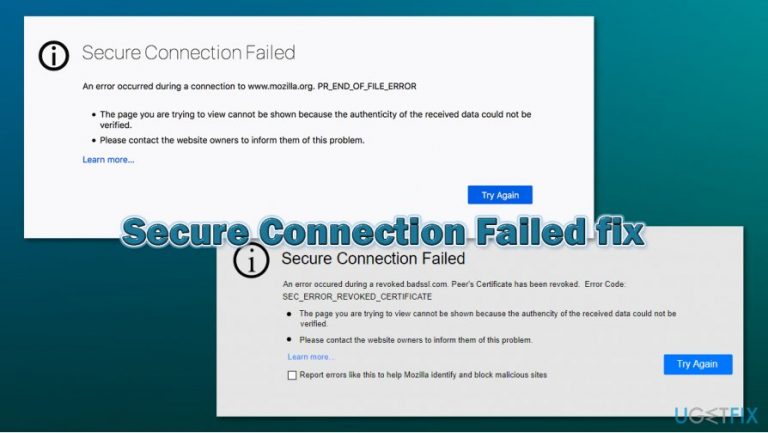
What causes How to fix Secure Connection Failed?
- Invalid security certificate
- Expired security certificate
- Missing security certificate
- Connection not secure
- Corrupted files
Repairs Windows system files, removes malware, and restores a clean OS state — without reinstalling.
Hey, I have a problem that I thought you might be able to help me with. I am repeatedly receiving a "Secure Connection Failed" error on my Firefox web browser. I can access some websites, but otherwise, this just happens way too often to be a coincidence. Is there any way you could help me fix this problem, maybe?
Secure Connection Failed error is a common problem for Firefox users, and also it sometimes occurs on Google Chrome. When you enter the URL address on your web browser, it seeds a request through the DNS in order to contact the desired page. During this time, the browser attempts to establish a secure connection.
Hence, Secure Connection Failed error is typically related to the security certificate (otherwise known as SSL)[ref en-2] not being valid, expired, or simply missing. This notification quite often has merit, as the browser tries to warn that the connection is not secure, and you might suffer from serious issues if you proceed. For example, if sensitive information is entered, cybercriminals might steal it due to a lack of protection that should be implemented by the website you are trying to access.
Several different error codes can accompany Secure Connection Failed error, including:
- PR_END_OF_FILE_ERROR
- PR_CONNECT_RESET_ERROR
- SECURITY.SSL.ENABLE_OCSP_STAPLING[ref en-1]
- SEC_ERROR_REVOKED_CERTIFICATE
- SSL_ERROR_RX_MALFORMED_HANDSHAKE
If you still badly need to enter a website which Mozilla Firefox or Google Chrome is preventing you from accessing it, there several ways you could fix Secure Connection Failed error. Take a look down below and you will find different methods to fix PR_END_OF_FILE_ERROR, SSL_ERROR_RX_MALFORMED_HANDSHAKE, and other versions of this error.
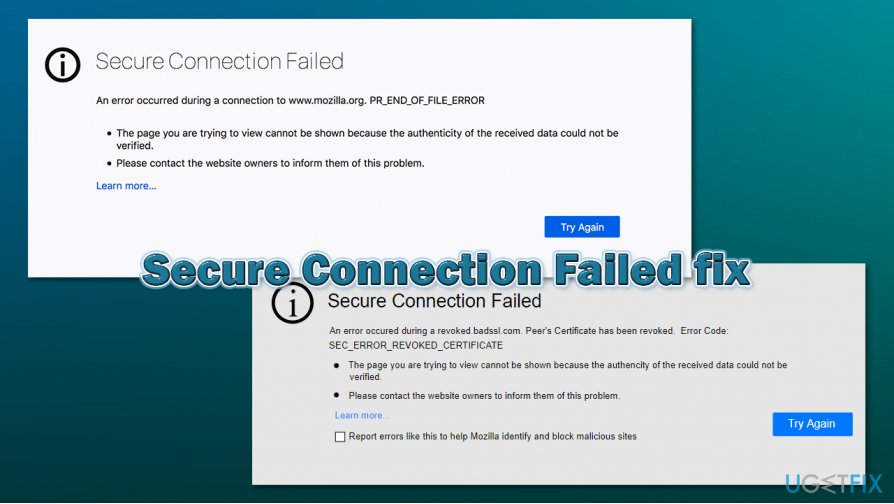
How to fix Secure Connection Failed?
If you are keen on learning how to fix Secure Connection Failed on your machine, you have come to the right place. Our experts have done some research on this error code and discovered some fixing methods that might be helpful for you. Additionally, you can always use automatic computer software for identifying the problem source. A tool such as [d1] might locate some corrupted files or other content that has been preventing you from accessing a website and caused various issues.
Fix Secure Connection Failed on Mozilla Firefox:
Method no 1. Check SSL settings in your browser
- Launch your web browser application and type About:Config in the new tab bar.
- Afterward, hit Enter.
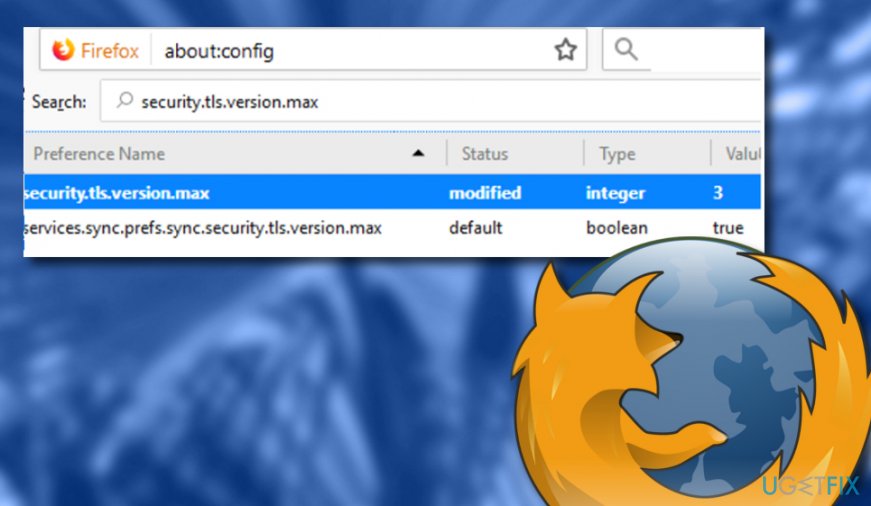
Fix secure connection failed on firefox - Find the search box section and put security.ssl.enable_ocsp_stapling text in it.
- If you discover that the value field section is set to true, you need to change it to false.
- Do that might double-clicking it.
After you perform all of these steps, check if the method has helped you to fix Secure Connection Failed. If you still cannot access your wanted website, the problem supposedly is not here. For this, continue with the following techniques.
Method no 2. Visit the Proxy Settings sector
- Launch your web browser and locate the menu (three dots or lines in the upper right corner of your browser window).
- Locate the Tools section and go for the feature that says Option.
- Afterward, go to the Advanced section and select the Network option.

Take care of secure connection failed on firefox browser - Click on Settings that is placed in the Connection section.
- Later on, a Connection Setting window will pop up. Once this happens, check if the Manual Proxy Connection option is chosen there.
- If yes, review all data once again and press OK. If not, do not make any modifications.
Fix Secure Connection Failed on Google Chrome:
Method no 1. Clean SSL state in Internet Properties
- Open Chrome and put chrome://settings/ text in the search bar. Hit Enter.
- Afterward, go for the Advanced section and opt for Open proxy settings.
- When the Internet Properties window appears, click on the Content tab.
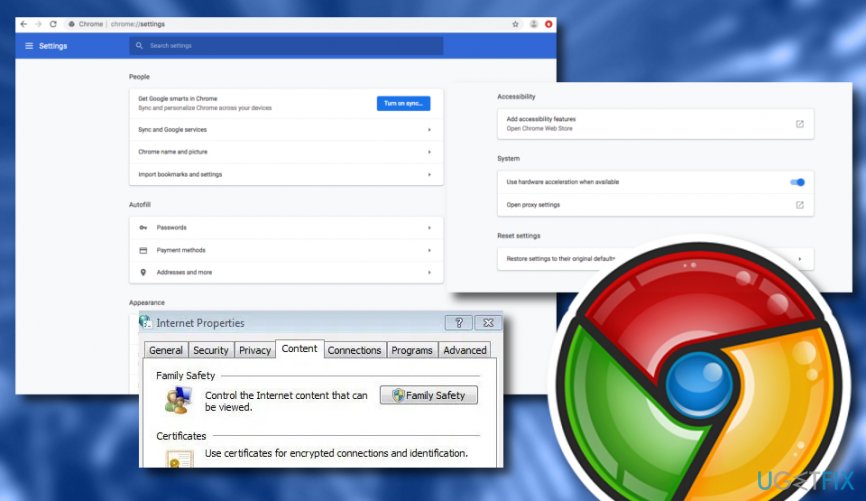
Remove secure connection failed problem on chrome - Select the option that says Clear SSL state.
If the Secure Connection Failed error code still occurs while trying to enter a particular website while using Google Chrome, the problem might be somewhere else and not with the SSL state. If you have tried this method and performed all instructing steps exactly as shown but they did not give any positive results, continue with Method no 2.
Method no 2. Deactivate the QUIC Protocol
- Launch Chrome and type chrome://flags/#enable-quic in the address bar.
- Afterward, hit Enter.
- You will supposedly see that the Experimental QUIC protocol is set as Default.
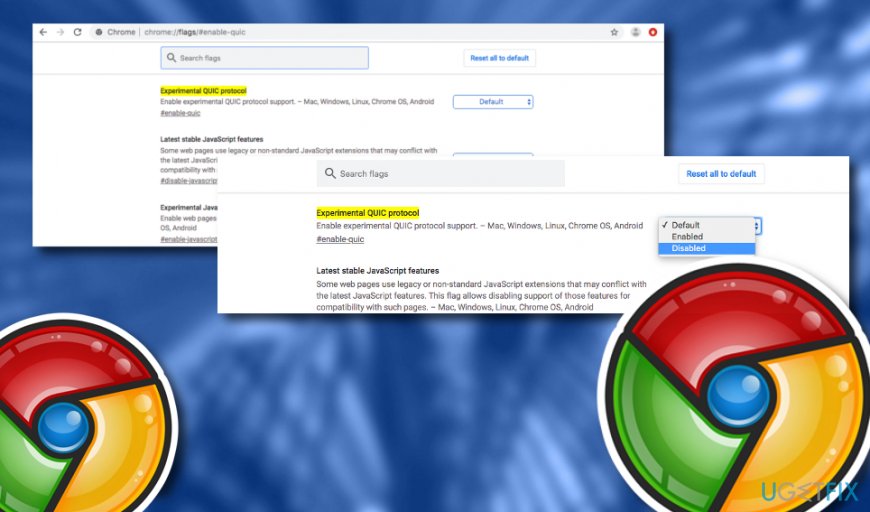
Secure connection failed error removal on chrome - Select the Default key and opt for the Disabled option that will appear in the dropdown menu.
Method 3. Try deleting browsing history
- Go to Google Chrome and locate the three dots on your upper right.
- Opt for More tools in the Menu section and select the Clear browsing data option.
- Once a dialogue box appears, go for the All time and Time range options.
- Click the empty checkboxes near Cookies and other site data and Cached images and files.
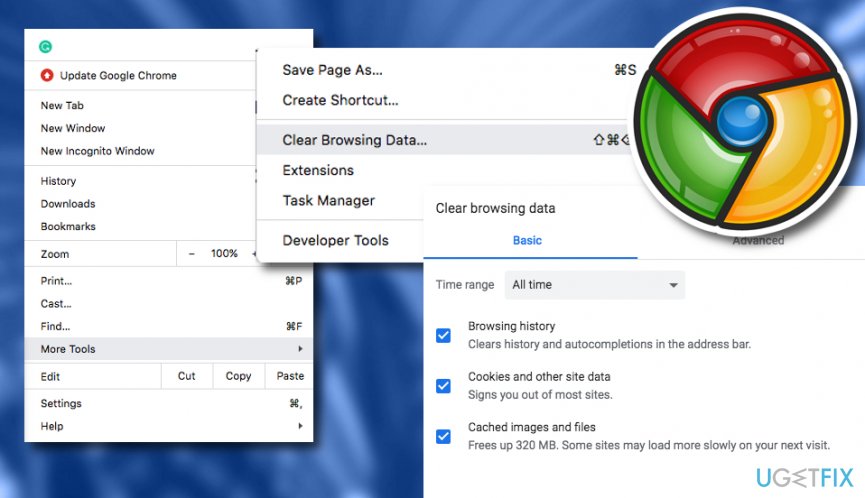
Remove secure connection failed error from google chrome - Opt for the Clear data key.
This method might help you to fix Secure Connection Failed error on your Google Chrome web browser as some undeleted cache[ref en-3] and other content might be preventing your browsing sessions from operating properly. However, if this technique does not appear very result-brining to you, there is one more method you can try. Take a look down below.
Method 4. Check Data and Time settings
Data and time settings are usually controlled by your Windows computer automatically. However, this setting might be turned off for some reason, and it can cause various issues, including the PR_CONNECT_RESET_ERROR, SEC_ERROR_REVOKED_CERTIFICATE, and other codes related to Secure Connection Failed issue. Here's how to ensure that your clock settings are correct:
- Right click on the area where your time and date is shown (at the bottom-right corner of the screen) and select Adjust date/time.
- In the newly-opened window, ensure that Set the time automatically setting is On.
- Below, under Synchronize your clock, click on Sync now.
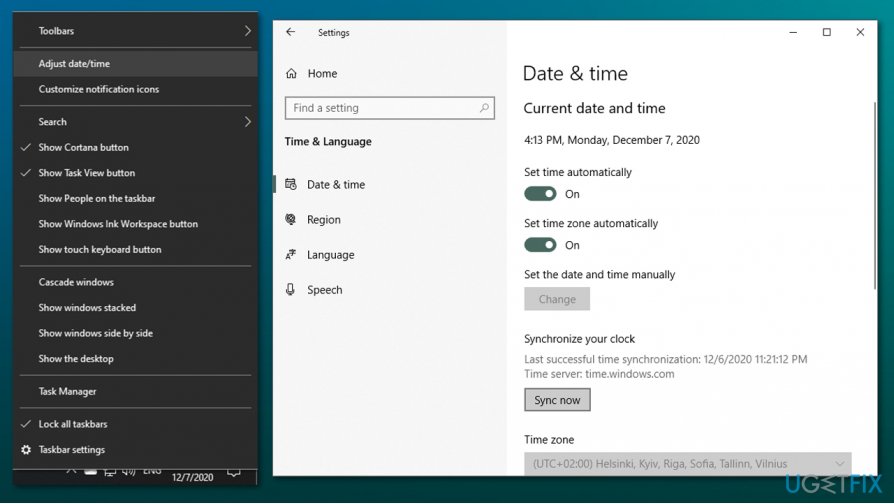
How to fix secure connection failed error check time and date settings
Such technique might be helpful if your data and time are not synced together with the web server that you are trying to enter. However, if the problem is not here and you have tried all possible methods, the only way to try to get rid of Secure Connection Failed problem is to scan your system with automatic software.
Bottom line
To fix the Secure Connection Failed error, you can check for valid security certificates, clear corrupted files, or use automatic software tools to identify issues. If these methods do not resolve the problem, consider seeking further technical assistance.
Frequently asked questions
Try clearing your browser's cache and cookies, then check your date and time settings to ensure they are correct. If the problem persists, consider disabling any VPN or proxy settings.
Make sure your Chrome browser is up to date, and then try resetting the browser settings to default. Additionally, check your antivirus or firewall settings to ensure they are not blocking secure connections.
You can start by clearing the browser cache and cookies, then check for any pending Windows updates that might affect Edge. If the error continues, try disabling any extensions that may interfere with secure connections.




Report an issue
What's wrong with this guide? We review every report and update or remove content.
Report received — thank you. We'll review and fix it.
You need a free account to submit a report.
Be the first to comment