How to fix
“Error loading player: No playable sources found”
on Windows
Resolve the "Error loading player: No playable sources found" on Windows 10 or 11 easily. Get expert-tested solutions for a smooth playback experience!


What causes How to fix “Error loading player: No playable sources found”?
- Flash Player might be out of date
- Browser problems
- Recent system changes
- Issues with multimedia file launching
- Problems with video or audio streaming
Repairs Windows system files, removes malware, and restores a clean OS state — without reinstalling.
Hello, I need some help. I am currently using Google Chrome on Windows 10 and have been struggling to view some video clips on my browser. When I try to load a video this type of messages pops out: "Error loading player: No playable sources found". How can I fix it?
Adobe Flash Player, developed by FutureWave Macromedia,[ref en-1] is a handy tool that is used for viewing multimedia products, launching some browser applications, and streaming online. This program is available on web browsers such as Google Chrome, Mozilla Firefox, Internet Explorer and can be executed from a particular browser add-on. Also, this tool supports a big variety of Android[ref en-3] mobile phone devices, so it can be launched on various phones too.
Even though most users cannot imagine their browsing sessions or daily computing work without the Adobe Flash Player program, this tool also can run into some problems and force you to struggle to carry out some actions. For example, you might not be able to launch a file properly, perform video or audio-streaming activities online. If this happens, you will supposedly run into this type of error message:[ref en-2]
"Error loading player: No playable sources found"
The "Error loading player: No playable sources found" problem can be caused due to various reasons and were are here to help you out to find them. In some cases, the Flash Player might be out of date and all you need to do is update it. In addition, there might be some browser problems or recent system changes that might be forcing you into trouble. However, nevermind that the issue is, we are looking forward to helping you to solve it by providing the following fixes.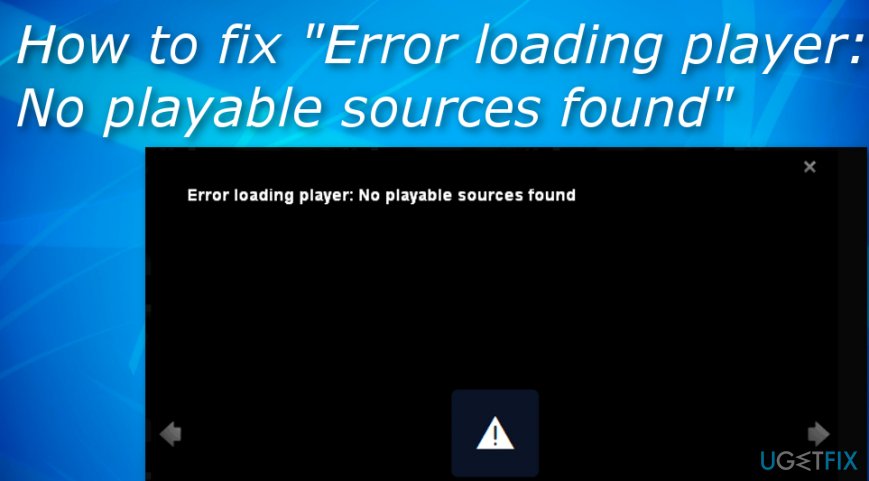
How to fix "Error loading player: No playable sources found"?
Our specialists have provided you a list with six manual fixes that might be successful and help you to remove "Error loading player: No playable sources found" error message from your computer and regain full access to your Adobe Flash Player program. However, if you are likely to, you can use a tool such as [d1] to scan the entire system and find if there are any hidden causes why your Flash Player is not operating properly.
Fix no. 1: Try updating the Adobe Flash Player tool
The reason why you are running into "Error loading player: No playable sources found" error might be that you have not updated your Adobe Flash Player program recently or maybe some automatical updates have failed here. For this purpose, check for any available updates by completing the following tasks:
- Launch your web browser and insert Adobe Flash Player into the search zone.
- Hit the Enter key on your keyboard.
- Afterward, select the Get Adobe Flash Player button.
- Opt for your operating system name and the variant of the Flash Player that you are using.
- Press on the Download button that will appear on your right.
- Wait for the process to be finished and restart your browser app.
Fix no. 2: Update your web browser app
In some cases, updating your web browser application might help you to fix some problems, including "Error loading player: No playable sources found" problem. Find out if this works for you by carrying out these guiding steps:
- Open your browser app.
- Select the three dots that are on the upper right corner of your browser window.
- Locate Help and choose About Google Chrome (or other browsers).
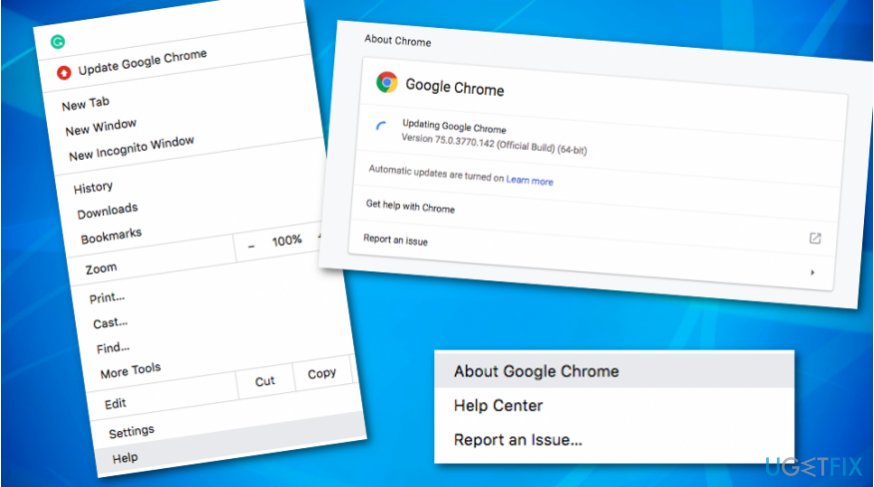
Fix no - If any updates are available, your browser will launch them automatically.
- When the process is done, reboot the app.
Fix no. 3: Eliminate browser cache
- Launch the web browser and find the three dots on your upper right.
- Open the menu and go to More tools > Clear browsing data.
- Another window will appear with a drop-down menu.
- Choose Cached images and files, Cookies and other site data from the list.
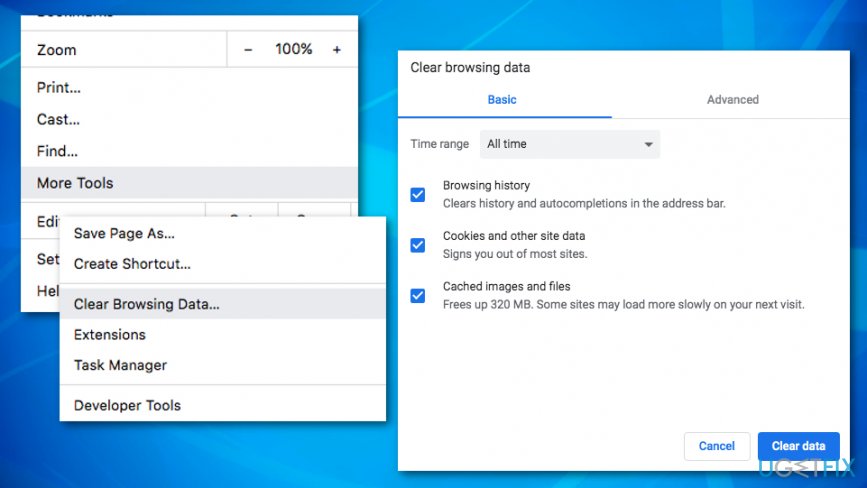
Fix no - Opt for the feature that says Clear browsing data.
Fix no. 4: Ensure that Adobe Flash Player has been activated on your browser (Chrome only)
- Open Google Chrome.
- Got to the address bar and type in this text: chrome://settings/content/flash and hit the Enter key.
- Choose the feature that says Allow sites to run Flash.
- Make sure that this option is turned On. If not, enable the function by clicking on it.
- Restart your browser and see if everything has been fixed.
This method is known to have helped dozens of users to solve the issue regarding the "Error loading player: No playable sources found" error code. However, if these steps did not give any positive results to you, continue with the following fix.
Fix no. 5: Manage some Flash content (Chrome only)
- Launch Chrome again and type in the following text to the address bar section: chrome://settings/content/flash.
- Press Enter.
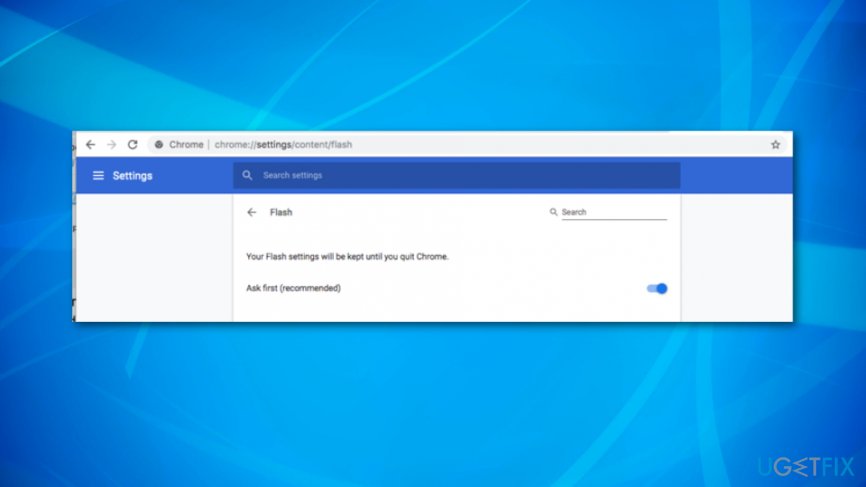
Fix 5 - Afterward, opt for the Add option and then go for Allow.
- You will find a Site field now. Here you will need to enter the website address with which you are having problems regarding video-streaming activities.
Fix no. 6: Boot your PC to Safe Mode with Networking
There might be some recent changes carried out on your Windows computer that might have provoked the "Error loading player: No playable sources found" error code to appear on your machine. In order to disable any latest modifications, carry out our below-provided guiding steps:
- Hold the Win key and R button for a couple of seconds until a small white run box appears.
- Type msconfig and hit Enter.
- The System Configuration window will appear.
- Choose the Boot section.
- Opt for the Safe boot option.
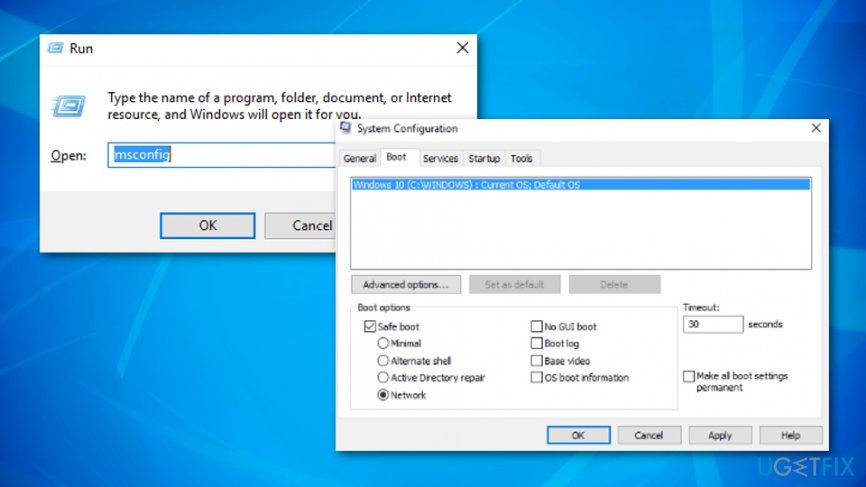
Fix no - Then, down below select the Network function.
- Save the changes you have made and restart your Windows computer system.
Bottom line
To fix the 'Error loading player: No playable sources found' issue, you can update Flash Player, check for browser problems, or review recent system changes. If these fixes do not resolve the issue, consider using a scanning tool to identify further problems.
Frequently asked questions
First, ensure that your media player is updated to the latest version and check if the file format is supported. If the issue persists, try clearing the app's cache or reinstalling the player.
You can start by verifying your internet connection and ensuring that any necessary codecs are installed. Additionally, running the Windows Troubleshooter for apps can help identify and fix the problem.
Yes, check your system's playback settings and make sure that the default media player is correctly configured. Also, disabling any third-party security software temporarily can help determine if it's causing the issue.




Report an issue
What's wrong with this guide? We review every report and update or remove content.
Report received — thank you. We'll review and fix it.
You need a free account to submit a report.
Be the first to comment