How to fix
Windows 10 Upgrade Stuck at 99%
on Windows
Resolve your Windows 10 upgrade stuck at 99% issue with proven solutions. Get your system up and running smoothly again, expert-tested for reliability!

What causes How to Fix Windows 10 Upgrade Stuck at 99%?
- Insufficient Power of Hardware
- Incompatible Windows Update
- Pending Windows 7 Updates
- Conflict with Upgrading Process
Repairs Windows system files, removes malware, and restores a clean OS state — without reinstalling.
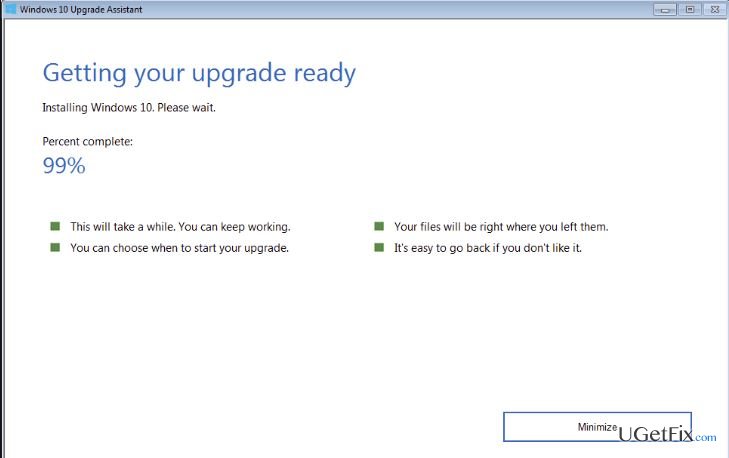
Could you please tell me why can’t I upgrade Windows 7 to Windows 10? I have installed a service pack 1 and started the upgrade. The assistant app has been successfully downloaded and proceeds, but for some reason freezes at 99%. I have been waiting for several hours, but the process stays stuck. My patience has gone, and I’ve rebooted the system, but that didn’t help. Has anyone encountered this issue and know how to solve it?
There are hundreds of similar questions circulating on the Internet, so it seems that Windows 10 Upgrade Stuck at 99% is a very common issue. As you have pointed out, the upgrading process appears to be working well up to 99%. Then the process freezes and remains in the same position for hours. Usually, such and similar issues end up with error messages, but not in this case. The process simply freezes without any explanations.
It seems that Windows 8 and 8.1 users should not worry about Windows 10 Upgrade Stuck at 99% error because it touches Windows 7 users only. There are many speculations why this Windows 10 upgrade freezes, but it seems that the following reasons are the most likely:
- Insufficient power of Hardware;
- Incompatible Windows Update;
- Pending Windows 7 updates;
Luckily, this problem can be solved. In this post, we are going to describe four methods that seem to be working for most of the users. Therefore, to fix Windows 10 Upgrade Stuck at 99% error, read the rest of the post carefully and follow the instructions provided.
How to Fix Windows 10 Upgrade Stuck at 99% on Windows 7?
Abort Windows Update Service
In the case of Windows 10 Upgrade Stuck at 99% issue is triggered by the conflict with upgrading process, stopping Windows Update Service may be the right solution. This service is running in the background of the system so that it can start the conflict at the end of the upgrade process. The following steps should be performed while Upgrade Assistant tool is open and stuck at 99%.
- Click Windows +R to open RUN.
- Type Services.msc in the Run and press Enter.
- Now you should see Windows Services. Here click on Start or search for Services.msc.
- Search for Windows Update in the Services list and click twice on it.
- By performing the above steps, you open Properties of Windows Update Service. Here you have to click Stop and change the Startup type to Manual.
- Click Apply, close the window and wait for the Windows 10 upgrade to finish.
Install Pending Windows Updates
In case the above method failed to fix Windows 10 Upgrade Stuck at 99%, try installing pending windows updates. It might be that you did not updates Windows 7 system earlier, make sure that you download and install all the newest updates now. Luckily, that’s not difficult to do.
- For this purpose, click on Start Menu and go to Settings.
- Here locate Windows Updates and click Check for Updates button.
- Wait for the system to finish up the search and if any pending updates are found, install them.
Try Windows Media Creation Tool
If you are not using Windows Media Creation Tool for upgrading to Windows 10, then you should certainly try using it. Windows Upgrade Assistant may be the core of Windows 10 Upgrade Stuck at 99% error
Be patient and wait for the Windows 10 upgrade to complete
If none of the methods mentioned above helped you with the stuck Windows 10 upgrade, then the only thing we can advise is to wait. Be patience and leave your PC in rest and maybe a miracle will happen. Some users reported that the Windows 10 upgrade needed a couple of days to complete, so it seems that you have to be very patient.
NOTE: once you finish up with the Windows 10 upgrade stuck at 99% and started using Windows 10 system, we highly recommend you to install [rev id=”Reimage”]. This software takes care of the registries, repairs them, secures the system from virus/PUP infections, removes duplicate files, and performs other tasks that grant a smooth and speedy PC’s performance.
Bottom line
To fix the Windows 10 Upgrade Stuck at 99% error, you can try aborting the Windows Update Service while the Upgrade Assistant tool is open and stuck. If these methods do not resolve the issue, consider seeking further assistance or exploring additional troubleshooting options.
Frequently asked questions
Try restarting your computer to see if the upgrade completes. If it doesn't, consider running the Windows Update Troubleshooter to identify and resolve any issues.
Interrupting the process can lead to system instability, so it's best to wait for a while. If it remains stuck for several hours, a forced shutdown may be necessary.
Ensure you have sufficient disk space and a stable internet connection before starting the upgrade. Additionally, disabling antivirus software temporarily can help avoid conflicts during the installation.




Report an issue
What's wrong with this guide? We review every report and update or remove content.
Report received — thank you. We'll review and fix it.
You need a free account to submit a report.
Be the first to comment