How to fix
Steam game won’t launch. How to fix
on Windows
Fix your Steam game launch issues on Windows 10 or 11 with simple tips and proven solutions. Get back to gaming swiftly with expert-tested fixes!


What causes Steam game won’t launch. How to fix?
- Machine and game compatibility issues
- Problems with game optimization after OS updates
- Corrupted Steam client files
- Damaged files due to malware
- System below game's requirements
Repairs Windows system files, removes malware, and restores a clean OS state — without reinstalling.
Hello, I have an issue with steam games. I try to pen my games and all I can see it buffering for a while. It says it is running, but the "Preparing to Launch" process stops and the game won't start. Any tips you have for me? Can I fix it somehow?
Steam game won't launch issue is pretty common among online video game fans.[ref en-1] It is also more common for Windows OS users, but can occur on any device and operating system. It is possibly related to the machine and game compatibility when the device is below the game's system requirements, so it cannot run. You may need to compare the specifications and know why the game is not launching.
Also Steam game won't launch when there is a problem with the game optimization with a new version of the operating system or Windows updates.[ref en-2] Your Steam client or corrupted files can also cause issues with the launch of video games. However, this issue may be easily repaired and solved, otherwise, other reasons for the problem can require more complex methods. Files can get damaged by malware too, so there are many possible reasons and possible solutions.[ref en-3]
Steam is the social entertainment platform that is used by gamers for multiplayer videogames and as a social network. At first, it was a tool that updated Counter-Strike, but now this is a huge online gaming network that can install and update games automatically. Users also like it for groups, friends lists, other social media-like features.
Nevertheless, the Steam game won't launch is a problem that is quite common and can be caused by different reasons. Also, possible solutions depend on a specific issue. You can be frustrated or confused when your games fail to launch, but we have prepared a few methods that should help you.
How to fix Steam game won't launch
Since Steam game won't launch issue may be related to corrupted or damaged files, you may first run the scan using repair tool for the system like [d1] that may fond, indicate and fix files causing issues. Try this program and then run the game launch again. If that is not happening still, follow the solutions below that should make the difference. Try one method at the time and check the Steam functions after each one to know what has worked for you. You can also Update your Video drivers or Windows OS to see if these outdated parts of the system may cause the issue with Steam. 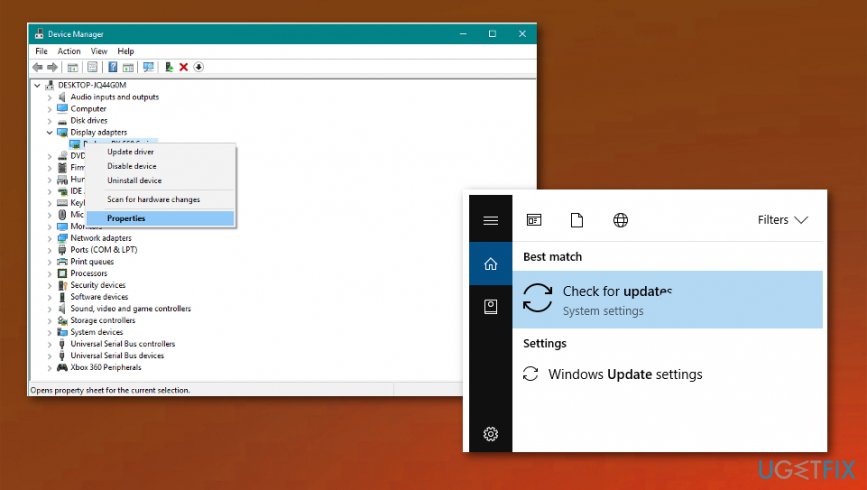
Run games in compatibility mode to fix Steam game won't launch issue
- Go to the Steam directory and press the Windows button + R to launch the Run application.
- Write C:\\Program Files (x86)\\Steam in the box.
- Find the folder named SteamApps and open it.
- Click on the folder Common and find the list of games installed on the computer.
- Choose the game that was not running previously and right-click on it. Select Properties.
- Find the Compatibility tab and check the box that says Run this game in compatibility mode for.
- In the drop-down menu select the type of Windows and apply changes by saving.
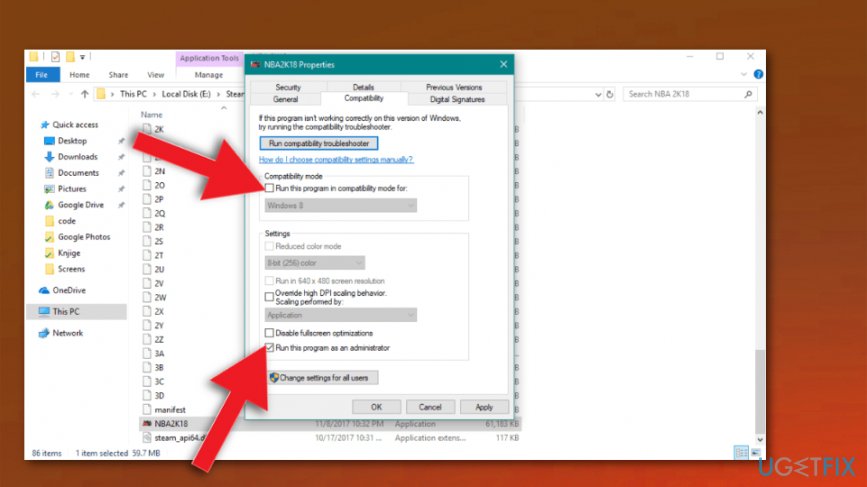
Steam game wont launch how to fix run as
Run the game as administrator to fix Steam game won't launch issue
- Go to Steam Library and locate the game that you want to run.
- Right-click the game title and go to Properties.
- Select Local Files tab and click Browse Local Files.
- Find the executable file, right-click and go to Properties.
- The find Compatibility tab and check the Run this program as Administrator box.
- Save changes and check the game again.
Verify the integrity of game files
- Open your game library and locate the problematic game. Right-click on it and choose Properties on the Menu.
- Navigate to the Local files tab and click Verify integrity of game files.
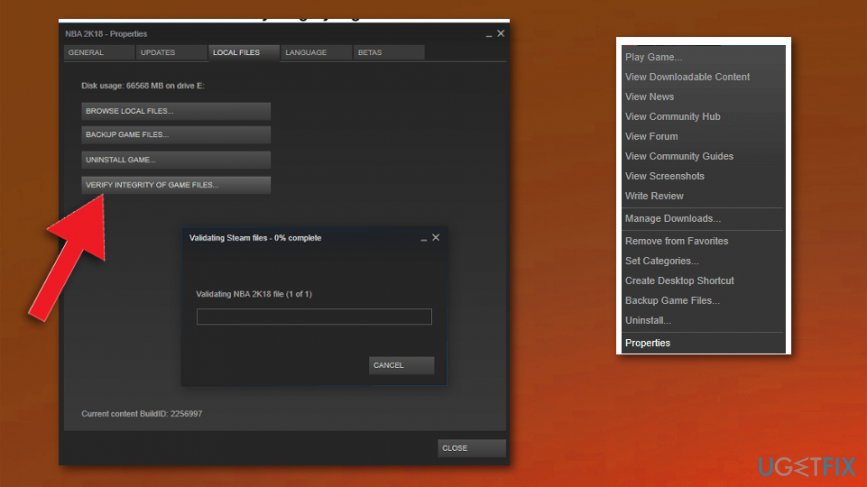
Steam game wont launch how to fix verification - The process should start, so be patient and try to run a game again after it is done.
Relocate the Steam client
- Exit the Steam client and got to the Steam installation folder.
- Delete all files and folders except the SteamApps& User data folders, Steam.exe.
- Cut and paste the whole Steam folder to the default location.
- Launch Steam and log in to your account.
- Now you should change the default installation path.
- Open Steam.
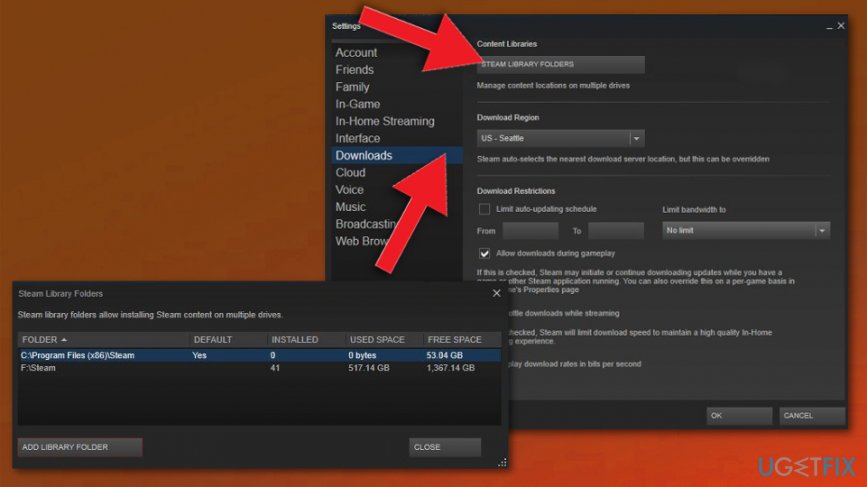
Steam game wont launch how to fix library files - Navigate to the Settings menu and select Steam Library Folders from the Downloads tab.
- You can create a new path by selecting the Add Library Folder.
Bottom line
To fix the Steam game won't launch issue, you can run a scan using a repair tool to identify and fix corrupted files. If the problem persists, consider checking your system specifications or reinstalling the Steam client. If none of these solutions work, further troubleshooting may be necessary.
Frequently asked questions
First, ensure that your Windows 10 is up to date and then verify the game files through the Steam client. If that doesn't work, try running Steam as an administrator.
Check for any pending updates for both Windows 11 and the Steam client, as these can affect game launches. Additionally, disable any third-party antivirus temporarily to see if it's blocking the game.
Common reasons include corrupted game files, outdated graphics drivers, or conflicts with background applications. Make sure to check these aspects to troubleshoot the launching issue.




Report an issue
What's wrong with this guide? We review every report and update or remove content.
Report received — thank you. We'll review and fix it.
You need a free account to submit a report.
Be the first to comment