How to fix
Windows Resource Protection could not start the repair service
on Windows
Resolve the "Windows Resource Protection could not start the repair service" error on Windows 10 and 11 with our expert-tested solutions for quick fixes.

What causes How to fix Windows Resource Protection could not start the repair service?
- TrustedInstaller.exe process is damaged or interrupted
- Windows Resource Protection service is not functioning properly
- System file corruption
- Issues with Windows Modules Installer service
- Windows updates are not managed correctly
Repairs Windows system files, removes malware, and restores a clean OS state — without reinstalling.
Hello. I tried to run SFC scan on Command prompt and ran into the "Windows Resource Protection could not start the repair service" problem. What can I do to fix it?
Windows Resource Protection could not start the repair service is an error that could be encountered while trying to run SFC. Otherwise known as System File Checker, it allows users to fix various issues related to Windows system file integrity via Command Prompt.
Windows Resource Protection[ref en-1] is a service that keeps all necessary system objects such as files, folders, registry keys, and other components safe and prevents this content from being tampered with. This way, the service ensures that Windows has all its crucial components included and can continue operating properly.
WRP (Windows Resource Protection) was first released on Windows Vista and Windows Server 2008.[ref en-3] The only way to manage this service is by using Supported Resource Replacement Mechanisms together with the Windows Modules Installer (or TrustedInstaller) service.
This component activates the elimination and managing of various Windows Updates and additional objects. If TrustedInstaller fails to operate properly, you may receive the following message when trying to perform an SFC scan via Command Prompt:
Windows Resource Protection could not start the repair service
If you are shown such a statement, something has been damaged or interrupted within the TrustedInstaller.exe[ref en-2] process, and it needs fixing if you want it to operate properly again. We have provided multiple tips below, some of which might help you to fix Windows Resource Protection could not start the repair service.
Tip 1. Use automatic system repair tool
Windows is definitely an intricate operating system with millions of different files, settings, and other components. These components interact with each other regularly in order to make the OS work properly. If something goes wrong, Windows 10 users might start experiencing various issues.
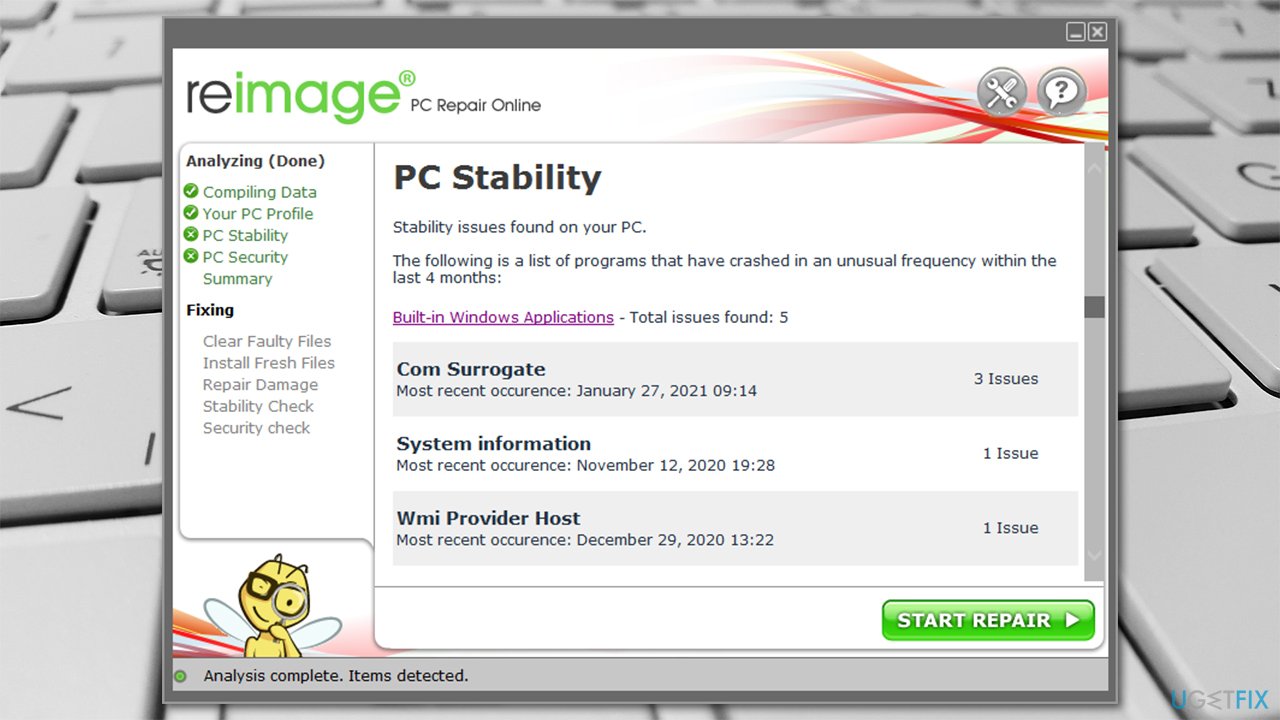
One of the main reasons why users experience such problems is system file corruption. While SFC scan can be run to fix such problems, in the case of Windows Resource Protection could not start the repair service error, this solution is impossible. Therefore, highly advise you to try using the automatic repair tool [d1] - it can replace the missing or damaged system files with brand new ones from its internal database in just a few minutes.
Tip 2. Run an SFC scan in Safe Mode
Since the error occurs within the Command Prompt while running the SFC scan, it can not be used to fix this issue. However, accessing Safe Mode and running the SFC from there might sort out the issue for you.
- Right-click on Start and pick Settings.
- Go to Update & Security.
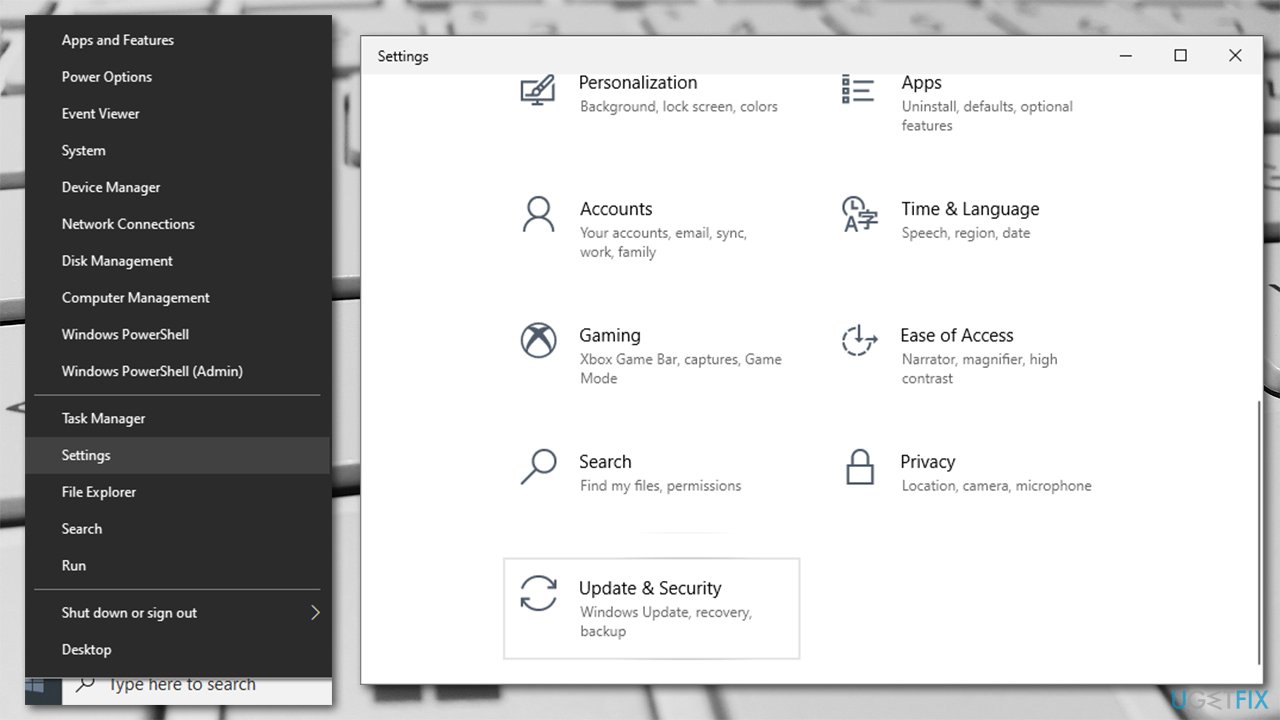
Windows resource protection could not start the repair service error fix go to settings - Pick Recovery on the left.
- On the right, scroll down until you see Advanced startup section.
- Click Restart now.
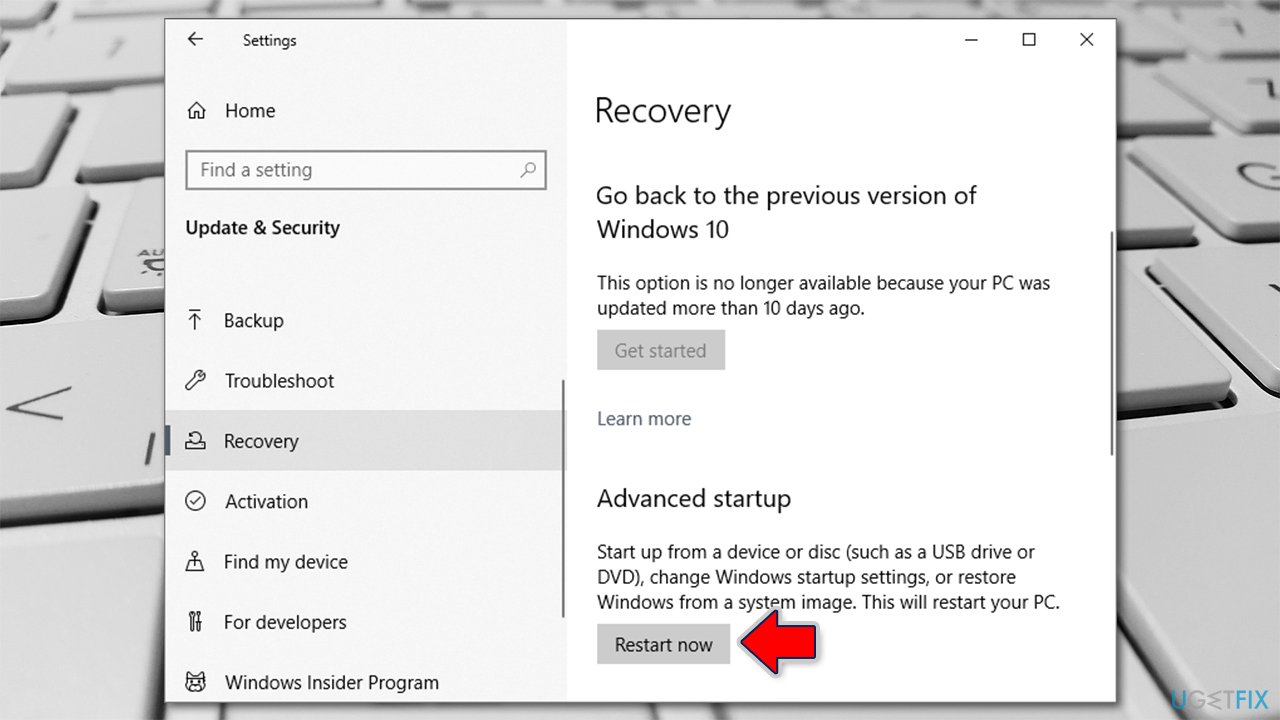
Windows resource protection could not start the repair service error fix advanced startup - Once the PC has restarted, choose the following options: Troubleshoot > Advanced Settings > Startup Settings > Restart.
- In Startup Settings, select the option 5 or press F5 to access Safe Mode with Networking.
Once in safe mode, perform the following steps:
- Press the Win key + R button and hold them for a second.
- When a white run box shows up, type "cmd".
- Launch the Command Prompt service.
- Choose to Run as an Administrator.
- Afterward, type sfc /scannow after the blinking cursor.
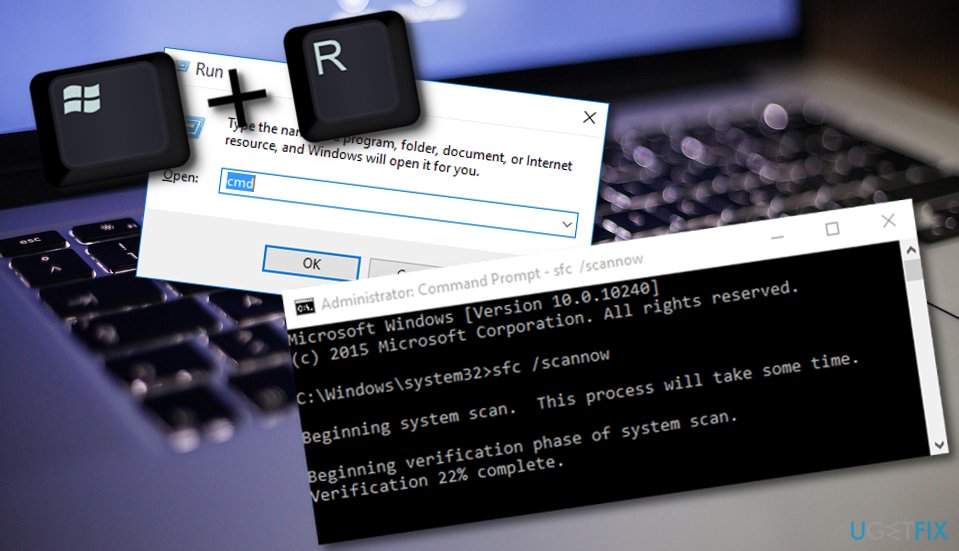
Run sfc scannow - Hit the Enter key and wait for the command to finish.
- Reboot your Windows machine.
Tip 3. Perform a DISM tool
DISM is a powerful that can fix Windows system image files.
- Hold the Win key and R button together for a short time.
- Type "cmd" in the small run box.
- Make sure that Command Prompt is running as admin.
- Continuously, type DISM /Online /Cleanup-Image /RestoreHealth.
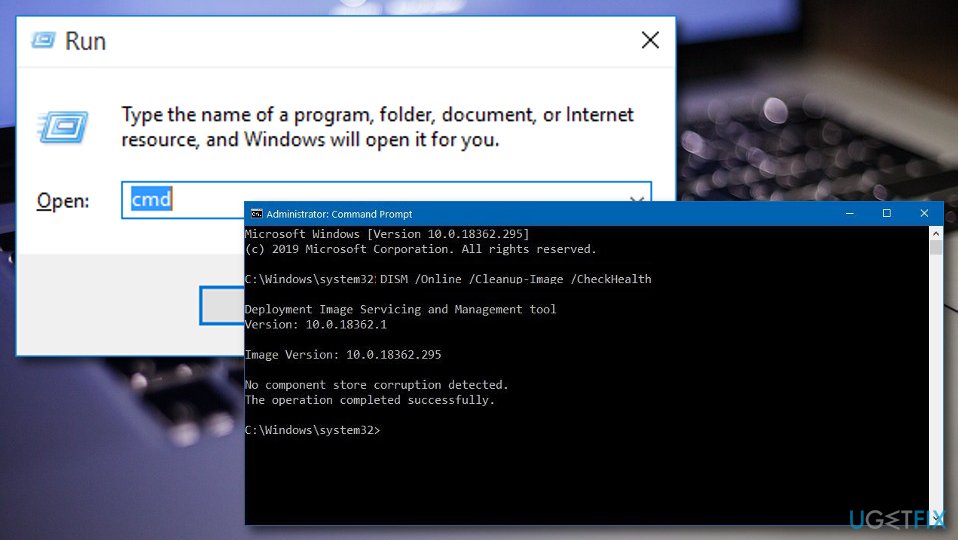
Run dism scan - Press Enter and wait for the process to finish.
- Restart your computer and check if the error still persists.
Tip 4. Activate Windows Modules Installer Service (TrustedInstaller)
In case this service somehow got disabled, you can try activating it again. All you need to to is complete these steps:
- Hold the Win key and R key for a second.
- When the run box pops out, type "services.msc" and click OK.
- Look through the entire services menu and locate the Windows Modules Installer (or TrustedInstaller) option.
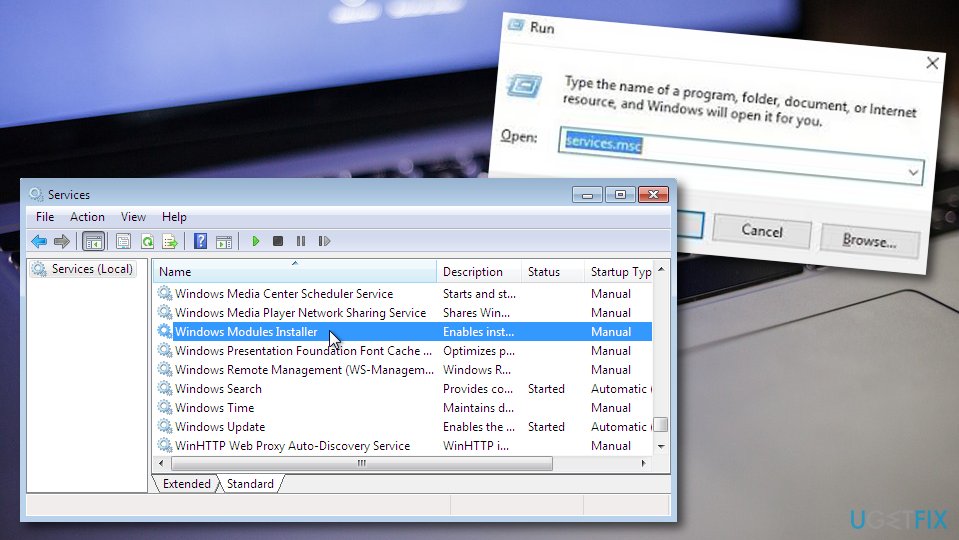
Launch services - Right-click on the services and opt for Properties.
- Choose Manual as the Startup type if it is not already the default settings.
- To save the changes, select the Apply button.
Tip 5. Upgrade your Windows machine
If your Windows system is missing some crucial updates, this might be the reason why you are dealing with Windows Resource Protection could not start the repair service error. Install all required updates by completing the following:
- Go to Windows search and type "cmd".
- Launch Command Prompt and make sure that it is running as an Administrator.
- Then, type wuauclt.exe /updatenow after the blinking cursor.
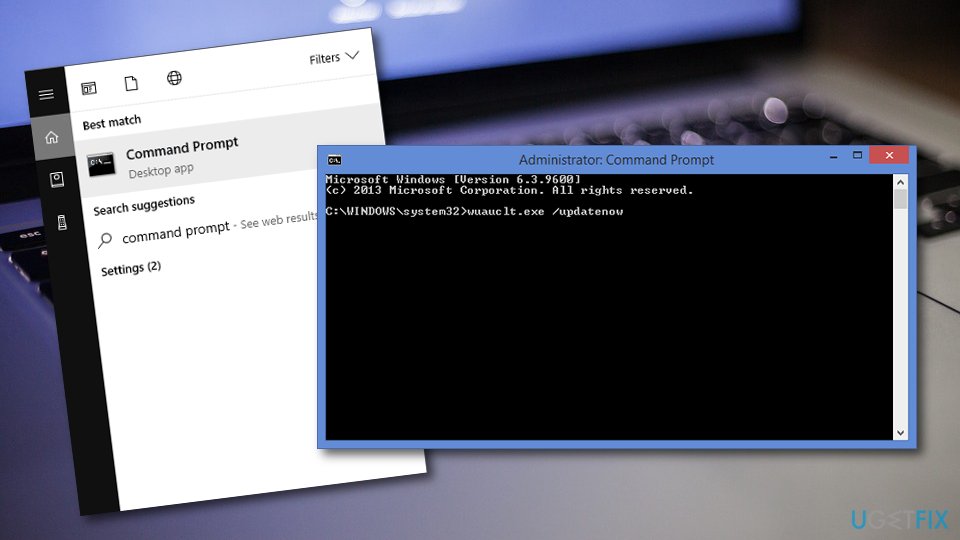
Update windows - Hit Enter and wait for the process to finish.
- Allow the command to run for approximately one hour.
- Afterward, restart your machine and see if the problem was resolved.
Bottom line
To fix the 'Windows Resource Protection could not start the repair service' error, you can use the automatic system repair tool or check the TrustedInstaller service. If these solutions do not resolve the issue, further troubleshooting may be necessary.
Frequently asked questions
First, run the Command Prompt as an administrator and execute the command 'sfc /scannow' to check for system file integrity. If that doesn't work, ensure that the Windows Modules Installer service is enabled and running.
Make sure that the Windows Modules Installer service is set to 'Manual' and is running by checking the Services app. Additionally, you can try booting your PC in Safe Mode and then run the System File Checker again.
Yes, you can use the Settings app to perform a system reset or repair install, which often resolves underlying issues causing the service to fail. However, make sure to back up your data before proceeding.




Report an issue
What's wrong with this guide? We review every report and update or remove content.
Report received — thank you. We'll review and fix it.
You need a free account to submit a report.
Be the first to comment