How to fix
Explorer.exe error
on Windows
Resolve Explorer.exe errors on Windows 10 quickly and effectively. Follow expert-tested solutions to restore your system's performance in minutes.


What causes How to fix Explorer.exe error on Windows 10?
- Explorer.exe is duplicated
- Explorer.exe is corrupted
- Explorer.exe is replaced by malware
- Issues occur when launching a particular application
- Problems arise during operating system upgrades or Windows Updates
Repairs Windows system files, removes malware, and restores a clean OS state — without reinstalling.
Annoying Windows 10 freezes are driving me crazy! Folders I browse on are continuously refreshing, and that is seriously impacting my browsing quality. Is there anything I could do to fix this issue?
One of the main reasons Windows may freeze relates to Explorer.exe - a process that always runs in the background of any Windows operating system (starting from Windows 95) and is located in C:\\Windows directory. Also known as Windows Explorer, it is a Graphical Shell[ref en-1] component that allows users to modify files located on the computer or any of the connected networks.
While the operating Windows is indeed possible without Explorer.exe, it gives users a much-needed UI that merely is much more convenient. Therefore, the process becomes one of the most useful features in the Windows operating system. Unfortunately, just as any other executables and Windows components, Windows Explorer also runs into errors, such as "The Instruction at 0x00*** referenced memory at 0x00*** The memory could not be written."
However, possibly the most annoying explorer.exe errors are those who make the desktop hang, prevent users from accessing the Start menu or clicking on the executables within the Windows Explorer. In this article, we will try to help you fix Explorer.exe errors - so check out the solutions we provide below.

Explorer.exe errors can occur randomly, or when a particular application is launched. In other cases, users reported that they encountered problems when trying to upgrade the operating system or download Windows Updates.
While most of the Explorer.exe errors are related to the Windows system and its configuration options, users might encounter issues with the process if it was duplicated, corrupted, or replaced by malware.[ref en-2] Threat actors often disguise the malicious processes under legitimate names just to reduce the suspicious.
In any case - if you are experiencing problems with Windows Explorer, you should fix Explorer.exe with the help of our guide below.
Fix 1. Scan your computer for malware
As previously mentioned, Explorer.exe might be hijacked by malware, meaning that it is employed to perform malicious tasks, such as stealing sensitive information, recording keystrokes, uploading other virus payloads, distributing malware, expanding a botnet[ref en-3] network, etc.
It is indeed possible to remove Explorer.exe virus from your computer manually, but it requires altering Windows registry, which is never recommended to do, as incorrect actions might result in application/system malfunctions and even require a full Windows reinstall.
Therefore, we highly recommend using a powerful anti-malware application that can detect and delete all the malicious entries from the system. Additionally, to repair damaged Windows files and repair Registry automatically, please scan the device with [d1].
Fix 2. Restart Windows Explorer
Restarting the problematic process might be able to help you fix Explorer.exe error. Here's how to do it:
- Press Ctrl + Shift + Esc on your keyboard
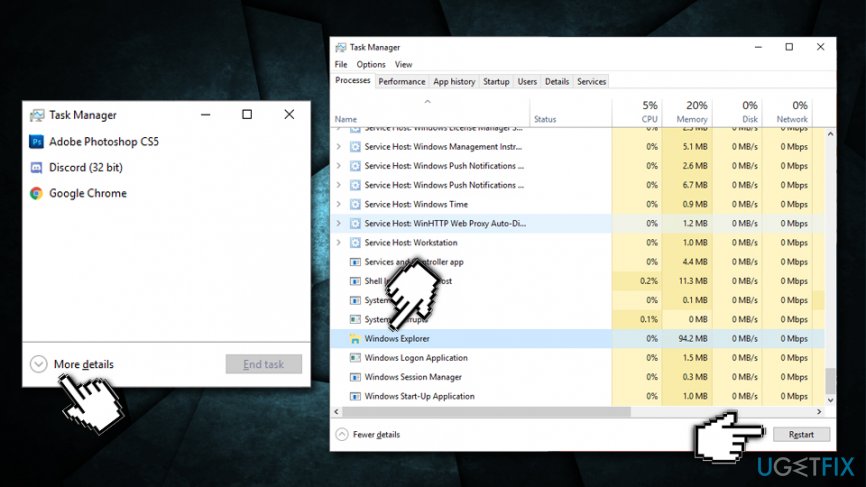
- When Task Manager opens, click on More details (if not enabled previously)
- In the Process tab, scroll down to find Windows Explorer Process
- Click on it once and then click Restart at the bottom-right of the window
Explorer exe error fix restart windows explorer proces
Fix 3. Re-enable Windows Explorer task
In some cases, Explorer.exe crashes and users are unable to view the standard UI, such as the Start menu, taskbar, desktop icons, etc. If that is the case and you only see a black screen in front of you, you need to enable Windows Explorer as follows:
- Press Ctrl + Shift + Esc on your keyboard to open the Task Manager
- If the Windows Explorer entry is not under the process list, means that the explorer.exe has crashed
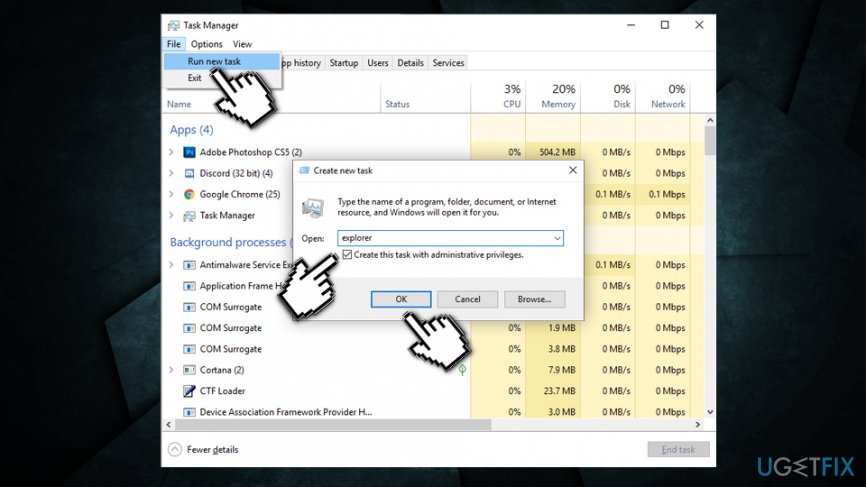
- To re-enable it, click on File > Run new task (you will see it right under "Task Manager" title)
- In the Create new task window, type in explorer (tick Create this task with Administrative privileges) and hit Enter or click OK
Explorer exe error fix re enable explorer process
Fix 4. Fix Explorer.exe error via the Command Prompt
DISM and SFC features that are accessible via the Command Prompt can fix various Windows-related issues, including the Explorer.exe. Follow these steps:
- Type cmd into Cortana's search box
- Right click on the Command Prompt search result and pick Run as administrator
- Once the new window opens, type in the following commands, pressing Enter after each one:
sfc /scannow
dism /online /cleanup-image /restorehealth
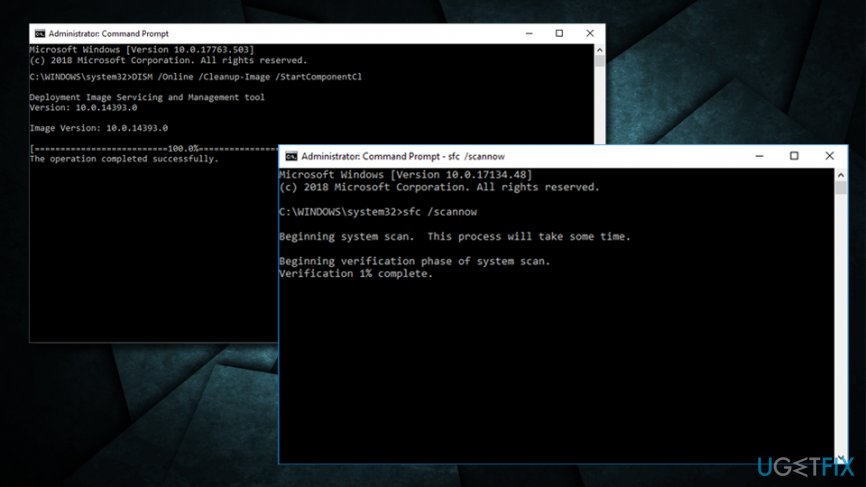
Be aware that these scans might run for a while (especially the DISM one), so make sure Windows completes running these tasks. Restart your PC afterward.
Fix 5. Turn off dynamic accent colors
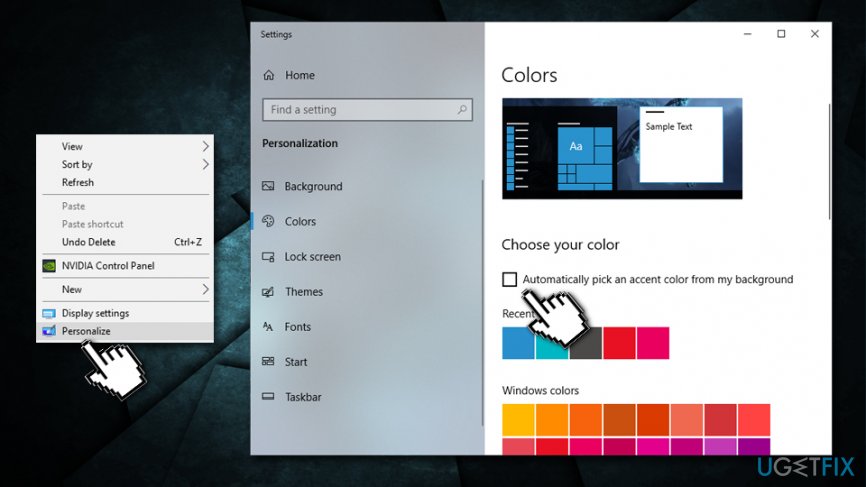
- Right-click your desktop
- Choose Personalize
- In the new window navigate to Colors
- Turn off the Automatically pick an accent color from my background feature
Explorer exe error fix turn off dynamic accent colors
Fix 6. Turn off wallpaper slideshow
- Right-click your desktop
- Choose Personalize
- Locate Background
- In the options menu, turn off the Slideshow mode by changing the background to a static picture of a single color.
Bottom line
To fix Explorer.exe errors, you can scan your computer for malware, check for system configuration issues, and ensure that the process is not duplicated or corrupted. If these solutions do not resolve the issue, consider seeking further technical assistance.
Frequently asked questions
Common causes include corrupted system files, outdated drivers, and conflicting software. Running the System File Checker can help identify and fix these issues.
You can restart Explorer.exe by opening Task Manager, finding Windows Explorer in the Processes tab, right-clicking it, and selecting Restart. This can resolve temporary glitches without needing to reboot your system.
If the errors persist, consider performing a Windows Update to ensure your system is up to date or use the DISM tool to repair the Windows image. If problems continue, a system restore might be necessary.




Report an issue
What's wrong with this guide? We review every report and update or remove content.
Report received — thank you. We'll review and fix it.
You need a free account to submit a report.
Be the first to comment