How to fix
“Windows can’t set up a homegroup on this computer” error
on Windows
Resolve the "Windows can't set up a homegroup" error on Windows 10/11 quickly and efficiently. Expert-tested solutions ensure a hassle-free experience.

What causes How to fix “Windows can’t set up a homegroup on this computer” error?
- Peer Networking Group service issues
- Network configuration problems
- Firewall settings blocking connections
- Outdated network drivers
- Homegroup service not running
Repairs Windows system files, removes malware, and restores a clean OS state — without reinstalling.
Hello, I have been running into some type of problem lately. I am using Windows 10 on my laptop. I have tried to create a homegroup by using my computer multiple times but it always fails and I receive this error: "Windows can't set up a homegroup on this computer". How to make the error go away and fix things?
Homegroup appears to be a very handy feature for many Windows users worldwide. This function was invented with the release of Windows 7 and is also working on other more recent versions such as Windows 8 and Windows 10.[ref en-3] The main goal of this feature is to provide sharing between different computers that are connected to the same home network.
However, for this feature to work properly, every user who wants to use it should be a member of the created Homegroup and not only on just the same network. When this is done, people can share files, documents, and printers with each other's computers with the members that are in the Homegroup. This function is very comfortable as all the sharing work can be done remotely and does not require any additional hardware.[ref en-1]
The sharing process between members of the Homegroup is very easy and users are not even required to enter a username or password. Also, every person gets the ability to pick those files that he does not want everybody else to see and receive. This also is a very handy function as it allows protecting your private documents.
Even though the Homegroup feature is a very handy one, there are almost no programs that do not encounter problems. Some users have been complaining[ref en-2] that when they are trying to access a particular homegroup or create a new one on their computer, they start receiving the below-provided error message:
Windows can't set up a homegroup on this computer.
There might be multiple different reasons why you are encountering "Windows can't set up a homegroup on this computer" error on your computer. In most situations, the guilt goes to the Peer Networking Group service that is struggling and failing. Below we have provided a method on how to fix this issue. However, the problem might also be somewhere else, so try out the following fix tips and find out what helps you the best.
How to fix "Windows can't set up a homegroup on this computer" error?
Fix 1. Activate Windows Troubleshooter to detect the problem
If you are having trouble with the "Windows can't set up a homegroup on this computer" error on your Windows PC, you can try running the Troubleshooter to automatically detect and solve the problem. Below we have provided some steps on how to accomplish such a task.
- Go to Windows Search.
- Type "settings".
- Open the Windows Settings option and type "troubleshoot" in the search zone.
- You will be provided with a drop-down menu. Select the Troubleshoot option.
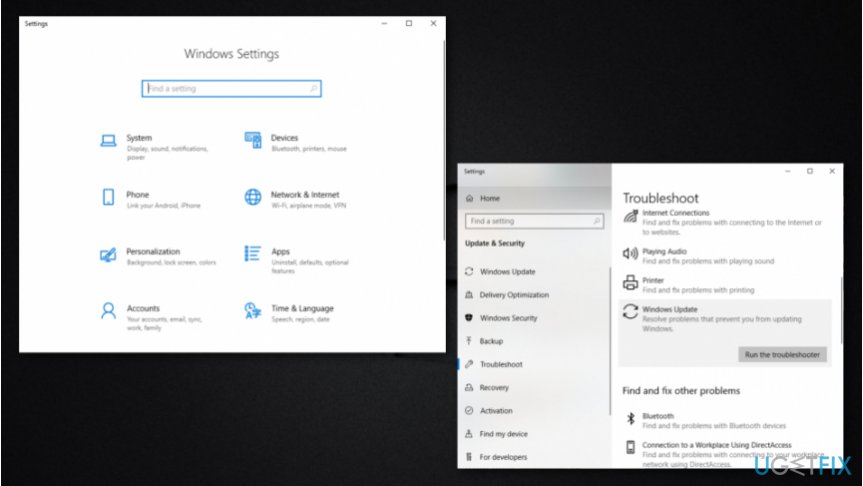
Run the troubleshooter - Locate HomeGroup below Find and fix other problems.
- Choose it and opt for Run the troubleshooter.
- Wait for the check to complete.
Fix 2. Eliminate idstore.sst file from your Windows PC
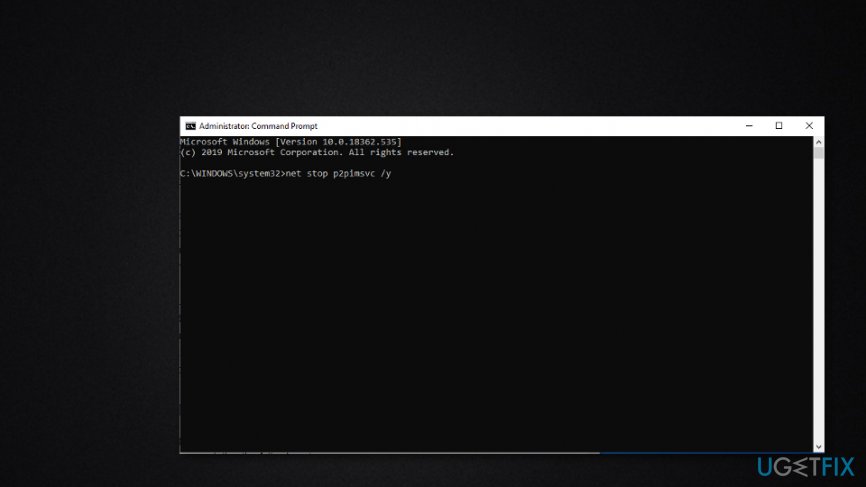
- Go to Windows search.
- Type "cmd".
- Select the Command Prompt option.
- Choose to Run as administrator.
- Then, type net stop p2pimsvc /y after the blinking cursor and hit the Enter key.
Eliminate file from windows - Afterward, open File Explorer (you can do that by typing file explorer via Windows search).
- Continue to this directory: C:\\Windows\\ServiceProfiles\\LocalService\\AppData\\Roaming\\PeerNetworking.
- If you receive a notification claiming that "You don't currently have permission to access this folder", select the Continue button.
- Then, you should find yourself in the PeerNetworking folder.
- Look for idstore.sst, right-click on it and choose the "Delete" option from the dropdown list.
- Reboot your Windows computer and see if the error has been removed.
Fix 3. Take a look if the Peer Networking Grouping service is active
Try solving the problem and removing "Windows can't set up a homegroup on this computer" error from your Windows machine by completing the following steps.
- Go to Windows search and type "run".
- Select the Run option and a small white box will appear.
- Then, type services.msc and click OK.
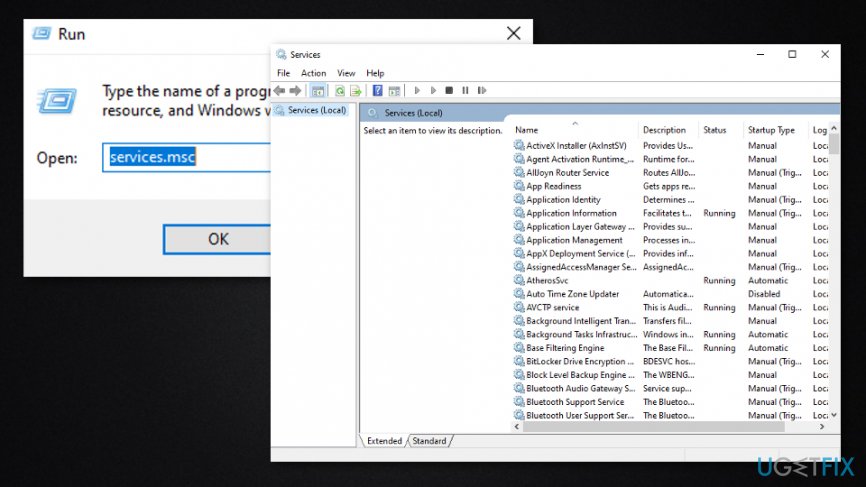
Run services msc - You will be provided with the Windows Services window. Go to local services directory and discover Peer network grouping, Peer network identity manager, Homegroup provider, Homegroup listener.
- After that, see if the mentioned services are enabled or set to Automatic.
- If they are not, go to Startup type and select Automatic from the drop-down menu.
- Leave your Homegroup and try creating a new one.
Fix 4. Ensure that your machine is attached to the same network as your HomeGroup
- Go to Windows search and type "cmd".
- Write "ipconfig" after the blinking cursor and hit the Enter key.
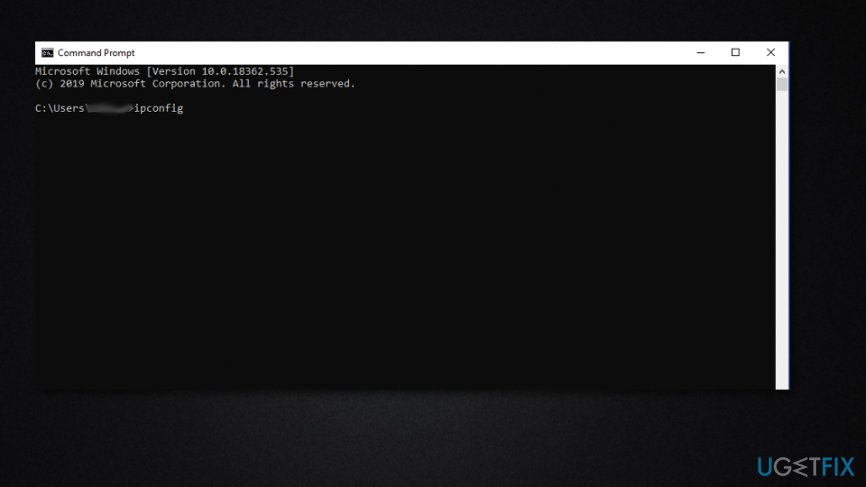
Type ipconfig in cmd - Check if the first three parts of the IP are the same on all PCs on the HomeGroup.
Fix 5. Activate IPv6
- Go to Windows search and type "control panel".
- Access the Control Panel and find Network and Internet.
- Select the View network status and tasks option.
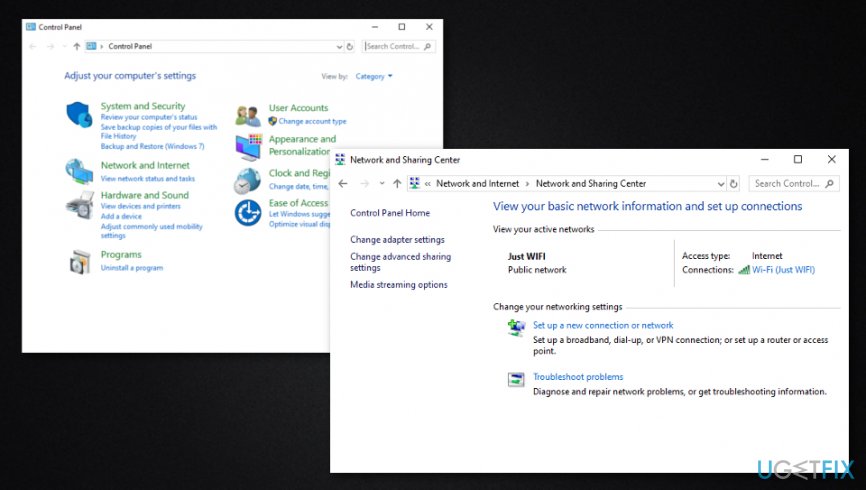
Activate ipv6 - Select your connection. For example, Ethernet, WiFi.
- Then your connection's status windows will open. Proceed to Properties.
- After that, a new window will appear. Locate Internet Protocol Version (IPv6) and ensure that its checkbox is checked. Keep in mind that both IPv4 and IPv6 have to be activated. Then, choose OK to save the changes you have made.
Fix 6. Enable ultimate control to MachineKeys and Peer Networking folders
If you are stuck with the "Windows can't set up a homegroup on this computer" error, enabling ultimate control to MachineKeys and Peer Networking folders might help you to fix things.
- Locate C:\\Program\\Data\\Microsoft\\CryptoRSA\\MachineKeys and C:\\Windows\\ServiceProfiles\\LocalService\\AppData\\Roaming\\PeerNetworking (you can try doing that via Windows search).
-
Right-click each folder and select Properties.
- After that, continue to the Security tab and press on a particular group. Hit the Edit button.
- Then, check the Allow box that is placed near Full control.
- Repeat all of the steps for each Homegroup that you want to access.
Fix 7. Renaming the MachineKeys directory to solve problems
- Go to C:\\ProgramData\\Microsoft\\Crypto\\RSA (try doing that via Windows search).
- Afterward, find MachineKeys and select Rename.
- Then, change the name from MachineKeys to MachineKeys-old.
- After that, create a new folder named MachineKeys and provide permission to all users that have accounts on your computer.
Bottom line
To resolve the 'Windows can't set up a homegroup on this computer' error, you can check and restart the Peer Networking Group service, adjust your firewall settings, and ensure your network drivers are up to date. If these steps do not work, consider troubleshooting your network configuration or seeking additional support.
Frequently asked questions
This error typically occurs due to network configuration issues, missing services, or outdated drivers that prevent HomeGroup from functioning properly.
To fix this error in Windows 11, ensure that the 'HomeGroup Listener' and 'HomeGroup Provider' services are running and restart your computer.
Yes, check your network settings to ensure you are on a private network and that file and printer sharing is enabled.




Report an issue
What's wrong with this guide? We review every report and update or remove content.
Report received — thank you. We'll review and fix it.
You need a free account to submit a report.
Be the first to comment