How to fix
Malwarebytes unable to connect to service error
on Windows
Resolve the Malwarebytes unable to connect to service error on Windows 10 and 11 effortlessly. Expert-tested solutions for quick fixes.

What causes How to fix Malwarebytes unable to connect to service error?
- Malwarebytes installation issues
- Conflicts with other security solutions
- Corrupted installation files
- Service not running after reboot
- User permissions preventing access
Repairs Windows system files, removes malware, and restores a clean OS state — without reinstalling.
Hi, I have read a lot of good Malwarebytes reviews, and I decided to try it. However, as soon as I installed it and performed a full system scan and shut it down, I could never open it once again, since it returns the "Unable to connect the service" error. Could you help me with this, please?
Protecting your computer with anti-malware software should be mandatory for every user. We are doing more and more things online, such as using our online banking to pay for the bills, order items online, input our sensitive information such as passport ID and other details for various legal procedures, use emails, store multiple accounts, etc. Hence, exposing your machine to malware[ref en-1] can cause significant financial and other type of damage.
Malwarebytes is a reputable anti-malware software that is offered for regular users, as well as the endpoint protection for corporations. Home consumers can download and install a free trial version of the app on Windows, Mac, Android, and iOS devices - a free Malwarebytes trial lasts as long as 14 days, allowing to experience full features, protecting users from all types of malware and web-based attacks.
While Malwarebytes scores relatively well among other security vendors (according to detection, usability, and performance scores provided by third-party test labs),[ref en-2] runs well on various types of machines and does not (usually) conflict with other security solutions, it is not perfect. People were also complaining about issues like Unable to connect to service error and claiming that Malwarebytes won't open at all.
Some users rely on a single security solution for online protection, so it is important to fix Malwarebytes Unable to connect to service error as soon as possible, otherwise, such users will remain vulnerable to cyber attacks.
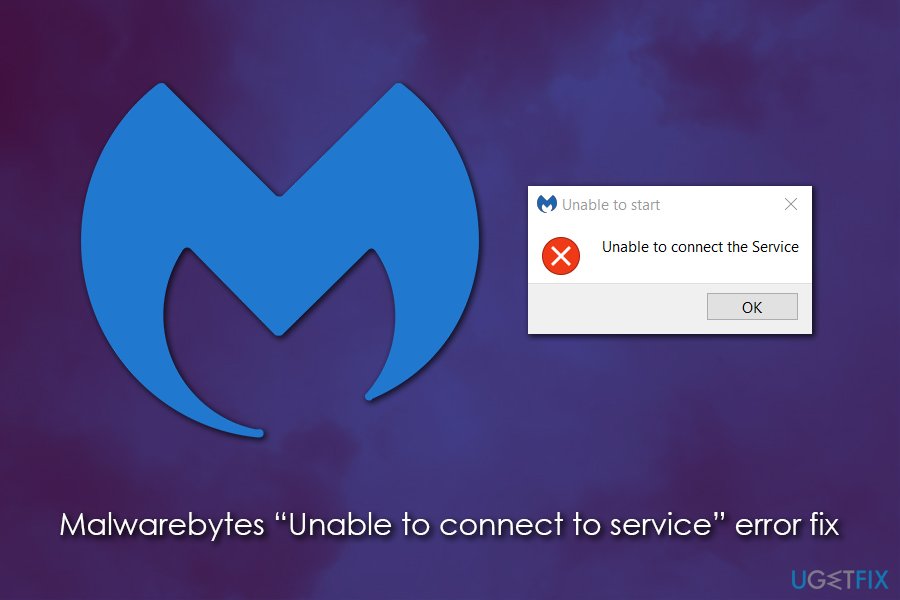
According to users, after they downloaded the tool from its official website, there were no problems initially. However, due to some unknown reasons, they see the app malfunctioning almost right away, or after they reboot their computers. Instead of seeing the security software launch, they experience the following error message:
Unable to start
Unable to connect to the Service
As evident, Malwarebytes Unable to connect to service pop-up does not reveal any further information, and it seems like the issue is related to connectivity problems. However, most users claimed that their internet is working fine, so it cannot be attributed to the problem in most cases.
One of the easiest ways that helped users to fix Malwarebytes Unable to connect to service error was a simple computer reboot, so we recommend trying that as a first solution. If that does not help, you can check the solutions we provide below or scan the machine with a repair software [d1], which could fix the issue automatically in some cases.
Note: please be aware that there are many fraudulent downloads[ref en-3] on the internet, so never attempt to download Malwarebytes Premium free installers from torrent and similar sites. This version of the program might not only fail to protect you from malware but can be malware itself. So only download security software from the vendor's official website or its partners.
Fix 1. Set Malwarebytes Service to automatic
Let's start from making sure that the related service is working correctly:
- In Windows search, type in Services
- Right-click the Services search result and select Run as administrator
- In the new window, locate Malwarebytes Service, right-click on it and select Properties
- Under Startup type, select Automatic
- Click Apply and then reboot your machine
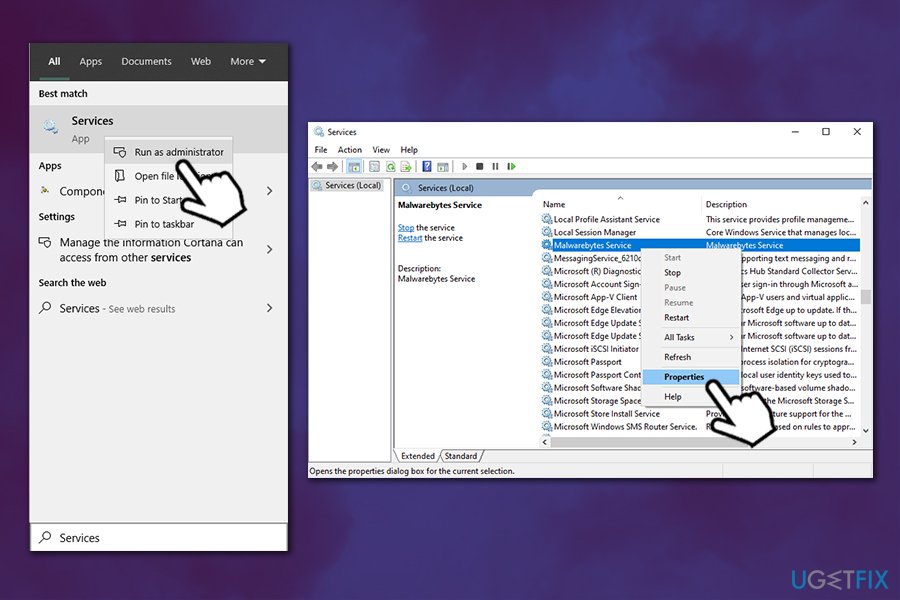
Fix malwarebytes unable to connect to service error set service automatic
Fix 2. Tweak Windows Management Instrumentation service
- Open Services with admin rights once again
- Locate Windows Management Instrumentation service
- Right-click and select Properties
- Change the Startup type to Automatic
- Click Apply and then reboot
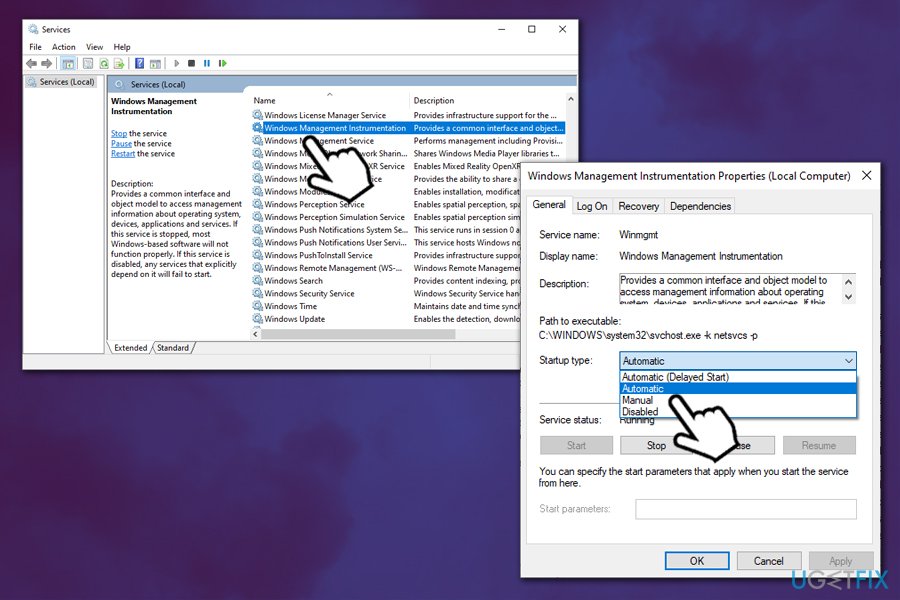
Fix malwarebytes unable to connect to service error set windows management instrumentation service
Fix 3. Reinstall Malwarebytes via the Control Panel
Many users managed to fix Malwarebytes Unable to connect to service error after reinstalling the application:
- Right-click on Malwarebytes icon in system tray and select Quit Malwarebytes
- Type in Control Panel into Windows search bar and hit Enter
- Go to Program > Uninstall a program
- Double-click Malwarebytes entry and confirm the uninstallation
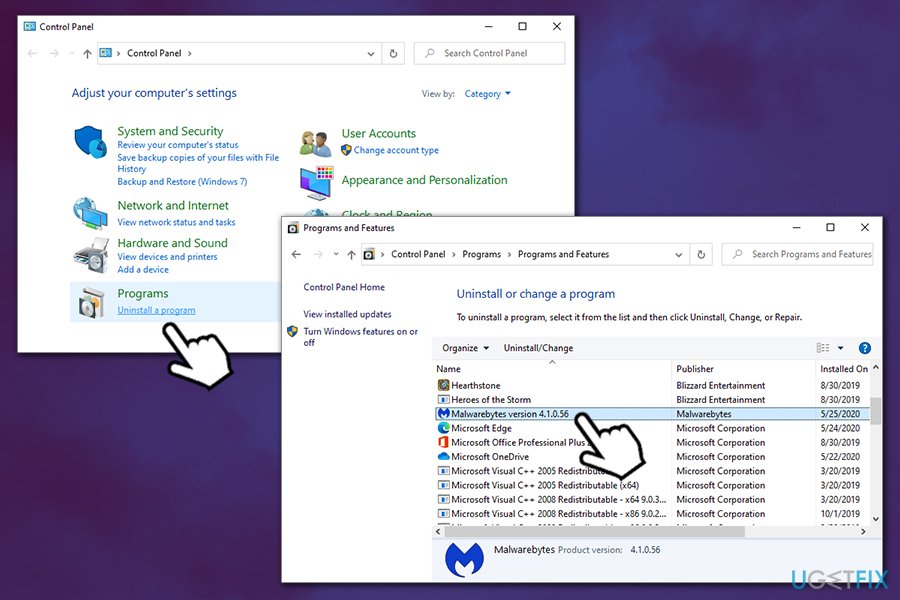
Fix malwarebytes unable to connect to service error uninstall via control panel - Follow the on-screen instructions
Now download the app from the official website and install it once again.
Fix 4. Use Malwarebytes Support Tool to reinstall software
If you had difficulties with Malwarebyte's uninstallation, you could try doing that using a Support Tool provided by the developers. You can find the instructions on its usage on the official website as well.
Fix 5. Scan your machine with another anti-malware
Some malware might be programmed to prevent you from launching security programs. Therefore, if you suffer from various errors when trying to fix Unable to connect to service error, it might be that you are infected. There are several other security solutions you could try, but we recommend using the built-in Windows Defender:
- Type Security into Windows search and select Windows Security
- Click on Virus & Threat protection
- Go to Scan options
- Select Full scan and then pick Scan now
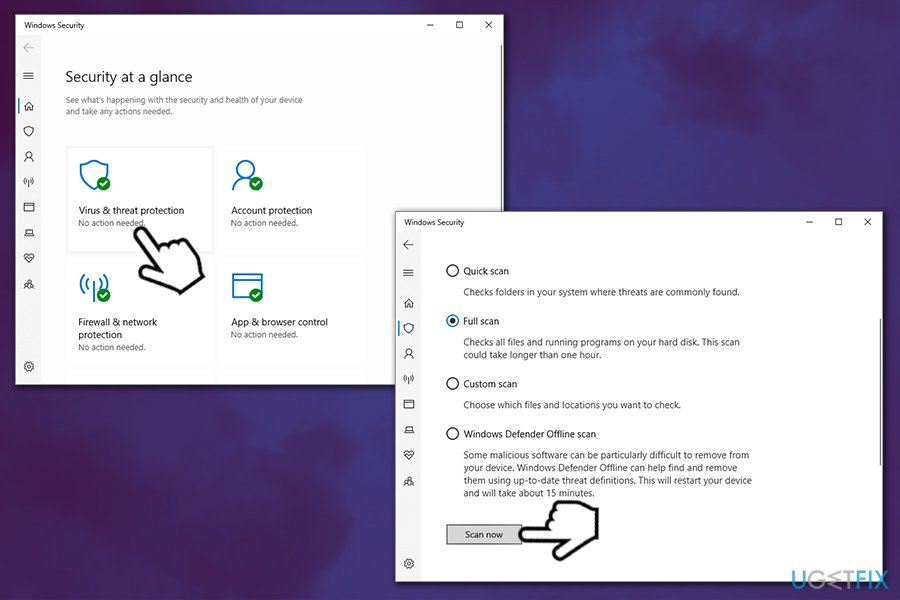
Fix malwarebytes unable to connect to service error scan for malware
Bottom line
To resolve the 'Unable to connect to service' error, users can try reinstalling Malwarebytes, ensuring that all previous versions are completely removed. Additionally, checking if the Malwarebytes service is running and adjusting user permissions may help. If none of these solutions work, consider reaching out to Malwarebytes support for further assistance.
Frequently asked questions
First, try restarting your computer and then ensure that the Malwarebytes service is running by checking the Task Manager. If the issue persists, reinstalling Malwarebytes may resolve the problem.
You can fix this by updating Windows 11 to the latest version and then repairing the Malwarebytes installation through the Control Panel. If that doesn't work, consider checking for any conflicting security software that might be interfering.
Yes, you can troubleshoot by ensuring that your Windows Firewall or any third-party firewall isn't blocking Malwarebytes. Additionally, running the Malwarebytes Support Tool can help diagnose and fix the issue.




Report an issue
What's wrong with this guide? We review every report and update or remove content.
Report received — thank you. We'll review and fix it.
You need a free account to submit a report.
Be the first to comment