How to fix
ITunes won’t play music
on Windows
Resolve iTunes playback issues on Windows 10 and Windows 11 effortlessly. Enjoy your music again with expert-tested solutions that work fast.

What causes How to fix iTunes won’t play music?
- Outdated iTunes version
- Incompatible file formats
- Issues with specific tracks
- Operating system updates needed
- Problems with iDevice software
Repairs Windows system files, removes malware, and restores a clean OS state — without reinstalling.
Hello. I have an issue with iTunes because I cannot play the song that I have purchased from the Store before. There are many songs that won't play for me. I have tried to update the macOS and music is still not playing. The playback stays at 0:00 and does not move from there. I have iTunes 10.2.1.1 currently. Is there something wrong on my end and how to fix the issue?
iTunes not playing songs issue is not new nor uncommon because many users have encountered this problem when trying to play music on the program.[ref en-1] There are some different issues regarding specific tracks or file formats, versions of the iTunes operating system. iTunes is the software developed by Apple and designed to manage iPhone, iPad, iPod music contents. it is useful and allows you to play music, watch shows, listen to the radio and restore drives, backup data.
People mainly report the issue that iTunes won't play music for them, and sometimes it is specific to content from the iTunes Store purchases. In most cases, the issue appears out of nowhere, and the music playback from the library is not possible. Occasional error or warning message can also appear beside the problem to play wanted music or a movie.[ref en-2]
Sometimes iTunes music not playing problems can occur due to operating systems or different software updating. You may need to update iTunes, iDevices, or the system of your iPad, iPhone, so the content can be launched and annoying issues solved.[ref en-3] There are various parts of the device and the iTunes service that should be checked to ensure the proper fix.
It is possible that you can fix iTunes won't play music by checking or changing the particular type of file. iTunes is the service that compatible with iOS, and it is supporting music formats of iTunes, lets you put MP3, AIFF, AAC, WAV, and Apple Lossless Encoder music on the playlists. So some file types cannot get converted or opened on the machine and creates these issues. 
How to fix iTunes won't play music
Since iTunes won't play music issue is the universal problem and can be triggered by various changes and setting changes, you should think about possible reasons and then find the solution based on them. This is not the issue that gets triggered by malware or particular software, but some issues with compatibility or updates can lead to problems, so keeping the system up-to-date can help to avoid these errors or problems. Rely on [d1] or a similar program compatible with your OS, so the machine is working smoothly without those software-related issues. You can also force restart your device to boost the performance and maybe solve some temporary issues or directly check for iTunes updates.
Purchased music issues
There is an issue with purchased music that won't play on iTunes. You can meet some problems with those purchased sounds because Apple has a strict rule that is limiting iTunes users' features and functions that iTunes Plus users have. You can play music on any device with various OSs without limitations if you use iTunes Plus. If not, you have the limitation to five authorized devices. You need to switch the authorization from one to others if you want to add the sixth one. 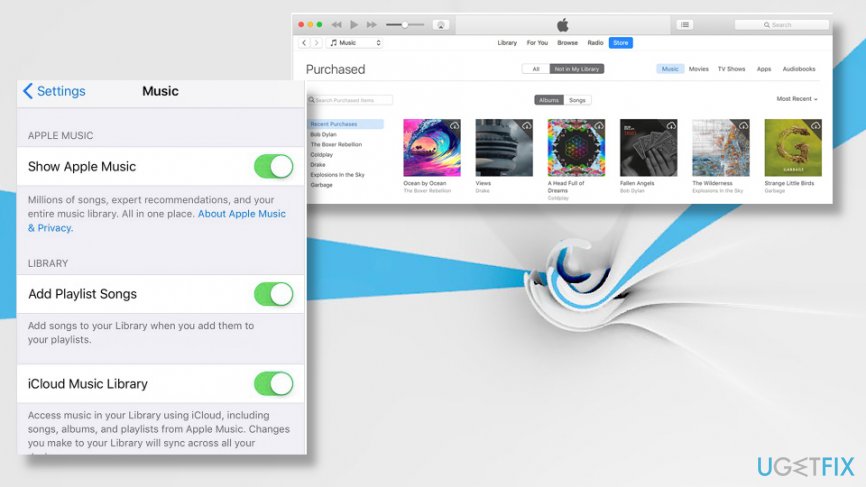
Turn iCloud Music Library off and on to fix iTunes won't play music
- Go to Settings on your iCloud and then Music.
- Tap the iCloud Music Library to turn it off.
- Then close these options.
- Go back to Settings and click Music.
- Tab iCloud Music Library to turn it on and launch Apple Music to see if it works.
Update audio drivers to fix iTunes won't play music
- Search for Device manager on the system and then select Sound, Video and Game Controllers.
- Right-click on the item and choose Update Driver software.
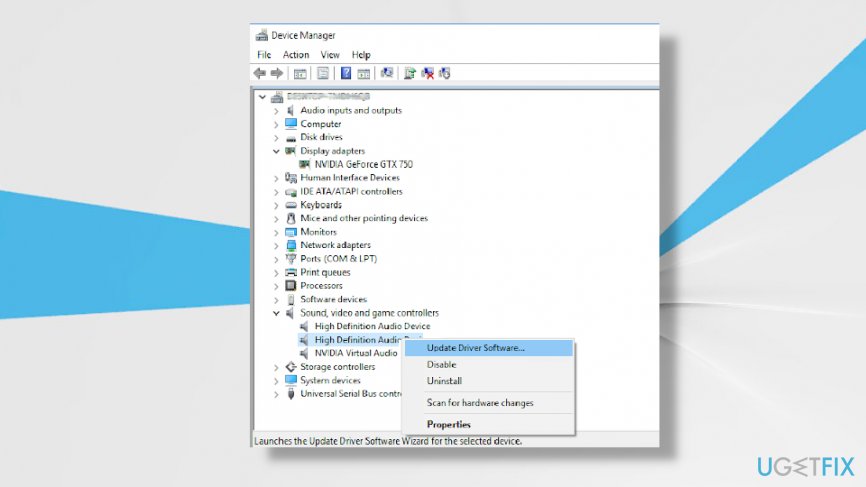
How to fix itunes wont play music device manager
Authorize the device you want to use to fix iTunes won't play music
- Go to iTunes and login to your Apple ID account.
- Select Account and then find Authorizations or View My Account.
- Click the Authorize this computer and follow procedures.
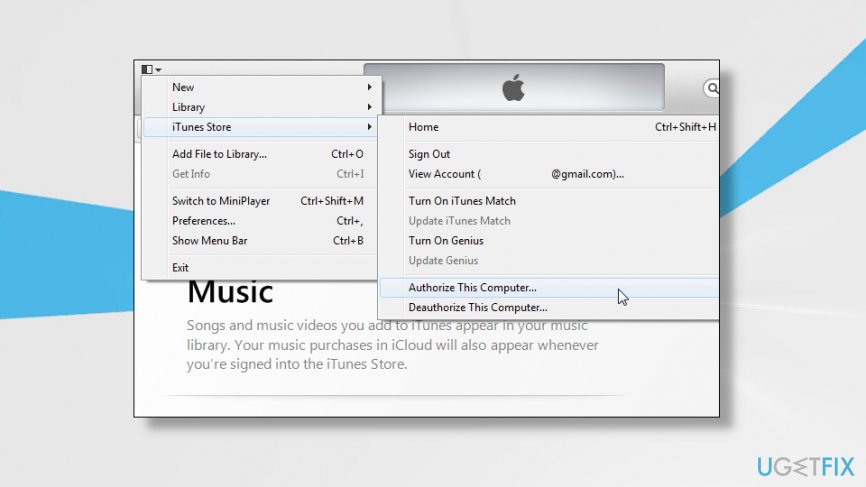
How to fix itunes wont play music authorization
Bottom line
To fix the issue of iTunes not playing music, consider updating iTunes, checking the file formats of your music, and ensuring your operating system and iDevices are up to date. If these solutions do not resolve the problem, further troubleshooting may be necessary.
Frequently asked questions
iTunes may not play music due to corrupted files, outdated software, or issues with audio settings. Check for updates and ensure your audio output settings are configured correctly.
Try restarting iTunes and your computer; if that doesn't work, consider reinstalling iTunes or repairing the installation through the Control Panel. Additionally, ensure that your Windows is updated to the latest version.
Make sure your audio output device is correctly set and not muted; check the volume levels in both iTunes and your system settings. You can also try switching the audio output in the sound settings of Windows.




Report an issue
What's wrong with this guide? We review every report and update or remove content.
Report received — thank you. We'll review and fix it.
You need a free account to submit a report.
Be the first to comment