How to fix
Windows update 0x800706d9 error
on Windows
Resolve the Windows update 0x800706d9 error quickly with our expert-tested solutions for Windows 10 and 11. Fixed in minutes, no hassle!


What causes How to fix Windows update 0x800706d9 error?
- Interferences between a system update and Windows Firewall
- Registry issues in Windows Firewall
- Windows Firewall service not running
- Storage service not running
- Windows Update service not running
Repairs Windows system files, removes malware, and restores a clean OS state — without reinstalling.
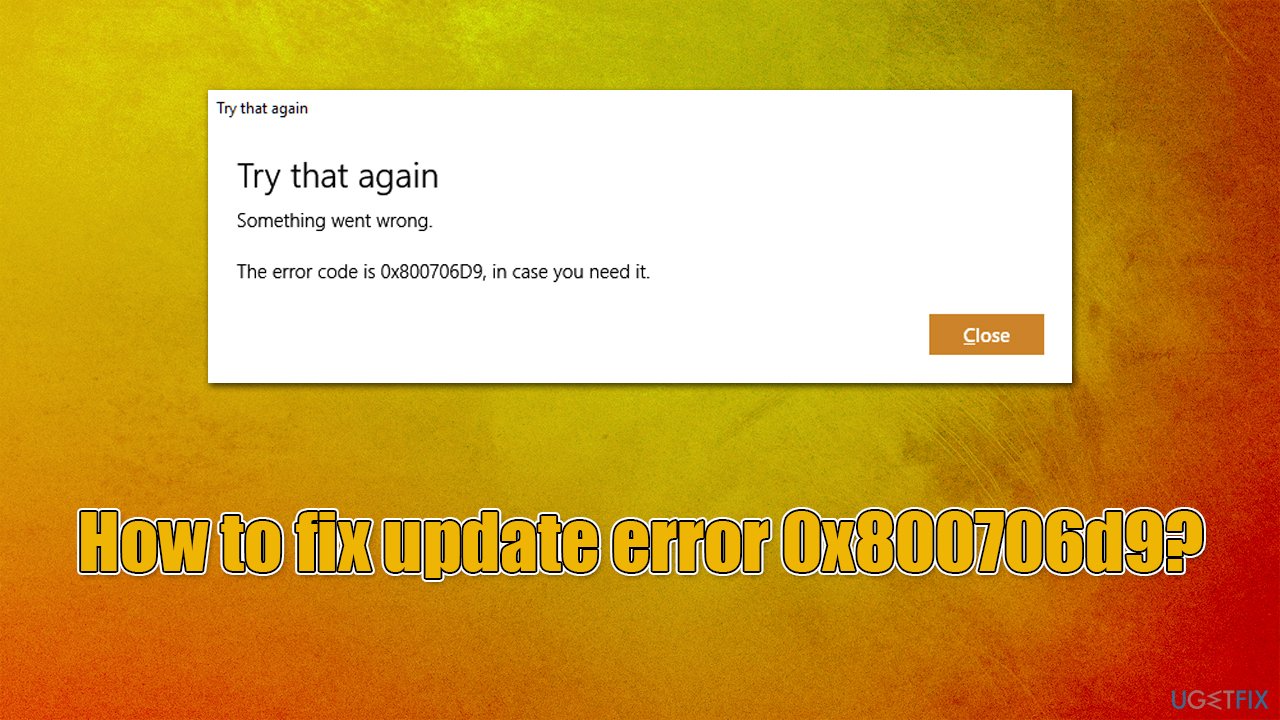
I can't update Windows. It stops somewhere in the middle, saying that an update error 0x800706d9 has occurred, and the process could not be completed. I tried rebooting the system and waiting, but there were no positive results. Any tips?
An error 0x800706d9 can appear on your system whenever you manually initiate the application update process, although those who use the automatic update function can also notice that it has failed. As a result, users are left with being unable to update any applications via Microsoft Store and sometimes can't even download new ones.
0x800706d9 error might show up due to interferences between a system update and Windows Firewall. This integrated application proof-checks the in-and outgoing applications. It is likely that some registry issues appeared in the latter program. Therefore, installation of the newest updates might fail.
Fortunately, there is a way to solve the problem and continue with the update procedure. In addition, you might notice another issue related to this one. Along with the 0x800706d9 error message, Windows firewall error 0x6D9 code notification might show up as well. We will provide solutions to both of these problems.
Before proceeding with the manual steps below, we recommend trying outstanding PC repair software [d1]. It is perfect for finding and fixing various common Windows issues, including DLL errors, unexplained crashes, system restarts, BSODs, and more. Otherwise, proceed with the instructions below to fix the 0x800706d9 error.
Option 1. Set Windows Firewall and other relevant services to run automatically
In many cases, users were able to resolve the 0x800706d9 error quickly and easily after enabling several services related to the problem. If they are not running, it might prevent updates from being downloaded.
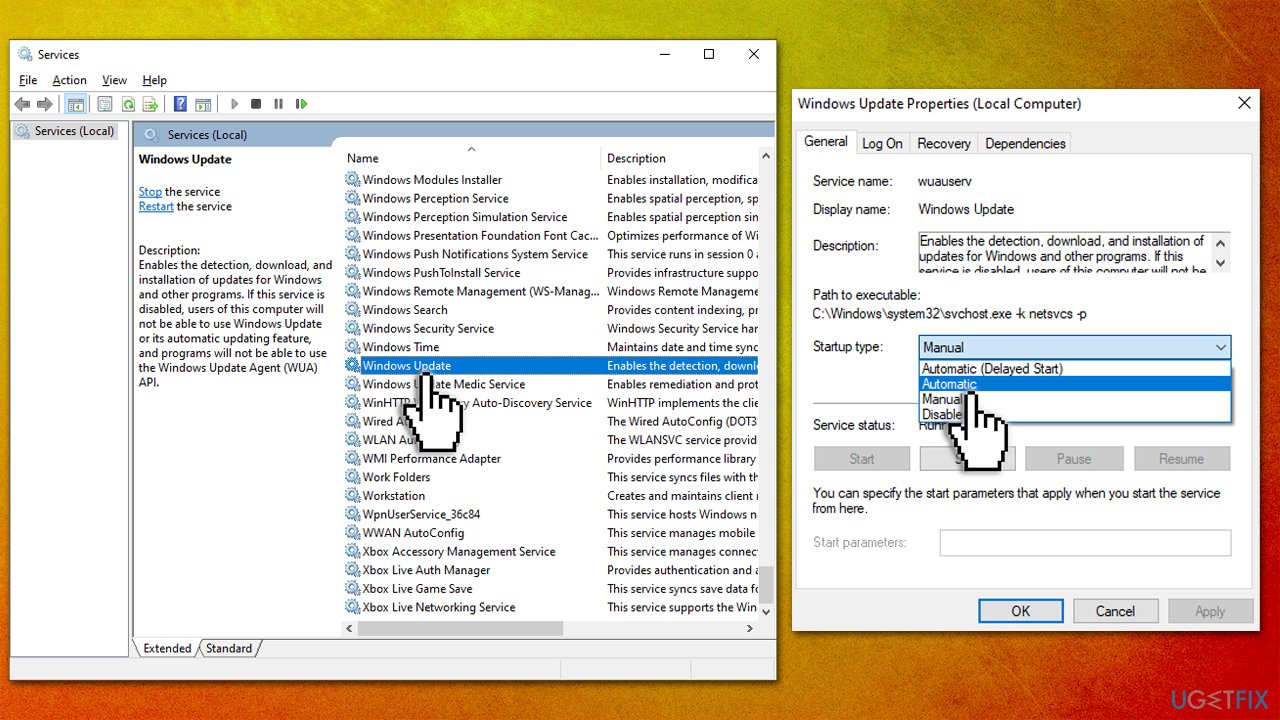
- In the Windows search box, type Services
- Right-click on the Services result and select Run as administrator
- In the new window, scroll down to find Windows Defender Firewall service and double-click it
- Under Startup type, make sure you pick Automatic
- Click Start, Apply, and OK
- Repeat the same steps with the Storage service and Windows Update service
- Restart your system.
Option 2. Troubleshoot your system
In case the above-presented solution fails to eliminate the problem, run a Windows update troubleshooter. The built-in tool can quickly point out what's wrong and fix issues for you.
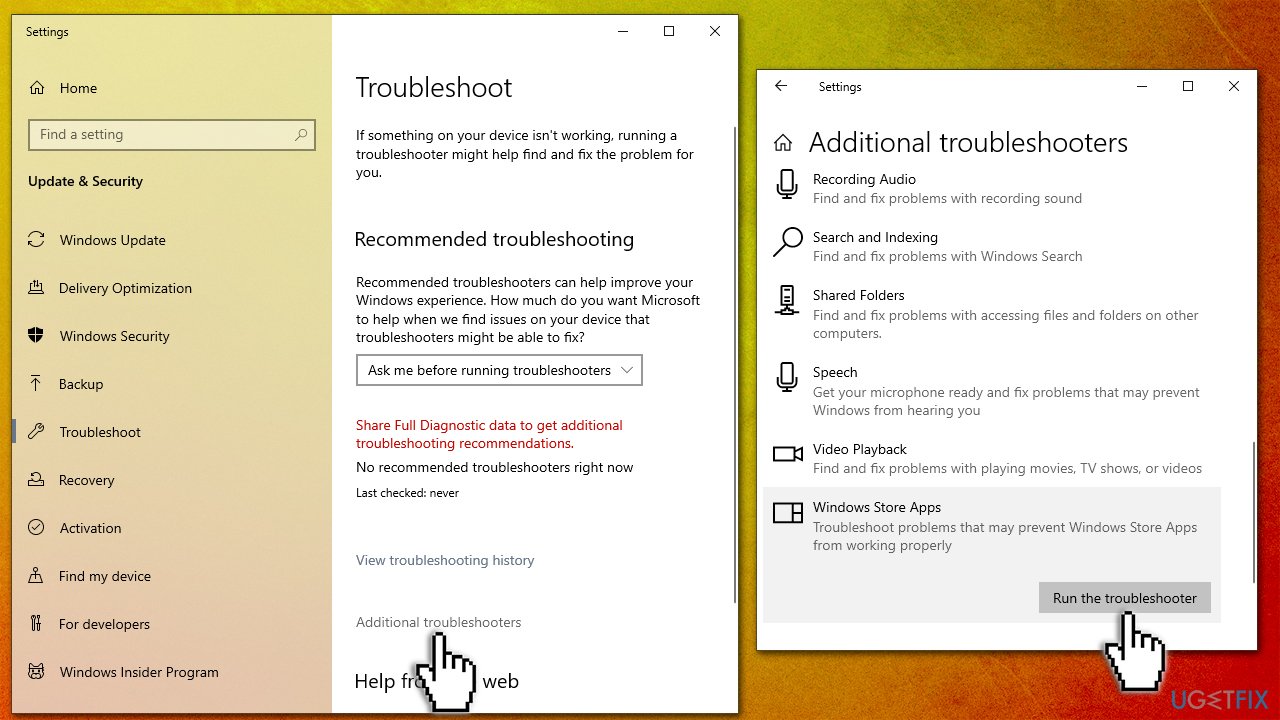
- Type Troubleshoot in Windows search and press Enter
- Click Additional troubleshooters if you can't see them listed
- Scroll down to find Windows Store Apps
- Click and select Run the troubleshooter
- Wait till the scan is complete and apply all the suggested fixes.
Option 3. Reset Microsoft Store cache
A corrupt application cache can oftentimes result in new files not being properly implemented. By clearing the cache, you may be able to resolve download and installation errors within Microsoft Store:
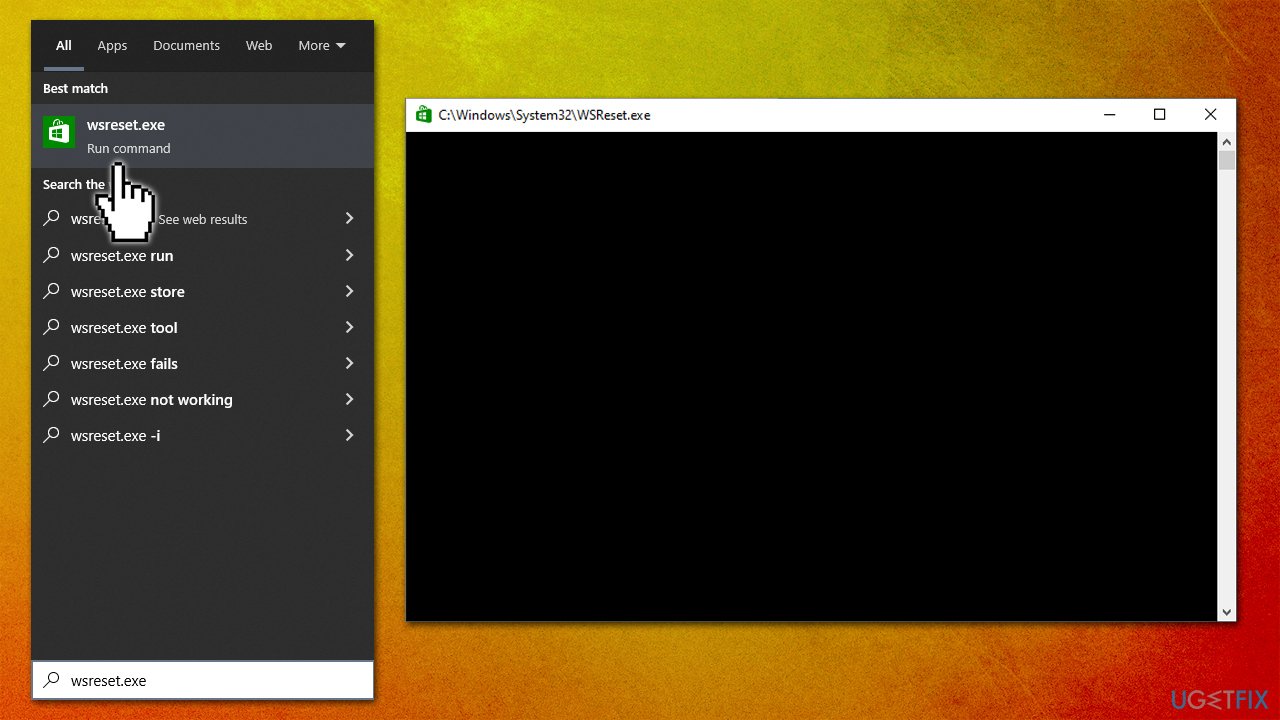
- In Windows search, type wsreset.exe and press Enter
- Wait till a black window shows up – do not close it
- Once it's gone, Microsoft Store should restart
- Try using the Store again.
Option 4. Reset Microsoft Store
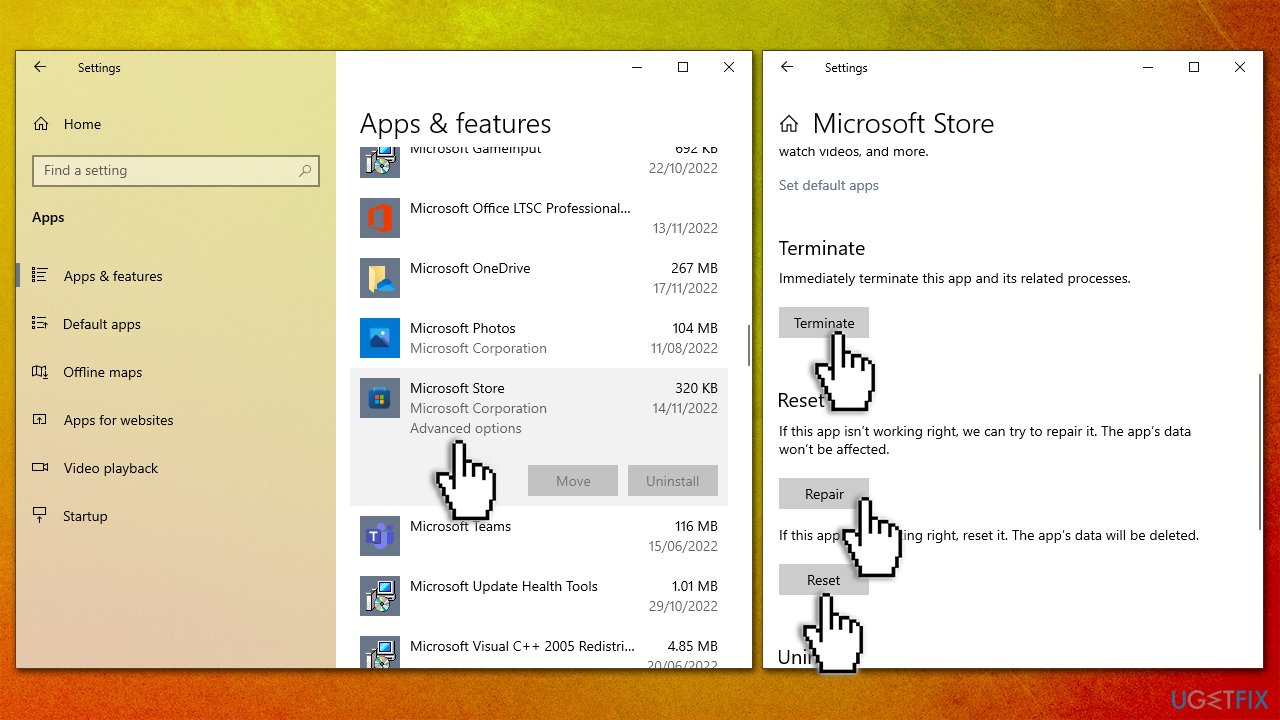
If resetting caches did not help, try resetting the app itself:
- Right-click on Start and pick Apps & Features
- Scroll down to locate Microsoft Store and click Advanced options
- Click Terminate and Repair
- If that has no effect, try Reset.
Option 5. Reinstall the Store via PowerShell
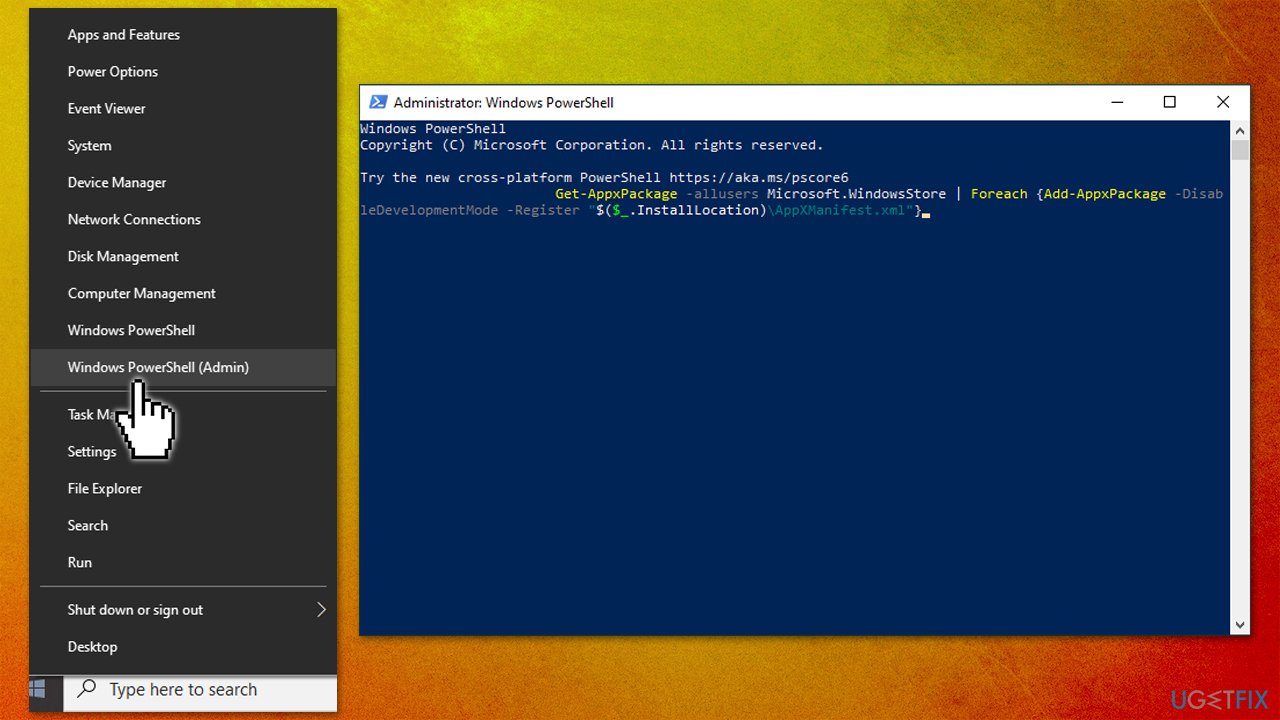
- Make sure your Microsoft Store is closed and not running in the background
- Right-click on Start and select PowerShell (Admin)
- Paste the following command and press Enter:
Get-AppXPackage *Microsoft.WindowsStore* | Foreach {Add-AppxPackage -DisableDevelopmentMode -Register “$($_.InstallLocation)\AppXManifest.xml”} - Close Powershell.
Bottom line
To fix the 0x800706d9 error, you can set the Windows Firewall, Storage service, and Windows Update service to run automatically. Additionally, troubleshooting your system may help resolve the issue. If these solutions do not work, consider using PC repair software to address various Windows problems.
Frequently asked questions
The error code 0x800706d9 indicates that there is an issue with the Windows Update service, often related to missing or misconfigured components in Windows 10 or Windows 11.
To troubleshoot the 0x800706d9 error on Windows 10, you can run the Windows Update Troubleshooter and ensure that the Windows Update service is running properly.
Yes, for Windows 11, you can manually edit the registry to reset the Windows Update components, but be cautious and back up the registry before making any changes.




Report an issue
What's wrong with this guide? We review every report and update or remove content.
Report received — thank you. We'll review and fix it.
You need a free account to submit a report.
Be the first to comment