How to fix
Location is not available Windows 10 error
on Windows
Resolve the "Location is not available" error on Windows 10 quickly and easily with our expert-tested solutions, ensuring zero traces left.


What causes How to fix Location is not available Windows 10 error?
- Inadequate administrator permissions
- Malware interference
- Recent Windows upgrade
- Corrupted user profile
- File system errors
Repairs Windows system files, removes malware, and restores a clean OS state — without reinstalling.
Hello, I booted my Windows PC just as I usually do and noticed that there is something wrong, as a pop-up showed up with the following error "Location is Not Available C:\\Windows\\System32\\config\\systemprofile\\Desktop. Access is denied" I then noticed that I could not click on the Start button or pretty much everything else. Only the Task Manager opens. Is there anything I could do to fix this "Location is Not Available" error?
"Location is Not Available" is a relatively old error that Windows users have been facing, and the popup shows up as soon as they boot up their computers. In many cases, this issue is relevant to users who just upgraded to the new version of Windows, although this is not a rule. As evident, the error is pointing to the desktop, hence most of the desktop functions are non-responsive.
This results in the inability to click on the Start button, use Windows search, click on the taskbar, etc. Due to this, they are also incapable of modifying, importing, copying, or doing anything else with their files that reside on the PC. Naturally, the problem is serious, and that is why many users are looking for ways to fix Location is not available error as soon as possible.
A full error message is shown as follows (note that there are several variations of Location is not available error):
Location is not available
C:\\Windows\\System32\\config\\systemprofile\\Desktop is not accessible. Access is denied.
Combining an unexpected nature of the "Location is Not Available" error and inability to control your machine might cause many users to panic. However, there is no need to do that, as you can fix this issue by following our guide below. It is important to realize that this error does not mean that your Windows is corrupted, along with the files. Therefore, nothing will be lost as soon as you manage to get rid of the issue.
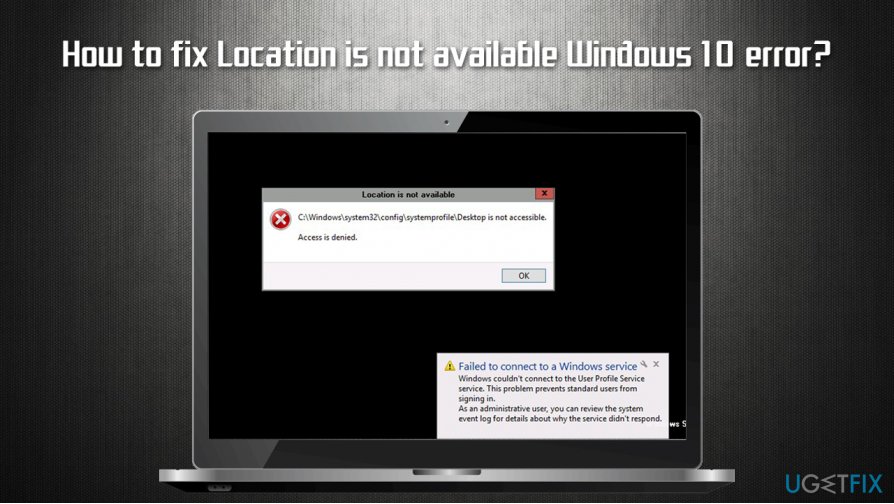
The reason why "Location is Not Available. Access is denied" Windows 10 error occurs can vary, but it is most commonly associated with inadequate administrator permissions, which could be altered by your administrator or malware.[ref en-1] Therefore, we also recommend scanning the computer with anti-malware and a repair software [d1] before proceeding with manual "Location is Not Available" fix guide below.
Option 1. Access Safe Mode with Networking
If you are unable to operate Windows at all and cannot open File Explorer, you should access Safe Mode first. If you do have access to File Explorer,[ref en-2] skip this step.
- Reboot Windows until you see the login screen
- Hold Shift on your keyboard and click the Power button
- While holding Shift, press Restart
- Once the PC restarts, pick the following options: Advanced Settings > Startup Settings and select Restart
- In Startup settings, select the 5 option or press F5 to access Safe Mode with Networking
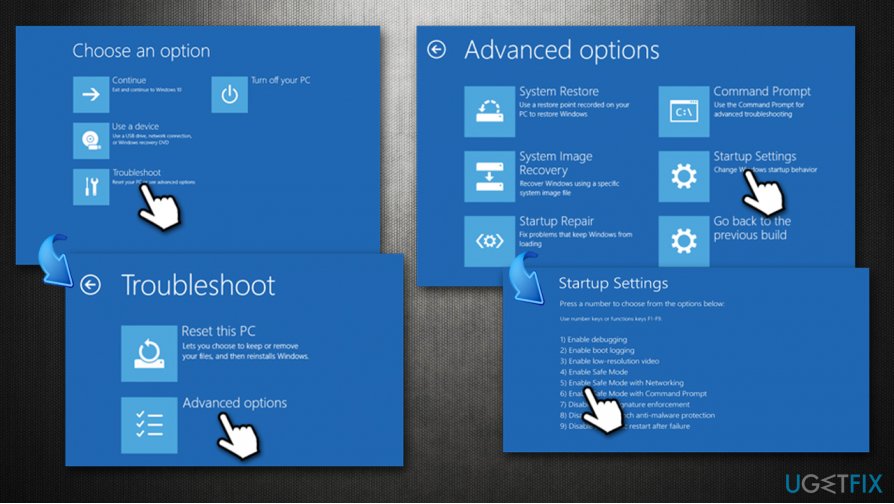
How to fix location is not available windows 10 error access safe mode
Option 2. Reset user permissions
- Type in cmd in Windows search
- Right-click on Command Prompt result and select Run as administrator
- When Command Prompt opens, type in the following commands, pressing Enter after each:
cd/users
cd/ [your username here without brackets]
icacls Documents/reset/t/q - Press Enter
Option 3. Run the disk check on Command Prompt
If the Location is Unavailable error shows up in your system32 folder, disk check[ref en-3] function might help you fix the system file integrity problems. This step will require you to access Command Prompt once again.
- Access Command Prompt as Administrator as explained above
- Type in the following command and hit Enter:
chkdsk c: /f /r /x
- After you see and error message, type in Y and press Enter
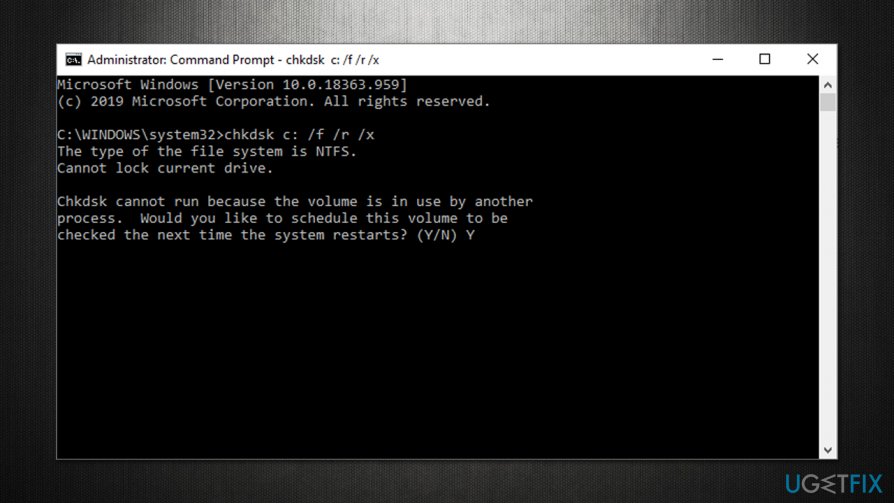
How to fix location is not available windows 10 error run check disk - Reboot your device and be patient while the disk check is fully performed
Option 4. Give the problematic folder full control
- Go to the problematic folder, e.g., C:\\Windows\\System32\\config\\systemprofile
- Right-click and select Properties
- Go to the Security tab
- If you can see your username from the list select it by pressing it once (if you can't see your username, press Edit > Add...> type in your username and press Check Names. Pick your username and press OK)
- Press Edit
- Under Permissions, ensure that Full control is enabled
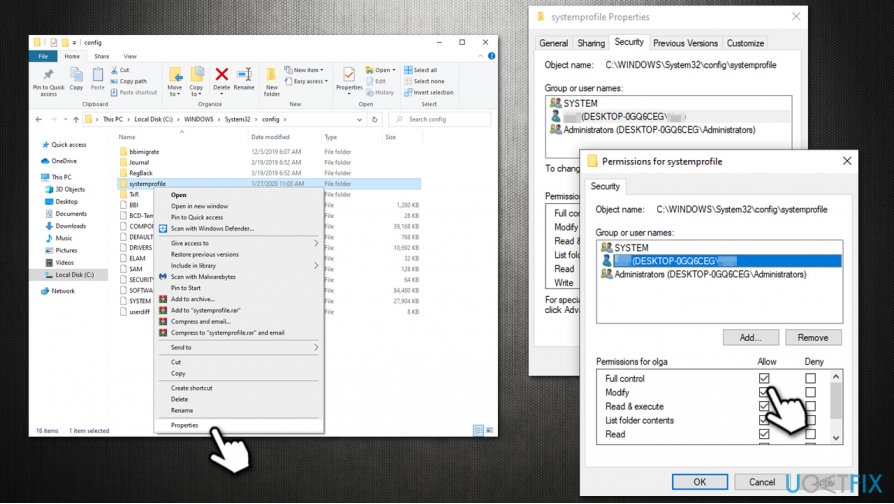
How to fix location is not available windows 10 error give folder full control - Click OK
If you do not have sufficient permissions to perform these actions (the Full control is shown in gray), proceed with the following step.
Option 5. Take ownership of the problematic folder
- Open the Properties of the problematic folder as explained in option 3
- Go to Security tab once again
- At the bottom of the window, press Advanced
- Under Owner, click on Change
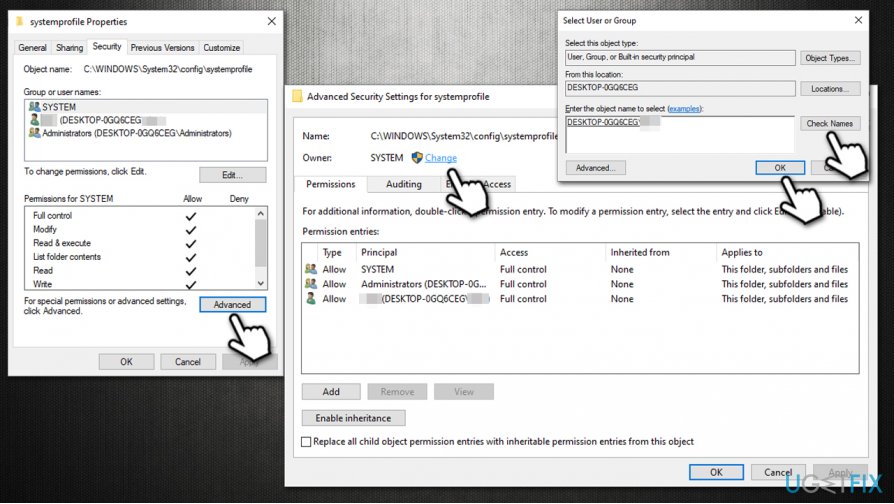
How to fix location is not available windows 10 error access advanced security settings - Type in your username and press Check Names
- Select your username and press OK
- Tick the Replace all child object permission entries with inheritable permission entries from this object
- Click on Apply and OK
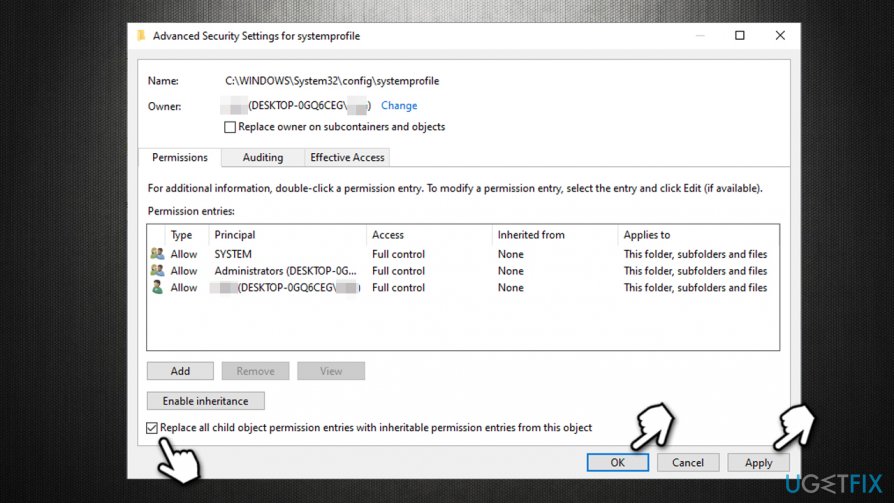
How to fix location is not available windows 10 error take ownership
Option 6. Use System Restore
If none of the options above help, use a system restore function. You might lose of the installed apps in the process, although personal files will remain intact.
- Type in Create a Restore Point in Windows search and hit Enter
- Go to System Protection tab
- Select System Restore and then pick Next
- Tick the Show more restore points
- Select the restore point and hen click Next
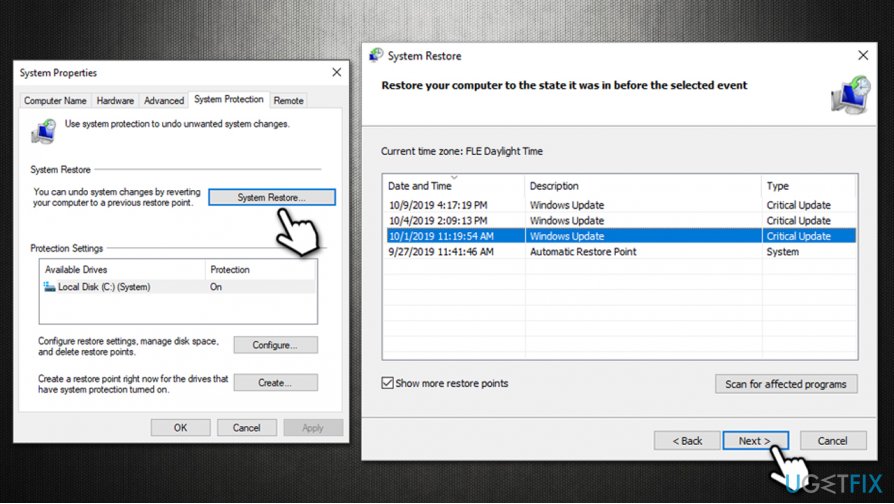
How to fix location is not available windows 10 error use system restore
We hope that this guide on how to fix Location is not available Windows 10 error helped you with this issue.
Bottom line
To fix the 'Location is Not Available' error, you can try adjusting administrator permissions, scanning for malware, or creating a new user profile. If these solutions do not work, consider performing a system restore or seeking professional assistance.
Frequently asked questions
First, check if the drive is connected properly and then run the CHKDSK command to scan for and fix any file system errors. If that doesn't work, consider checking your drive's permissions and settings.
Ensure that the external drive is recognized by your system and try reconnecting it to a different USB port. If the issue persists, run the Hardware and Devices troubleshooter to identify and fix any related problems.
This error can occur due to corrupted file system, improper drive disconnection, or issues with drive permissions. Running repair tools like SFC or DISM can help restore normal functionality.




Report an issue
What's wrong with this guide? We review every report and update or remove content.
Report received — thank you. We'll review and fix it.
You need a free account to submit a report.
Be the first to comment