How to fix
Windows 10 Installation Error Code 80240020
on Windows
Resolve Windows 10 installation error code 80240020 effortlessly with our expert-tested solutions. Get back on track in no time, with screenshots!

What causes How to Fix Windows 10 Installation Error Code 80240020?
- Incomplete system files
- Corrupt system files
- Registry errors
- File leftovers
- Unwanted software
Repairs Windows system files, removes malware, and restores a clean OS state — without reinstalling.
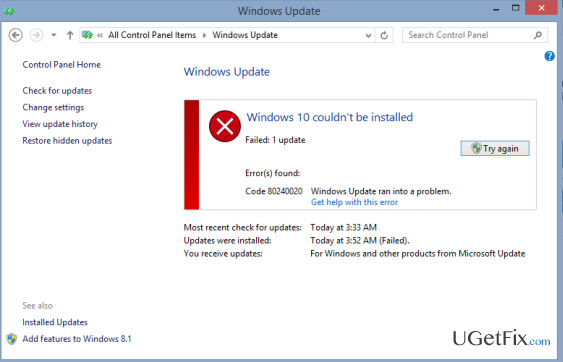
I wanted to install Windows 10, but what happened is the error 80240020. I’ve successfully downloaded Windows, but once the download process was finished, I was informed about 80240020 error and could not proceed with the update. Please tell me what does that mean and how should I install Windows 10 upgrade??
Although Windows 10 is considered to be a well-engineered piece of operating system that features a handful of useful and innovative services, there are lots of unfinished tasks or Windows 10 gaps, which lead to system errors and BSOD windows. This time, we would like to explain what is Error Code 80240020, why does it happen, and, of course, how to fix it.
80240020 Error happens when a user is trying to launch Windows 10 update. This issue reached its peak of occurrence at the beginning of Windows 10 upgrade. However, quite a lot of Windows users report about it these days as well. The reason of 80240020 error a year ago was related to the overloaded Windows servers, which caused the download of incomplete or corrupt system files. Concerning this error in relation to Windows 10 Anniversary Update, the cause remains the same – incomplete/corrupt files. However, this barely happens due to overloaded Windows servers.
Once 80240020 error code shows up, you will be asked to restart the PC/laptop, so that the update could resolve. Unfortunately, but restart will not fix the issue because when the system will boot up and you will try to launch the update again, you will see nothing except this error again. Therefore, you have to perform some troubleshooting steps to fix 80240020 error permanently.
How to Fix 80240020 Error Code on Windows?
Before you start performing any steps to fix 80240020 issue, our recommendation would be to check the system with a PC optimization tool, such as [d1]. By doing so, you will prevent existence of registry errors, file leftovers, unwanted software, missing updates, and similar issues that can disrupt the run of Windows 10 upgrade. After that, try performing the following 80240020 error removal steps:
- Go to to C:/$Windows.~BT folder and make sure that you put a check on Hidden items. Delete all the files that you are allowed to.
- Then navigate to C:\Windows\SoftwareDistribution\Download and delete all files that are stored in this location.
- After that, right-click on the Windows logo and select Command Prompt (Admin).
- Type wuauclt.exe /updatenow in the run dialogue, press Enter, and the close the window.
- After that, right-click on the Windows logo again, select Control Panel, and choose Windows Update.
- Now Windows should start downloading and you should see a window saying Preparing for Installation.
- After that, a window saying Your upgrade to Windows 10 is ready should occur. Click Upgrade now or Start button on that window.
- Your PC should restart and Windows 10 download should start automatically. What you have to do now is to follow the installation wizard and wait around 10-15min for the installation to finish up.
Hopefully, this tutorial has helped you to fix 80240020 error and install Windows 10 upgrade successfully. If not, please let us know.
Bottom line
To fix the 80240020 error code, check your system with a PC optimization tool to address potential issues like registry errors and file leftovers. After that, navigate to the C:/$Windows.~BT folder for further troubleshooting. If these steps do not resolve the issue, consider seeking additional support or solutions.
Frequently asked questions
This error typically occurs due to incomplete Windows Update processes or issues with the Windows Update components. It may also arise from conflicts with third-party software or corrupted system files.
To fix this error, try running the Windows Update Troubleshooter and resetting the Windows Update components. Additionally, ensure that your system is updated and check for any pending updates.
Yes, while this error is commonly associated with Windows 10, similar issues can occur during Windows 11 installations due to similar underlying update problems.




Report an issue
What's wrong with this guide? We review every report and update or remove content.
Report received — thank you. We'll review and fix it.
You need a free account to submit a report.
Be the first to comment