How to fix
We can’t create the Recovery drive
on Windows
Resolve the "We can't create the Recovery drive" error on Windows 10 and 11 with our expert-tested solutions for a hassle-free fix in minutes.

What causes How to fix We can’t create the Recovery drive?
- Insufficient storage space on the USB drive
- Corrupted USB drive
- Issues with the Windows operating system
- Incompatible USB drive
- Permissions issues with the user account
Repairs Windows system files, removes malware, and restores a clean OS state — without reinstalling.
Hello, I am using a laptop, and I was in the midst of creating a recovery drive on my laptop, and I received an error, "We can't create the Recovery drive." Since I had another USB flash, I tried it once again, yet to no avail. Is there anything I can do to fix this problem? I'd be grateful for the help.
A recovery drive is a simple backup[ref en-1] of a current system - in case something goes wrong and you can't boot into Windows, you can employ a recovery drive to troubleshoot problems and restore working copies of files/configurations from it. Besides, you can also choose to backup system files, and it will allow you to use the Recovery drive when reinstalling the OS, instead of downloading and creating an image[ref en-2] via the Media Creation tool.
To create a Recovery drive, all you need is a USB Flash drive that is capable of holding at least 16 GB of data (which is needed to backup all your system and other files). Once the USB Flash is inserted, you can launch the built-in Recovery Media Creator and proceed with the on-screen instructions. Unfortunately, the creation of the Windows Recovery drive might not go as planned - some users claimed that they experienced various issues.
"We can't create the Recovery drive" is an error that prevents users from creating a Recovery drive, although no specific information is provided within the error message itself, and gives little to go on with:
We can't create the Recovery drive.
A problem occurred while creating the recovery drive.
We can't create the Recovery drive error that can occur on any Windows system, although laptop users are suffering from the issue the most. Since the issue is not specified within the error itself, tacking the problem becomes more difficult, so there could be multiple different reasons for the issue to arise.
Therefore, there are several methods to fix "We can't create the Recovery drive" error on Windows 10. For more information, please check out the manual solutions we provide below. Before that, however, we would like to recommend you try the automatic solution for Windows problems - [d1].
Fix 1. Format your USB drive or use a new one
While Windows should format the USB flash before inserting new files, it might fail to do so in some cases, resulting in "We can't create the Recovery drive" error on Windows 10. To format the drive, all you have to do is insert it into a USB slot and perform the following steps:
- Open File explorer by pressing Win + E
- Wait till the drive shows up under This PC > Devices and drives section
- Right-click on your USB name and select Format...
- Under File system, select NTFS option
- Tick Quick Format and click Start.
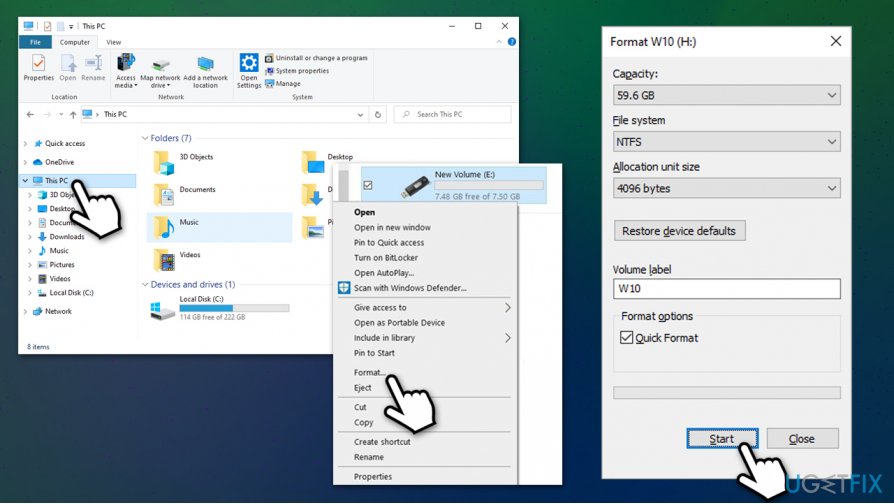
We cant create the recovery drive fix format usb drive
Alternatively, you can also use a different USB Flash drive and see if the issue persists.
Fix 2. Check for Windows System integrity issues with SFC scan
Corrupted system files[ref en-3] can sometimes prevent Windows from preparing a Recovery drive correctly. Nonetheless, you can fix system file issues with the help of the built-in System File Checker.
- Type cmd in Windows search box
- Right-click on Command Prompt result and select Run as administrator
- If User Account Control (UAC) prompt shows up, select Yes
- In the Command Prompt window, type in the following and hit Enter:
sfc/scannow
- Wait for the scan to finish - Windows will inform you if any integrity violations were found.
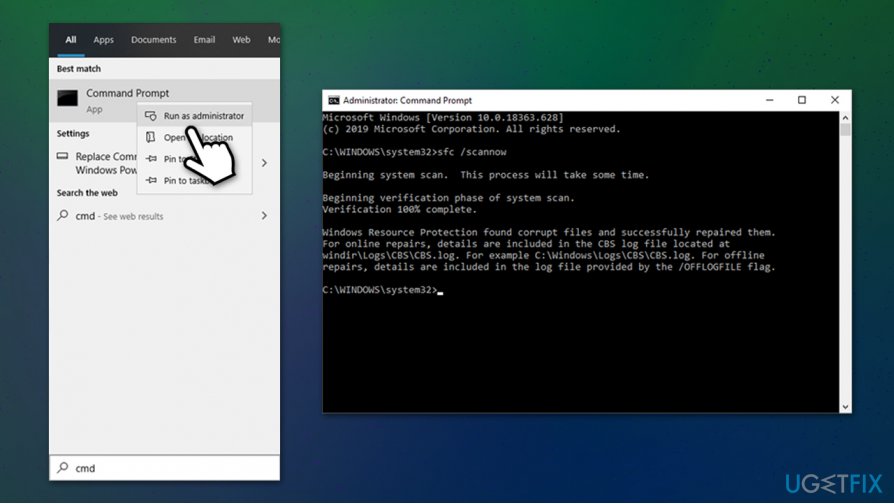
We cant create the recovery drive fix run sfc scan
Fix 3. Create Windows image via the Media Creation Tool instead
Essentially, Recovery drive is practically the same as Windows installation image, as it stores the same files. The only difference is that a new Windows image is used for reinstalling Windows, and is not designed to "know" your particular system configuration.
- Download Media Creation Tool from the official Microsoft website
- Launch the installer and agree to Terms and conditions - press Next
- Select Create installation media (USB flash drive, DVD or ISO file) for another PC and click Next
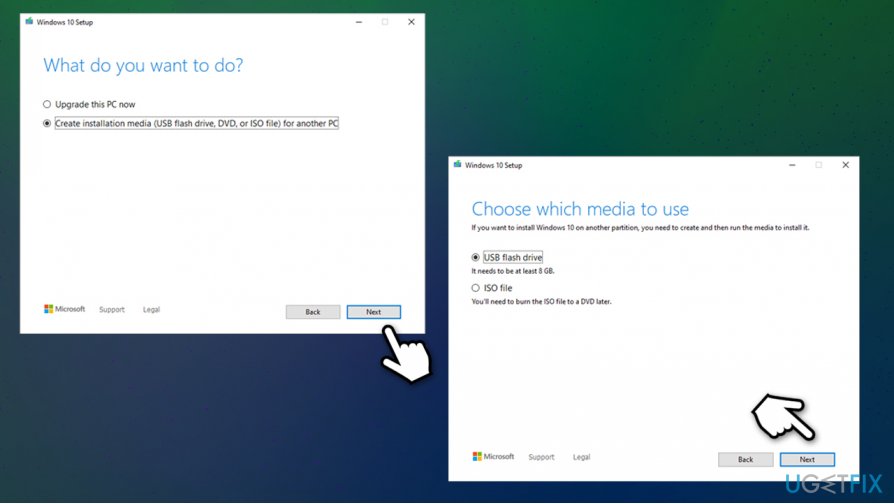
We cant create the recovery drive fix use media creation tool - Pick USB flash drive or ISO file for a DVD (you will have to burn the latter, so it is easier to use USB flash instead)
- Insert an empty USB flash device into the USB slot on your computer box
- Press Next on the Windows 10 Setup and follow on-screen instructions to finish the process.
Fix 4. Modify registry
This "We can't create the Recovery drive" fix is only applicable to those who are using or previously used third-party recovery solutions.
- Type in regedit in Windows search and press Enter
- If UAC shows up, bypass it with Yes
- Navigate to the following location:
Computer\\HKEY_LOCAL_MACHINE\\SYSTEM\\CurrentControlSet\\Services\\VSS\\Providers\\
- Now click on each of the entries (on the left pane) under Providers
- Double-click on Default string on the right - it should say Microsoft Software Shadow Copy provider 1.0 - DO NOT delete this entry
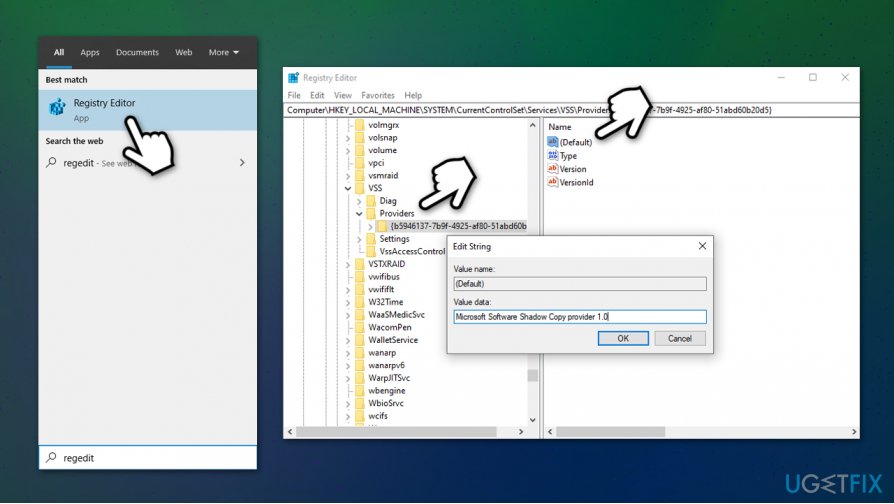
We cant create the recovery drive fix modify windows registry - If you see anything besides that under Providers, you should delete those entries.
Bottom line
To fix the 'We can't create the Recovery drive' error, you can try using a different USB drive, ensuring it has enough storage space, or checking for system updates. If these methods do not resolve the issue, consider seeking further assistance or exploring alternative recovery options.
Frequently asked questions
Try running the Recovery Media Creator as an administrator, as this may resolve permission issues causing the error. Additionally, ensure that your USB drive is properly formatted and has enough space available.
Ensure that your system has the latest updates installed, as this can often resolve software-related issues. If the problem persists, consider using the Command Prompt to troubleshoot and repair system files.
Yes, you can use a third-party tool to create a bootable USB drive with the Windows recovery environment, which can serve as an alternative to the built-in Recovery drive feature. Make sure to choose a reputable tool for this process.




Report an issue
What's wrong with this guide? We review every report and update or remove content.
Report received — thank you. We'll review and fix it.
You need a free account to submit a report.
Be the first to comment