How to fix
Minecraft error io.netty.channel.ConnectTimeoutException connection timed out
on Windows
Resolve the Minecraft io.netty.channel.ConnectTimeoutException on Windows 10 or 11 effortlessly. Enjoy seamless gaming with expert-tested solutions.

What causes How to fix Minecraft error io.netty.channel.ConnectTimeoutException connection timed out?
- Internet connection problems
- Incorrect Firewall settings
- Server issues
- Network configuration errors
- Outdated game version
Repairs Windows system files, removes malware, and restores a clean OS state — without reinstalling.
Hello, I have a problem with Minecraft. I have been playing on my friend's server with no problems for months, and, suddenly, I can no longer connect. Instead, I receive the following error: "io.netty.channel.connecttimeoutexception connection timed out." Anything I can do to fix this issue? Many thanks.
Minecraft is a sandbox[ref en-3] video game that was first released in 2011 by Mojang Studios and later was purchased by Microsoft. Since then, it has been smashing in popularity, as more players are connecting to thousands of servers. As of 2020, the game is played by more than 126 million users[ref en-1] - impressive indeed. Unfortunately, games can sometimes encounter unexpected issues that can completely ruin their fun time, and "io.netty.channel.ConnectTimeoutException connection timed out" error is one of them.
Most of the users who encounter the "io.netty.channel.ConnectTimeoutException connection timed out" error when trying to connect to a co-op game via local network or the internet. In other cases, the issue is not connected to one single server but is rather persistent while trying to connect to any of them.
Since the "io.netty.channel.ConnectTimeoutException connection timed out" Minecraft error does not allow users to access the game, it becomes a huge issue, and players want a quick fix. Multiple reports have flooded Reddit[ref en-2] and other forum boards, each of them asking for help.
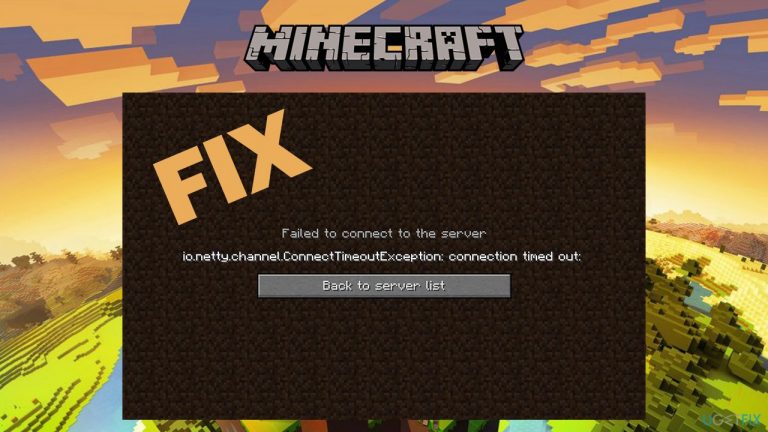
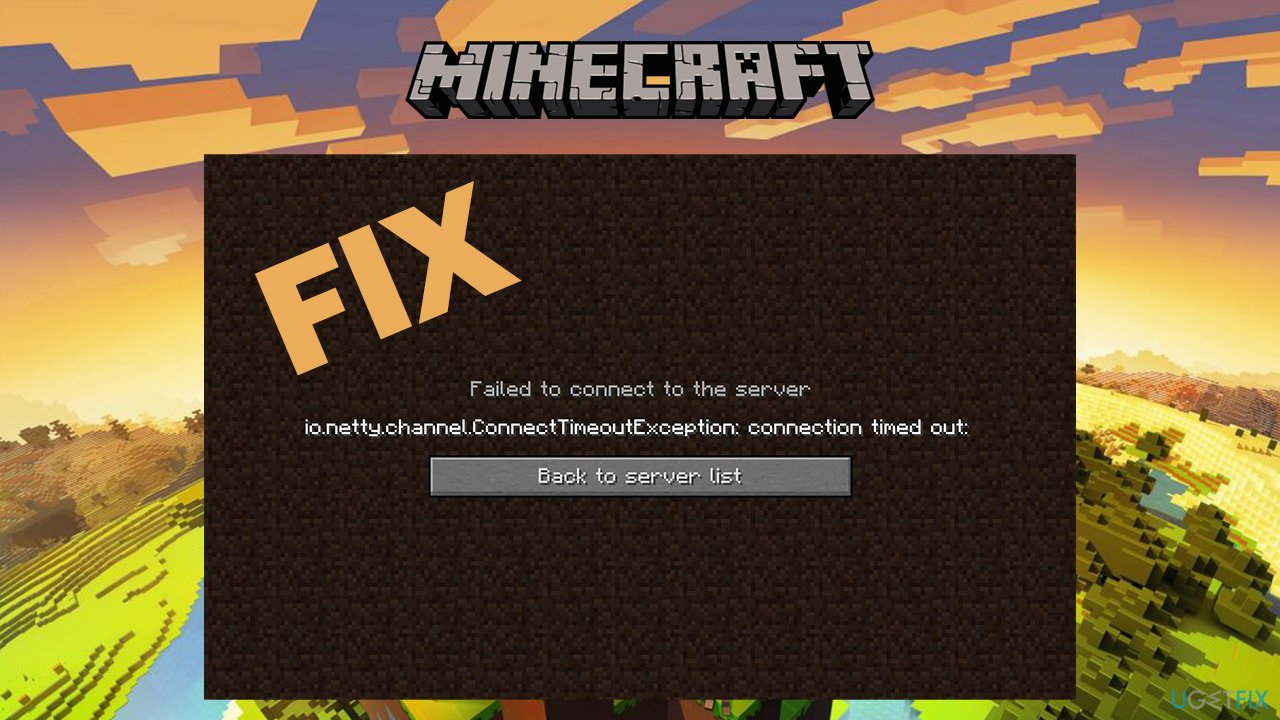
Users receive the "io.netty.channel.ConnectTimeoutException connection timed out" error right before they manage to enter the game. The full message is as follows:
Failed to connect to the server
io.netty.channel.ConnectTimeoutException connection timed out:
Back to the server list
The error text message does not give out too much information, although it hints that it was not able to connect to the server due to a timeout. Suchlike behavior is very typical when users have some internet connection problems.
Therefore, the very first thing to do is troubleshoot the internet issues - these might help you fix "io.netty.channel.ConnectTimeoutException connection timed out" error swiftly. However, this might not be the case, as other causes of the error might also occur, such for example, incorrect Firewall settings.
Below we provide several tips on how to perform solutions for this problem, although you might have to try several steps before you succeed. Also, before you proceed, we recommend you try [d1] automatic repair solution, which might be able to help you fix "io.netty.channel.ConnectTimeoutException connection timed out" error fast.
Fix 1. Let Minecraft through Firewall
If the Firewall's settings are set incorrectly, it might be blocking the connection to Minecraft servers. Thus, you should first make sure that it goes through it without intervention:
- Type in Control Panel in Windows search and hit Enter
- Go to System and Security section
- Under Windows Defender Firewall, select Allow an app through Windows Defender Firewall
- In the main window, Click Change settings
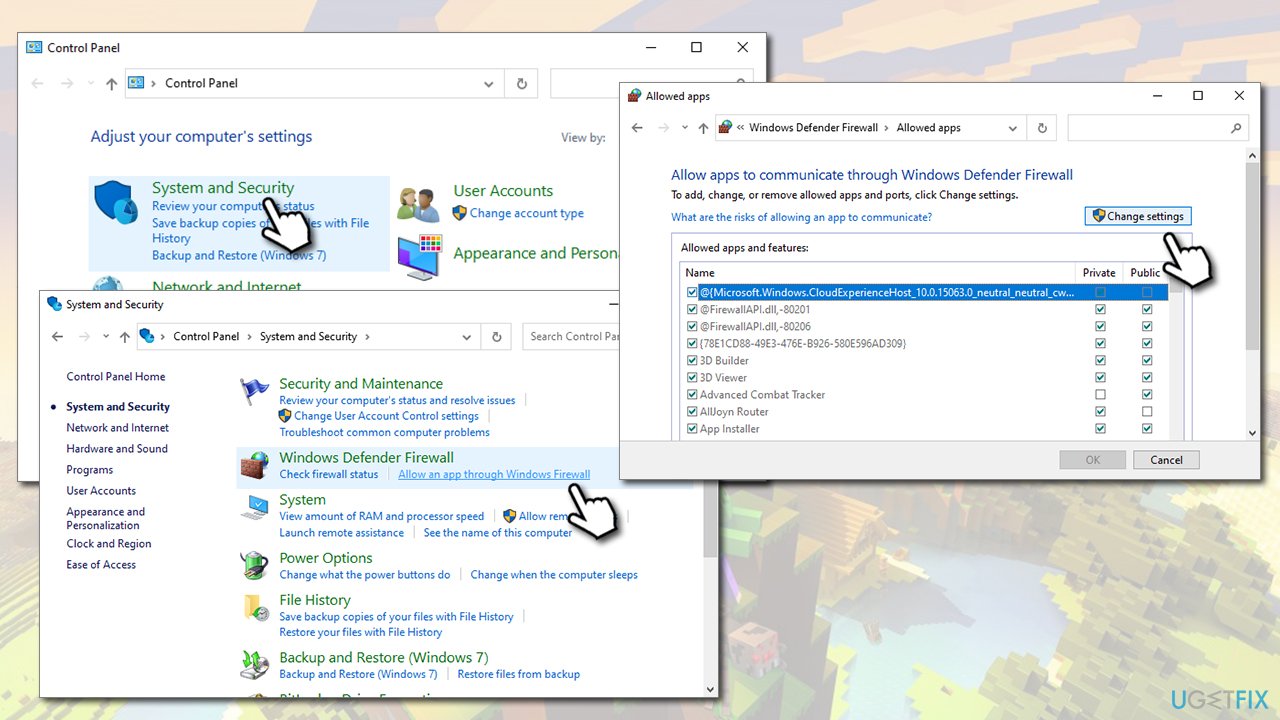
How to fix minecraft error io netty channel connecttimeoutexception connection timed out allow minecraft through firewall - Scroll down until you locate all the Java (TM) Platform SE binary entries, and tick the Private and Public checkboxes
- Click OK and close Control Panel
Fix 2. Disable your anti-virus and turn off VPN
Connection problems that cause the "io.netty.channel.ConnectTimeoutException connection timed out" error can sometimes be caused by applications that intercept your internet connection (or prevent it completely).
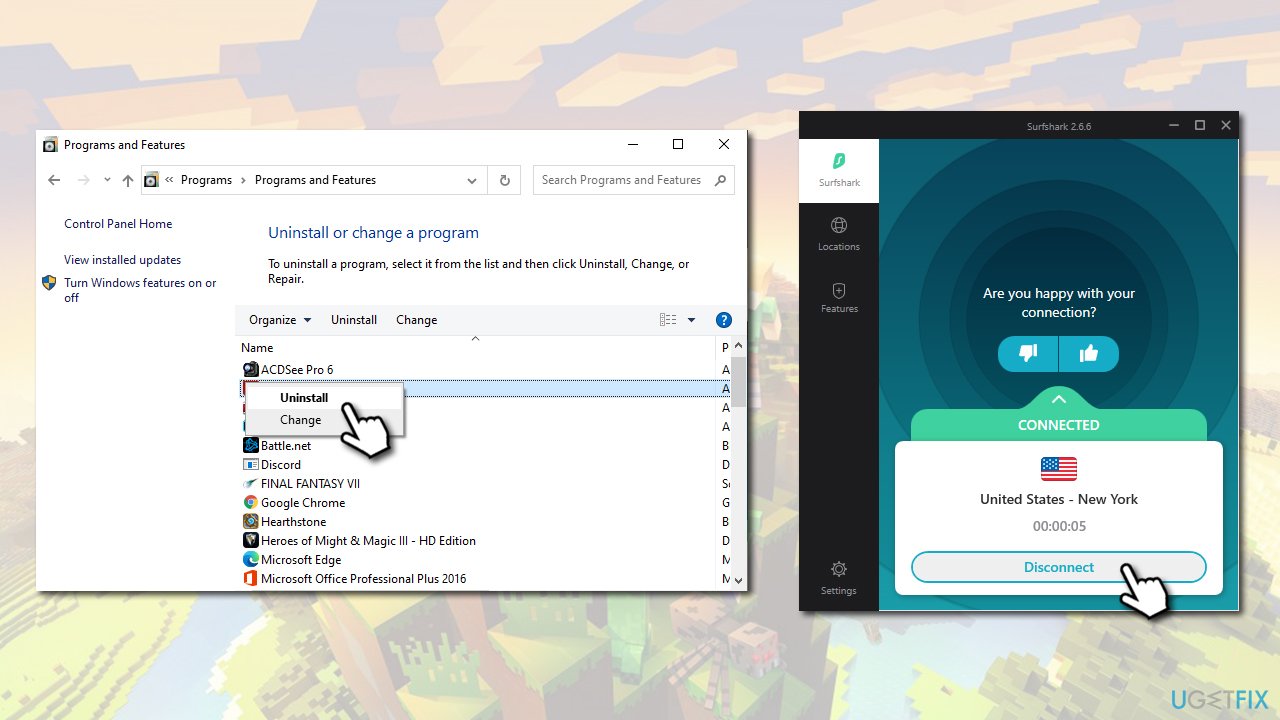
If you are using anti-virus software that is not built-in (otherwise known as third-party), you should temporarily disable it and see if that solves your problem. However, most of the anti-malware solutions cannot be disabled, so you might as well uninstall it completely:
- Type in Control Panel in Windows search and hit Enter
- Go to Programs > Uninstall a program
- Find your anti-virus, right-click and then select Uninstall
- Follow the on-screen instructions and and then reboot your machine.
How to fix minecraft error io netty channel connecttimeoutexception connection timed out uninstall antivirus disconnect vpn
Additionally, if you are using a VPN, make sure that you are not connected to it when trying to connect to the Minecraft servers, as it might also be the cause why you are receiving the error.
Fix 3. Reset your router
By default, you Internet Service Provider (ISP) is providing you with a dynamic IP address, which means that it changes each time you reset your internet connection (you can also use static IP address, which, in some cases, might also help you fix "io.netty.channel.ConnectTimeoutException connection timed out" error - you need to contact your ISP for that). Thus, you should reset your router and see if the changed IP address will help you:
- To reset your router you should NOT press the Reset button, as it might reset to factory settings
- Instead, you should simply pull the plug out of the socket or pull the wire out of the device
- Once done, you should wait at least 30 seconds before rebooting the router
Fix 4. Enter correct port and IPv4 address
- Type in cmd into Windows search
- Right-click on Command Prompt search result and select Run as administrator
- In the new window, type in the following command and press Enter:
ipconfig
- Write down your IPv4 address
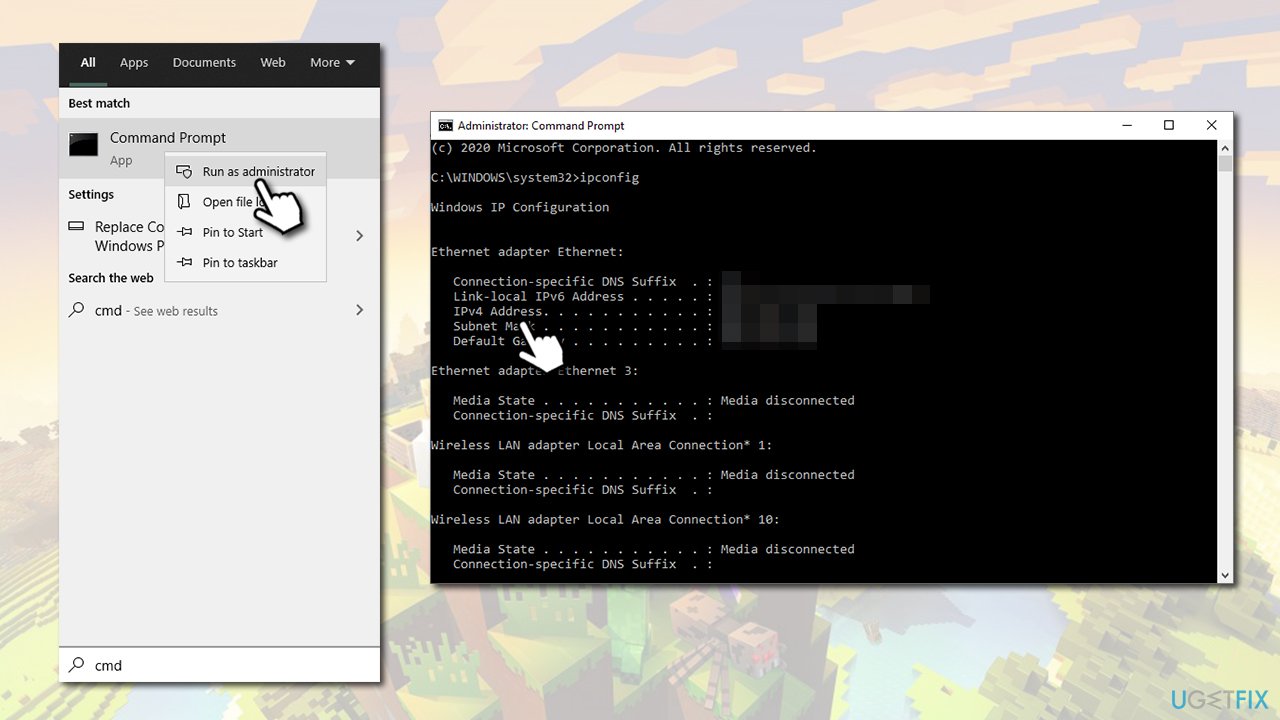
How to fix minecraft error io netty channel connecttimeoutexception connection timed out allow set correct ipv4 and port settings - Now press Win + E to open File explorer
- Navigate to the following location: Minecraft Servers > Maxwell > MinecraftServer
- Right-click on the server.properties file and select Open with > Notepad
- Find the Server Port entry, and write it down (it consists of numbers)
- Now open the Minecraft game and go to Play Multiplayer option
- Click on the server you could not join previously and pick Edit at the bottom
- In the Address field, type in your IPv4 address you noted down earlier, then type ":" followed by your port
- Click Done and then restart the game
- Try to login to the server - "io.netty.channel.ConnectTimeoutException connection timed out" error should no longer be present.
Bottom line
To fix the 'io.netty.channel.ConnectTimeoutException connection timed out' error, first troubleshoot your internet connection and check your Firewall settings. If the problem persists, consider examining your network configuration or updating your game version. If none of these solutions work, seek further assistance on forums or support channels.
Frequently asked questions
This error typically occurs due to network issues, such as a poor internet connection or firewall settings blocking Minecraft's access to the internet.
You can try restarting your router, checking your firewall settings, or adding Minecraft to the list of allowed apps in your antivirus software.
Yes, you can run a speed test or try accessing other online services to verify if your internet connection is stable.




Report an issue
What's wrong with this guide? We review every report and update or remove content.
Report received — thank you. We'll review and fix it.
You need a free account to submit a report.
Be the first to comment