How to fix
Windows 10 can’t be installed on GPT partition
on Windows
Resolve the "Windows 10 can’t be installed on GPT partition" error quickly and easily. Expert-tested solutions ensure your installation goes smoothly!


What causes How to fix Windows 10 can’t be installed on GPT partition?
- Incorrect partition type GPT is used
- Attempting to install on a disk with MBR partition table
- Using a hard drive or solid-state drive that is not configured for GPT
- Booting from installation media that does not support GPT
Repairs Windows system files, removes malware, and restores a clean OS state — without reinstalling.
Hello. I recently wanted to reinstall Windows from scratch but encountered an unexpected error I have never seen before - it says that incorrect partition type GPT is used. I have no clue what that means, or why the error shows up in the first place. Maybe it has something to do with the fact that this is a computer I have never reinstalled before? Please help!
There are many reasons why users might want to install Windows - either they just purchased a new version, or they bought a new computer without an operating system. Unfortunately, this process does not always go as planned, and users are faced with "Windows 10 can’t be installed on GPT partition" error.
Once the installation media is connected to the computer and is booted from, users are asked to select the drive they want to install the new copy of the OS. However, after clicking next, they are presented with an error that prevents any further actions. Typically, Windows 10 can’t be installed on GPT partition error can be encountered when users attempt to install a new copy of the Windows operating system on a hard drive (HDD) or a solid-state drive (SSD).[ref en-1]
After selecting the correct drive, they want to put the system files in and click "Next," they are instead presented with the following popup message which informs that Windows 10 can’t be installed on GPT partition:
Windows Setup
Windows cannot be installed on this disk. The selected disk is of the GPT partition style.
In other cases, users can also encounter the following message:
Windows Setup
Windows cannot be installed on this disk. The selected disk has an MBR partition table. On EFI systems, Windows can only be installed on GPT disks.
Without a doubt, the second version of the error explains much more than the first one - it basically claims that the selected disk partition uses MBR (Master Boot Record)[ref en-2] and that the OS can only be installed on the GPT ( GUID Partition Table) disk types.
Master Boot Record is a relatively old concept created by IBM in 1983 - a particular boot sector within the HDD (or SSD) that holds relevant executable code that is used to boot each Windows operating system. Nonetheless, some machines are using the UEFI system to process this data. Hence MBR cannot be used for the purpose due to its technical limitations. As a result, users can encounter "Windows cannot be installed on this disk" error.
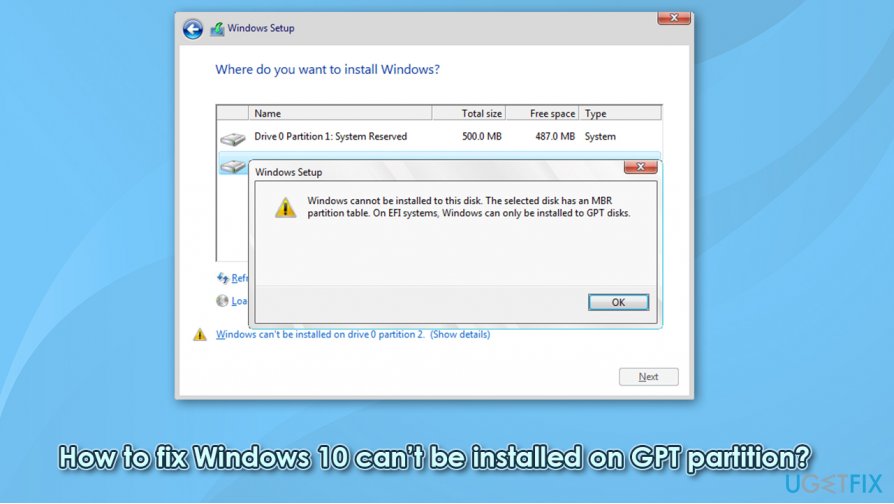
To fix the Windows GTP partition error, you either need to boot Windows in legacy BIOS-compatibility mode or reformat the existing partition to the UEFI setting. For more information, please check the solutions below.
In case you want to reinstall Windows due to system file corruption (for example, due to malware infection),[ref en-3] and can't install Windows due to GTP partition error, you can instead attempt to fix Windows system files first, so you could avoid the process entirely. For that, we recommend using an automatic repair software [d1] - it can replace corrupted Windows files with brand new ones from its internal databases, which stores more than 25,000 relevant and updated system files.
Step 1. Check your disk partition type
First of all, you should check which type of hard drive are you using. Here is how to do it:
- In Windows search, type in diskmgmt.msc and hit Enter
- When Disk Management window opens, right-click on your Disk 0 at the bottom-left
- Select Properties
- Go to Volumes tab - the disk type should be displayed under the Partition style
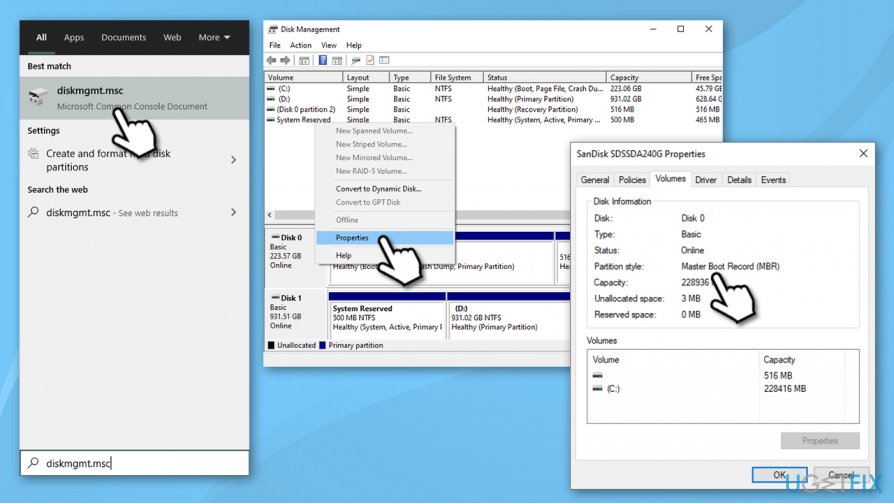
How to fix windows 10 cant be installed on gpt partition check partition style
Step 2. Backup your data
If you are not installing Windows on a fresh drive, you should backup your data before doing anything. In other words, you could lose your files otherwise. Please follow these steps:
- Right-click on Start and pick Settings
- Go to Update & Security
- Select Backup on the left
- From here you have a few options available: if you have a second drive, you can use it to backup your files there. Alternatively, you can employ the built-in OneDrive if the data you want to save is no larger than 5 GB (of you can pay Microsoft to increase the storage space)
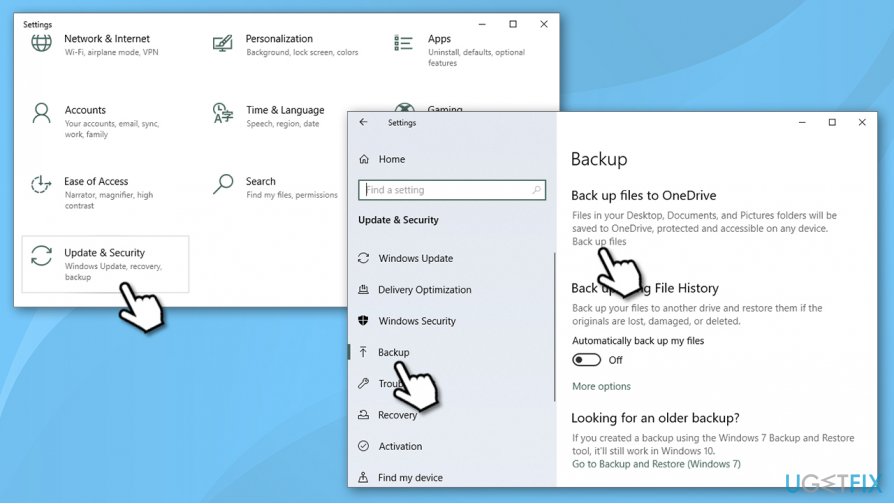
How to fix windows 10 cant be installed on gpt partition backup your files
Fix 1. Select the Legacy BIOS boot mode
One of the easier ways to fix "Windows 10 can’t be installed on GPT partition" errors is by enabling Legacy mode via the computer's BIOS. Here's how to do it:
- Reboot your PC and keep pressing F8, F12, Del, or another button (depending on your motherboard model) to access BIOS
- Once in BIOS mode, go to Boot tab by using → button on your keyboard
- Select Boot Mode and press Enter
- Pick Legacy setting by using up and down arrows
In case you have the opposite problem, you should enable UEFI mode and then try to install Windows once again.
Fix 2. Use a different type of installation media
Installing or reinstalling Windows nowadays became so much easier and more user-friendly than it was a long time ago. All you have to do is download Windows Media Creation Tool from the official Microsoft website and place it into DVD or a USB. For convenience purposes, we recommend using a USB that is at least 8GB large.
- Go to Microsoft website and download Windows 10 installation media
- Once downloaded, launch the installer by double-clicking it
- Agree to Terms and select Next
- Select Create installation media (USB flash drive, DVD or ISO file) for another PC and click Next
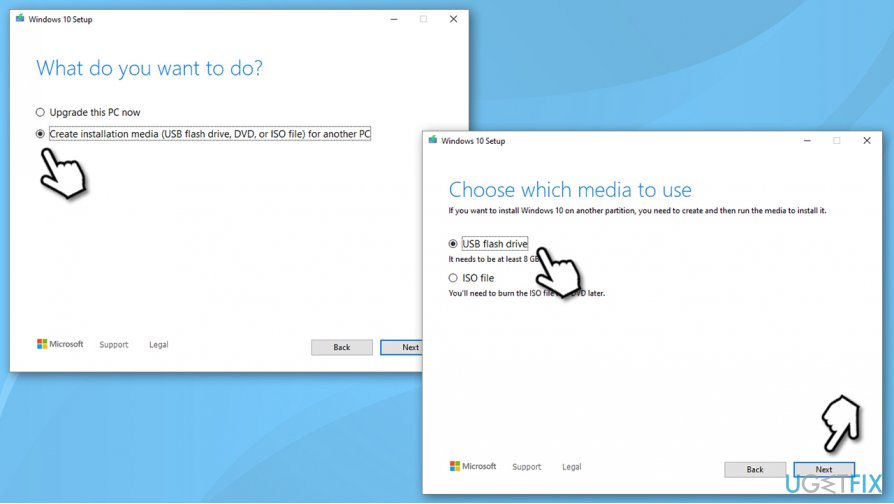
How to fix windows 10 cant be installed on gpt partition backup your files create new installation media with uefi mode - Pick USB flash drive (make sure you have USB connected to your PC)
- Now follow on-screen instructions, and once the option to pick partition style shows up, select UEFI
Bottom line
To resolve the 'Windows 10 can’t be installed on GPT partition' error, users can convert the disk to GPT format or ensure they are booting the installation media in UEFI mode. If these solutions do not work, consider checking the BIOS settings or using a different installation media.
Frequently asked questions
You need to ensure that your system's firmware is set to UEFI mode, as Windows 10 requires this for GPT partitions. Additionally, you may need to convert the partition to MBR if you prefer to install in BIOS mode.
Yes, you can use tools like DiskPart or third-party software to convert a GPT partition to MBR, but it's crucial to back up your data before proceeding to avoid any potential loss. Be aware that converting may require you to delete existing partitions.
Yes, Windows 11 also requires UEFI firmware and supports installation on GPT partitions, similar to Windows 10. Make sure your system meets the minimum requirements for Windows 11 before attempting installation.




Report an issue
What's wrong with this guide? We review every report and update or remove content.
Report received — thank you. We'll review and fix it.
You need a free account to submit a report.
Be the first to comment